Fedora is easily one of the best Linux distributions out there, but the default software manager it ships with isn’t doing it any favors.Whether you're on Fedora Workstation with GNOME Software or running Fedora KDE with Discover, both are painfully slow to load and offer an overall buggy experience.I can't tell you how many times I've searched for an app, gotten an empty screen, and assumed the app just wasn't available — when it was actually just stuck loading.
Granted, you don’t necessarily have to use the software manager.You can just use the terminal to install whatever app you need.However, I personally enjoy browsing through an app store to see what’s available, reading the descriptions, and looking at the screenshots, and none of that is possible from the terminal.
As such, I went looking for alternatives and found these three solid options.I'm talking about the software manager, not the package manager.The package manager (which is DNF on Fedora) is the tool that handles downloading and maintaining packages from the distribution's official repositories.
A software manager is the graphical app store you use to browse and install apps.It’s typically a front end that interfaces with the official repo, but it can also let you install and manage apps from other sources.Bazaar The definitive app store for Flatpaks Close Flatpaks are a first-class citizen on Fedora.
Most of the apps you install on the distro are probably Flatpaks, especially if you’re using one of the immutable variants.Now, Bazaar is a custom-built app store specifically designed for Flatpaks and essentially functions as a front end for Flathub.It’s well designed and has barely any bugs, if any at all.
It’s also built with a multithreaded architecture that enables parallel downloads, resulting in a ridiculously fast and responsive experience compared to the default software managers.By default, you land on the Explore page, which shows you all the new and popular apps.As you scroll down, it gives you a collection of apps broken down into popular categories like productivity, graphics, App of the Day, and so on.
Then you’ve got the Library page, which shows all your currently installed apps.It’s also where you can check if any apps have pending updates.And then you’ve got the Search page for — well, searching for apps.
Related I always install these 7 Flatpak apps on my Linux PCs Make your Linux system awesome with these seven Flatpaks.Posts 7 By Dibakar Ghosh Each app page shows you all the information you’d find by visiting its Flathub page.This includes the app description, screenshots, download size, license, security details, and more.
There’s also a counter that shows how many times the specific app was downloaded this month.You can even click the counter to see a world map showing which regions downloaded it the most.Other than that, one of its particularly appreciated features in the community is the “Support” button.
If you like an app, you can click the Support button, and it’ll take you to a donation page that the app developer has set up, allowing you to support them directly.Overall, anyone who uses Flatpak and is looking for a software manager should consider using Bazaar, regardless of whether you’re on Fedora or another distro.To install it, open the terminal and enter the following command: flatpak install flathub io.github.kolunmi.Bazaar Bazaar Bazaar is a modern graphical storefront for downloading Flatpaks.
It's a fast and lightweight alternative to the heavier software managers available on Linux.See at GitHub Expand Collapse Gear Lever A must-have for AppImage users Close While Flatpaks are awesome, not all apps are packaged as Flatpaks — some are packaged as AppImages.For example, I recently found a few really cool apps like OpenWhispr and Komi Store, but both are available as AppImages, not Flatpaks.
That said, if you’ve used AppImages before, you know they aren’t as smooth as Flatpaks or Snaps.AppImages are somewhat similar to portable apps on Windows.There’s no centralized repository behind them like Flathub or RPM Fusion.
A developer packages their app as an AppImage and makes it available on their website or GitHub.You visit the source, download it as a file to your system, make it executable, and run it.This system streamlines the distribution process, but it also means that, by default, AppImages aren’t integrated with your system.
They won’t show up in your app launcher, and they also won’t automatically update if and when an update rolls out.This makes AppImages a chore to maintain, but Gear Lever does all the heavy lifting for you.It’s essentially a dedicated app for managing your AppImages.
Once you download an AppImage, simply open Gear Lever and drag and drop that AppImage into the Gear Lever window.From there, it stores the AppImage in its own managed folder, creates a proper launcher entry, so the app shows up in your app grid like everything else, and lets you launch it right from inside Gear Lever.It can also automatically check for updates to your AppImages, since many of these apps ship with update metadata embedded in them.
For the ones that don’t, you can set a custom update source, and Gear Lever will automate the update process.Gear Lever is not a proper app store or software manager.It won’t help you find AppImages.
It’s purely focused on managing them.Related I turned a USB drive into a Linux app Swiss Army knife AppImages and a thumb drive are a matched made in heaven.Posts By Jordan Gloor Gear Lever Gear Lever is a software manager for AppImages.
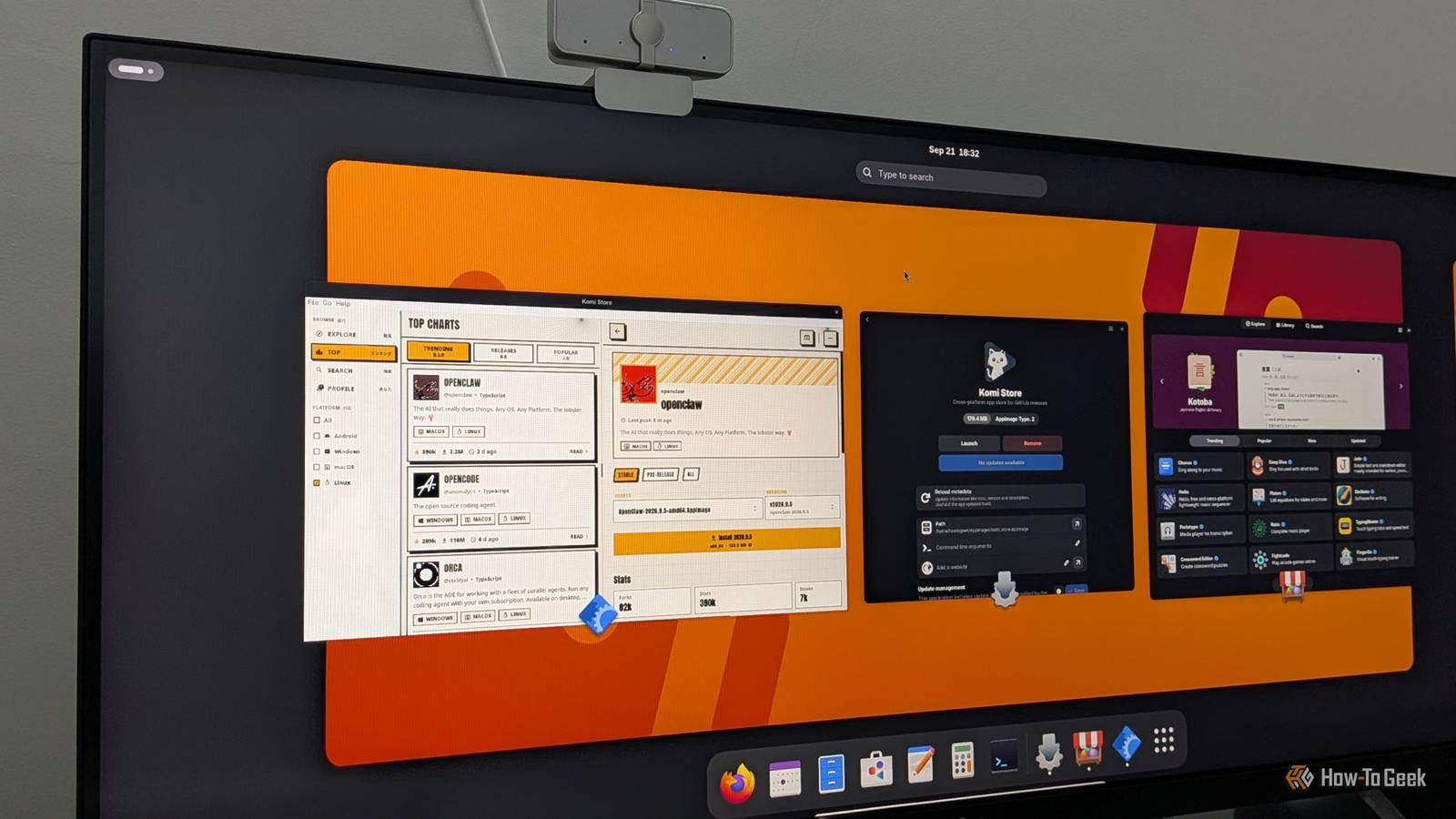
Simply drop an AppImage into Gear Lever, and it gives it a proper desktop entry, and a spot in your app menu.It’ll also automatically manage updates if the AppImage includes information about its release source in its metadata.See at GitHub Expand Collapse Komi Store Turn GitHub into an App Store Close Komi Store is a relatively new find for me, and it has quickly become my favorite software manager across platforms.
It’s basically a graphical front end for GitHub releases.The app originally launched as GitHub Store, but has since rebranded itself as Komi Store.It has also introduced support for GitHub alternatives such as Codeberg and Forgejo, so it’s no longer limited to GitHub.
It basically gives you a convenient way to browse GitHub repositories that publish releases with installable assets for your platform.And by “platform,” I’m not simply talking about different Linux distros.Komi Store also supports Windows, macOS, and Android — and you can filter by whichever one you're using.
You can search for apps by directly typing in a name, or you can describe what you're looking for — like “to-do list,” “Notion alternative,” whatever — and it lists a bunch of applications that fit.That said, the ranking isn't the best, since it basically matches your search against repository metadata.For example, AppFlowy’s GitHub repo explicitly describes it as a Notion alternative, so it shows up when you search for that.
But Logseq, which plenty of people would also call a Notion alternative, doesn't show up at all.Once you find an app you like, select it, and Komi Store opens a custom page for it showing screenshots, the contents of the README, the app icon, the star count, forks, the license, and how many release assets are available.Just pick the release compatible with you system and hit install — Komi Store will handle the rest.
It also supports automatic app updates, so that's one less thing to think about.Always do your due diligence when installing things from Komi Store.The threat level here is the same as installing applications from GitHub in general—there's nobody vetting any of this.
It's GitHub, after all—anybody can upload anything.Related Why developers are ditching GitHub for Codeberg and self-hosting alternatives It’s supposed to be a decentralized service, after all...Posts 10 By Bobby Jack Komi Store Komi Store is an app store frontend for GitHub, Codeberg, and Forgejo releases.
It treats developers' release pages as a catalog you can browse and install from.The app is cross-platform and works on Windows, macOS, Linux, and Android.See at GitHub Expand Collapse
Read More