I've somehow become the person everyone in my family and circle of friends calls when a PC starts acting up.A lot of the time, the problem is minor.Other times, Windows won't boot, a drive starts throwing errors, files disappear, or the computer becomes so unstable that it's hard to know where to start.
Since everyone I help, including me, uses Windows, I've gotten into the habit of keeping a few free troubleshooting tools on USB drives, so I'm not starting from scratch every time something goes wrong.You probably won't need these tools very often.They're the kind of utilities you want to have ready before you need them.
They can help you figure out what's wrong, recover from common problems, and in some cases get a Windows PC working again without immediately resorting to a full reset or reinstall.Hiren's BootCD PE gives you a full troubleshooting environment Keep it ready for the problems Windows can't fix from inside Windows Close Hiren's BootCD PE is the tool I reach for when a PC is in bad enough shape that I don't trust the copy of Windows installed on it.It boots into its own Windows-based environment and gives you access to a large collection of utilities for checking drives, recovering files, managing partitions, looking at hardware information, and fixing other problems without relying on the broken Windows installation.
That makes it especially useful when a PC won't boot normally, keeps crashing, or is behaving badly enough that troubleshooting from the desktop isn't realistic.Before you set it up, make sure your PC uses an x64-based processor.Go to Settings > System > About.
Under Windows info, you'll see your edition and version, and under Device info, System type will tell you whether you're running a 64-bit system.Once you know what you're working with, download the current Hiren's BootCD PE ISO and use a tool such as Rufus to create the bootable USB drive.You don't have to learn every utility Hiren's includes ahead of time, but you do want the drive built, tested, and ready so you're not scrambling to make one after Windows has already stopped cooperating.
Malwarebytes AdwCleaner can clean up the junk antivirus misses I use it when a PC is full of pop-ups, redirects, and unwanted software Malwarebytes AdwCleaner is a small, free utility built to remove adware, browser hijackers, potentially unwanted programs, and other junk that can make a Windows PC miserable to use.It started life as an independent tool before Malwarebytes acquired it in 2016, and it has stayed popular because it does one job well without requiring a full antivirus installation.You can run it directly from a USB drive, scan the PC, and let it clean up the programs, browser changes, and leftover files it finds.
This is the tool I reach for when a PC technically still works, but something is clearly wrong.Maybe the browser keeps opening strange pages, search results are being redirected, pop-ups won't stop, or unfamiliar programs have appeared out of nowhere.AdwCleaner isn't a replacement for a full antivirus scan, but it's especially good at cleaning up the annoying gray-area software that often comes bundled with downloads and slips past normal defenses.
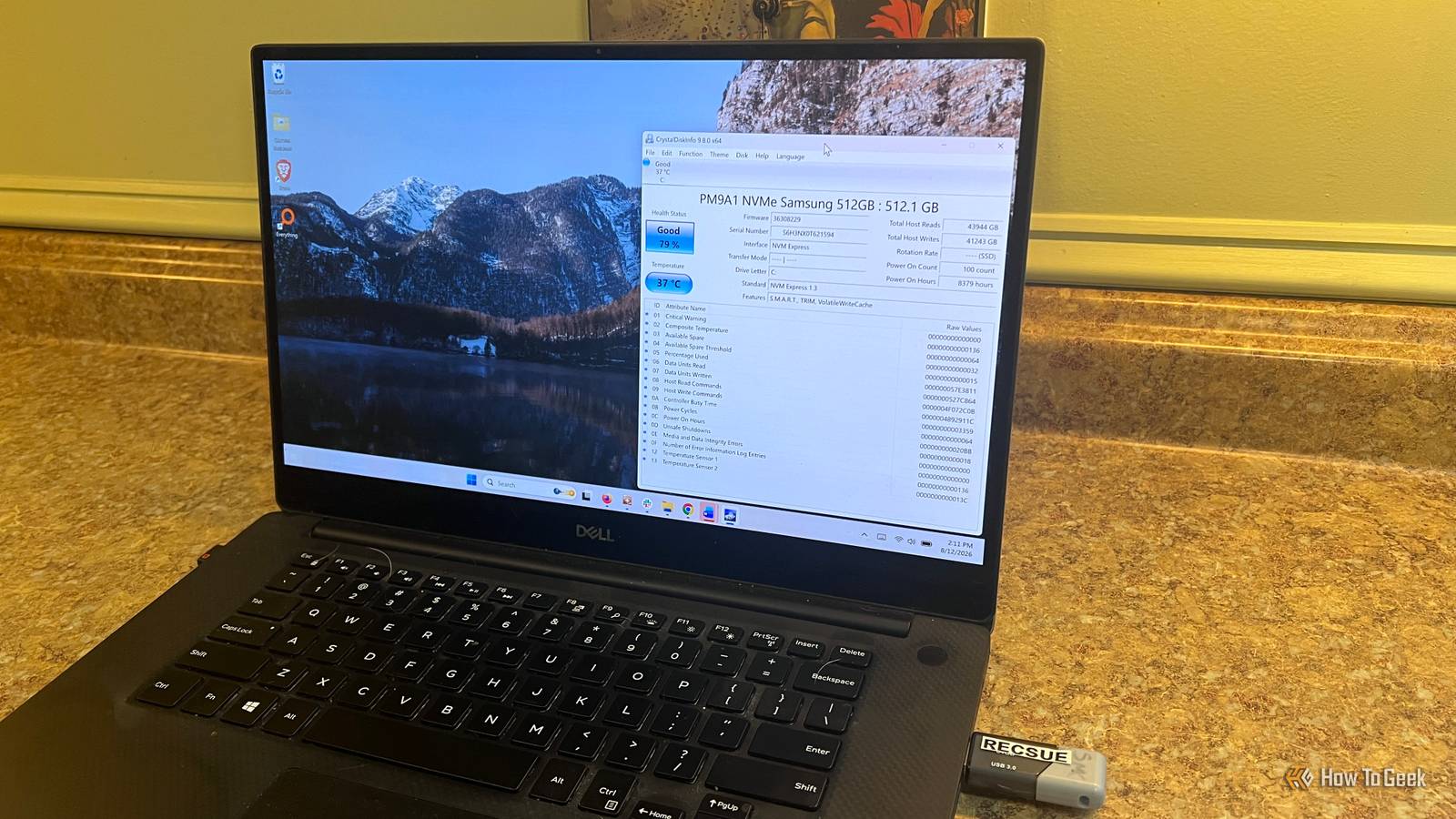
When I ran AdwCleaner on my own PC, it found one item, PUP.Optional.BrowserFox.It wasn't being flagged as a traditional virus, but as a potentially unwanted program, which is exactly the kind of questionable browser software AdwCleaner is designed to find.CrystalDiskInfo can tell you when a drive is starting to fail I use it when a PC starts acting slow, freezing, or throwing disk errors CrystalDiskInfo is a free utility that reads the S.M.A.R.T.
data built into hard drives and SSDs and turns it into something that's a lot easier to understand.Instead of digging through raw drive statistics, you get a quick look at things like temperature, power-on hours, and overall health, along with warnings when a drive starts reporting trouble.I learned how useful this can be after upgrading an older PC to Windows 11.
Once I had everything set up, the machine froze a couple of times and some apps felt unusually sluggish.My first assumption was that something had gone wrong with the Windows installation, but after digging around for a while, I decided to check the drive instead.CrystalDiskInfo showed several critical warnings and a yellow Caution health status.
That gave me enough warning to back up everything I needed before the drive failed.Hiren's BootCD PE, the Windows Recovery Drive, and MemTest86 each need to be written to a bootable USB drive.I keep my portable utilities on the Hiren's drive because I can access them after booting into its Windows environment.
I keep the Windows Recovery Drive and MemTest86 on separate thumb drives so they're ready to boot when I need them.A Windows recovery drive can get you back in Make one before Windows stops cooperating Close A bootable Windows installer or recovery drive is one of those things you probably won't think about until the day Windows refuses to start.That's exactly when it becomes useful.
If your PC is stuck in a boot loop, Startup Repair isn't working, or Windows is too damaged to load normally, you can boot from the USB drive instead and get access to recovery options that aren't dependent on the installed copy of Windows working properly.The important part is making the drive before you need it.You can create Windows installation media on another USB drive and keep it somewhere safe or make a recovery drive from a working Windows PC.
Either way, I like having one ready to go because it gives me a way into a broken machine when the usual recovery options aren't getting me anywhere.From there, I can try Startup Repair, System Restore, Command Prompt, or, if things are really bad, reinstall Windows.Related Stop reinstalling Windows 11 when an update breaks your PC: Do these 3 things first Most users jump straight to a clean install when Windows starts boot looping.
Here is why you should try these rollbacks and recovery tools first.Posts 8 By Rich Hein To create a recovery drive, plug in an empty USB drive, search Windows for Recovery Drive, and open the utility.Leave Back up system files to the recovery drive checked if you want the option to reinstall Windows from the drive, then follow the prompts and select your USB drive.
Windows will erase everything on it, so don't use a drive that has files you want to keep.Once it's finished, label it and put it somewhere you'll be able to find it when a PC won't boot.MemTest86 can tell you when bad RAM is behind the crashes I use it when a PC keeps crashing and there isn't an obvious reason MemTest86 is a free memory-testing utility that boots from a USB drive and checks your RAM for errors outside of Windows.
That matters because bad memory can cause all kinds of strange problems, from random crashes and blue screens to corrupted files and apps that suddenly stop working.Since it runs before Windows loads, it can test the memory without the operating system or other software getting in the way.I reach for it when a PC is unstable but nothing else really adds up.
If Windows has been reinstalled, the drive looks healthy, and the machine is still freezing or throwing seemingly random errors, RAM moves pretty high on my suspect list.MemTest86 can take a while to run, but if it starts reporting errors, you've got a much better idea where to look next instead of continuing to chase software problems that may not exist.A little preparation goes a long way I don't expect any of these tools to fix every PC problem, but they give me a much better starting point when something goes wrong.
Instead of guessing, I can check the hardware, clean up junk, or boot into a separate environment and see what I'm dealing with.That's usually enough to tell me whether the problem is something I can fix quickly or whether it's time to replace a part, reinstall Windows, or restore from backup.
Read More