Everyone occasionally has problems with unusual file formats.Maybe you're a Windows and Android user who encounters an HEIC file on the internet, downloads an image expecting a JPG only to get a WebP, or simply needs a PNG converted into a JPG.Whatever the specific case, usually converting an image requires using another program—often Microsoft Paint—or a converter on the web.
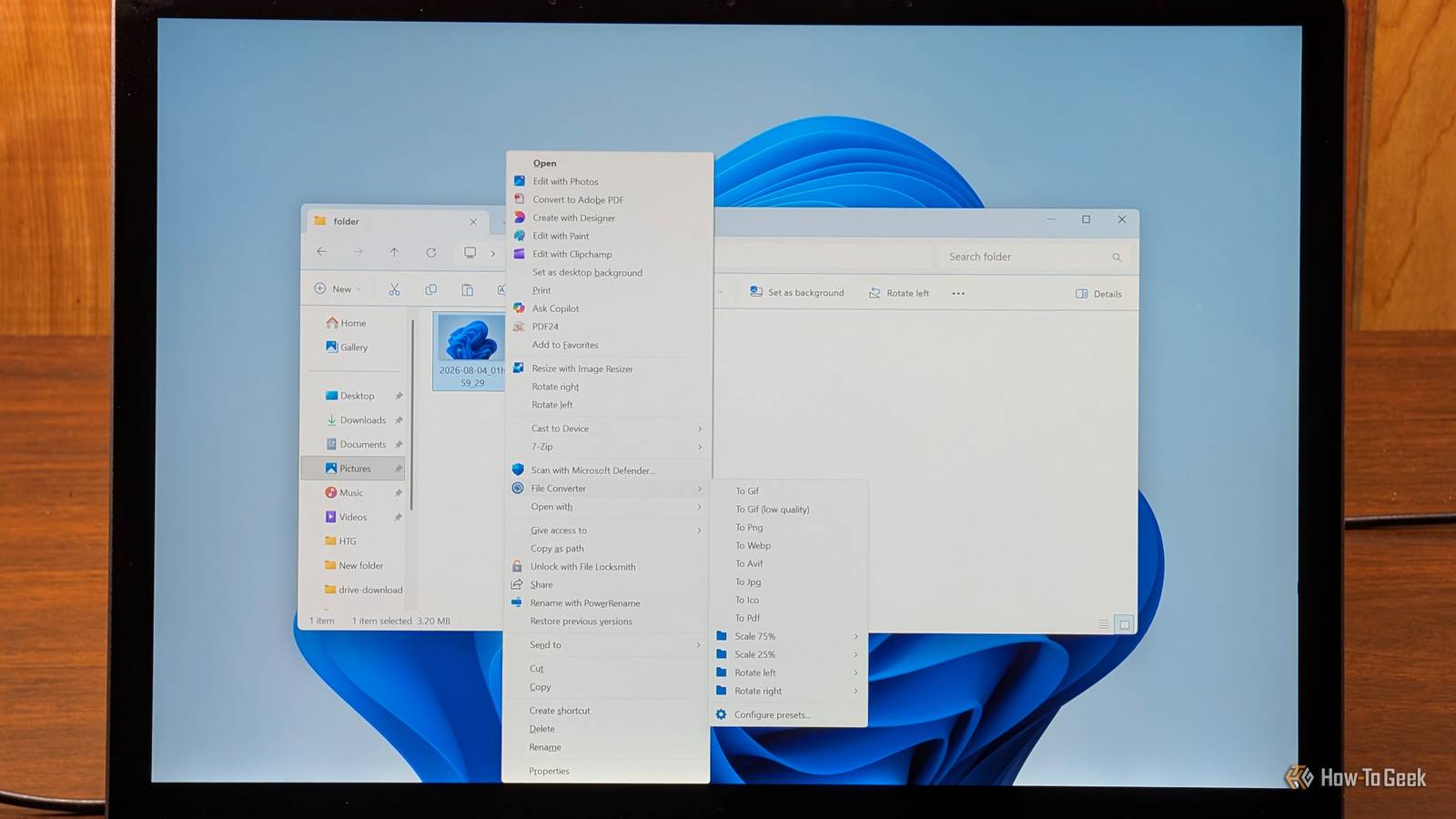
At best, it is annoying, especially if you have to do it multiple times throughout your work day.If you use an online converter, it could be worse; it could expose sensitive information to a third party.File Converter replaces that entire process with a right-click menu option that converts your files locally.
I've had it installed on my PC for so long now that it feels like Windows is missing something without it.File Converter mixes a few open-source projects FFmpeg, ImageMagick, and Ghostscript to the rescue File Converter isn't the kind of application that you can open and manipulate in its own window, like Firefox or Google Chrome.Rather, it is a Windows Explorer context menu extension that connects your right-click menu to a few different back ends that handle converting specific types of files.
FFmpeg — Handles the conversion of video files ImageMagick — Handles converting image files Ghostscript — Ghostscript handles PDF-related conversions.Because it relies on very common back ends, you can convert almost any audio, video, image, and document file you're likely to encounter.However, it does more than just change extensions.
You can use the menu to compress files, resize images, rotate them, or extract the audio track from a video file without ever opening a media editor.You also won't find ads, telemetry, account requirements, or paid tiers.Related Your Windows Recycle Bin is a privacy risk—here's how to actually delete your files An innocent Windows safety net could be putting your privacy in danger.
Posts By Sydney Butler It beats cloud-based converters on multiple fronts Nothing uploads to the internet The most immediate advantage is privacy.When you use a browser-based converter, you are trusting a third party with your data.If you are handling tax documents, medical scans, or confidential client footage, those files should never leave your machine.
By keeping the conversion process local, you eliminate that risk entirely.In 2025, the FBI warned that malicious web-based converters have been used to deliver malware to unsuspecting visitors.I've been avoiding them completely since then, and I'd recommend that you do the same.
It is always accessible and there are no file limits Beyond privacy, there is the matter of practicality.You no longer have to deal with upload wait times, download queues, or daily conversion limits.If you need to handle fifty files at once, you can just select them all and right-click once to convert the entire batch.
This works regardless of where the files are stored—whether they are on your local C drive, an external USB drive, or a network location.It also works entirely offline, which is critical when you're dealing with flaky connections or restricted networks.If your PC is up and running, File Converter is too.
That isn't to say there aren't good browser-based converters, but there isn't much reason to use them when there are local options that are just as fast and capable.Installing and setting up File Converter Configure your presets once, then forget the application exists Close To get started, download the current release from the project's page and run the installer.Once installed, I'd recommend that you open the settings window to customize how File Converter behaves.
I personally found the default list a bit busy, so I typically remove the options that I don't use, like the resize options.If you leave every option enabled, your right-click menu becomes even more cluttered.You can also specify filename patterns or output folder rules to keep your directories organized.
Before you run a massive batch on important archives, to ensure the quality and format are what you expect.File Converter makes the tedious trivial The only real downside to File Converter is the new Windows right-click context menu.Windows won't show extensions in the "Show more options" menu if they're using the legacy API, which means you can't right-click to access them.
You can bypass it by holding Shift while you right-click, or you can use a registry to tweak the classic context menu permanently.If you find yourself converting files more than a few times per month—especially if they're sensitive or personal—File Converter is more than worth the setup time.It doesn't offer anything completely unique, but it does make those regular tasks more convenient.
I installed it more than a year ago, and I've been glad to have it every single day.
Read More