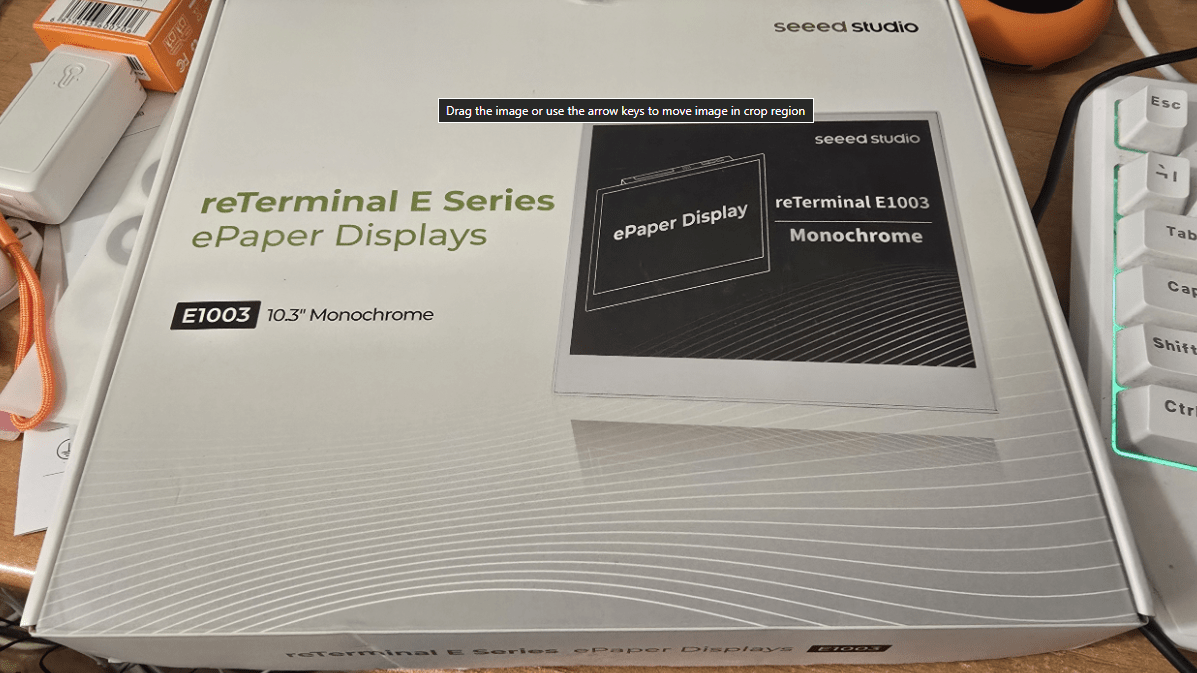
The display – which runs on it’s internal battery, consuming very little power and USB-chargeable, arrived on my desk just a couple of days ago and at first, when I looked at the Seeed site, I couldn’t see any reference to setting it up.I emailed Seeed, and within hours their website seemed to be updated.I found sufficient information to run a basic Home Assistant demo in ESPHome because this device uses an esp32 driving a very pretty 1872 by 1404 grayscale paper display.
But I’m jumping ahead, I firstly opened the package… and here it is (that strange pattern is my cave-home roof, not the display).I plugged the display (which comes with it’s own USB-C to USB-A extension lead) into USB on my PC and ran one of their simple demos requiring no installation on the PC – all from a web page (a bit like setting up TASMOTA or WLED – first time USB connection, from there-on over the wireless lan).This is what you see on first applying power (mine arrived partly charged and there’s a tiny on-off switch on the side): As a seasoned Tasmoa installer I understood the above immediately… might’ve been better if they’d said “Open ‘192.168.4.1’ on your phone or other Wi-Fi-enabled device…” but I’m being picky.
Then I found that my ESPHome installation (fully up to date at July 22, 2026) magically had a basic demo for the E1003 – see image further down… but note at the top – the line that says “reTerminal E1003 demo?” – I ran the first install without having a clue what I was doing and it just worked like magic – but then, my first epiphamy – the source code is in ESPHOME and is kind of inderstandable, enough that I could add that “demo?” text to the top line – that;s the ONLY change I made initially to the demo code.This time I deliberately disconnected the USB lead which had remained connected overnight, safe in the knowledge that the battery would be fully charged and as expected, I could do an update over the air.The second epiphany came when I took a look back to September last year and realized that I already had some experience of this in the form of their earlier, smaller terminal, the Seeed 7.5″ ePaper panel which had a 7-inch display.
While nice, it was pretty low resolution and, in the end, not a great deal of use to me.This one hoevre, with a 1872 by 1404 display, I can see lots of uses for this, showing all sorts of sensor states, weather information and more from Home Assistant from my entities in Home Assistant.Armed with the success of my trivial change, I went back over the original blog and as you’ll see, adding some HA entities was trivial – once I’m done here I’ll set about getting to grips with that and the new display logic in the E1003 – pretty clear in the ESPHome Demo – and figure out how to make some buttons.
The only thing I’m not clear about is the touch-sensitivity – but having first tried one of Seeed’s demos which showed basic touch sensitivity logic – how hard can it be? So if you’re new to all of this – you might be thinking – a display – so what? Well, firstly it is of course programmable and secondly runs for months (depending on how may screen changes you make) on the internal battery.It also has a couple of discrete buttons on the top fo switching screen pages – but bewaer, updates ar not instant so dynamic, high speed movement is out.As for regular updates – if that’s your intende applicationb, well you could always leave it on USB charge.
I just have it connected to one of the USB ports on my PC so no major current requirements.As for adding sensors – I’m pretty sure this code from my old 7.5″ display is useable… just as an example..sensor: - platform: homeassistant id: temp1 entity_id: sensor.snzb_02ld_temperature So I’m looking at the code I used in the old 7.5″ display….
above… and the method of displaying is the same for the new display – going from their demo.If you look at my original blog… there’s a line : it.printf(it.get_width() - 10, 10, id(font1), COLOR_ON, TextAlign::RIGHT, "Tank temperature %.1f°C", id(temp1).state); that prints out my old sensor….looking at the ESPHome demo code, my code above SHOULD pretty much drop into their demo.
Can it be THAT easy? My office temperature sensor uses a Sonoff SNZB 02WD sensor – so sensor.snzb_02wd_temperature should just drop right in… Ok, so the actual temperature doesn’t display – my incompetence.I’ll get that fixed as soon as I finish writing this article but note, down at the bottom right, “Office temperature nan”, which means not available, followed by °C.At least I’ve made a start in customizing this display to make a useful Home Assistant display.
The next step is to look over their examples to see how the touch works and add that and touch different parts of the screen to get it to do things.
Read More