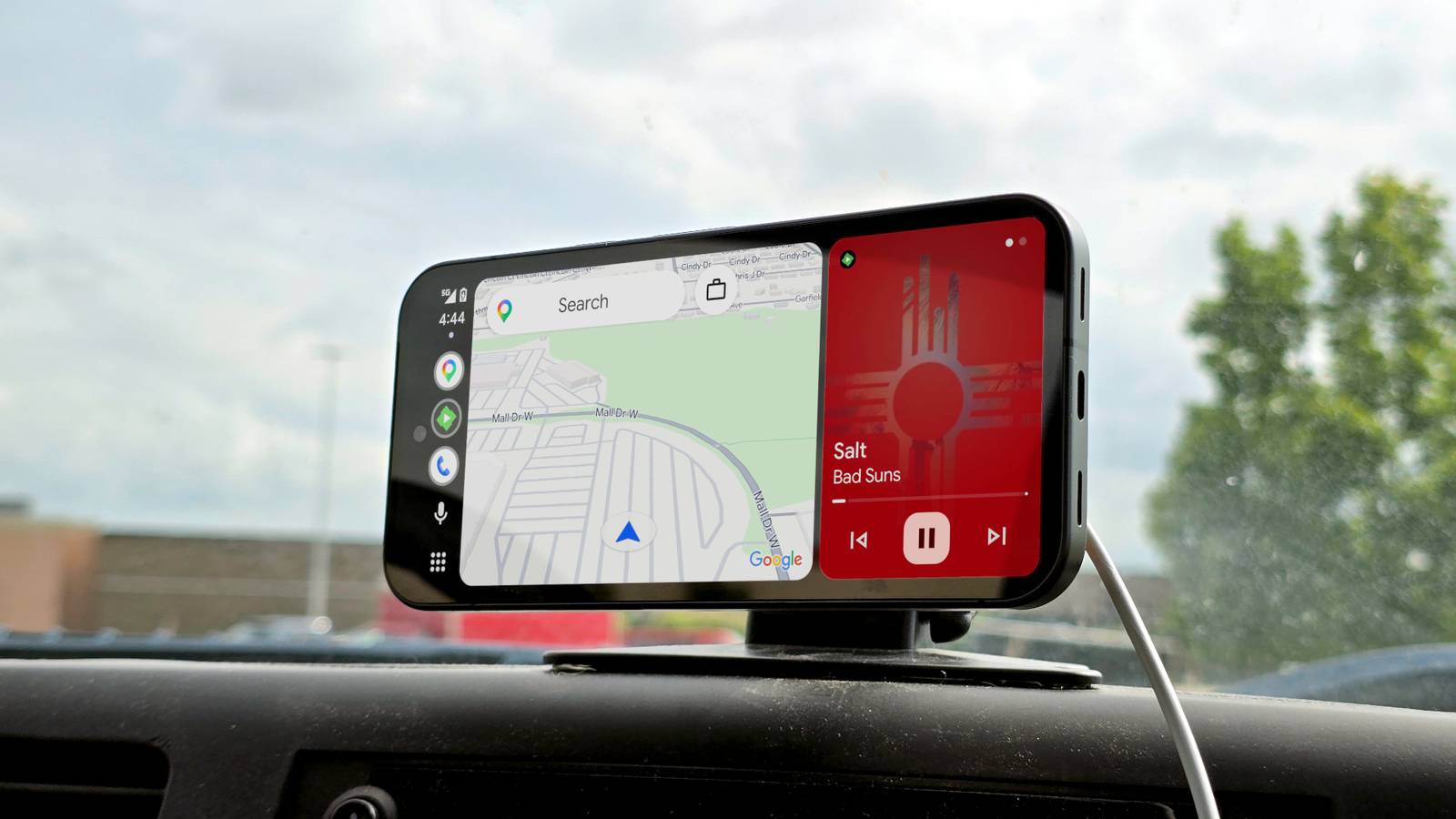
Most people don't think about their phone-to-car connection until it stops working in the middle of a trip.Suddenly, you're poking at a touchscreen, doing exactly what you were trying to avoid.Getting Android Auto to play your music the moment you start driving sounds simple, and parts of it are.
However, it takes some deliberate setup and a few spots where things can quietly break.You need a solid connection before anything works Changing a few settings stops the system from cutting out Before any automation can work reliably, you need a solid connection between your phone and your car's infotainment system.Android Auto depends on that link being stable, so getting it right is the first step.
If you're using a cable, start with a good USB-A or USB-C cable.The cheap ones may be convenient, but plenty of them don't work the way you need them to.Your phone's security settings or battery management can sometimes block the data connection and leave it in charge-only mode.
If that happens, you may need to enable Developer Options and manually set the Default USB Configuration to File Transfer or Android Auto.Wireless is a bit more involved.You'll need Android 11 or later and a phone that connects to your car's local Wi-Fi network.
To get started, turn on Bluetooth, start your car, and select the wireless or "Add new phone" option on your head unit.When the permission prompts come up on your phone, accept all of them, because skipping any will limit what Android Auto can do.Once you have a working connection, there are a few settings worth tweaking, so your automations don't get cut off halfway through.
Go into your phone's app settings, find Android Auto, and switch battery optimization from Optimized to Unrestricted.This keeps the app running in the background without the operating system stepping in and suspending it.You'll also want to turn on the Start music automatically option, which you can find under Settings, then Connected Devices, and then Android Auto.
From there, you want to look for the Startup menu.That tells the system to resume playback as soon as you start driving, without you having to tap anything.If you want to use a specific playlist, you'll need MacroDroid to set up a routine, so the playlist can start when your car turns on.
Automated routines let you skip the manual menus You can tell your streaming apps exactly what to do Close Once your phone is connected to your car, you can set things up so that your music starts playing on its own.Open MacroDroid and tap Add Macro.Hit the plus sign on the red Triggers bar, go to Connectivity, then Bluetooth Configure, pick Device Connected, and select your car from the list.
Then tap the plus sign on the blue Actions bar.Then go to Device actions and then Send Intent.What you put in those fields depends on which app you use.
For Spotify, set the target to Activity, the action to android.intent.action.VIEW, and the package to com.spotify.music.For the data field, you'll use something like spotify:playlist: with a playlist ID at the end.You can find that by opening Spotify, sharing your playlist, and copying the link.
YouTube Music works the same way, but the package points to com.google.android.apps.youtube.music and the data field just uses https://youtube.com with the ending linking to the playlist ID.One other thing worth doing if you're on YouTube Music is to go into the app and turn off the Autoplay toggle in the Up Next queue.Otherwise, it'll start throwing random songs on once your playlist runs out.
After you fill out the intent fields, tap OK.Tap the blue Actions bar again, go to Media, then Media Control, and select Play (Simulate Media Button), then choose your music app.Without this step, the playlist will load but won't actually start playing.
After that, just name your macro and save it with the button in the bottom right corner.Keep your eyes on the road Buggy software updates and security settings will break things Reaching over to tap a screen or dig around for your phone while you're driving is genuinely dangerous, not just for you but for everyone else on the road.Not everyone wants to spend time setting it up.
If your music app opens on its own the moment you start the car, you never have to touch anything.Android Auto is already built with that idea in mind, and chaining your playlist to an automatic trigger means your hands stay on the wheel and your eyes stay on the road.The built-in options are straightforward enough, but if you want something more precise, things get complicated fast.
You'll need to learn how to write Android intents, work with app-specific URIs, and work around security restrictions that weren't designed with this kind of automation in mind.And even once everything is set up correctly, it can still break.The connection itself can cause problems, too, because Samsung devices with Auto Blocker turned on will sometimes lock a USB connection to charging only.
I get this notification a lot despite it working just fine.This keeps Android Auto from starting, let alone running any automation.Some Galaxy S25 Ultra units on One UI 8.5 have a firmware bug that hard-codes a setting that blocks the car from communicating with the phone at all, and fixing it means digging into Developer Options or repeatedly unplugging and replugging the cable.
Wireless connections have their own weak points too, but this doesn't mean the automation isn't worth the effort.Not having to touch your screen to start your music is a genuinely good habit.You just have to go in knowing that keeping it running smoothly is an ongoing project with some hiccups along the way.
It's better to set it and forget it than to mess with it every time Keeping your hands off the screen while you're driving is an easy safety habit to build.If you're willing to troubleshoot it once and revisit it occasionally, the automation holds up well enough to be worth the initial work.It's worth the bit of effort Samsung Galaxy S26 Ultra Brand Samsung SoC Snapdragon 8 Elite Gen 5 Get the new Galaxy S26 Ultra with AI smarts and an all-new privacy display.
It's big, powerful, packed with AI, and you'll love the S-Pen stylus. Display 6.9-inch Dynamic Super AMOLED 2X RAM 12 or 16 GB Storage 256GB, 512GB, or 1TB Battery 5,000 mAh Operating System Android Front camera 12MP f/2.2 Rear camera 200MP f/1.4 main, 50MP f/1.9 ultrawide, 10MP f/2.4 telephoto, 50MP f/2.9 telephoto Dimensions 163.6 x 78.1 x 7.9 mm (6.44 x 3.07 x 0.31 in) Colors Violet, Sky Blue, Black, White, Silver Shadow, Pink Gold Weight 214g Charge speed 60W wired Super Fast Charging, 25W wireless Stylus S-Pen $1300 at Samsung $1050 at Amazon Expand Collapse
Read More