How much are you paying your ISP every month? If you ask me, it's always too much, but I've had some bad luck with mine (one tried to get me to pay them $1,000 to let me leave).Even if you don't think your bills be lower, or that your internet get any slower, you might be able to pull off a coup if you just tweak your router settings.That's what I did, and I'm keeping some extra money in my pocket every month now.
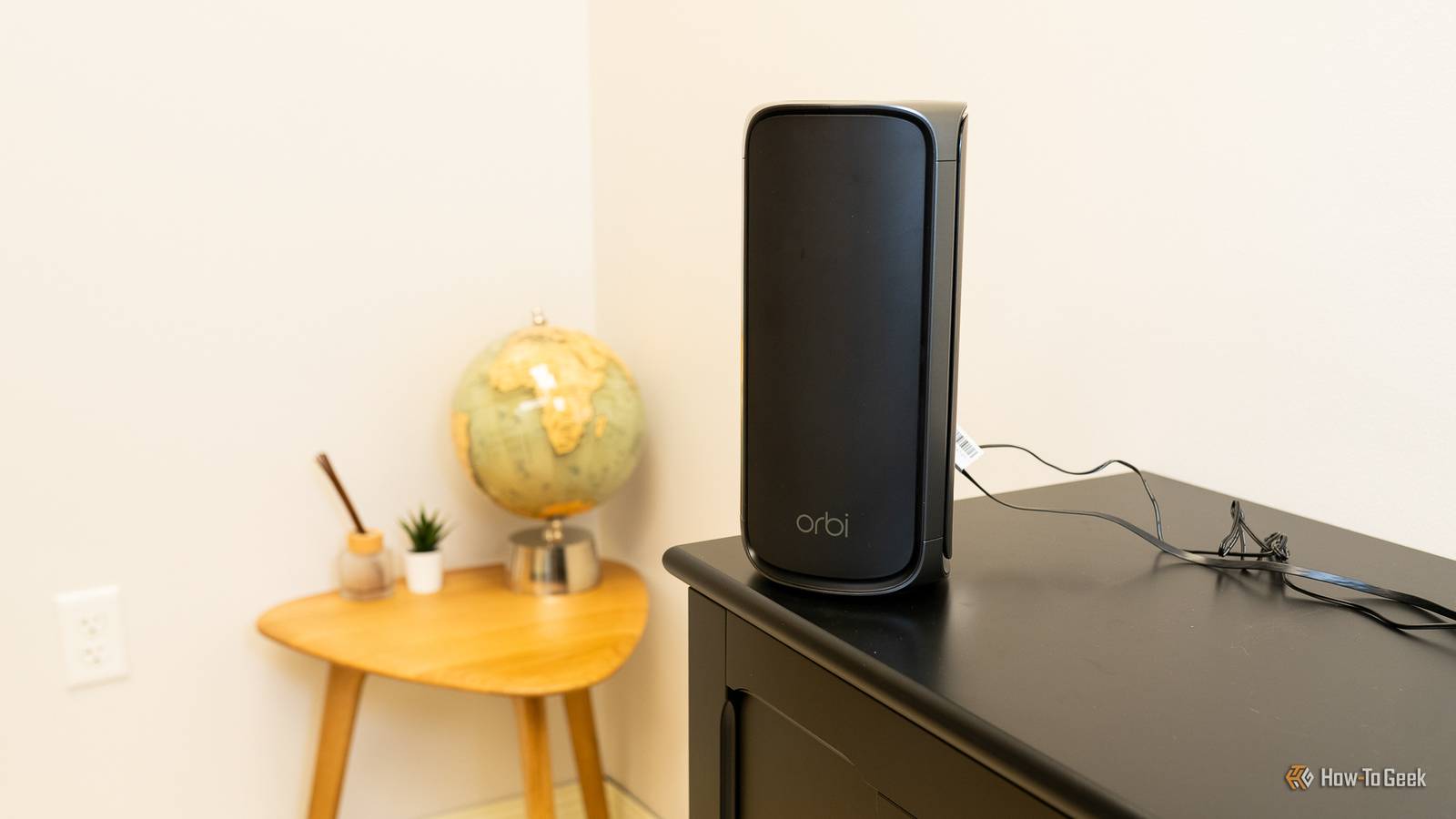
Here's what helped me.Get the router out of the cupboard I know it's not that pretty, but it needs some air Close Having a router in your living room is a constant battle of wanting the place to look nice vs.wanting fast internet.
In my case, I've always prioritized the latter, what with my job and all, so I didn't mind my router being an eyesore somewhere in plain sight.But many people choose to stuff theirs inside various cabinets or under the desk, which is a quick recipe for a Wi-Fi dead zone.Radio waves lose a lot to metal shelving, mirrors, fish tanks, and foil-backed insulation, so you don't want any stuff near your router.
(Unless you're adventurous like my colleague Ismar, who actually wrapped his router in aluminum foil to give it a boost.) So, yeah, router placement.Central, high, and out in the open! Your internet might be faster or less spotty if you follow this advice.Related I upgraded to fiber and my Wi-Fi still lagged: How to find the hidden bottlenecks in your home network Your fiber internet is fast, but your home network probably isn't Posts By Monica J.
White Stop running two Wi-Fi networks Your ISP and your router have been at war for ages If you bought your own router (which I always recommend doing) and plugged it into the combined router-modem you got from your ISP, there's a good chance the ISP router is still broadcasting its own Wi-Fi.That's right, you're essentially running two networks on one connection, and they're both eager to get some of that limited airtime in each room.There's also double NAT, which breaks port forwarding, UPnP, and some VPN game traffic.
All of this can feel like slow internet, but it doesn't have to be.It could just be the way it's set up.To fix this, log into the ISP gateway's admin page and either switch it to bridge or modem mode, or at minimum disable both of its wireless radios.
Turn on SQM instead of QoS presets This is the change that made my old plan feel fast again Here's a big one, although it may sound like little more than some weird letters.Most routers hand you a Quality of Service (QoS) page full of presets.They'll promise you the sun and the moon, or at the very least, prioritizing gaming or streaming.
In the end, many of them don't do a whole lot.They just sort traffic without controlling how much of it piles up waiting to leave.Meanwhile, Smart Queue Management (SQM) targets that pile of traffic, solving bufferbloat, which is latency that only pops up when your connection is busy.
This is why a speed test can look fine and your ping can look steady, but a video call or a ranked match ends up in some miserable lag.To address this whole thing, check whether you've got it by running the Waveform bufferbloat test, ideally with your PC plugged into the router.If your connection is graded below a B, there's room to improve.
If your router has SQM, and plenty do under the QoS menu, switch it on.Next, enter about 90% of the speeds you just measured with that bufferbloat test.Change your DNS resolver Nothing in a speed test measures the slowest part of opening a page Sorting out DNS-related stuff isn't always easy (or rather, it's easy to get it wrong), but it can be worth it.
Whenever you visit a website, any website, the first thing that happens is lookup, a process that turns that address you just typed into your browser into a number your device can actually view.That's DNS, and your ISP handles it by default, so there's nothing you to do—but you can.This is worth looking into if your internet seems okay otherwise, but websites load slowly.
That implies your ISP's servers may be slow, too.To sort this out, look for DNS settings under WAN or DHCP in your router, and then put in Cloudflare's 1.1.1.1 or Google's 8.8.8.8.Quiz8 Questions · Test Your KnowledgeRunning a private DNS server on your NASTrivia challengeThink you know DNS, NAS, and home networking? Put your skills to the test with these 8 questions.NetworkingDNSNASPrivacyHome LabBegin01 / 8DNS BasicsWhat does DNS stand for?AData Network ServiceBDomain Name SystemCDirect Name ServerDDynamic Network SecurityCorrect! DNS stands for Domain Name System.
It acts like the internet's phone book, translating human-readable domain names like 'google.com' into IP addresses that computers use to communicate.Not quite — DNS stands for Domain Name System.Without it, you'd have to memorize numeric IP addresses for every website you wanted to visit instead of convenient domain names.Continue02 / 8NetworkingWhat is a primary advantage of running your own private DNS server at home?AIt increases your internet download speeds significantlyBIt allows you to block ads and trackers network-wideCIt replaces the need for a router on your networkDIt gives you a static public IP address automaticallyCorrect! A private DNS server like Pi-hole or AdGuard Home lets you block ads, trackers, and malicious domains for every device on your network — no per-device app required.It's one of the most powerful home networking upgrades you can make.Not quite.
The big win with a private DNS server is network-wide ad and tracker blocking.Every device — including smart TVs and phones — benefits automatically without needing individual apps installed.Continue03 / 8NASWhat does NAS stand for in home networking?ANetwork Attached StorageBNetwork Access ServerCNode Administration SystemDNetworked Application SuiteCorrect! NAS stands for Network Attached Storage.It's a dedicated file storage device connected to your home network, allowing multiple devices to access and share files centrally — and since it runs 24/7, it's perfect for hosting services like DNS.Not quite.
NAS stands for Network Attached Storage.These always-on devices are ideal for running background services like a DNS server because they're already consuming power around the clock.Continue04 / 8DNS ToolsWhich of the following is a popular open-source DNS sinkhole application commonly used on home networks?ANginxBPi-holeCPlexDWireGuardCorrect! Pi-hole is one of the most well-known network-wide ad blockers that functions as a private DNS server.Originally designed for Raspberry Pi devices, it runs on virtually any Linux-based system — including most NAS operating systems.Not quite.
Pi-hole is the popular open-source DNS sinkhole used on home networks.Nginx is a web server, Plex is a media server, and WireGuard is a VPN protocol — all great tools, but none of them handle DNS filtering.Continue05 / 8DNS BasicsWhat is the IP address of Google's well-known public DNS server?A192.168.1.1B8.8.8.8C1.0.0.1D10.0.0.1Correct! Google's primary public DNS server is 8.8.8.8, with 8.8.4.4 as its secondary.These are among the most widely used public DNS servers in the world, though using your own private server keeps your DNS queries off Google's infrastructure.Not quite.
Google's famous public DNS address is 8.8.8.8.The address 1.0.0.1 belongs to Cloudflare, while 192.168.1.1 and 10.0.0.1 are common private router gateway addresses — not public DNS servers.Continue06 / 8PrivacyWhy might privacy-conscious users prefer a self-hosted DNS server over a public one like Google DNS?APublic DNS servers are slower than any self-hosted alternativeBSelf-hosted DNS prevents your query logs from being stored on third-party serversCPublic DNS servers require a paid subscription to use reliablyDSelf-hosted DNS automatically encrypts all your internet trafficCorrect! When you use a public DNS provider, every domain you look up can be logged and potentially used for analytics or advertising.A self-hosted server keeps those query logs on your own hardware, under your own control.Not quite.
The core privacy benefit of self-hosting DNS is that your browsing queries stay on your own hardware rather than being logged by a third party like Google or your ISP.Note that DNS encryption alone doesn't encrypt all your internet traffic.Continue07 / 8Home LabWhat port does standard DNS traffic use by default?APort 80BPort 443CPort 53DPort 8080Correct! DNS uses port 53 by default, for both UDP and TCP traffic.UDP is used for most standard queries due to its speed, while TCP is used for larger responses or zone transfers.
Knowing this port is essential when configuring firewalls on your NAS.Not quite.DNS operates on port 53.Port 80 is for HTTP web traffic, port 443 is for HTTPS, and port 8080 is a common alternative HTTP port.
When setting up a DNS server on your NAS, you'll need to ensure port 53 is open and not blocked by another service.Continue08 / 8NAS SoftwareWhich NAS operating system from Synology allows users to install containerized apps like AdGuard Home via Docker?ATrueNASBUnraidCDSMDOpenMediaVaultCorrect! DSM, which stands for DiskStation Manager, is Synology's proprietary NAS operating system.It supports Docker containers through its Container Manager app, making it straightforward to deploy DNS server software like AdGuard Home or Pi-hole on a Synology device.Not quite.DSM (DiskStation Manager) is the operating system made by Synology for its NAS devices.
TrueNAS, Unraid, and OpenMediaVault are all legitimate NAS platforms, but they come from different vendors — TrueNAS from iXsystems, Unraid from Lime Technology, and OpenMediaVault as a community project.See My ScoreChallenge CompleteYour Score/ 8Thanks for playing!Try Again Stop chasing 160MHz A wider channel is only faster while it stays clean Higher number = better, or so we tend to think (I suppose ping, or latency, is one networking-related exception).Wider Wi-Fi channels do carry more data, so 160MHz may seem like an obvious choice.Unfortunately, that channel on the 5GHz band has to use frequencies shared with radar, and routers have to get out of the way when they detect one, so your connection may be unsatisfactory through no fault of your own.
Honestly, you can't even blame your router here (but feel free to, if you like).This one isn't a slowdown, really.Your internet will just straight up drop out when necessary, and it can get locked out of those frequencies for the next half hour.
So, if your Wi-Fi keeps disconnecting and you're sure it's not your ISP being absolutely terrible, drop the 5GHz band to 80MHz in your router settings and see if that helps.The 2.4GHz band should stay at 20MHz.These fixes may save you some serious money down the line Even if you don't end up downgrading your plan, these fixes can keep you from buying a new router.
I know that network troubleshooting is seriously tedious, so you might feel tempted to throw it all away and either chase your ISP or buy a new device (or both), but I recommend setting aside an afternoon for going through your router settings.Trial and error is the way to go—if you know it's safe to change a setting, do it, test it, and see what happens.
Read More