I don’t like to see a bunch of notifications gather at the top of my phone, but I’m afraid to swipe them away for fear I’ll forget to do something important.Fortunately, there’s a tucked-away corner of Android where no notification goes forgotten.Your notifications have a history You can read it in your phone's settings There is an area deep in your phone’s settings known as notification history.
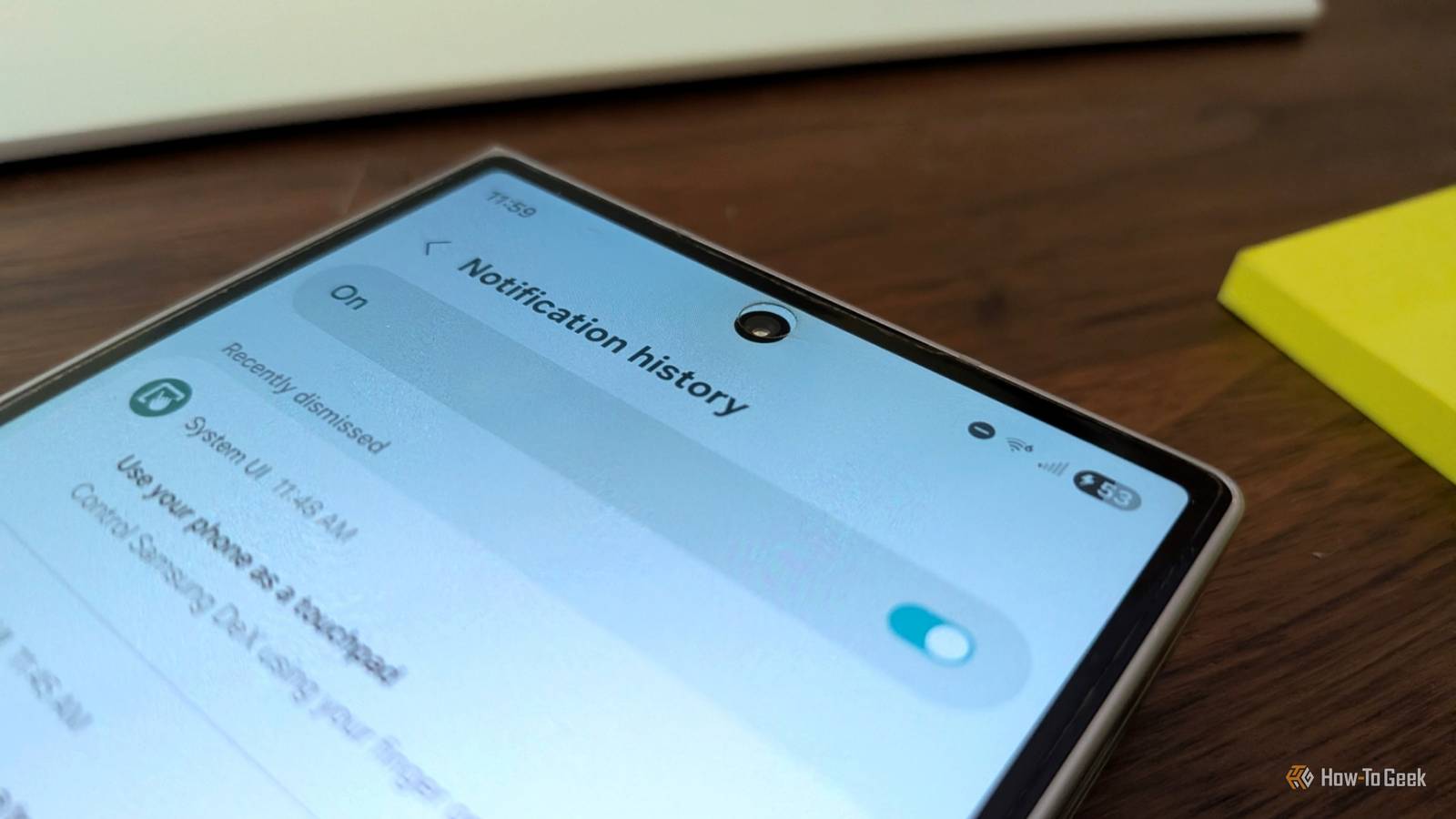
You have to know to look for it, since it’s not something you can access directly from the notification shade.Tapping the settings button there instead merely pulls up a list of apps whose notification permissions you can adjust.Notification history is an area of your phone’s system settings that presents a list of every notification your phone has received over the past 24 hours.
For better and worse, this is not a list that goes back to the day you first activated your new phone.That would be a treasure trove of intimate information about you for someone to target.24 hours, however, is long enough to be genuinely useful, assuming you remember where to look.
My current phone, a Samsung Galaxy Z Fold 6, divides these notifications into several sections.First are those that I’ve snoozed.Since I haven’t consciously snoozed any notifications recently, these are actually notifications that have been snoozed by Niagara Launcher’s “Notification Summary” feature, which bundles notifications together for me to receive in an easily readable overview a couple times per day.
Side note: Niagara Launcher feels right at home on Samsung Galaxy devices.Samsung Galaxy Z Fold 7 Brand Samsung RAM 12GB Samsung’s thinnest and lightest Fold yet feels like a regular phone when closed and a powerful multitasking machine when open.With a brighter 8-inch display and on-device Galaxy AI, it’s ready for work, play, and everything in between.
$2000 at Samsung $2000 at Amazon Expand Collapse Then there are the notifications that I’ve recently swiped away.Here you can see that text from your mom that you quickly swiped because you were showing your friend a YouTube video, or that message from your spouse that your kid didn’t need to see while you were letting them watch a Bluey clip.At the bottom, there's the full list of all notifications that I have received in the last 24 hours.
I do not see an option to change this length of time.The only choice presented to me is whether to disable notification history entirely.Tapping a notification that was snoozed or swiped opens the relevant app.
Tapping an email opens the email.A Slack notification opens Slack.Tapping a notification in the complete list of all notifications received in the last 24 hours instead opens the notification options for the app in question.
How to find notification history Since this is Android, there isn't one set of instructions that works for everyone.Fortunately, the location is roughly the same.Finding notification history on a Samsung Galaxy device Samsung and Android aren’t synonymous, but most of the people in the US who haven’t bought an iPhone are carrying a Galaxy device.
To access notification history on my Galaxy Z Fold 6, I open the Settings app and navigate to Notifications > Advanced settings > Notification history.That said, the faster option is merely to type “Notification history” into the Settings search or even to just tell Bixby (or Gemini) to “open Notification history” and watch as it navigates you to the right place.Finding notification history on a Google Pixel Close I recently reviewed the Google Pixel 10a.
On that device, notification history is a little less tucked away.While you still need to dive into system settings, you don’t need to dig around as much.Once you open the Settings app, it’s simply Notifications > Notification history.
You also still have the option to tap the search bar and look for “Notification history” or tell Gemini to do it for you.Subscribe to the newsletter for more hidden phone tips Want more smart phone insights? Subscribe to the newsletter for practical tips, privacy pointers, and clear how-tos on hidden Android features like notification history — straightforward guidance to help you uncover useful settings.Get Updates By subscribing, you agree to receive newsletter and marketing emails, and accept our Terms of Use and Privacy Policy.
You can unsubscribe anytime.To my surprise, notification history was disabled by default on my Pixel, in contrast to my Galaxy device.Google Pixel 10a 7 SoC Google Tensor G4 Display 6.3-inch Actua display The Google Pixel 10a is a barely updated version of the Google Pixel 9a, with a slightly brighter screen and an upgrade from Gorilla Glass 3 to Gorilla Glass 7i.
Google has shaved the remaining few millimeters from the camera bump, making it completely flat.Unlike prior versions of the Pixel a series, this model year does not share the same Tensor processor as the mainline Pixel 10.$499 at Google Store $500 at Amazon Expand Collapse How to delete notification history Be careful when you turn the feature off If you're uncomfortable with having your notifications saved, you can disable them at any time by tapping the toggle at the top of the notification history page.
When you do, this action will also delete your existing history.Even if you turn the feature back on in the future, your current record of notifications will not reappear.It's gone.
Notification history is an immensely useful section of your phone that’s woefully underutilized.Far from advertising the feature, your phone may not even have it enabled by default! But with this newfound knowledge, you can be ever more vigilant about keeping your notification shade clear.That notification you swiped? It hasn't gone away for good.
Not yet, at least.
Read More