Tiny eReaders are hot right now, and small 3- and 4-inch models from the brand Xteink have built a loyal following.Companies such as Boox are now releasing their own tiny eReaders.I wanted to see if I could use my Xteink eReader to provide useful information when I wasn't using it for reading.
My tiny eReader can show custom wallpaper The Xteink X4 Classic has a beautiful E-Ink display I have an Xteink X4 Classic, which is the newest model in Xteink's lineup.I love it, but the device has caused quite a storm in the community, with many people unhappy about some of the design choices.I'm running the community-developed Crosspoint firmware on the device, which allows me to sync my reading progress with my other eReaders using KOReader Sync.
I can then pick up my old Kindle or my Xteink X3 and carry on reading from the same place.As with the stock firmware, Crosspoint lets you save an image file to display as the sleep screen when the device isn't in use.The E-Ink screen can then display the image while the device uses very little power at all.
Related 3 DIY E-Ink Projects for Beginners Not all DIY projects need to take a full weekend.Posts 1 By Patrick Campanale I wanted to make use of the X4 Classic while working When I'm not reading, the sleep screen can still be useful The beauty of these tiny eReaders is that you can keep them with you all the time.Unlike a 6-inch Kindle, which won't easily fit in your pocket, a 4-inch eReader is small enough to carry around.
Whenever you have a spare moment, you can whip it out and read a page or two, which to my mind is far preferable to spending the same time doomscrolling.When I'm working, however, my X4 Classic sits idle.It can be several hours before I can use it again for a quick reading session, and the rest of the time it sits in my pocket, with the screen displaying a single image I can't see.
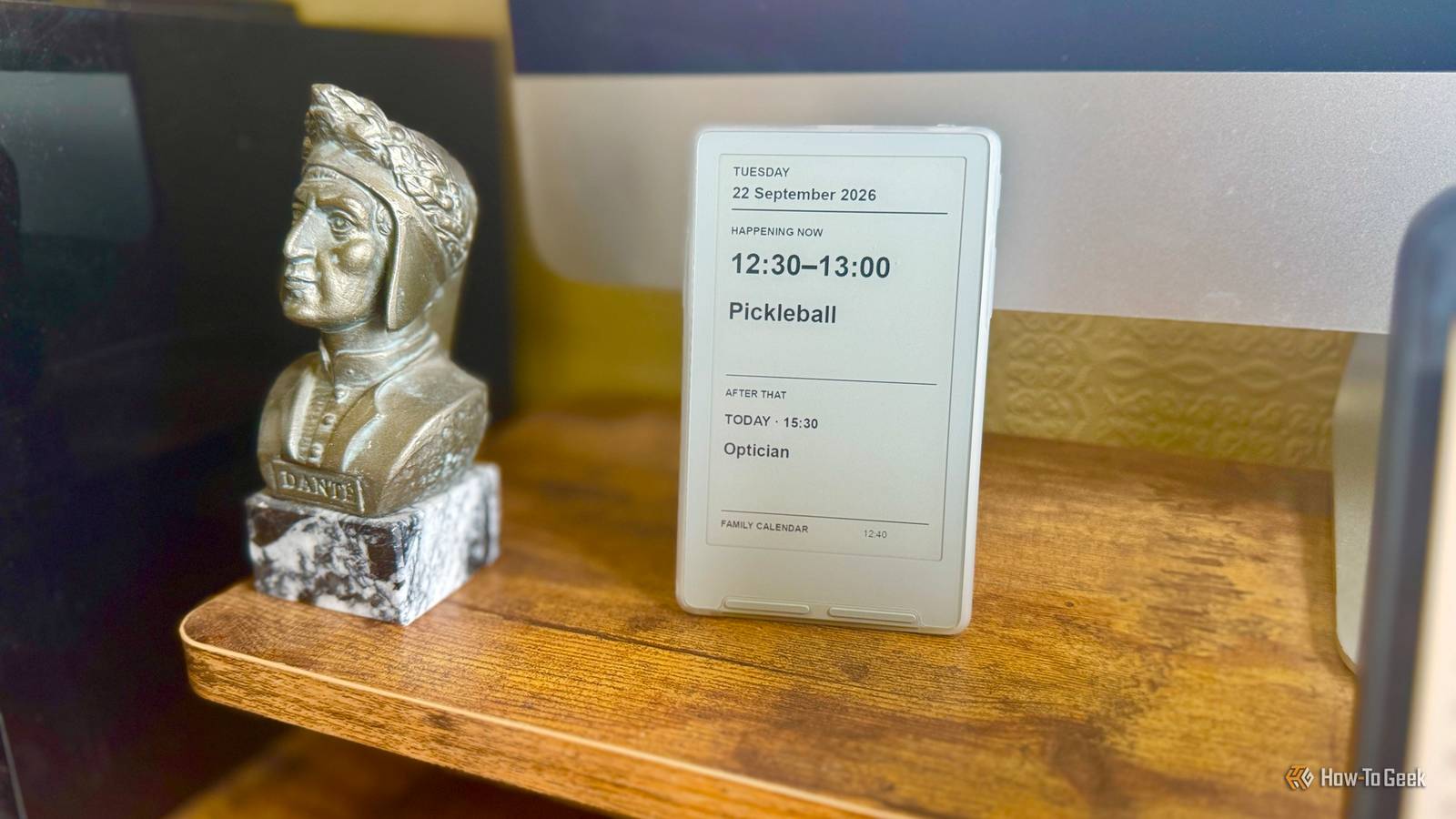
I wanted to take advantage of the tiny E-Ink screen and get it to display something useful during my working day.Since its main job is displaying text, I figured that I could set it up to display my upcoming calendar events.That way I could see what my next event was just by glancing at the X4 Classic.
Creating the image in Home Assistant was the easy part The calendar integration lets me share my events with Home Assistant The X4 Classic needs a BMP file in the correct dimensions to use as the sleep screen wallpaper.For my calendar sleep screen to work, I'd need a way to get my next calendar event and convert it into an image in the correct format.Thankfully, Home Assistant had everything that I needed.
It has native calendar features, and you can connect cloud-based calendars such as Google Calendar and Outlook using the appropriate integrations.My calendar events were already visible in Home Assistant, so the information I needed was easy to access.A small Python script runs in Home Assistant to pull the calendar information and turn it into a BMP image at the correct size.
This image is updated every 15 minutes.I needed Codex's help to make the X4 Classic update automatically I can now see updating events on the screen Close The final stage was to get the images created in Home Assistant onto the X4 Classic.The version of Crosspoint I'm running has a File Transfer feature that lets you transfer eBooks and images to the eReader from a dedicated web page you can access locally in your browser.
The problem was that you need to actively turn on the File Transfer feature for this to work.As soon as you exit File Transfer, you lose the connection to the X4 Classic.I used Codex to tweak the Crosspoint firmware so that when the device is sleeping, it wakes every hour, connects to Wi-Fi, downloads the BMP file hosted by Home Assistant, replaces the current sleep image with the downloaded BMP, and goes back to sleep.
This means the sleep screen updates every hour.If nothing has changed, the sleep screen looks the same, but if the image has changed to show the next event, it is displayed as the new sleep screen.Since the device only wakes for long enough to connect and download the image, the hit to the battery is likely to be fairly minimal.
With a little more help from Codex, I was able to add a control to the Crosspoint menu that lets me turn the calendar sleep screen on and off.When it's off, the eReader stays asleep until you wake it manually, and the sleep screen won't update.Xteink X4 Classic $79 $89 Save $10 Brand Xteink The Xteink X4 Classic is the updated version of Xteink's popular X4 model.
It has a 4.3-inch display and weighs just 68g, making it perfect to carry with you wherever you go.Unlike the X4 Pro, there's no touchscreen or front light, and it uses pogo pin charging rather than USB-C.Resolution 219 PPI Storage 16 GB microSD card, expandable up to 256 GB Connectivity Wi-Fi, Bluetooth Front Light No Battery 920 mAh Weight 68 g Dimensions 114 × 69 × 4.9 mm Format Support EPUB, TXT Screen Size 4.3 inches Ports Pogo Pin Color options Mist Gray, Space Black $79 at Xteink Expand Collapse My eReader is now even more useful Instead of spending much of the workday in my pocket, my X4 Classic is now a really useful display.
I can check my current and upcoming appointments with a glance, and the information looks great on the E-Ink display.It's made me love the tiny eReader even more.
Read More