Sharing files across a network is a must-have feature; so much so that it might just be the reason you set up a home network in the first place.Experienced users may feel comfortable using FTP or SCP from the command line, but many people just want to use their standard GUI file explorer.Samba is a tool/protocol designed to do just that.
Set it up, then connect with another computer and you can browse your files just like any other drive.You can manage shared Samba folders with just a few clicks using a simple extension for GNOME Files called nautilus-share.GNOME Personal File Sharing is the flawed default It works with just one folder, using WebDAV The simplest way to share files from your Linux machine may be GNOME’s Personal File Sharing feature.
It’s not quite set up by default—you’ll need to install the gnome-user-share package and tweak some settings—but it can be handy in a pinch.The main drawback with this approach is that it only shares the ~/Public folder.While this may be fine for a quick one-off file transfer, it’s not very useful for sharing specific sets of files in the longer term.
This method also uses WebDAV, a protocol that piggybacks onto HTTP.It makes sense for remote access, but also has some drawbacks: notably, there are more efficient alternatives that handle larger files and complex folders better, especially when shared over your local network.Samba is particularly good at cross-platform file sharing, which is ideal if you want to share files across your home network, for Windows boxes, iPads, and even Android phones to access.
The nautilus-share extension is your first step Install the required packages to get started Samba is a good alternative that is fairly simple to use and allows sharing with all sorts of platforms.This technology has been around for decades now, so it’s tried and tested.The software uses the SMB communication protocol, which originated on IBM PC DOS.
Setting up Samba involves a bit of work and requires root access, so you need to be careful with what you’re doing.But once it’s configured correctly, you’ll be able to share any folder instantly, using a Files dialog, with a standard user account.Begin by installing the Samba program itself, if it isn’t already present on your system.
Open a terminal and run: sudo apt install samba -y These instructions apply to distros like Ubuntu, Mint, and Debian.If you’re using an alternative, such as Fedora, Arch Linux, or openSUSE, you’ll need to use the appropriate package manager for your environment.Next, install the nautilus-share extension: sudo apt install nautilus-share -y You may need to relaunch Files for it to recognize the new extension; if so, just run nautilus -q.
This extension adds an item to the context menu that lets you quickly share a folder by right-clicking it.You can check that it’s visible for now, but to get sharing working properly, you’ll need to make some configuration changes.Configure Samba to complete the setup Set it up globally, then enable sharing on whichever folders you want To set up the easiest form of sharing, I recommend usershares.
This Samba feature lets any normal user create and modify file shares without having root access.It enables the integration with GNOME Files, and it’s particularly useful for any shared computers you use on your home network.You will, however, need root access to set usershares up, so begin by editing the global Samba configuration file with your text editor of choice; for example: sudo vi /etc/samba/smb.conf Locate the section headed [global] and ensure you have the following directives: usershare path = /var/lib/samba/usershares usershare max shares = 100 Finally, add your user to the same group that owns the usershare path you’ve configured.
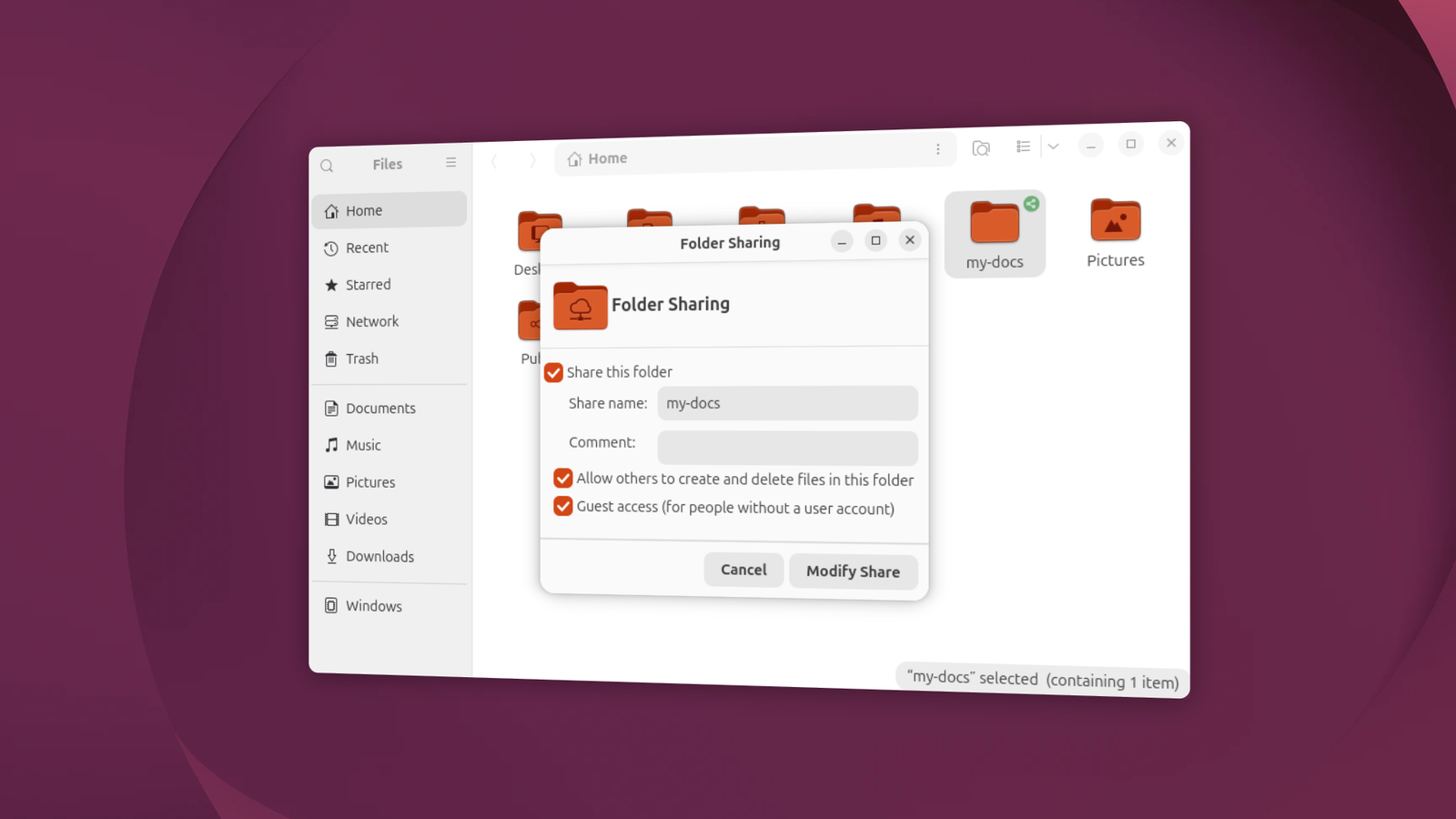
By default, this group is named sambashare: sudo usermod -aG sambashare $USER Once you’ve made all these changes, reload the Samba daemon: smbcontrol smbd reload-config If this doesn’t work, you can also try restarting the daemon: sudo systemctl restart smbd If any settings appear not to be working, try logging out and back in again or restarting your machine as a last resort.Select a folder, right-click it to bring up the context menu, and you should now see a menu item labeled “Sharing Options.” This opens a dialog titled “Folder Sharing,” which you can use to enable sharing over the network.Click the “Share this folder” checkbox to enable it.
At this point, you can also select appropriate options to allow write access and to allow guest users.By default, neither is allowed, which is the more secure—but less convenient—option.Close Connect from another device and start sharing Any device that supports SMB can connect, and that should be most things Pretty much anything that connects to your home network can talk SMB: your NAS, Raspberry Pi, smart TV, or even your music player.
You’ll probably get the most use with general-purpose computers, however, and connecting should be straightforward.Start by getting the IP address of your Linux box and making a note of it.This should be all you need to connect from other devices.
For example, on macOS, open Finder, then Go > Connect to Server.Enter the protocol prefix (smb://) followed by the IP address, e.g.smb://192.168.1.99.
You should then see a list of remote folders that you can mount and then access using Finder, just like any other location.My Android phone doesn’t support SMB natively, but there are alternative file managers that offer more power, like Material Files or Cx File Explorer.I use the latter, and it’s a simple process: Go to the NETWORK tab, then click New location, select the Remote tab, followed by SMB.
Enter your host IP address as before.Close A bit of up-front work makes file-sharing a simple process I’m not going to lie: setting up Samba can be a bit of a pain.This is an old technology that has undergone plenty of changes over the years, and it’s not 100% fully integrated with the GUI yet.
However, once it is set up, sharing new folders is quick and easy, and the integration with Files makes it even more convenient.
Read More