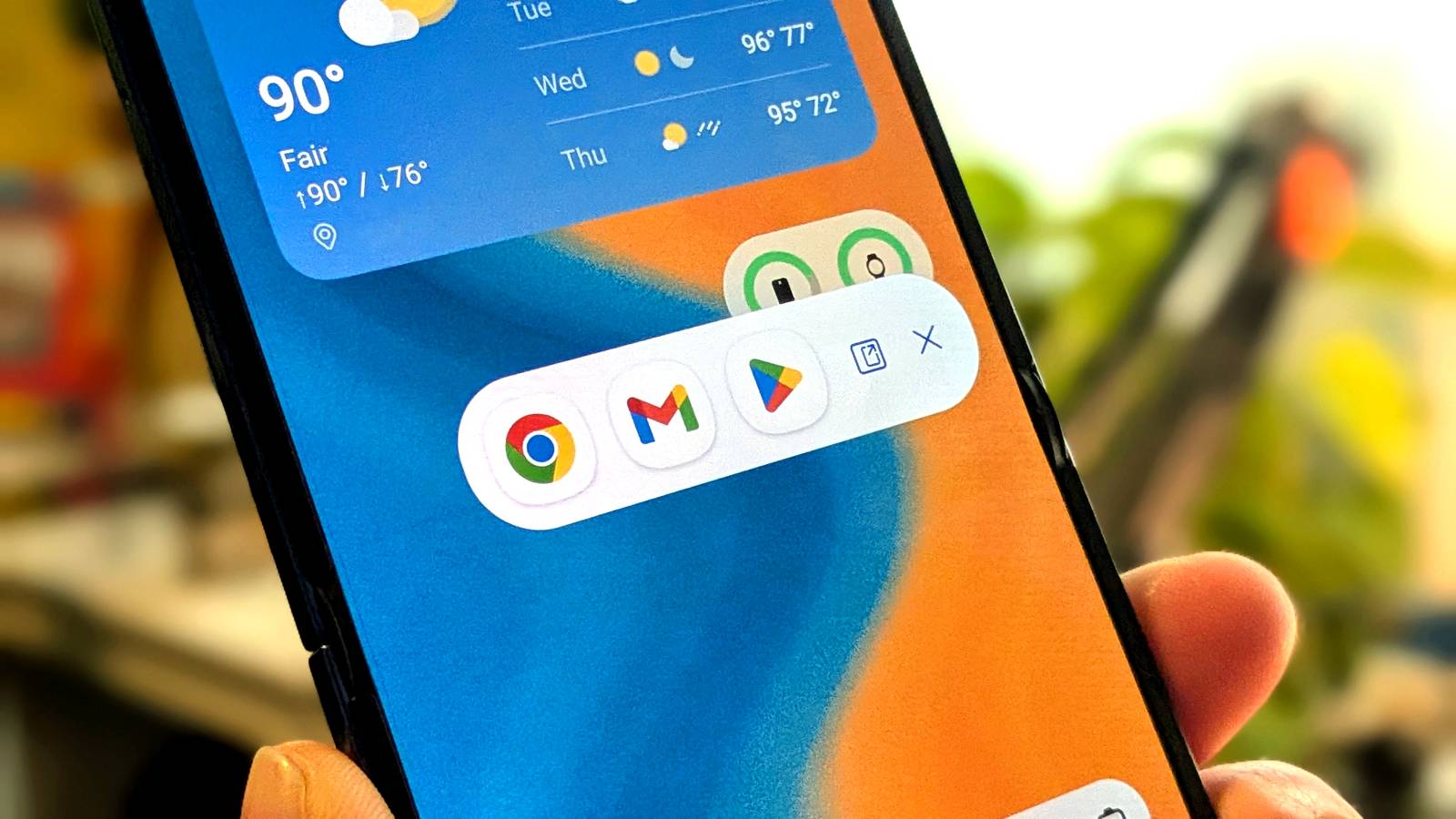
The biggest user-facing feature in Android 17 is App Bubbles.It’s a brand new way to multitask—well, it’s brand new if you’re a Pixel owner.Samsung has beaten Google to countless ideas over the years, and App Bubbles is just the latest.
Unfortunately, while Galaxy phones have tons of excellent features, Samsung isn’t the best at making owners aware of them.“Pop-Up View” is essentially Samsung’s version of the new App Bubbles feature in Android 17.It’s enabled by default and just waiting to be used, but there are some tricks and extras you should know about.
Samsung thought of it over a decade ago Pop-up view has been around for a while App Bubbles in Android 17 is getting all the attention right now, but Samsung released a similar idea over a decade ago.The Galaxy S3 and S4 in the early 2010s included the beginnings of the concept, but the implementation we have today arrived with the Galaxy S7 series in 2017.Over the years, pop-up view has slowly evolved and improved.
Features that were only available through Good Lock modules have made their way to the main settings.It’s easy to launch with gestures, and much more customizable than App Bubbles.Samsung offers multiple methods for putting apps into pop-up view.
Unlike Google’s implementation on Pixel phones, you don’t have to use the stock launcher in order to use it, either.App Bubbles may be a bit cleaner and require less setup, but the flexibility of pop-up view shouldn’t be overlooked.Related Android 17 is bringing a major change to multitasking—here’s how it works After being teased in the second beta, the new “Bubbles” feature is finally available in Android 17 Beta 3.
This is the biggest change to Android multitasking since split-screen mode.I had to see how it worked—come along with me.Now, it should be mentioned that this feature will probably look a bit familiar to Samsung Galaxy owners.
One UI also allows for putting apps in floating windows, and they minimize into a floating widget.However, as you’ll see, Google’s approach is more restrained.Posts By Joe Fedewa How to use pop-up view on a Samsung Galaxy phone Multitasking madness at your fingertips As I said, there’s more than one way to launch an app into pop-up view on a Samsung phone.
First, you can do it in the same way that you might put apps into split-screen mode.That means swiping up from the bottom of the screen and pausing (or tapping the Recents button in the nav bar, if you’re old school) to see open apps.Scroll to the apps you’d like to pop-up, tap the app icon above the preview window, and select “Open in pop-up view.” The second method requires enabling an extra setting first, but it makes pop-up view even easier to use.
You’ll be able to swipe inward from the top corner of the screen to immediately put an app into pop-up view and adjust the size of the window.Go to Settings > Advanced features > Multi window.Toggle on “Swipe for pop-up view,” then tap the text to configure it.
From here, decide the size of the top corner gesture area.Once you have an app in pop-up view, there are a number of things you can do.First, drag from the bar at the top of the window to move it around the screen.
You can flick the window off to the edge of the screen to shrink it down.Drag from any corner of the window to adjust the size.Tap the top bar for buttons to minimize, maximize, split screen, put controls in the top bar, or close the app.
When you minimize an app—either by going Home or selecting the minimize option from the menu—it becomes a floating app icon bubble.This can be dragged anywhere on the screen, not just the edges.When multiple windows are minimized, the icons are bundled together.
Tapping the bundle gives you the choice to open each app individually or all of them together.Similar but different: the Google and Samsung story In typical fashion, Samsung and Google have come at this feature from two very different angles.Google’s approach is simplified and clean, but limited—floating windows can’t even be resized.
Samsung, on the other hand, gives you plenty of choices, but that also makes it susceptible to being messy.Deals Score Phone Deals and Mobile Accessories Savings Browse phone deals and discounts on mobile accessories, cases, chargers, earbuds, and screen protectors—discover savings on bundles, trade-in credits, and plan add-ons.Shop Phones & Mobile offers to upgrade your multitasking setup without overspending.
Deals Explore Phones & Mobile Deals At the end of the day, neither implementation is inherently “better” or “worse,” it just depends on your personal preference.If you own a Galaxy phone, there’s a good chance you already know that you like Samsung’s way of doing things.Samsung Galaxy S26 SoC Snapdragon 8 Elite Gen 5 Display 6.3-inch Dynamic AMOLED 2x $900 at Samsung Expand Collapse
Read More