I get into my car to drive, not to troubleshoot a touchscreen.But since becoming a mom, I’ve found myself driving a lot more than I used to, from taking my daughter to her classes to driving her to vaccination appointments and running errands in between.With so many trips throughout a day, spending 10 minutes getting Android Auto just right started to feel like a waste of time.
Sometimes, I just wanted Google Maps to show the route and Spotify to play my music without all the extra tapping around.I’ve realized I didn’t need fancy features or a complete overhaul of my car’s infotainment system.I just wanted Android Auto to be a little smarter and save me some hassle.
So, here are four Android Auto tweaks that make my busy driving days a little less stressful.My voice is faster than my fingers Hands-free is the whole point I can’t drive, watch my daughter in the back seat, and fiddle with my car’s screen all at once.So, I let Gemini handle the screen.
Instead of searching for the call button, I asked Gemini to call my mom so I can check how she’s doing.If I’m bored with a song, I ask Gemini to play my “If bored, try this” playlist on Spotify.I’ve also asked Gemini to send my husband a WhatsApp message when I’m running late, including my ETA, so he knows when to expect me.
I use the last command most often.These little things add up when I’m driving several times a day.I don’t have to keep glancing at the display or remember where every button is.
Now, instead of poking at the screen at every red light, I can just look outside, take a little breather, and enjoy a break from driving.Related 4 Gemini tips and tricks I use in Android Auto Because saying "Hey Gemini" isn't enough.Posts By Sanya Shah I customized my launcher I hate clutter, both in life and on my screen Seeing a bunch of apps I barely use on my Android Auto display annoys me.
I regularly use Google Maps for directions and Spotify for music, but I also keep WhatsApp and the Gamesnacks on my launcher.I can play Angry Birds while I’m parked and have nothing to do while waiting for my daughter to finish her class.I customized my Android Auto launcher to hide the apps I rarely use and keep my favorites easy to find.
Now, I don’t have to scroll through a long list just to get to Maps or Gamesnacks.I’m a bit of a cleanliness freak, so I like to keep my phone organized, too.It only makes sense that my Android Auto screen follows the same rules.
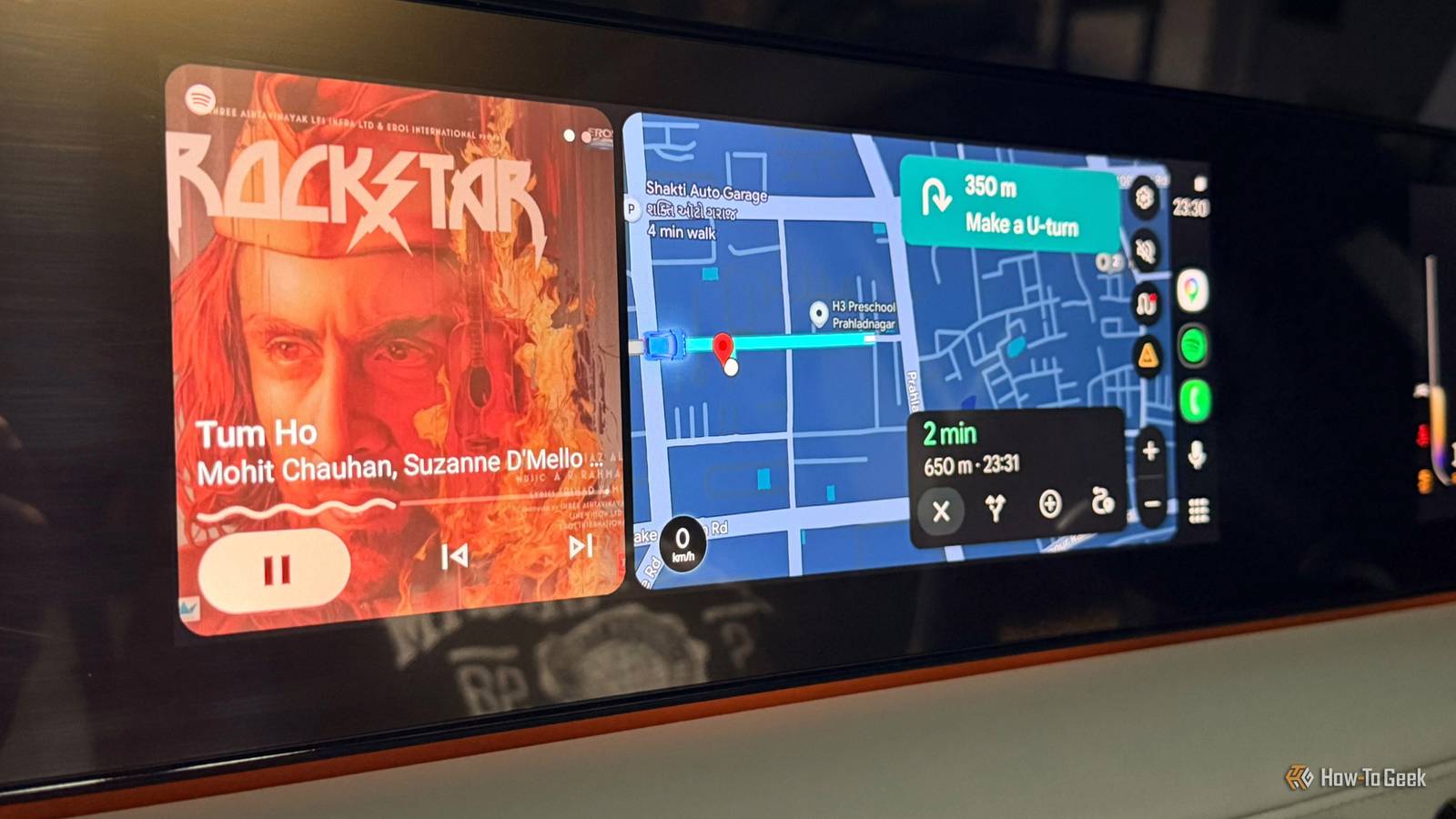
Now, even my car display feels neat and well-behaved.I changed the layout This discovery is personal I stumbled across this setting while looking for Start music automatically in Android Auto settings.While scrolling, I noticed another option called Change layout and decided to see what it did.
It offered two choices: Media closer to driver and Navigation closer to driver.Since I use Google Maps on almost every drive, keeping navigation closer to me makes sense.But if you spend more time changing songs or managing playlists, moving media closer might be more convenient.
I’m thankful that I found this small setting.I’m glad I own a Samsung phone Modes and Routines do the work for me Close Since I drive several times a day, I wanted my phone to handle a few things automatically instead of making me remember every little task.That’s where Samsung’s Modes and Routines come in.
I opened Settings -> Modes and Routines -> Routines and tapped the + button to create a new routine.Under If, I chose Android Auto connection as the trigger.Then, I set up an action to open WhatsApp, where I usually message my husband and my mom.
I often need to tell him when I’m leaving or running late, especially when we’re still deciding who will pick up our daughter today from school.Having WhatsApp ready saves me from searching for it after I park.I still check the details and send the message myself, of course, but the routine removes a little friction from the process.
It’s a practical way to make my Samsung phone work around my driving habits.Driving is busy enough already Driving already demands enough attention.If you want to take things a step further, you can also check whether Android Auto launches automatically when you connect your phone to your car.
The idea isn’t to change every setting just because it’s there.It’s about finding the small adjustments that suit your routine.After all, technology should make everyday tasks easier, not give you another list of things to manage before you can get on with your day.
Related 4 Android settings to disable for a better Android Auto experience Four tiny switches, noticeably less nonsense.Posts 3 By Sanya Shah
Read More