Summary Replace Bash with Zsh (sudo apt install zsh; chsh -s $(which zsh)) for autosuggestions and config power.Install Oh My Zsh for 150+ themes and 300+ plugins to easily theme and extend Zsh.Use Kitty, fastfetch, and Starship; add fastfetch and eval "$(starship init zsh)" to ~/.zshrc for info + flashy prompt The default Linux terminal (at least on most distros) looks pretty dull and boring.
It's just a blinking cursor on a solid color background.Not a lot of visual appeal there, so you.However, we're on Linux where everything is customizable, including the terminal and the shell.
Let's me show you how to do just that.Replace the default shell The window you type your commands inside is the terminal or the terminal emulator.However, the terminal has a "brain" that interprets and executes those commands.
This "brain" is called the shell.In Linux, like all things, the shell can be customized too.The default shell (usually Bash) functions just fine, but it's missing modern features like autocomplete and syntax highlighting.
It's not very customizable either.I usually replace my default shell with Zsh.It's a modern shell with tons of customization features.
I'm on a Debian machine, so I can use the APT package manager to quickly install the Zsh shell.sudo apt install zsh I can quickly switch to this new shell by typing zshand pressing Enter.To make this switch permanent, run this command.
chsh -s $(which zsh) The prompt (the text that appears before the cursor) will change to a percentage symbol.You can verify that you're running the new shell with this command.echo $SHELL If you like, you can also get a different terminal emulator app.
Kitty is my favorite terminal app.It has excellent graphics and theme support.sudo apt install kitty You can choose from a selection of pre-built terminal themes to match your style.
Use this command to pull up the list of themes and press Enter, then "M" to make a selection.In addition to these official themes, you'll also find more community themes on GitHub.kitten themes You can also change the opacity and the fonts too, by tweaking the Kitty config file.
Use nano or any other text editor of your choice to edit the config files.nano ~/.config/kitty/kitty.conf Install shell themes The Zsh shell can be easily customized with plugins.The most popular of these plugins is Oh My Zsh, which packs 150 themes.
The official Oh My Zsh website provides this handy curl command to install the plugin.sh -c "$(curl -fsSL https://raw.githubusercontent.com/ohmyzsh/ohmyzsh/master/tools/install.sh)" That's it!.With Oh My Zsh installed, you have access to its 150+ themes and 300+ plugins.
Browse the Oh My Zsh theme library and note the name of your chosen theme.For example, if you picked the "Refined" theme.Changing themes is as simple as adding the theme's name to this config file.
nano ~/.zshrc Look for the ZSH_THEME="" line and add the theme name between the quotes.It should look something like this.Save the configuration file and go back to the shell.
Enter this command to reload the configuration.source ~/.zshrc With that, you should see a new shell prompt and theme in your terminal.Oh My Zsh also allows you to add new plugins in a similar manner.
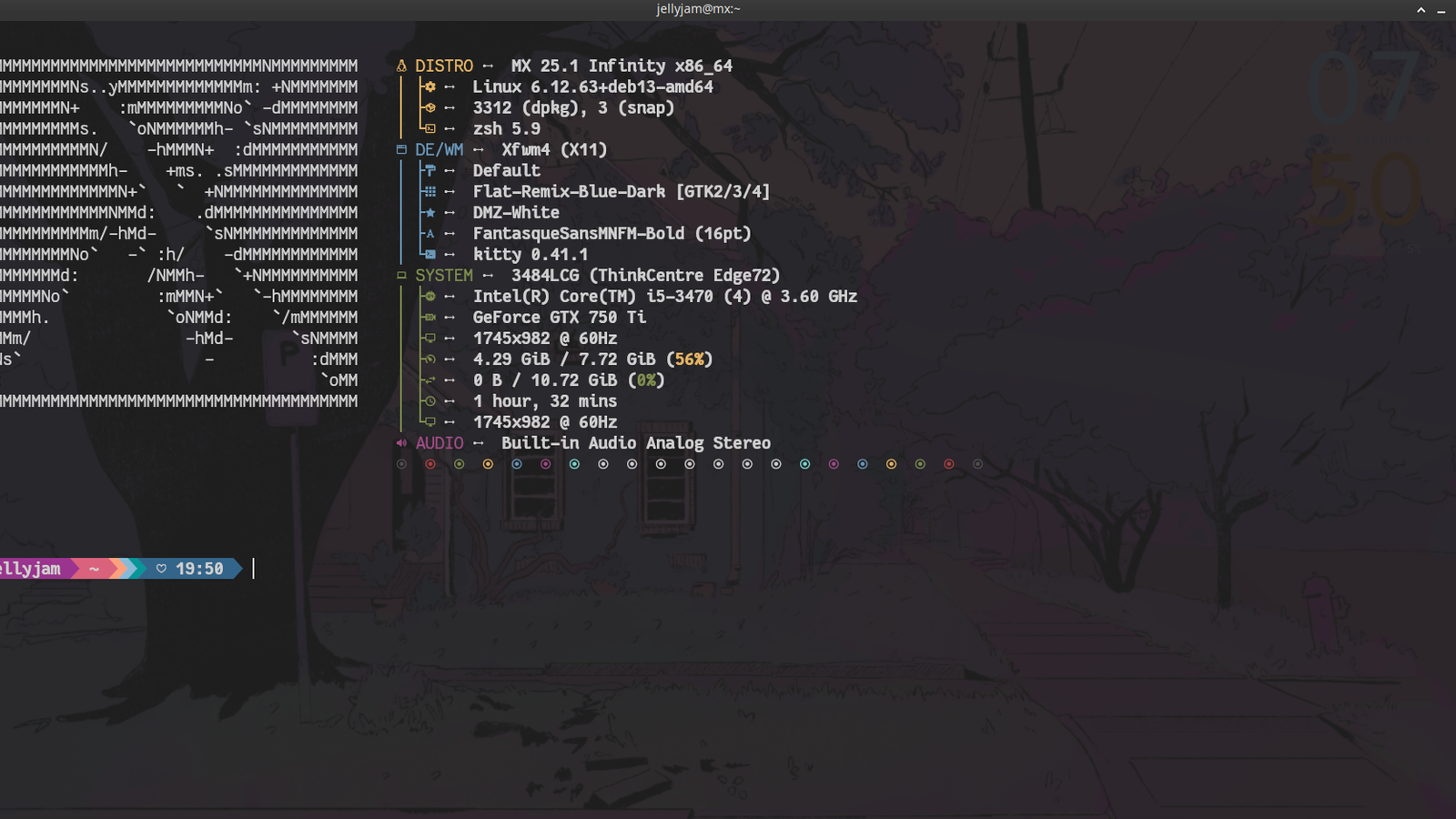
I usually add the "syntax highlighting" plugin to mine.Simply open the Zsh configuration file and look for the line that starts with "plugins." plugins=(git zsh-syntax-highlighting) You can browse the full list of plugins on the Oh My Zsh Github.Display system info in style You might have seen neatly printed system info and logos on Linux terminals.
It's fetched using tools like screenfetch or fastfetch.You can even configure your terminal to display that information whenever it's launched.Start by installing a tool to fetch system info.
I use fastfetch, but you can install any others you like (avoid neofetch because it has been depreciated).sudo apt install fastfetch Now, all we have to do is add this utility to the shell configuration file.Let's open the config file in the text editor of your choice.
nano ~/.zshrc At the very end of this text file, add the package name for the utility.fastfetch Run the new configuration file with this commad.How-To Geek Report: Subscribe and never miss what matters Unlock your tech-savvy potential and master the digital world with How-To Geek.
Subscribe By subscribing, you agree to receive newsletter and marketing emails, and accept our Terms of Use and Privacy Policy.You can unsubscribe anytime.source ~/.zshrc Whenever you open the terminal app now, it'll fetch and display system info and an ASCII logo at the top.
Customize the prompt There are certain shell prompt engines that allow you to theme pretty much any popular shell.If you aren't using Zsh or Oh My Zsh, you can install one of these universal shell prompts.Starship is my go-to.
You can install it with this curl command.curl -sS https://starship.rs/install.sh | sh Then you just need to edit the shell's configuration file like so: nano ~/.zshrc Add this at the end of the shell configurationf file.eval "$(starship init zsh)" Then reload the configuration.
source ~/.zshrc You should see a colorful new prompt that dynamically changes based on where you are and what you're doing in the terminal.if you want to tweak the default look, you can even edit the Starship TOML file.Customizing the shell is a lot easier than it seems.
You can get a beautiful terminal with just a few minor edits to the shell configuration file.There are also handy scripts like Starship, which make the process even simpler.
Read More