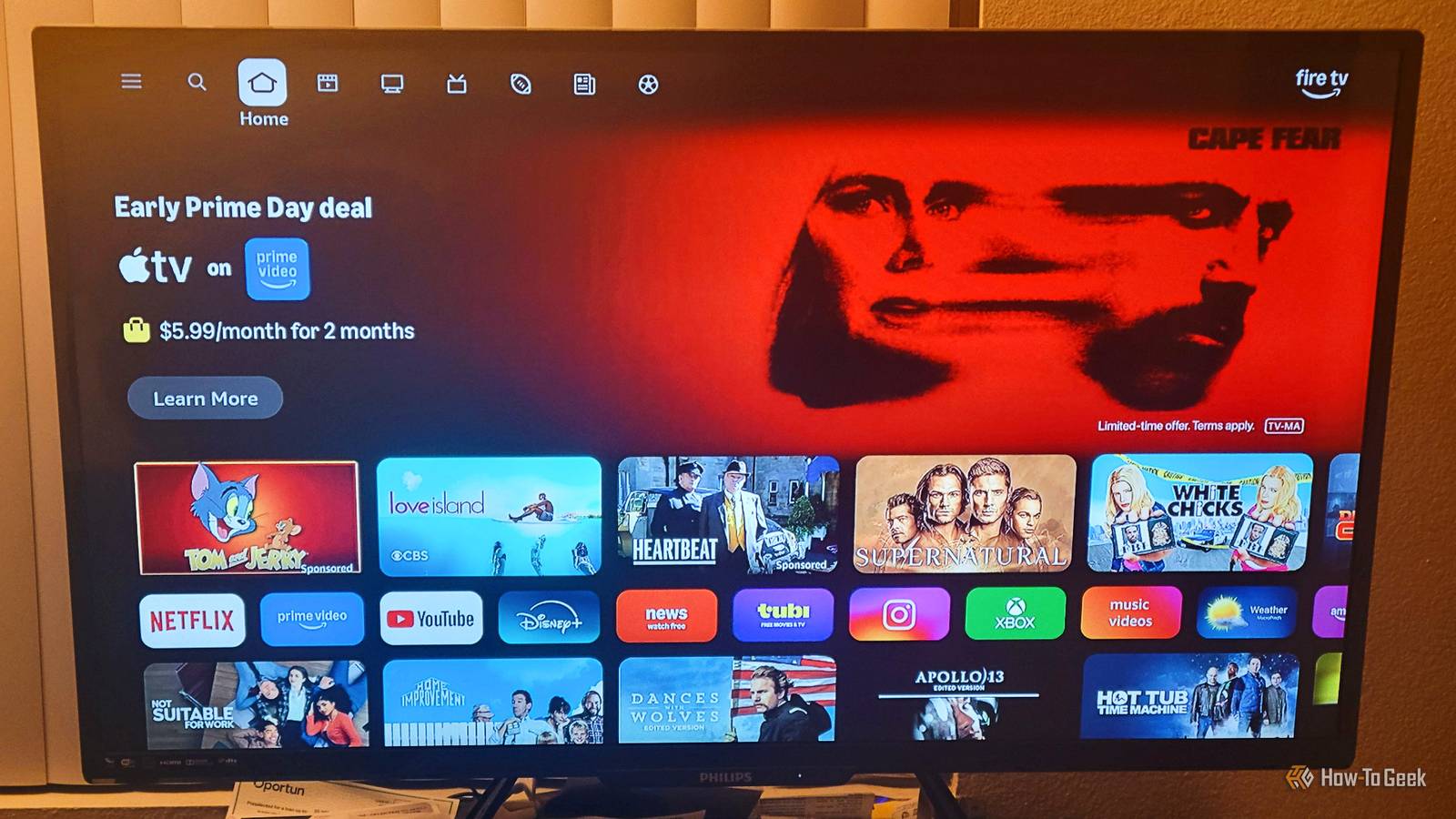
Amazon Fire TVs are great until you start to notice the slowdown.Amazon sells televisions and Fire TV Sticks by the thousands.Along with sticks, they all come with these ads that seem to make everything slower.
However, you don't need to deal with the lag; you just need to know what settings to turn off.Basic navigation shouldn't be this slow The hardware was always going to be tight, but this is silly Amazon keeps prices low on streaming sticks by using cheap MediaTek chips built around ARM processor cores that could have trouble multitasking under pressure.These chips can only handle instructions one at a time, in order.
So if the device is waiting for a slow network response or digging through a storage cache, everything else just stops.On top of that, Amazon runs its Fire OS software in 32-bit mode even though the hardware underneath is 64-bit, which is a bit like driving with the handbrake on.That mismatch eats up extra memory and slows down the very operations the device does constantly, like moving video data around.
The memory situation makes everything worse.Most Fire TV sticks ship with only 1 to 1.5 GB of RAM, and even the pricier 4K Max tops out at 2 GB.This sounds like a lot, but the OS has to carve out what it needs for the kernel, decode video, and display what you're watching.
So you're basically working with a lot less than you'd think to run the apps.It is hard to understand because Fire OS is built to protect the home screen launcher above almost everything else.There may be another reason for it, but I suspect it's because that's where the ads live.
Open a heavy app while the home screen is busy playing a video preview, and the system will likely kill your background apps just to keep the launcher running smoothly.Processes like software updates, refreshing licenses, securing network connections, and autoplaying video previews all have to compete for the same small pool of processor time.It feels weird that ads have to fight with the reason you bought the stick.
Don't throw the stick away; just adjust the setting.Not many people understand that this is a choice that is switched on by default.You don't have to deal with ads trying to eat up your screen time.
The autoplay ads silently eat your device's performance Before you've touched a single app, your Fire TV is already running near capacity Amazon Fire TV has a background feature called Featured Content Autoplay.Out of the box, Amazon sets your device to automatically start streaming HD video ads, sponsored carousels, and movie trailers the moment your TV turns on.This keeps advertisers happy and gets content in front of your eyes as fast as possible.
Unfortunately, that means the streaming stick you paid for is trying to give you ads before you've even picked an app to watch.It's really frustrating when you think about it.Even as you scroll through the home screen, those clips start preloading before you've even shown any interest in them.
That is bad because they also eat up your bandwidth, storage, and the device's RAM.Since the system needs to keep those videos running smoothly above everything else, basic tasks like loading your app menu get pushed to the back of the line.This is why it feels a little slow to press buttons on your Fire remote on the main menu, but not as slow when you're actually watching the show.
On top of everything else, those autoplay previews come with sound by default.So you have to deal with having to listen to an ad you want nothing to do with.How to turn off background video feeds and get your device back The toggle exists, Amazon just buried it To turn it all off, press your Home button on your remote to get to the main screen.
Scroll all the way to the left to find your Menu.Scroll down and open your Settings.From there, go down to Preferences, then look for a submenu called Featured Content.
Inside, you'll find two toggles: Allow Video Autoplay and Allow Audio Autoplay.Turn both of them off.It matters that you get both of them, not just one.
If you leave audio on, the system still spins up its full audio processing on startup at full volume.Leave the video on, and it keeps decoding HD previews in the background the whole time you're on the home screen.With both disabled, those previews get replaced by still images.
So while it doesn't get rid of ads completely, it takes a lot less effort to display an image than it does to play a video.The processor will finally get some breathing room to handle all the other processes it needs to handle.With ads, it's likely to run near full capacity, just sitting on the home screen with autoplay enabled.
Now, it can settle back down to a comfortable idle.The processor isn't constantly busy chewing through streaming video, and you'll notice it because your remote inputs will also register faster.Ads are treated like they're too important Turning off a couple of toggles buried in the settings isn't an exciting fix, and it shouldn't be necessary in the first place.
Amazon ships these devices with autoplay enabled because it helps advertisers, not you.That would be one thing, but the hardware pays the price.If you've already accepted that your Fire TV or stick is slow and have been living with it, this is worth five minutes of your time.
Amazon Fire TV Stick HD (2026) $16 $35 Save $19 What's Included Alexa Voice Remote Amazon's new Fire TV Stick HD delivers smooth 1080p streaming in a slim new design, offers improved performance, and has USB-C. Wi-Fi Wi-Fi 6 Storage 8GB $16 at Amazon Expand Collapse
Read More