After a long day of work, all I want to do is get in my car, drive home, and go to sleep.However, before I do that, I like to let my partner know when I will arrive home.Now, this is not hard to do, but it does take multiple steps.
Thanks to this inexpensive NFC tag in my car, the entire process is automated with a single tap.Setting up the NFC tag Putting together the location and automation Finding an NFC tag to buy is easy.I bought a pack of 30 from Amazon for about $10, which is about 33 cents per tag.
However, one key detail you should look out for before purchasing them is seeing how they are set up.Some offer adhesive backs, like stickers, so you can place them virtually anywhere, while others are just the tag with no adhesive backing.With my setup, I prefer having the adhesive backing since I put the tag on my dashboard, as it is the most accessible place for me to reach it.
Yet, it really depends on your setup and what else you will be using the remaining NFC tags for to decide if you want an adhesive backing or not.For example, if you are looking to keep the NFC tags you place in the exact locations for a long period of time, then the adhesive backing may be the way to go.On the other hand, if you plan to move your tags around periodically, then not having those adhesive backings may suit you better.
But finding the location to place the NFC tag is only half of the setup; the other is setting up the automation.Fortunately, this is pretty straightforward.Setting up the automation Personally, I use iOS, so my automation happens through the Siri Shortcuts app.
However, this can also be done on Android, like through Modes and Routines in the settings app.Close To start, navigate to the menu bar at the bottom of the Shortcuts app and tap on the automations tab in the center.From there, tap on the plus icon in the upper right of the screen to create a new one.
Once you do, scroll down until you see NFC.This will be located below Bluetooth and grouped with other connectivity features like Wi-Fi and CarPlay.After tapping on NFC, you will be greeted by a screen that has two options: scanning the NFC tag and running the automation.
The first thing you will want to do is tap on Scan under NFC Tag.Tapping on it will bring up a card from the bottom of the screen instructing you to place the top of your phone near the NFC tag.You will want to hold it there for a few seconds until the tag is registered.
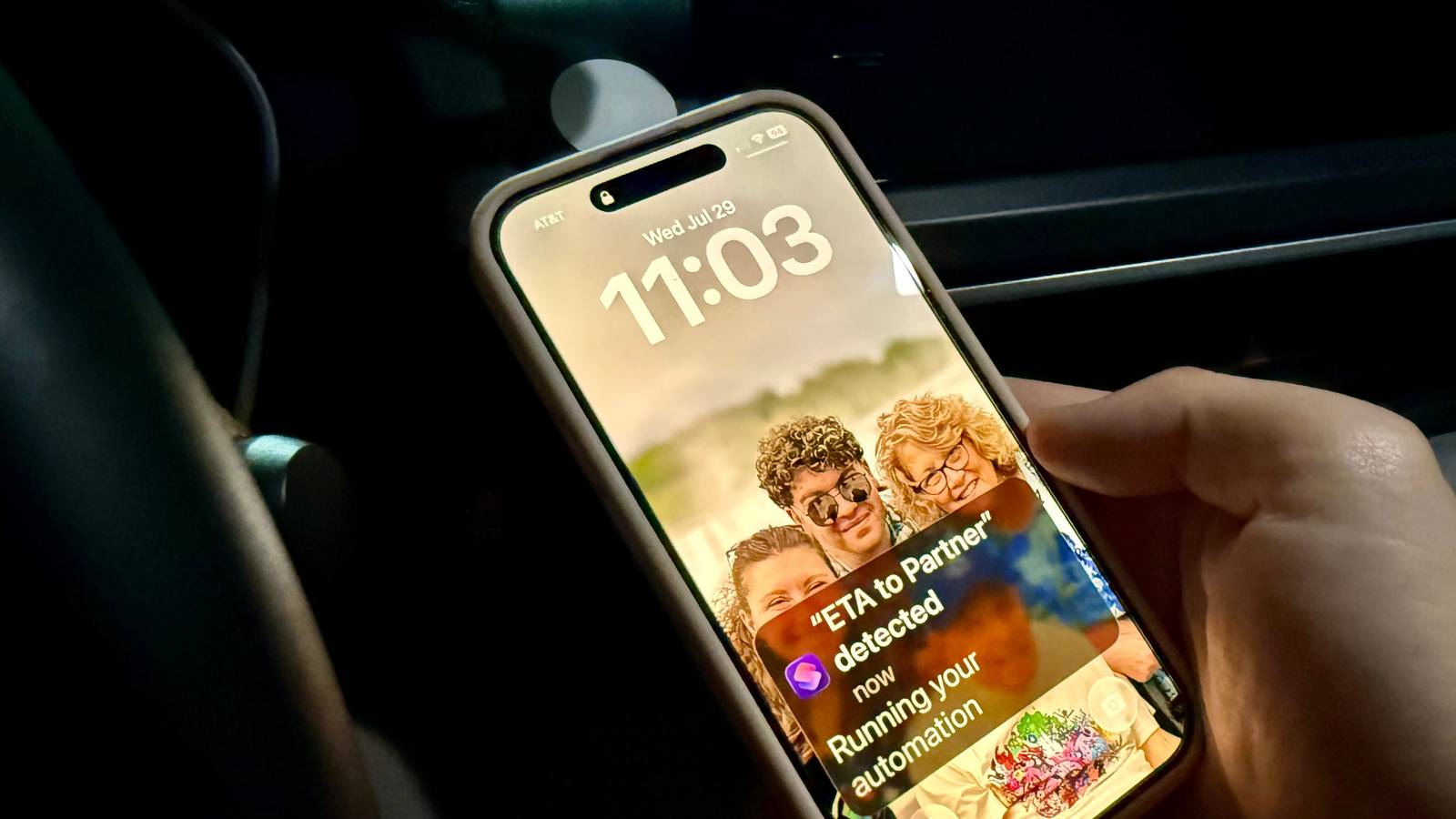
Once it is, you’ll be asked to name the tag.You can name it whatever you want, but I kept it simple and straightforward and titled it: “ETA to Partner.” The last option you will have to select before actually putting together the automation is telling your device when to run it.By default, it will be set to run after you confirm it, but switch it to run immediately so you do not have to keep allowing it every time you want to use it.
Once you change the selection, another option will appear asking if you want to be notified when the automation is run.While you do not need to turn this on, I do so I know my message was sent, and everything worked correctly.After configuring all those settings, you will move to putting together the actions taken in the automation.
At the beginning of the automation, I have my phone get the driving time from my current location to my home.From there, I have that information go into a text field with a pre-written message created by me.The reason I have to go into a text field and not be sent straight to my partner is that, if it did, it would only send the travel time.
For example, if it takes me 25 minutes to get home, my partner would get a text that just says “25 minutes.” Once the time is entered, I have the message sent to my partner.Do note that whatever is in the text field is what will be sent, which means if you want to change the message later, you just need to change that specific text.After all is configured, your automation is ready to use.
Now, all you have to do is tap your phone to the NFC tag, and your partner will be notified.Just tap and go While it is a small addition, putting an NFC tag in my car has helped make my going-home routine more streamlined and faster.No longer am I sitting in my car for a handful of minutes calculating my ETA and then typing out a message to my partner; with one tap, it is all done for me.
Furthermore, if I ever want to change what happens once I tap the tag, all it takes is going back into the automation and changing its actions.No need to rescan or buy a whole new tag; I just changed the actions inside the app, and it is good to go the next time I use it.With it all set up, my partner is no longer sending me a “when are you going to be home” text every time I leave work, because I now beat them to the punch.
With a single tap, the message is sent, and I am on my way home.
Read More