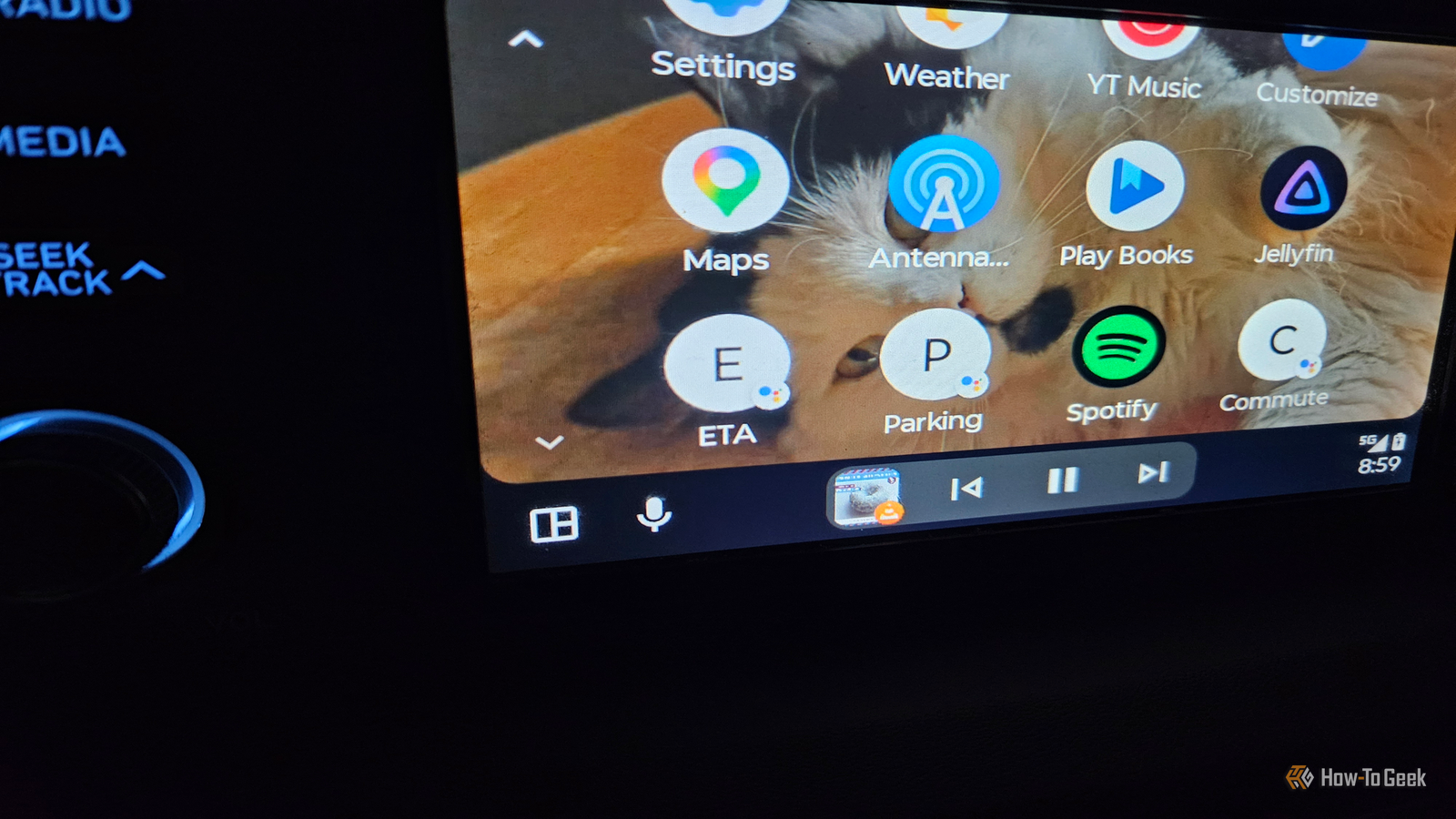
I've been having some fun experimenting with Android Auto lately.Recently, I discovered I could set up buttons for specific tasks.I enjoyed the customization, so I decided to try something a bit more ambitious.
So I tried building a custom Android Auto dashboard that changes based on where I'm driving.It Planning out a custom dashboard using Tasker The tools I need for this setup are basic Android Auto is fantastic on its own, but I'll need a little help from a third-party app for this part.The first thing you need is a task management app.
Android Auto on its own is pretty resistant to changing its interface.I chose Tasker.I bought it for around $5 a while ago, so it was already on my device.
Tasker needs notification permissions, battery optimization turned off, and permission to draw over other apps to work properly.To create my custom dashboards, I'll be making profiles and setting up tasks within those profiles.I'll also be enabling a Tasker plug-in called AutoNotification to manage a few variables.
Setting up the basic dashboard platform Adding the appropriate variables and tasks Close I started with a basic dashboard for a trip I take often: going to the office.My office is named “work,” so I created a custom task called “Takin’ a Trip.” To create the first part of the dash, I added a custom profile using the + button, followed by Create new profile.I created a profile for my vehicle so Tasker would attach to Bluetooth.
I also set up a second profile to enable the task when I plug in a USB cable.This is because I use Android Auto wirelessly most of the time.But sometimes I do plug in.
For the tasks themselves, I added drive-time variables and timing variables, then made sure that the notifications were persistent and had priority over everything else.The idea here was to create a constant notification that would appear on the screen whenever I invoked a specific task.That way, I could customize what the head unit would do when I chose a different place to drive.
Close After setup, I went out to the car to test it out.And it didn't work.At all.
Tasker opened and ran its tasks , but didn't translate to the head unit.I tried several troubleshooting steps to get it working.That included tweaking notification settings, granting Tasker and AutoNotification system permissions, and enabling external access in Tasker itself.
I rebooted the head unit.I tried a different phone.I switched between wired and wireless.
Nothing.Nada.No deal.
The whole thing was .It just didn't want to work.So I researched why.
The project stalled because of Google guardrails Android Auto just didn't want me to make a custom dashboard After failing and spending a few hours troubleshooting, I realized I wasn't going anywhere.Nothing was working to fix the problems.After looking into it a bit, it turned out that trying to build a dynamic, context-based dashboard in Android Auto results in the software blocking you at every step of the way.
It really doesn't like it.Granted, it could be a combination of my head unit's age and the devices I was using.Some of it comes down to Google's design decisions and why they only allow certain apps to be used with the service.
But I also can't help but feel like Android Auto has issues showing certain notifications; the phone or app might have aggressive background-process killers, or apps might not work correctly after certain updates.I wish I hadn't put off this project for as long as I did.Even so, its failure lead me to embrace a workaround that does a close approximation of what I wanted, even if it isn't exactly what I wanted.
Sometimes you just have to settle for “Great Value Peanut Butter Cups” when you really just want a Reese's.Despite setting up everything correctly, it just wouldn't work The project stalled, but at least I learned something from it This project's failure was eye-opening.It turned out that the best way to make this work was to fall back on the same methods I've used previously to create custom shortcuts.
To make a version of this idea work, I set up different tasks in Android Auto’s custom launcher settings, the same method I used for my other custom commands (using Google Home commands as buttons instead of voice control).In the end, the closest thing to a custom dashboard I was able to make was something that utilized a process I was already using in Android Auto.That was a little disappointing.
But I'm still glad that I tried the experiment.The key takeaway is that Android Auto is picky, and customizing it isn't exactly easy.Google does make it a little easier to create shortcuts these days, but that's about the extent of a “custom dashboard” that you're going to get.
I'm kind of bummed about that, but I'm glad I tried it out.Failure is an important step for future success So, after seeing this experiment play out and realizing it wouldn't live up to the idea's promise, you might think I'd give up on customizing Android Auto.Well, why would I do that? Half the fun is diving into something and seeing what you can tweak without breaking it.
I didn't get my custom dashboard the way I expected.It reinforced the point that the automations I've worked with before actually work really well.So, why fix what isn't broken? Related I ditched Android Auto voice control for Home Assistant shortcuts—here's what changed Android Auto voice commands keep mishearing me.
The same shortcuts I use in Google Home fixed that.Posts By David J.Buck
Read More