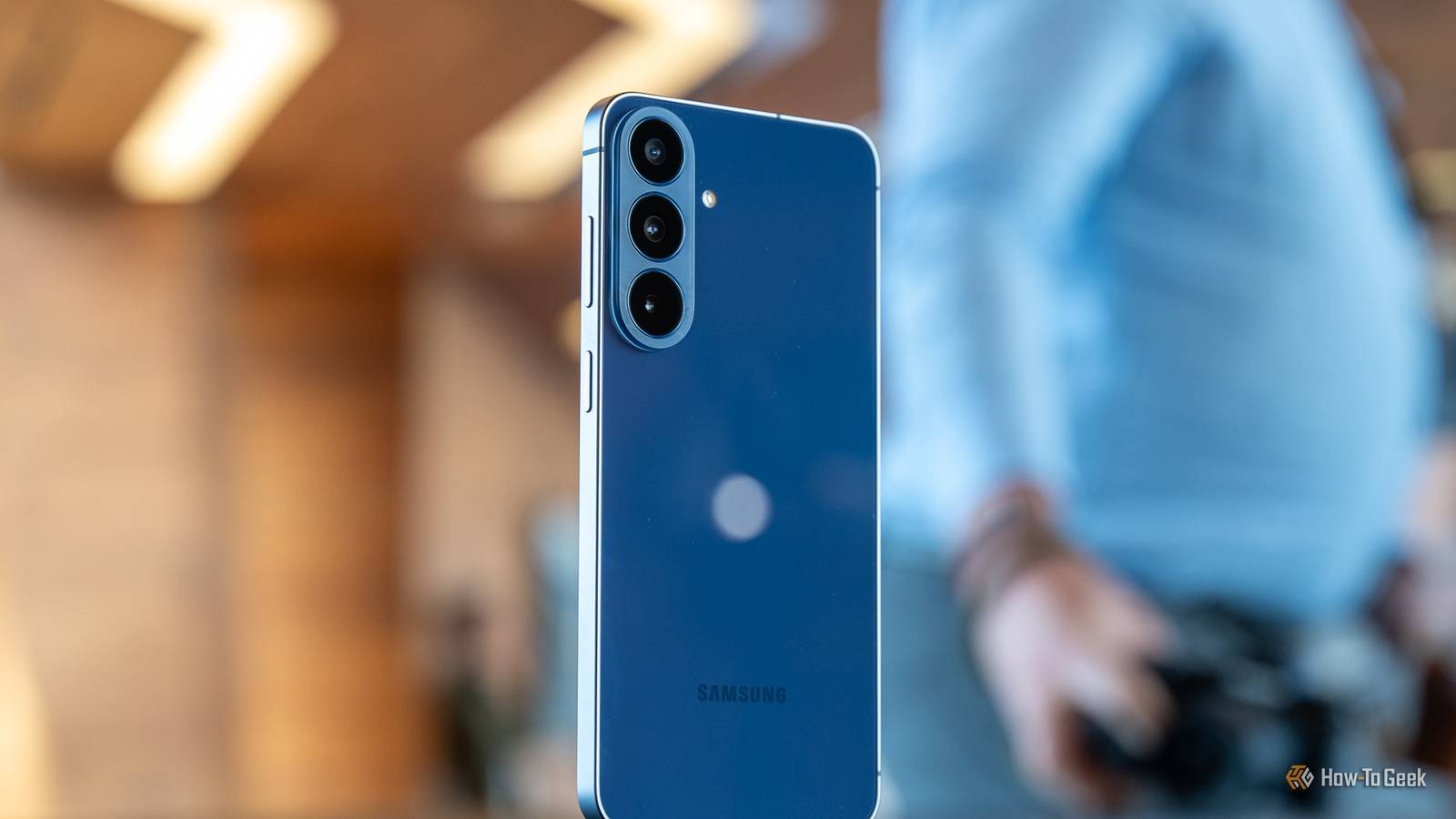
Handing your phone over to a repair technician can be surprisingly uncomfortable.Even if you trust the person working on it, your Galaxy probably contains years' worth of photos, messages, accounts, documents, and other personal information that you don't want a stranger casually browsing.The problem is that a repair technician may need access to the device to diagnose or fix it, leaving you with an awkward choice between protecting your privacy and giving them the access they need.
Fortunately, Samsung has a built-in solution that lets you hand over your phone without handing over your personal data at the same time.It creates a separate, restricted environment specifically for situations where someone else needs to work on your device, while keeping your normal apps and information out of reach.It's easy to enable, but because it's tucked away in the settings, it's also something you probably don't want to wait until repair day to discover.
Galaxy phones come with a built-in maintenance mode Set-up for when your phone needs to go in for repairs As careful as we are with our phones, accidents do inevitably happen.Whether you've cracked your screen or things just aren't working the way they're supposed to, we need to take our devices in for repairs every now and then.If you're a particularly private person, like me, then you might worry about what kind of data that the technician working on your phone has access to and how you can potentially limit that access.
The good news is that if you have a Samsung Galaxy device, you have a built-in feature that will help put your mind at ease.Maintenance mode keeps your data safe Essentially, the purpose of maintenance mode on Samsung Galaxy devices is to make sure that, when someone is working on your phone, all of your information, apps, and files are completely secure.It essentially reboots your phone into a unique state where only the essentials can be accessed.
When you enable maintenance mode, your Galaxy device will reboot.When it starts up again, it will use a secure and restricted user profile for your phone technician.In this state, your phone will boot with a pretty basic layout, with only preinstalled apps being accessible.
All your personal data, including photos, messages, and accounts, cannot be accessed, and any downloaded apps are hidden.This means that whoever is working on your phone can only access what they absolutely need to.Activating maintenance mode on your Galaxy device is pretty straightforward It is a simple toggle Close Maintenance mode on Galaxy devices isn't something people often talk about.
In my opinion, it's a feature that isn't promoted as well as it should be, even though it's incredibly useful.It isn't all that hard to find if you know where to look, though, and it is really easy to activate, and then to deactivate once you have your device safely back in your hands.Hidden in the Device Care section Finding maintenance mode is pretty simple.
Go to your device's settings, then tap the 'Device care' tab.Scroll to the bottom, and you'll see the option for maintenance mode.You can also obviously use the search bar on your device instead, which can be accessed by swiping down into your app drawer.
Type 'maintenance mode' into the search bar, and it will also come up.Using maintenance mode is as simple as pressing a button.When you tap on 'Maintenance mode' in the device care settings menu, you'll be confronted with an explanation of what maintenance mode does.
At the bottom of the screen, you'll see a big button that says 'Turn on'.You'll be prompted to choose whether or not to create a log for your technician.You should generally do this, as it gives your technician a report of any recent crashes or errors so that they can diagnose any problems.
Enter your device PIN and your phone will restart, booting into maintenance mode.Once your technician is done with your phone, you simply need to go into the maintenance mode settings and turn it off.When you turn it off, you'll once again need to put in your PIN, and your phone will reboot to the state it was in before you started maintenance mode.
Any changes made while in maintenance mode will be reverted.Create a backup to make sure data isn't lost in the process Sometimes things still go wrong Even if you use the most well-regarded technician out there, a chance remains that data will be lost in the repair process.Depending on the problem, sometimes it just cannot be avoided.
This is why it is especially important to back up your data before you put your device into maintenance mode and hand it in for repairs.Samsung offers great backup solutions In the maintenance mode menu, you'll see two options for backing up your data.One of these options requires you to connect your device to some kind of external storage device.
You can pretty easily restore this backup using Smart Switch.Alternatively, you can make use of Samsung's temporary cloud storage solution.This allows you to back up an unlimited amount of data to Samsung Cloud for up to 30 days without incurring any costs.
You don't have to hand over the keys to the kingdom when your Galaxy needs a repair Maintenance mode is a fantastic feature that isn't talked about nearly enough.It keeps any prying eyes out of your data and keeps all of your information safe when you're not there to take care of your phone.It isn't limited to when your phone needs a repair either; you can use it whenever you need to give someone your phone but don't want them snooping around.
Read More