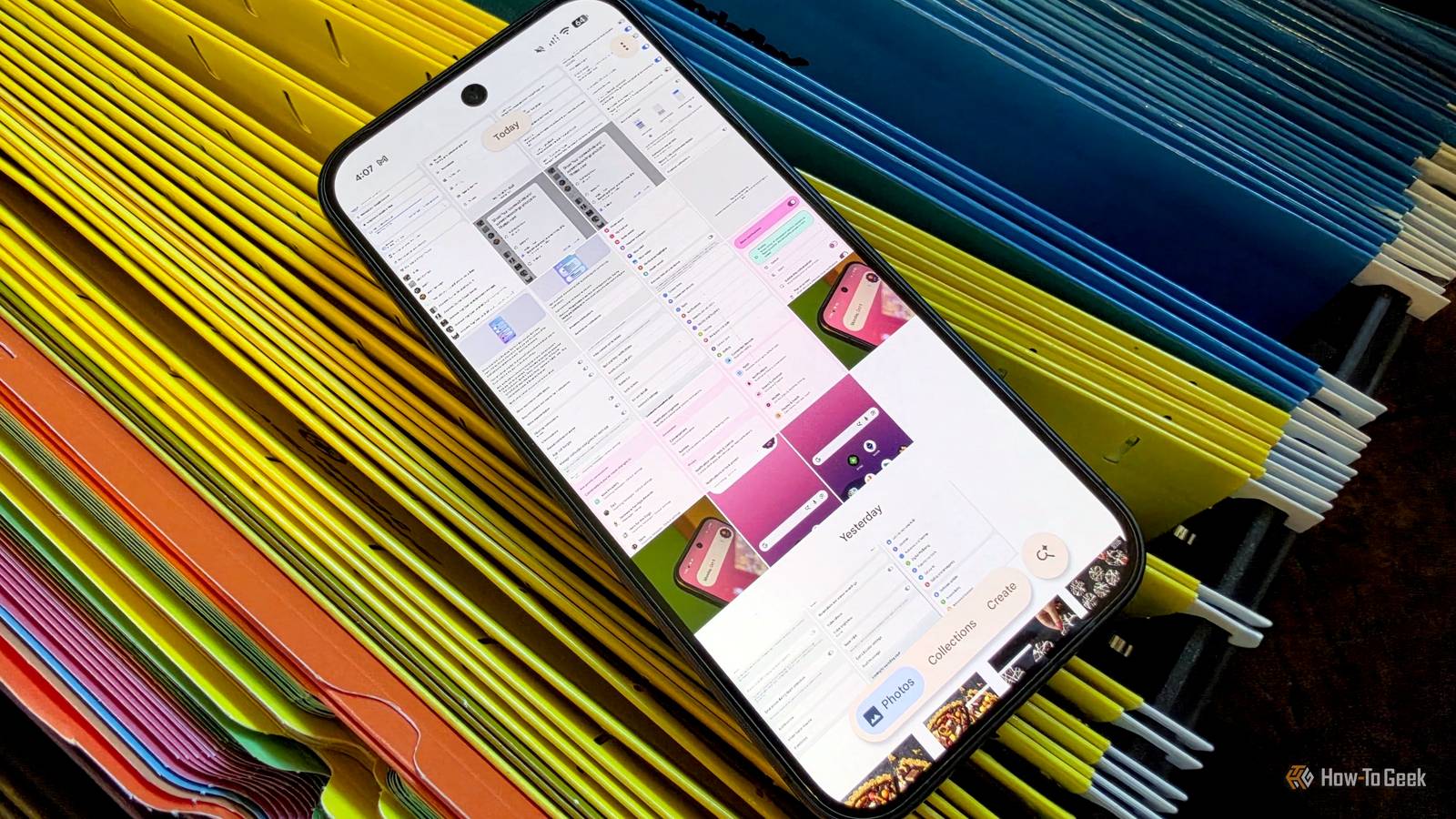
I use Google Photos for cloud backups and as my general gallery app — that's where my main problem comes from.It's handy for me to back up screenshots and access them on other devices, but I was getting annoyed with seeing them mixed in with my photos and videos.Thankfully, a simple toggle is the solution.
Admittedly, I take more screenshots than the average person.I took several for this very article.However, I know it's a common thing to do (don't get me started on how many times I've been sent a screenshot of a photo instead of the actual photo).
Google knows this, too, and it took me too long to discover a feature that makes screenshots in Google Photos a whole lot less messy.You can choose what shows up in the photo feed Wish I'd known about this sooner My Samsung phone has a dedicated "Gallery" app, but I prefer to use Google Photos.It works well for this purpose, but the one downside is that it puts any image or video that you choose to back up in the main "Photos view" feed by default.
If you're like me, that includes screenshots and screen recordings.I like having my screenshots and recordings backed up so I can access them on other devices.You might feel the same way about "Downloads" or a folder from a specific app.
I always assumed that I just had to live with all this stuff in my main feed if I wanted to back it up, but Google actually allows you to choose what appears in the Photos view.Screenshots in Google Photos are organized differently depending on your device.On a Galaxy phone, they're lumped into the main "Camera" folder.
Pixel devices put them in a dedicated "Screenshots" folder.Regardless of the device, the process below will work.To see what I'm talking about, open the Google Photos Settings and go to Preferences > Photos view > Customize by app.
The name is a bit deceiving, because it's not only apps: "Your screenshots and screen recordings" is an option as well.Close Selecting "Your screenshots and screen recordings" brings up a menu with several choices.By default, it's "Not customized." You can change it to "Show all," "Hide clutter," or "Hide all." The "clutter" option will hide screenshots if they're backed up, while "all" will hide every screenshot, no matter what.
Related Screenshots Were Wasting My Google Photos Storage, Here's How I Fixed It Have you found yourself in a situation where Google Photos is uploading your phone’s screenshots? I was there, too.I fixed that problem with a few taps on my phone, and I’ll show you how I did it.And that’s how I ensured the screenshots of my chats, app errors, and memes weren’t there on Google Photos.
I’d be curious to know when you realized this app was backing up your screenshots.Posts 1 By Mahesh Makvana This is the best of both worlds Backed up screenshots without the mess I was very happy to find this option, and not only for screenshots.It makes Google Photos a better gallery app.
I can keep the main Photos view feed for actual photos and videos, while everything else remains tucked away in folders.The best part is, it doesn't stop me from keeping screenshots backed up to the cloud.I don't mind having to go out of my way to open the Screenshots folder.
It's not something I do all the time anyway.However, this does bring up one little annoyance.As I mentioned in the note above, Google Photos on a Galaxy phone lumps screenshots into the "Camera" folder — yet there's a "Screenshots" folder in Samsung's Gallery app.
This makes it slightly cumbersome to find screenshots in Google Photos since I can't go to a specific folder.I'm not sure why it works this way, or who is to blame for it.Regardless, if you're looking to clean up your Google Photos feed, check out the "Customize by app" option and turn off some apps.
It's a very underrated feature — one of many you should be using.Related Google Photos' "Archive" isn't what you think it is There's a common misconception about what the Archive feature in Google Photos actually does.It isn't a delete button, it doesn't recover space in your Google account, and it doesn't make images private.
It's purely a way of decluttering your main Photos timeline, and it's actually pretty useful.The Archive feature in Google Photos might not do what many people think it does, but it's still a pretty useful tool.It helps keep your image library clean and streamlined without risking losing anything you really need to keep.
Posts 2 By Andy Betts
Read More