Two years ago, Logitech got into the LCD-based macro keypad game with the MX Creative Console after buying Loupedeck in 2023.Recently, Logitech released a more affordable macro keypad than the MX Creative Console with the MX Keypad.I’ve spent the past few weeks using Logitech’s latest release and I have to say, I like it a lot more than I thought I would.
Add How-To Geek on Google Add as Preferred Source Follow on Google Discover Logitech MX Keypad 7 Brand Logitech Connectivity Wired USB-C (USB 2.0) Integrations Logi Options+ and Logi Marketplace plugins, including GitHub Copilot, VS Code, IntelliJ IDEA, Claude, Slack, Zoom, Figma, Spotify, and Adobe Creative Cloud Color Graphite, Pale Grey The Logitech MX Keypad is designed to be a 9-key macro keypad with LCDs for each key.Logi Options+ offers deep integration with many applications, including AI apps like Claude, Codex, GitHub Copilot and Actions, and many others. Material Recycled plastic (64% post-consumer recycled in Graphite, 49% in Pale Grey) Weight 96 g (3.39 oz) Dimensions 91.7 x 77.8 x 25.5 mm (3.61 x 3.06 x 1.00 in) Programmable Buttons 9 LCD keys, 2 page buttons Display 9 full-color LCD keys Power USB-C bus powered Keypad 3x3 LCD key grid Compatible with Windows 10 or later, macOS 13 or later Automations Smart Actions multi-step macros, app-aware profile switching Package Includes MX Keypad, USB-C cable, stand, documentation Pros & Cons Dedicated page buttons, plus hold-to-peek at the default profile Keys feel better than an older Stream Deck Plugins can help speed up workflows Handy volume, media, and app-launch keys App-aware profiles that you can turn off with one toggle ## Stand only holds one angle Claude Desktop plugin edits your Claude Code settings without asking The AI features mainly serve developers ## See at Amazon $100 at bhphotovideo $100 at Office Depot $100 at Best Buy $100 at Logitech Expand Collapse See Our Process How We Test and Review Products at How-To Geek We go hands-on with every product to ensure it's worth your time and money.Posts By Justin Duino Price and availability The Logitech MX Keypad retails for $100 and is available to purchase from Logitech, Best Buy, Amazon, B&H Photo, Office Depo, and other retailers.
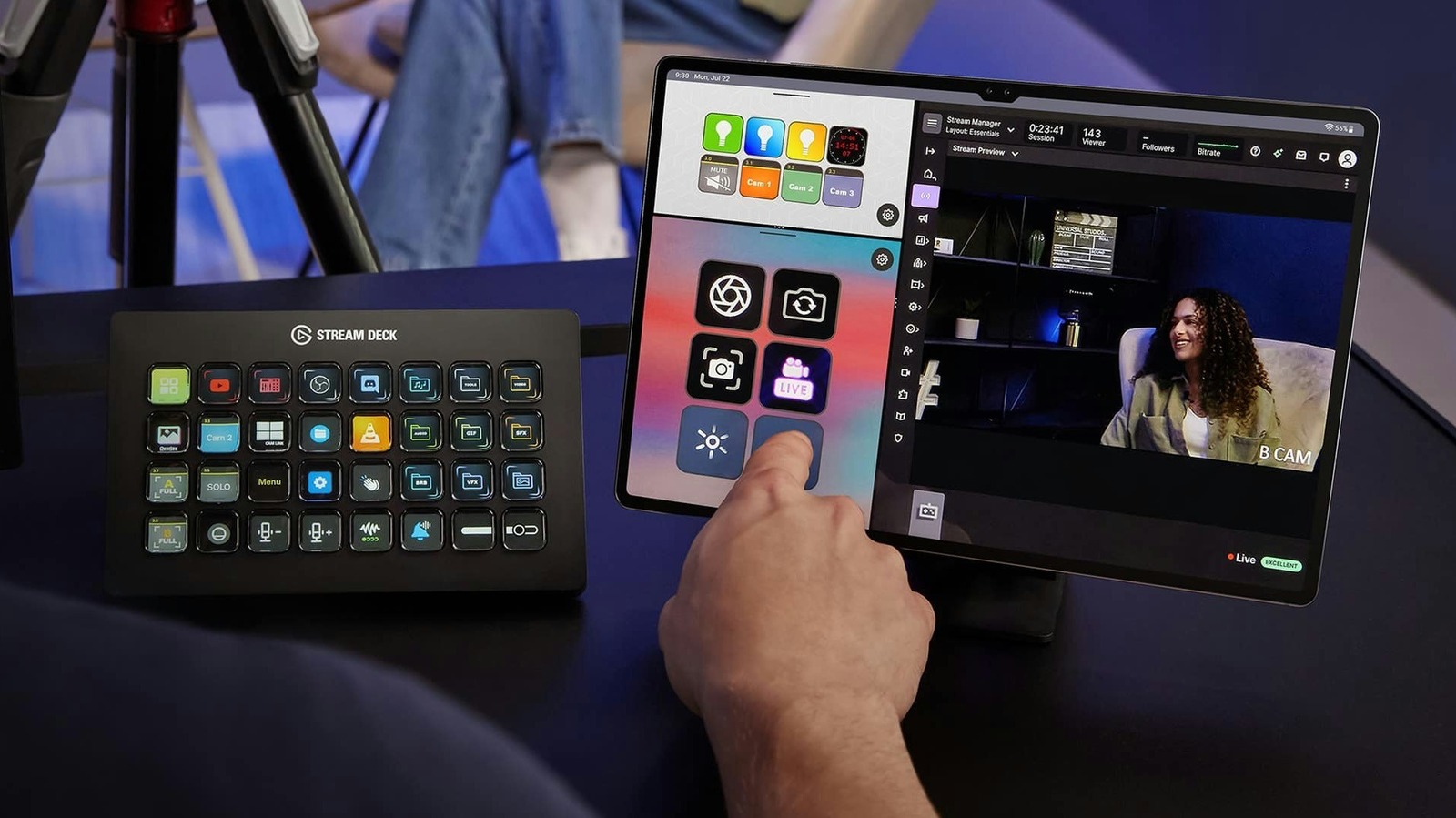
Specifications Brand Logitech Connectivity Wired USB-C (USB 2.0) Integrations Logi Options+ and Logi Marketplace plugins, including GitHub Copilot, VS Code, IntelliJ IDEA, Claude, Slack, Zoom, Figma, Spotify, and Adobe Creative Cloud Color Graphite, Pale Grey Material Recycled plastic (64% post-consumer recycled in Graphite, 49% in Pale Grey) Weight 96 g (3.39 oz) Dimensions 91.7 x 77.8 x 25.5 mm (3.61 x 3.06 x 1.00 in) Programmable Buttons 9 LCD keys, 2 page buttons Display 9 full-color LCD keys Power USB-C bus powered Keypad 3x3 LCD key grid Compatible with Windows 10 or later, macOS 13 or later Automations Smart Actions multi-step macros, app-aware profile switching Package Includes MX Keypad, USB-C cable, stand, documentation Expand Collapse I like these keys more than my Stream Deck's The stand is my only real hardware complaint Close While Elgato might have popularized LCD-based macro keypads nearly a decade ago, other companies have been improving on the design ever since.I’ve had a Stream Deck for nearly a decade at this point, so I’m very familiar with how they work, and Logitech has done a great job with the MX Keypad, I think.The MX Keypad is essentially the the MX Creative Console setup, but without the dial.
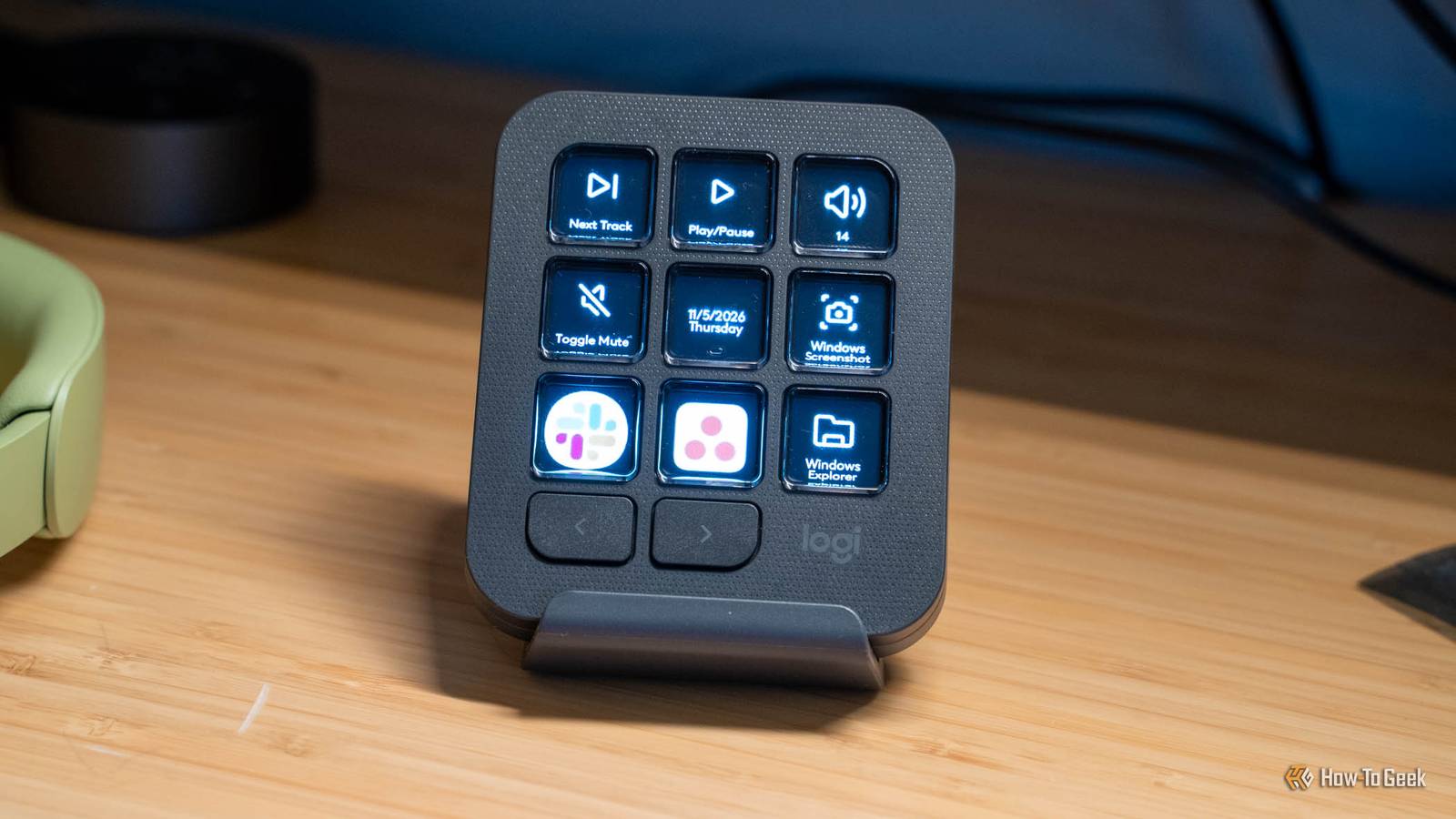
There are nine LCD keys here in a 3x3 grid, which feels limiting, but Logitech actually makes it work I think.On the Stream Deck, if I want to have multiple pages, I have to use two of the LCD buttons to switch between pages.If I want a way to quickly peek back at my main page, I have to have buttons set up for that, too.
Having to use LCD buttons for those functions takes away from using the LCD buttons for actually useful tasks.So, Logitech added two small non-LCD buttons below the 3x3 grid that handle going forward and backward in the pages of the MX Keypad.Not only that, but holding the back button when you’re in a different profile gives a quick peek at the default profile, which I think is really nice.
It only stays up as long as you hold it, and this actually was super useful to me.For instance, I have a special profile that I use in Lightroom, but I sometimes need to quickly access a button that’s on the main profile.Instead of having to try and click outside of Lightroom, or program another button to exit the Lightroom profile and then another to go back in, I just hold the back button and click what I need.
Logitech really thought this aspect through and I applaud them for it.As for the rest of the hardware, the keys feel better than my Stream Deck, but I do have a nearly 10-year-old model that is a bit worn out at this point.I’m not a fan of the stand, however, as it only holds the MX Keypad at one angle.
The MX Keypad has a detachable USB-C cable though, and the shape is one that could easily have a new stand 3D printed for it.Outside of that though, I think the hardware feels really solid and premium.Lightroom is where this keypad finally clicked for me Button presses beat digging through panels Logi Options+ is the software that’s used to customize the keypad.
There’s a marketplace that has several profiles (basically preset key options for you to use), and that’s where I found the Lightroom Classic plugin.I take lots of pictures every week, either for posts here at or for personal use, so I am in Lightroom almost daily.I have presets set up for editing to make things simpler for me, but it still requires several clicks to accomplish.
With the MX Keypad, I have buttons programmed to things like setting my preset, auto white balance, rating a picture, and more.I can easily click a key instead of having to click around the interface to do various tasks.The boring buttons ended up being my favorites Volume, mute, and play/pause are always one press away Outside of Lightroom, my usage of the MX Keypad was mostly mundane tasks—but it excels at those.
I already have keyboard shortcuts using layers on my Dygma Raise 2 for play/pause or volume control, but the MX Keypad takes things up a notch.The volume control actually shows what volume the computer is at and makes it easy to change up or down using the screen.Likewise, the play/pause buttons are right there without having to switch layers.
I’ll say, my favorite button is simply launching File Explorer, Slack, or Asana.I don’t know what it is, but I just simply don’t like trying to find those apps using the tab switch menu on my Mac or PC, and my brain just doesn’t think to head to the Dock or Taskbar to use them until I tab through the open apps 87 times first.But, with them on the keypad, I can easily bring one of those three to be the front window and it works very well.
Profiles can also switch based on the active app I’m in, which is an expected feature, but it works exactly how I’d expect it to, and it can be turned off with a single toggle in Logi Options+.Logitech built this for developers, not really for me The Claude and GitHub plugins are the pitch One of the key selling points that Logitech is pushing with the MX Keypad is how it can be used as an AI coding controller.While I’m doing AI development basically every single day, the MX Keypad doesn’t really have a place in that workflow for me.
Logitech built it in close collaboration with GitHub, and as such, it works very well with GitHub.While I do use GitHub as a code storage platform, I don’t really use GitHub Actions and things of that nature.I run far too many CI/CD builds for it to make financial sense for me to use GitHub for those functions when I have the homelab that I do.
But, the integrations are very solid.The Claude Desktop (Beta) plugin shows live session tiles, has one-click allow/always/deny buttons, and lets you do many other things in the app.There are also Codex plugins and other community integrations available in the Logi Marketplace.
One thing I do want to point out though: the Claude Desktop (Beta) plugin from the Logi Marketplace added 10 hooks into my global Claude Code settings, and it even replaces the status line during setup—all without asking or alerting me.It also only tracks sessions started in the Claude Desktop app, not other Claude Code clients.I think that for some the AI integrations could be useful, but it’s just not necessarily useful for me.
On the other hand, Logitech did make an Actions SDK for you to use AI agents to build plugins for the MX Keypad, and, while I’ve not used it yet, I definitely plan to because it seems like a great way to build something custom using an AI platform like Claude or Codex.Should you buy the Logitech MX Keypad? The Logitech MX Keypad is honestly a good macro pad at $100.I love that Logitech added the dedicated navigation buttons on the bottom because that just makes it so much easier to use.
If you’re in the market for a LCD-based macro keypad, I don’t think you’ll be disappointed with the MX Keypad.It works great, has solid software, and the AI functionality is decent—especially having an AI-native SDK to build your own plugins with.I would say that, even if you need more than nine keys, the MX Keypad could be a good option for you.
Switching pages is way easier than on the Stream Deck, which makes something like this simply easier to use.Logitech MX Keypad 7 Brand Logitech Connectivity Wired USB-C (USB 2.0) Integrations Logi Options+ and Logi Marketplace plugins, including GitHub Copilot, VS Code, IntelliJ IDEA, Claude, Slack, Zoom, Figma, Spotify, and Adobe Creative Cloud Color Graphite, Pale Grey The Logitech MX Keypad is designed to be a 9-key macro keypad with LCDs for each key.Logi Options+ offers deep integration with many applications, including AI apps like Claude, Codex, GitHub Copilot and Actions, and many others. See at Amazon $100 at bhphotovideo $100 at Office Depot $100 at Best Buy $100 at Logitech Expand Collapse
Read More