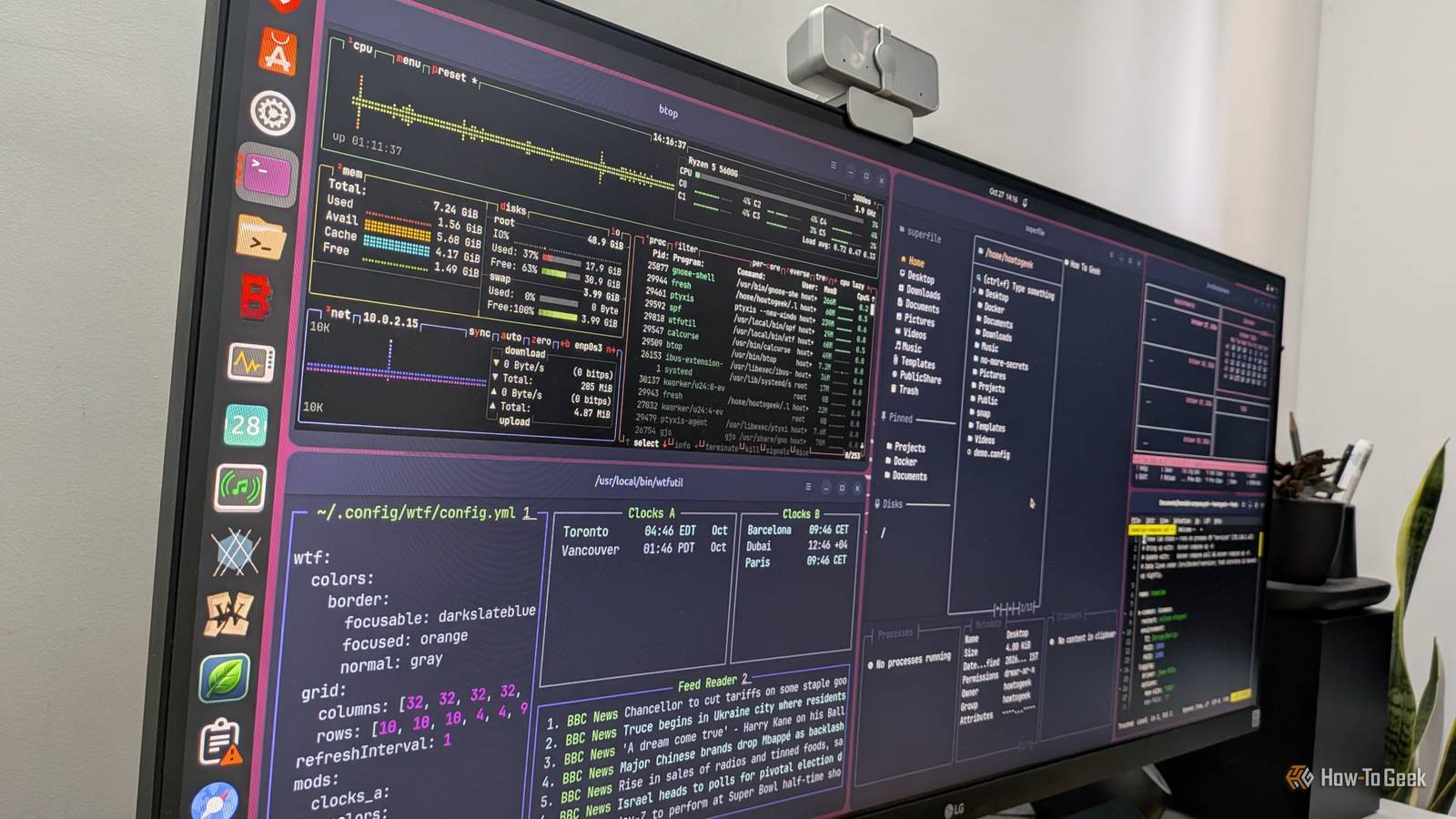
Terminal-based apps are awesome, but if you’ve ever tried to use them, you’re probably already aware of their biggest annoyance: you have to open a terminal and type a command every time.They don’t show up in your dock or app launcher the way regular desktop apps do.Thankfully, there’s a quick and easy fix for that.
It’ll hardly take a few minutes, and you’ll be able to give your terminal apps their own icons and entries in your application launcher.Add How-To Geek on Google Add as Preferred Source Follow on Google Discover By terminal apps, I specifically mean TUI (terminal user interface) apps, not CLI (command-line interface) tools.A TUI app draws a full interface inside the terminal, with panels, menus, and lists you can navigate using the keyboard and sometimes the mouse.
A CLI tool like curl or ls, on the other hand, accepts a command, produces some output, and exits." Why I’d rather use TUI apps than their GUI equivalents TUIs just feel like first-class citizens on Linux Graphical apps on Linux have improved a lot over the last few years, but so have terminal apps.Frameworks like Bubble Tea for Go and Ratatui for Rust have made it much easier to build good-looking, well-designed TUIs, and plenty of developers are using them to create some really cool terminal apps.In fact, I’d argue that some of them actually look cleaner and more polished than their GUI counterparts.
That said, it’s not just about aesthetics.TUI apps offer a few functional advantages over GUI apps, too.TUI apps are perfect for SSH sessions Close For starters, one of the most common reasons people use Linux is to power their homelabs.
If that’s the case, you’re probably accessing your server remotely over SSH, which means you’re working in a terminal anyway.Sure, you can technically run graphical apps using features like X11 forwarding, but launching a TUI app is much simpler.TUI apps like Superfile give you a proper file manager for browsing files on your server.
Lazydocker lets you monitor the status of your Docker containers, while Fresh gives you a capable code editor with syntax highlighting right in your terminal.There’s also WTF, a highly customizable terminal dashboard that you can configure to display whatever information matters to you.TUI apps are lighter, faster, and more efficient than GUI apps Close Let’s say you don’t want to turn your PC into a server.
Instead, you want to use it as a spare or secondary desktop.Maybe you’re using Linux to breathe new life into decade-old hardware that Windows has abandoned.Even in that scenario, TUI apps can be more useful than their traditional GUI counterparts.
Graphical apps often consume more system resources because they have to render windows, interface elements, animations, and other visual effects.TUI apps generally have a smaller resource footprint, making them a good fit for older hardware.That said, don’t let the fact they’re lightweight fool you into thinking they’re lacking in terms of features and functionality.
For context, you’ve got TUI apps like Taskwarrior for task management, Calcurse for managing your calendar and schedule, and WordGrinder as a lightweight word processor.There’s also btop, one of the best system resource monitors out there, and ncspot for controlling Spotify from your terminal.You can even use Lynx to browse the web through the terminal, although the experience is pretty limited.
For everyday browsing, I’d recommend sticking with a lightweight graphical browser instead.Related I ditched desktop apps for these 5 Linux terminal apps, and I’m not going back Modern terminal apps look nothing like the cryptic tools you remember, and these five earned a permanent spot on my system.Posts 5 By Dibakar Ghosh The main drawback of TUI apps It’s dependent on the terminal As you can probably tell by now, I love TUI apps, but there’s one thing that bugs me about them: I have to open a terminal and type a command to launch them.
Sure, it’s not a huge problem, but it’s certainly not as convenient as clicking an icon in your dock to launch an app, just as you would with a regular desktop app.Granted, this doesn’t matter much when you’re SSHing into your Linux system or running it headless, since you won’t have a dock or app launcher to worry about anyway.However, I use Linux as my main workstation, and not having my TUI apps readily available in the dock has been a bit of a bother.
Thankfully, there’s a quick and easy way to give your TUI apps their own icons and entries in your dock and app launcher.Related These 7 TUIs Will Bring Your Terminal Experience Up-to-Date GUIs are great but TUIs are terrific! Posts 4 By Bobby Jack How to save TUI apps to your dock and app launcher Open your TUI apps with a click — not a command Creating a desktop entry for a TUI app is as simple as creating a small .desktop file with roughly 10 lines of text.I’ll walk you through the process using Superfile (spf) as an example, but the same approach works for any other TUI app.
First, find the path to the command you want to launch.You can do this using the which command: which spf This should print the full path to the program, something like /usr/local/bin/spf or /home/your_username/.local/bin/spf.Make a note of it — you’ll need it in a moment.
Next, you need an icon for the app.Most projects have a logo in their GitHub repository or on their website.Download the PNG or SVG icon and save it somewhere on your system.
That said, some TUI projects might not have a logo, in which case you can use a generic icon instead.Now, it’s time to create the .desktop file.Open your terminal and run the following commands one after the other: mkdir -p ~/.local/share/applications nano ~/.local/share/applications/superfile.desktop Next, paste the following contents into the file: [Desktop Entry] Type=Application Name=Superfile GenericName=File Manager Comment=Modern terminal file manager Exec=/usr/local/bin/spf Icon=/home/your_username/.local/share/icons/superfile.svg Terminal=true Categories=System;FileTools;FileManager;ConsoleOnly; Keywords=files;file manager;spf;terminal; StartupNotify=false Replace the value of Name with the name you want to give the app.
Set Exec to the path you obtained by running the which command, and set Icon to the full path of the icon you downloaded.Once you're done, save the file.Your desktop environment should detect the new entry and make it available in your application launcher, although you might need to log out or restart your system first.
Once done, you can then pin the app to your dock, just as you would any other desktop app.The process is fairly straightforward, but if you don't want to create the file yourself, you can ask Claude Code to generate the .desktop entry for you.I've found Claude Code particularly useful for customizing my Linux desktop.
TUI apps make Linux feel more like Linux Modern Linux desktops have plenty of excellent graphical apps, making it easier for people to switch to Linux.But terminal apps have their own charm, and many offer practical advantages, such as lower resource usage and convenient keyboard-driven workflows.And with this little trick, you can make them just as easy to launch as your regular desktop apps.
Related 15 historic moments that shaped the Linux desktop we use today From wobbly windows to Windows running Linux, the Linux desktop has had one wild ride! Posts 5 By Umair Khurshid
Read More