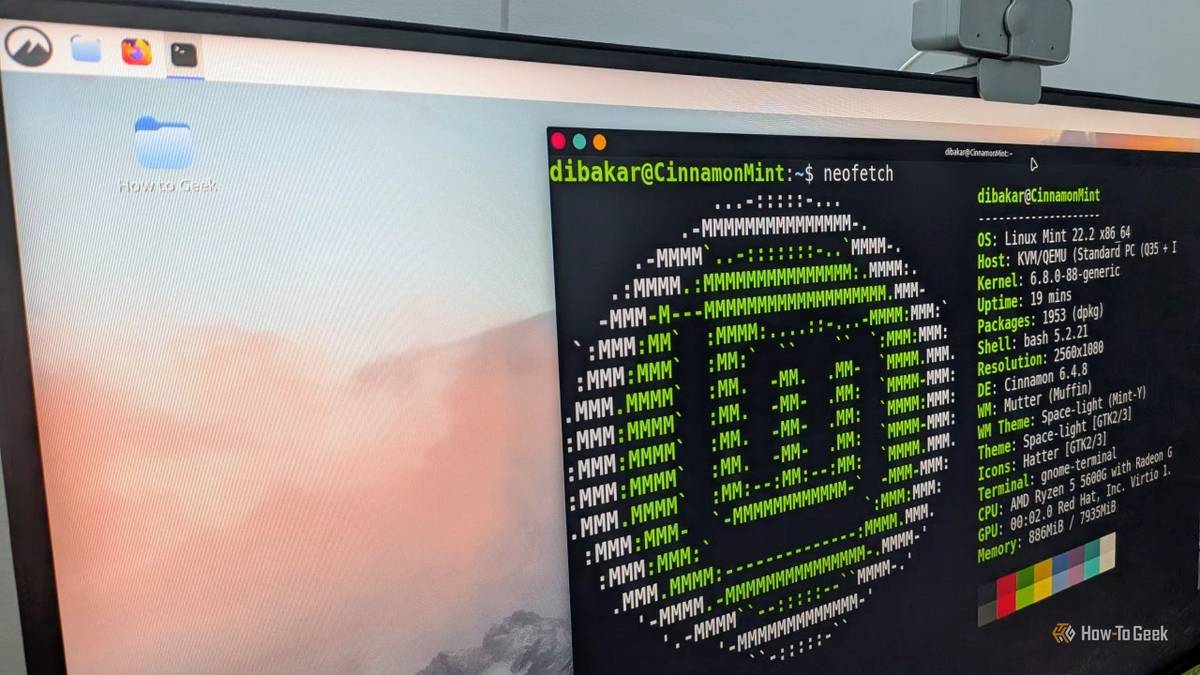
Working with a sluggish computer is a grind.With automated functions, servers, self-hosting, Docker containers, and all the files I download on a daily basis, I often forget to keep my digital space tidy.I noticed something was chewing up my Linux box's performance in a way I never experienced when I used Windows.
I wanted to find out why, so I did a deep dive into cleaning up my computer using a mix of system tools and third-party software, and a bit of help from Claude.I'm using several tools here.Unless noted otherwise, I found all of these in Linux Mint's package manager and installed them via the Terminal using sudo apt install [package-name].
Getting to the root of the problem Fixing the Timeshift dilemma with a quick reconfiguration Close To find the root of my storage problem, I ran the disk filesystem ( df ) command, which displays two things: available space and total space.Adding -h gives you the version, so it's always best to use df -h as the full command when checking.This gives you a quick look at what's eating up all your storage.
In my case, I was at on my hard drive.That had to change immediately.I asked Claude for some suggestions and it recommended taking a look at Timeshift, unused Docker apps, abandoned Flatpaks, and bloated gaming data.
That's kind of obvious, Claude, but thanks just the same.On Linux Mint, there's a visual disk analyzer you can access from the command line with baobab.This is the tool I used to pull a graphical representation of my storage data.
A quick look at the disk analyzer told me Flatpak repo data was taking up 5GB of space, which I addressed by removing old/unused Flatpacks.Docker was taking up over 30GB, so I did some pruning there.I also deleted some unused fonts.
Close AI tools can be hit-and-miss, but Claude was right about one thing: Timeshift and a few gaming utilities were killing my system's performance and chewing up data like crazy.I used my established research persona from a previous experiment to have it help me figure out how to safely work on Timeshift.We eventually reduced the number of Timeshift instances to 3 per week, down from 5 per day.
That seemed to help quite a bit.Even after doing so, the snapshots were still eating a lot of space (56.8GB).It turned out that although I'd enabled fewer snapshots, I forgot to purge the old ones, which was a problem because changing schedules doesn't automatically clean out the system.
All the ones tagged with D (which stands for "daily") could go because the weekly data (W) contains the full snapshot that would be used to restore the system.So in the future, I'll be monitoring this more often.With that out of the way, I found one of the worst space-hogging offenders on my system.
Steam bloated my system, so it had to go Bye bye Balatro, I'll see you on a different console At one point, I had this idea that I'd use Steam to stream games like or play during downtime.But after several half-hearted attempts to play games via the platform, I realized I'm never going to do that.I'm a retro guy through and through.
Taking a look at how much space Steam, with its small contingent of games, takes up on my hard drive, I am confident I made the right decision.I also manually deleted most of my other games and purged Heroic Games Launcher (which I used for GOG games).I had two reasons for this: Heroic Games Launcher is fantastic, but it syncs with GOG on my other machine, which ends up taking extra space on the Linux Box.
I don't really play games on the Linux Box; it's predominantly meant for writing, research, and development.So purging both ended up being for the best.Removing them instantly cleared 10GB of data from my hard drive.
Then it was time to find the hidden files and remove them.I found the .steam hidden folder and manually removed it with rm -r .steam.I realized I had forgotten to use sudo, the force command, so it wanted me to manually approve them.
I hit CTRL + C to kill the process and re-ran the command as sudo rm -rf .steam.That did the trick, and we now have even more clean space: 13.7GB.Excellent.
Now, it was time to address my worst habit: data hoarding.My tendency to hoard data caused some storage issues Saving everything has a downside Close I'm a data hoarder.I asked Claude about how I could fix that, and it recommended a 3-2-1 backup.
Again, , on that one, pal.Regardless, I have several hard drives and backups full of audio, photos, apps, projects, and so on.Since I've been doing more self-hosting with music and video (and using my NAS for storage), there was simply no point in having a bunch of local audio files on my machine.
So I purged them and cleared 1.4GB instantly.I went through and cleaned up any extra images, documents, video files, and dangling Docker images to clear as much space as possible.I back up everything using Rsync and an external hard drive.
My Downloads folder was a mess, with several GB worth of Linux ISO images (for virtual machine use), so I removed anything that wasn't relevant to my work, clearing up a decent amount of space in the process.Outside of storage bloat, I knew there were some performance tweaks I could make, so I launched Stacer and got to work.Related Use these 7 Linux commands to keep your system tidy and fast Keep your Linux system running fast with simple maintenance commands to clean packages, clear logs, manage startup apps, and monitor performance.
Posts 14 By Zunaid Ali With a simple CLI tool and another app, I could purge unwanted logs and improve performance Clearing logs and improving memory with multiple tools Close I use Stacer (you can install it with sudo apt install stacer) to clean up logs, adjust startup options, and monitor my system because I like its organization and GUI.The first thing I did was clean up any extra logs, which was also recommended by Claude as part of this process.Before purging logs and caches, make sure it's not something you need.
You don't want to break your system by accidentally deleting a vital log.Via Stacer, I was able to see my CPU performance (it was high) in real-time and adjust which apps startup at launch.I disabled the background startup services for things I don't typically use, like Bluetooth and Braille.
It's a convenient interface and makes monitoring pretty simple on Linux.After using Stacer to clear up logs, I headed back to the command line to see if I could improve my memory usage.Limiting memory usage, especially when you're multi-tasking, is a generally good move.
I used the command sudo sysctl vm.swappiness=10 to set swappiness (a kernel parameter built into Linux) to 10 instead of the default of 60.This forces Linux to rely on fast physical RAM before writing anything to disk, resulting in minor memory usage improvements.This fix only changes it temporarily, so if you want to make it permanent, you'll have to add it to a configuration file located in /etc/sysctl.conf.
You can do a quick check at the current setting with cat /proc/sys/vm/swappiness.This cut my memory usage in half and I noticed an immediate performance improvement, bringing my optimization journey to a close.Related 10 Quick Steps to Increase PC Performance Want a faster PC? Here are some quick tips for boosting performance.
Posts By Ian Paul Computer maintenance is vital on Linux A cleaner, more optimized work machine took some time.Fortunately, Linux Mint has every tool you need available.With a bit of research, time, and understanding what you're doing, it's simple enough to keep a machine running well for a long time.
Claude was more helpful with this than it had been in the past, although many of its suggestions were typical tweaks that experienced users would probably already know.Now, the trick is to keep it that way and not fall back into my data hoarding ways.
Read More