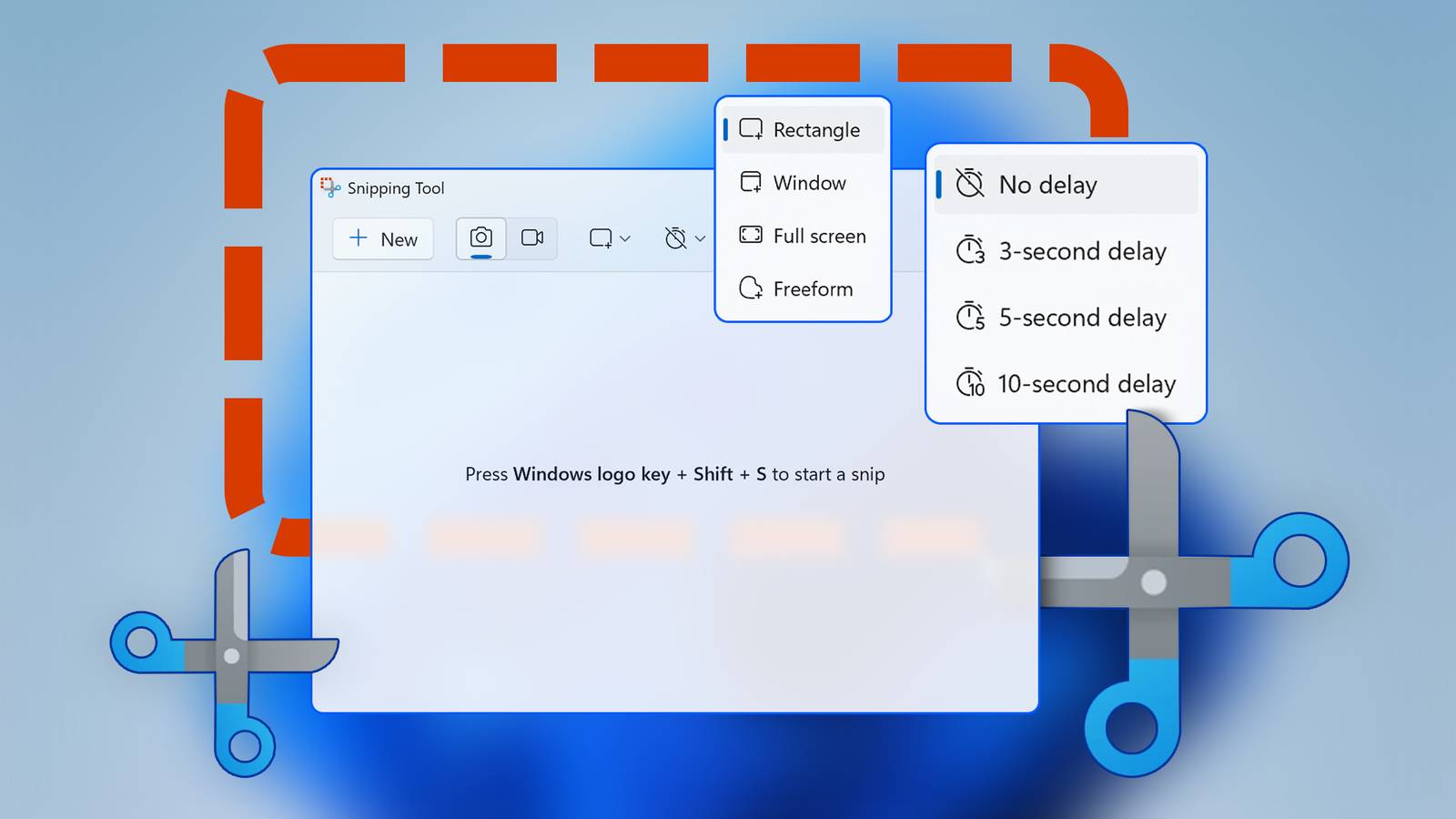
Most people think of the built-in Windows Snipping Tool as the little thing that pops up when you press the "Print Screen" button, but the truth is that this app can do far more than take screenshots.While we've often recommended alternatives to the Snipping tool like ShareX for various good reasons, the truth is that those alternatives are mostly useful to hardcore screenshotters.Since I write computer tutorials for a living, that does make me biased against more basic solutions like the Snipping Tool.
However, chances are that unless you have a similar line of work, you're not making the most of it in the first place.It's no longer just a screenshot tool More than meets the eye Replacing the old Snipping Tool and Snip & Sketch apps, the current incarnation of Snipping Tool did indeed start life as a fairly basic screenshot tool.However, Microsoft has been steadily adding features to it over time.
Close Now, the Snipping Tool is virtually a light productivity app.It can do the essential jobs of several third-party apps, and if you don't need the more advanced features of said applications, you can just get rid of them.The basic screenshot features are still there, and I have to admit that Microsoft has gone against its nature here and kept them front and center without bloating them out of the way.
You can take various types of shots, annotate them, and then save the image or send it somewhere right from the app interface.However, if you scratch beneath the surface, you'll find powerful OCR and AI technology that bring Windows in line with features we've grown used to on Android and iOS.Record your screen without installing anything It's a snap to record whatever you're doing One of the things I enjoyed the most when I switched over to macOS in 2019 was the built-in screen recorder.
At that time, if I wanted to record my screen on Windows, I had to use a third-party app like OBS.Now you can open Snipping Tool, and then switch from Snip mode to Record by clicking on the video camera icon.After selecting the area of the screen you want to record, click Start, do your thing, and end the recording when you're finished.
This isn't going to replace dedicated screen recording apps entirely, but it's incredibly useful for making quick clips of things happening on your screen.If you wanted to, for example, record gameplay footage on your computer, it still makes more sense to use OBS or the screen recording software that came with your graphics card.Copy text from almost anything with the built-in text extractor Copy and paste almost anything that's written down Another neat trick that the latest version of Snipping tool is capable of comes in the form of "Text Actions." If you look at the Snipping Tool bar above, you can see an icon to the right of the dropper tool (which tells you the exact color value of anything on-screen) that looks like text with a reticle around it.
That's the text extractor, and once you click on it, you can select any text within that zone as plain text that can be copied.This effectively lets you OCR anything on your screen quickly.For example, you might be reading a PDF that's a scanned document, and just need to copy a section of the text into your word processor.
Once you know this feature is there, you'd be surprised how often you'll use it, since in the past you'd just retype the things you couldn't copy and think nothing of it.Now, it's apparent how much that wasted time adds up.Search your screen capture with Bing Visual Search It's not quite as good as Google, but more convenient You know how we have features like Circle to Search on smartphones? Well, the Snipping Tool now includes a similar feature.
After you've selected a section of the screen to capture, you can click on the "Visual Search with Bing" button as seen here.This will open Bing in your default browser app.I expected that this would always take you to Microsoft Edge, but for once, the company read the room, and it opens in whichever browser you've set as the default.
Whether you think Bing Visual Search works well or not, having it in the Snipping Tool makes it far more likely that you'll actually use it.These features can replace several third-party utilities Ultimately, you can find more powerful and in-depth versions of these functions and features in various other apps, but because the Snipping Tool is just a keyboard shortcut away, it's almost always more convenient to use it than open a separate app.When I'm taking screenshots on my Windows computer, it's now become second nature to do all my annotations directly in Snipping Tool, where I used to do it in Paint and, in later years, in Canva.
Snipping Tool only has a fraction of the annotation features, but I don't need any more than it already has.So if you've been ignoring the Snipping Tool because you assumed it was just a basic screenshot applet, take some time to check out how much it's grown over the years.
Read More