Ever found yourself copying a few rows from an Excel spreadsheet into another part of your workbook, only to repeat the whole process when your data changes? There's a better way.Excel's TAKE function lets you extract the rows and columns you need, so you can build focused reports that update automatically.Add How-To Geek on Google Add as Preferred Source Follow on Google Discover The TAKE function is available in Excel for Microsoft 365, Excel 2024, and Excel for the web.
How the TAKE function works Start with a simple table Close TAKE works with ordinary cell ranges as well as Excel tables.For these examples, I'll use a table because it automatically expands when you add new records, keeping your formulas up to date.I'd also recommend naming the table so you can refer to it easily in formulas.
Depending on your version of Excel, you might be able to name your table directly in the Create Table dialog.If you don't see that option, create the table first, then open the Table Design tab and change its name in the Table Name field.With your data ready, you can use TAKE to pull out rows, columns, or both.
Here's the syntax: =TAKE(array,rows,[columns]) where array is the range or table you want to extract data from.rows is a number that determines how many rows to return.columns is a number that determines how many columns to return.
Positive numbers select rows or columns from the beginning of the source, while negative numbers select them from the end.For example, =TAKE(tblInventory,5) returns the first five rows of the table, and =TAKE(tblInventory,,-1) returns the last column.You can leave either the row or column argument blank to include everything in that dimension, but you need to specify at least one.
Setting either argument to 0 returns a #CALC! error.TAKE is a dynamic array function, so you enter the formula in one cell, and Excel spills the results into the surrounding cells.The results update when the source table changes, including when you add new records.
Just make sure the destination cells are empty: if something blocks the output, Excel returns a #SPILL! error.Extract specific rows from your table Select your records One of the handiest ways to use TAKE is to pull a set number of rows from a larger dataset.For example, if you want to see the first five entries in your household budget, type this formula in an empty cell: =TAKE(tblBudget,5) Excel returns the first five rows, including all the columns in your table.
To extract the last three entries in your table instead, use a negative number: =TAKE(tblBudget,-3) If you want these to be your three most recent expenses, make sure your table is sorted by date, with the newest entries at the bottom.You can also combine the row and column arguments to extract a smaller block of data.For example, this formula returns the first five rows and first two columns: =TAKE(tblBudget,5,2) Remember that TAKE works by position, not criteria.
It won't automatically find your five most expensive purchases or filter your table to a particular category; it just returns the rows at the start or end of your source data.We'll look at combining TAKE with other functions to make it even more flexible later.If you need to select specific rows that aren't next to one another, use Excel's CHOOSEROWS function instead.
Extract specific columns from your table Choose which fields You can also use TAKE to extract particular columns from your table.For example, if you want to display only the Bill and Due date columns from your household bills, type: =TAKE(tblBills,,2) Notice the two commas after tblBills.Because the first argument after the table name is rows, leaving it blank tells Excel to include all the rows.
The 2 then tells Excel to return the first two columns.You can also work backward from the end of your table.To return only the last column, use: =TAKE(tblBills,,-1) Here, Amount is the last column, so that's what the formula extracts.
Keep in mind that TAKE selects columns by position, so if you add a new column to the right of your table, this formula will return that one instead.If you want a particular column regardless of its position in the table, you can use its structured reference.For example, this formula returns the first three amounts: =TAKE(tblBills[Amount],3) That's handy when you want one specific field rather than a set number of columns.
If you want to extract multiple columns that aren't next to one another, Excel's CHOOSECOLS function is a better fit.Combine TAKE with other Excel functions Let it do the hard work for you TAKE becomes even more useful when you pair it with other Excel functions.For example, you can use SORTBY to build a report of your five highest-revenue sales records without manually sorting your original table.
Enter this formula in an empty cell: =TAKE(SORTBY(tblSales,tblSales[Revenue],-1),5) SORTBY arranges the rows of tblSales by the Revenue column, with the largest amounts first.TAKE then returns the first five rows of that sorted result.Your original table stays put, while your new report shows your five biggest sales.
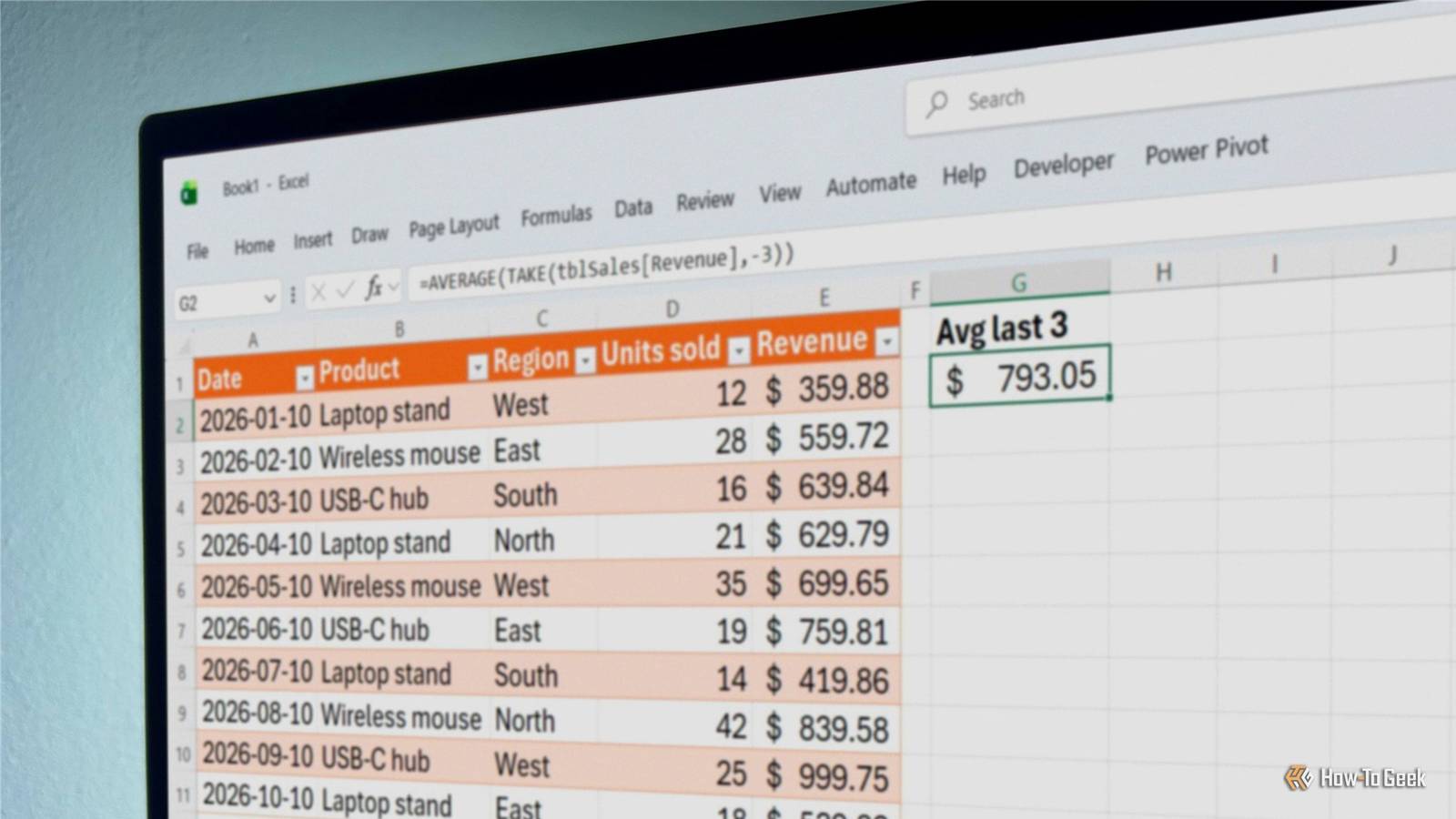
You can also nest TAKE inside AVERAGE to summarize a selection of values.For example, to calculate the average of the last three entries in your table, use: =AVERAGE(TAKE(tblSales[Revenue],-3)) TAKE returns the last three entries in the Revenue column, and AVERAGE calculates their mean.To average your three most recent entries, make sure your table is sorted by date, with the newest entries at the bottom.
Get more from your data Once you get used to TAKE, you'll find plenty of ways to trim a big spreadsheet down to what you actually need.Whether you're pulling out a few rows or combining functions to highlight your highest-revenue sales, you can build reports that update automatically instead of repeating the same manual steps.If you ever need to do the reverse and exclude rows or columns from an array, give Excel's DROP function a try.
Read More