Gmail's inbox used to feel like a chore I could never finish.Newsletters piled up, the same questions kept landing in my inbox, and the one message I actually needed was always buried under everything else.But after tweaking a few free Gmail settings, my inbox now handles the repetitive work for me.
Add How-To Geek on Google Add as Preferred Source Follow on Google Discover Star emails that matter Give important messages a head start Close I use Gmail's starred messages as a personal to-do list.When an email needs a follow-up, or I don't have time to deal with it immediately, I star it so I can return to it later.The Starred label gives me one place to find those messages without having to remember which conversation they were buried in.
The trouble is, I forget to star things, and doing it by hand for every message gets old fast.Fortunately, Gmail can do much of the starring for me.I still hand-star the odd ones that don't fit a pattern, but the repetitive stuff is Gmail's job now.
To set this up, I clicked the search options icon in Gmail's search bar, entered the criteria for the emails I wanted to flag, and clicked Create filter.I created filters for messages from my HTG manager, emails containing the phrase "action required," and Google Calendar invites containing "invitation." For each filter, I selected the Star it option and clicked Create filter again.Now, Gmail automatically stars matching incoming emails, so they're ready and waiting when I check my list.
Think about which messages you regularly need to follow up on, and you might find other filters worth creating.Send routine replies Let Gmail handle repetitive responses Close I sometimes find myself typing the same reply over and over.For my business email, I use a template to acknowledge incoming inquiries automatically, so people know their message has arrived and roughly when to expect a reply.
First, I enabled Templates under Settings > See all settings > Advanced and saved my changes.I then drafted my acknowledgment reply in a new message and saved it using the three-dot menu under Templates > Save draft as template > Save as new template.Next, I created a filter using the Includes the words field, entering enquiry OR inquiry OR request OR quote OR quotation so Gmail could match messages containing any of those terms.
Finally, I selected Send template, chose my saved reply, and clicked Create filter.Keep your filter criteria specific.Before creating the filter, use Gmail's search to check which emails match your terms.
Broad keywords can trigger automatic replies to clients, suppliers, or messages that need a personal response, so narrow the criteria if necessary.Forward specific emails Send messages where they need to go I really don't want to miss an email confirming a client payment or nudging me about a bill.By forwarding emails containing words like "invoice" or "payment" to my personal account, I can spot important financial updates more easily without constantly checking my business inbox.
To set this up, I first added and verified my personal email address under Settings > See all settings > Forwarding and POP/IMAP.I left general forwarding disabled, then created a filter using the Includes the words field with invoice OR payment.In the filter actions, I selected Forward it to and chose my verified address.
Now, matching emails arrive in both accounts.The originals stay in my business inbox, while the forwarded copies make important financial updates easier to spot in my personal inbox.Use Forward it to in a filter to send only selected messages elsewhere.
General forwarding is a separate setting, so leave it disabled if you don't want every incoming email forwarded.Reply while you're away Take your inbox on vacation without you When I'm away from work, I don't want people wondering whether their email has reached me or when they might hear back.Gmail's vacation responder takes care of that, telling people I'm unavailable and when they can expect a response.
It's like having a business partner who keeps everyone in the loop while I'm off doing something else.To set it up, I opened Settings > See all settings > General and scrolled down to Vacation responder (or, in some versions, Out-of-Office AutoReply).I switched it on, entered the start and end dates, wrote a short message explaining when I'd be back and when I'd respond, and saved my changes.
I could also choose to send replies only to people in my contacts.Once the end date passes, Gmail stops sending the auto-reply, but the settings stick around for next time.I just update the dates, tweak the message, and I'm good to go again.
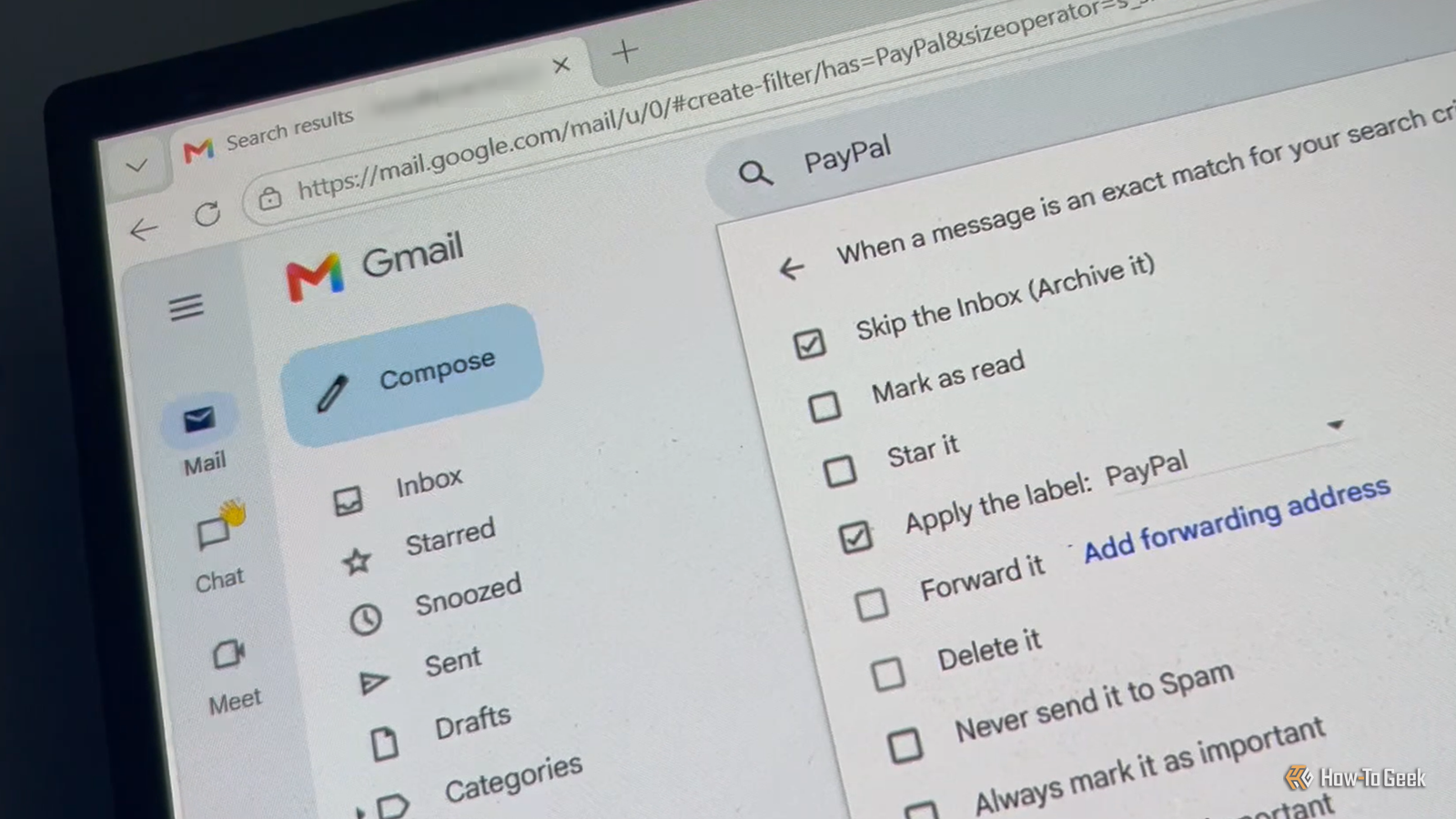
Label and move incoming emails Organize recurring messages Close I have Gmail labels for PayPal, two-factor authentication (2FA), and various other types of emails, so I can find those messages quickly when I need them.Rather than sorting every email by hand, I let Gmail apply the right label as new messages arrive.I can also tell Gmail to skip the inbox for certain messages, keeping my main view clear without losing emails I might need later.
To create a filter, I clicked the search options icon in Gmail's search bar, entered the criteria for the messages I wanted to organize, and clicked Create filter.I then chose what I wanted Gmail to do with those messages before clicking Create filter again: Apply the label to choose a relevant label or create a new one.Skip the Inbox (Archive it) for messages I didn't need to see in my inbox.
Also apply filter to matching conversations to apply the rule to messages already in my inbox.There's a trade-off to skipping the inbox: with my notification settings, I no longer receive the device notifications I'd normally get for those messages.I'm happy with that trade-off because I regularly glance at Gmail's left-hand sidebar for anything that needs my attention.
Labels containing unread messages appear in bold with an unread count, making new arrivals easy to spot at a glance.Emails that don't match an existing filter still land in my inbox, where I can decide what to do with them.If the same kind of message keeps appearing, I can create another filter and label to keep my system organized as my needs change.
Make Gmail work for you These five automations have made my inbox far less of a chore, with Gmail handling the repetitive stuff while I focus on the messages that matter.You can also make Gmail less frustrating by turning off annoying features, from the Chat and Meet tabs to nudges that bring old emails back to the top of your inbox.Gmail works well out of the box, but a few small tweaks can make it feel a lot more like yours.
Read More