If you've ever used Win+Shift+S for quick screenshots, you'll know how handy it can be and how much time it can save.But there's another shortcut that's even more useful.On recent versions of Windows 11, Win+Shift+T extracts editable text directly from your screen, turning information trapped in images, PDFs, and presentation slides into text you can immediately reuse.
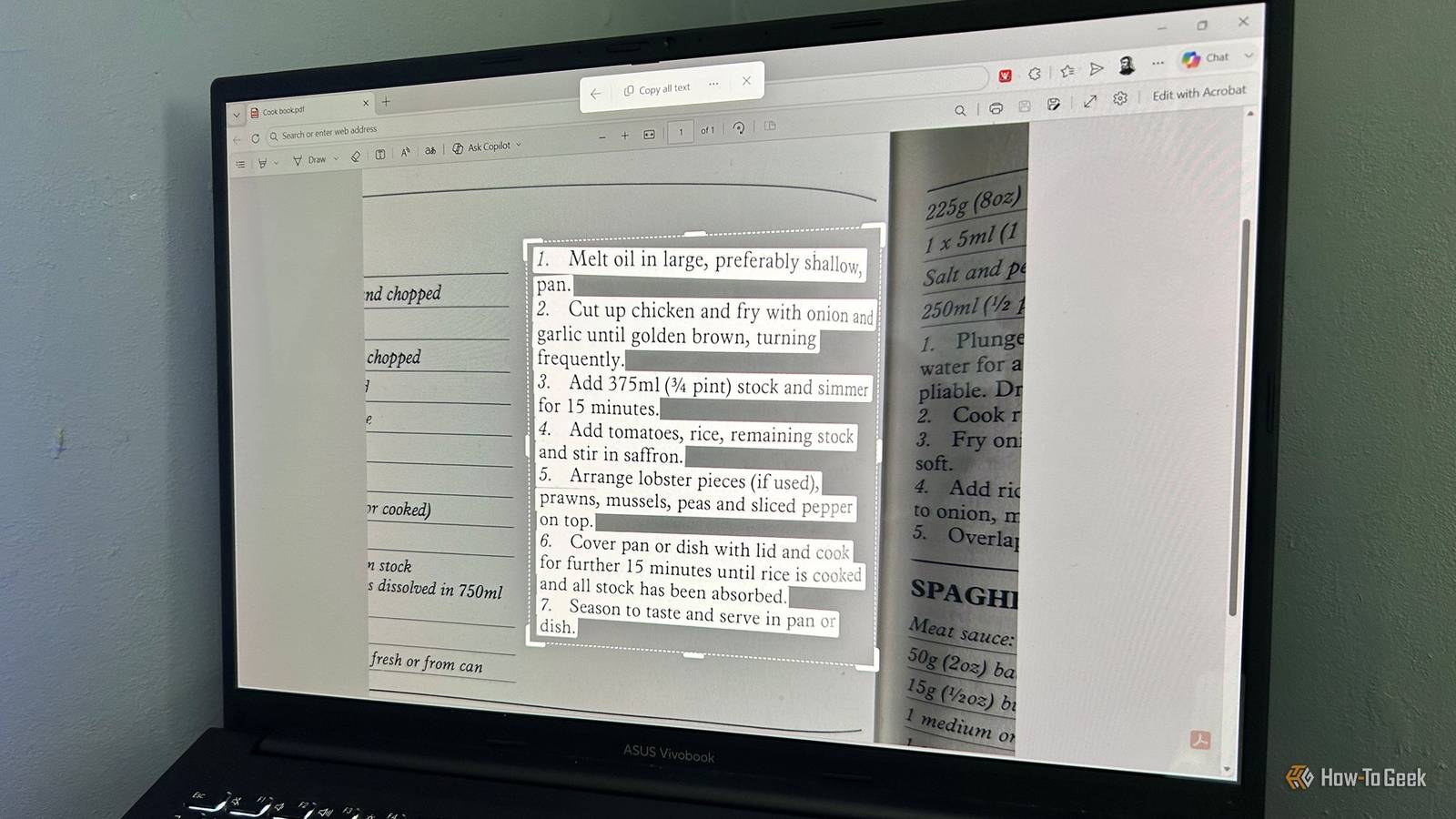
You don't need screenshots to copy text anymore Let Windows do the reading Pressing Win+Shift+T launches Text Actions, a feature built into Snipping Tool that lets Windows recognize text on your screen.Rather than capturing an image first and opening it in another app to extract the text, you simply drag around the text you want and copy the results.Text Actions—which uses optical character recognition (OCR) to extract editable text from content on your screen—is especially useful when you're working with information that looks like text but can't actually be selected.
That includes scanned PDFs, screenshots shared in messaging apps, presentation slides, photos of signs or receipts, and paused video frames.Instead of manually retyping everything, Windows can usually extract the text in seconds.Related Stop typing data from printouts and screenshots—this Excel tool does it in seconds Excel’s Data from Picture feature uses OCR to convert printed tables and screenshots into editable spreadsheet data instantly.
Posts By Tony Phillips Compared to traditional OCR workflows, it's a much simpler process.You don't need to save a screenshot or rely on a browser extension, PowerToys, or an online OCR service.There are no usage limits, and in my testing, the feature handled awkward fonts and backgrounds surprisingly well.
While many OCR tools leave every line ending intact, forcing you to fix spacing manually, Text Actions lets you clean up line and paragraph breaks before you ever press paste.Don't confuse this shortcut with Win+T, which activates the taskbar and lets you cycle through pinned apps.After pressing Win+T, you can press Win+Shift+T to move through those taskbar items in reverse order.
However, when you press Win+Shift+T on its own, Windows launches the Text Actions tool.Copying text is surprisingly simple Five quick steps Extracting text takes only a few seconds: Press Win+Shift+T.Drag around the text you want to capture.
Review the detected text and adjust the selection if needed.Click the three-dot menu to enable Automatically copy text or Remove line breaks.Click Copy all text.
Press Ctrl+V where you want to paste the text, then make any necessary edits.Close Because Text Actions works with rectangular selections, you can't precisely exclude nearby icons or graphics.If extra text is picked up, adjust the selection or delete the unwanted characters after pasting.
Also, make sure your selection is large enough—if you try to capture an area that's too small, Text Actions won't work.Unlike copying formatted text from Word or a webpage, OCR extraction produces plain text.When you paste it into Word, Outlook, Excel, or another app, it automatically adopts the formatting of that destination.
There's no need for Paste Special or Paste Text Only.You'll find yourself using this shortcut more than you expect Where this shortcut shines Close Manually retyping details off a screen wastes time and invites unnecessary typos.Making this shortcut part of your daily routine solves that problem across several common tasks: Everyday tasks: Copy recipe ingredients from a cooking video, grab a Wi-Fi password displayed on another screen, pull serial numbers from product photos, or save contact details from an image without typing them out.
Office work: Pull figures from reports, charts, slide decks, or scanned contracts and drop them straight into emails, Word documents, or spreadsheets.Studying: Extract quotations from lecture slides, online textbooks, research papers, or PDF handouts to build revision notes more quickly.Working with archived documents: Capture text from scanned records, historic documents, image-based PDFs, or photographs when there's no selectable text to copy.
Troubleshooting your PC: Copy error messages, software license keys, or command output shown in screenshots or virtual machines instead of retyping long strings by hand.When copying text from sources you don't own, remember to keep the original source details with your notes so you can reference them later if needed.There's more hidden inside Snipping Tool It's more than a screenshot app Close Once you've extracted your text, clicking the Back arrow returns you to the main Snipping Tool interface.
From there, you can access the other tools built into the app: Snipping area: Capture a standard screenshot of a selected area of your screen.Quick markup: Add annotations, highlights, shapes, and other edits to your screenshots.Color picker: Identify and copy the color value from anywhere on your screen.
Text extractor: Return to the Text Actions tool and capture text from your screen.It's a useful reminder that Snipping Tool has become much more than a basic screenshot utility.Microsoft has gradually turned it into a much more capable tool for capturing, editing, and working with information from your screen.
Why this shortcut might feel familiar From PowerToys to Windows If Win+Shift+T feels familiar, there's a good reason.Before Text Actions became part of the built-in Snipping Tool feature, the same keyboard shortcut was used by Microsoft's PowerToys Text Extractor utility.It works in a similar way: press the shortcut, select an area of your screen, and the extracted text is copied to your clipboard.
It's particularly useful for grabbing text from images, videos, PDFs, or applications that don't offer a normal copy option.The biggest difference today is convenience.Windows now includes text extraction directly inside Snipping Tool, so you don't need to install PowerToys just to grab text from your screen.
If you already use PowerToys, the feature is still available and customizable, but most users can get the same basic functionality from the built-in Windows tool.Related PowerToys adds these 8 features that Windows should have had for years Discover the hidden tools in PowerToys that could revolutionize your Windows experience.Posts 2 By David Delony Your keyboard can do more in Windows Once Win+Shift+T becomes second nature, learning a few more Windows keyboard shortcuts can make everyday multitasking much smoother, whether you're organizing your workspace, switching between apps, or recovering from accidental mistakes.
Read More