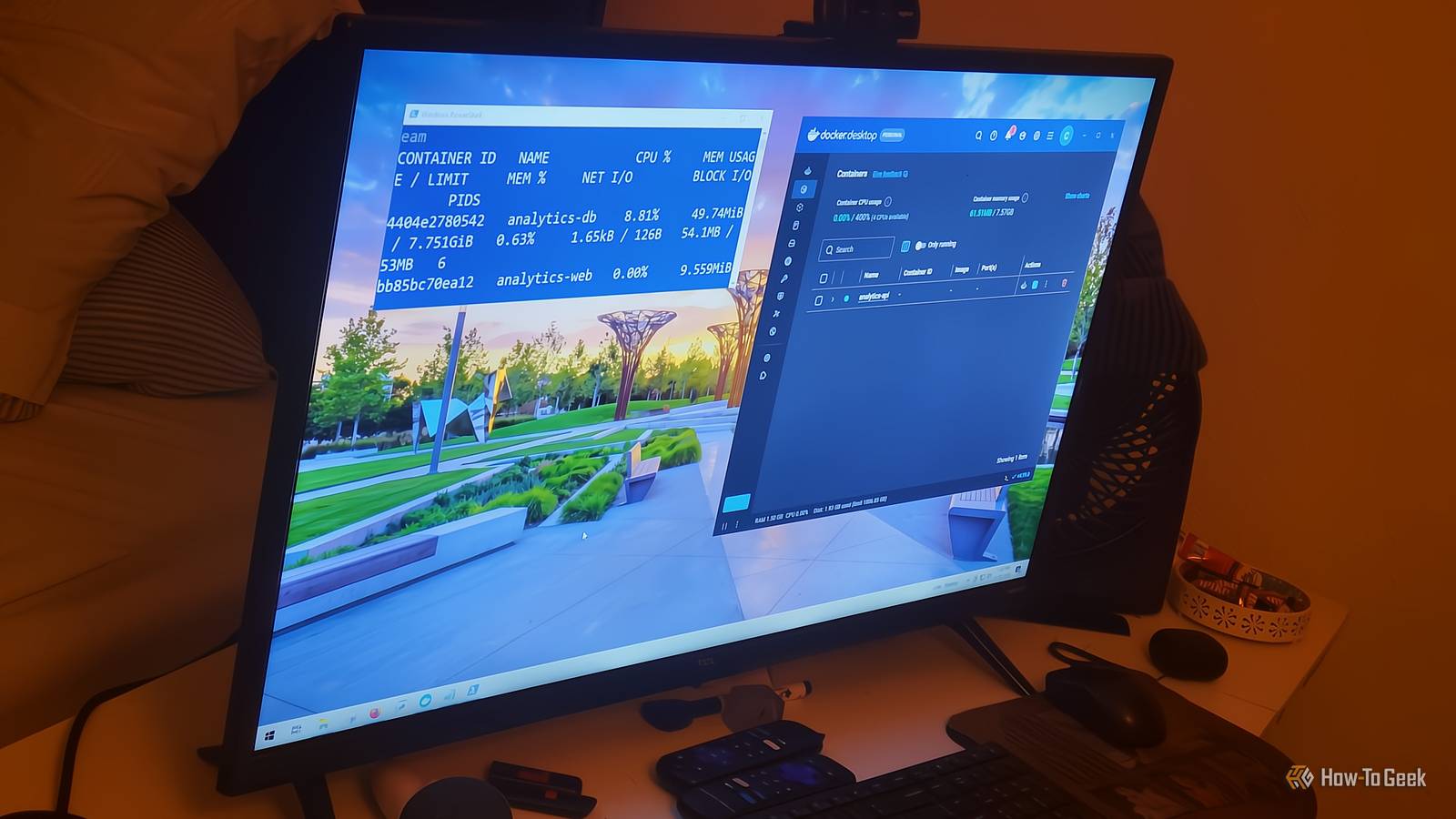
Spinning up a container usually starts with a dashboard, since it's already open and the buttons are right there.It's convenient because you can set every port, volume, and variable on the fly, but the reasoning behind each choice stays in your head.If you open the same setup months later, you might not remember why any of it works.
Add How-To Geek on Google Add as Preferred Source Follow on Google Discover I've felt that frustration enough times to look for a different way to do things.Instead of configuring a Docker container by hand, you can write it down.It's a better way to work, and it's made going back to projects much easier.
Clicking through a dashboard leaves no record A compose file describes your whole setup in one place When you manage multiple containers through a GUI like Docker Desktop or Portainer, you're doing everything by hand.You dig through nested tabs, dropdowns, and pop-up windows just to find basic settings like port bindings, environment variables, volume mappings, or restart policies.It's a lot of clicking for anyone, and it tends to get tedious after the first few minutes.
The bigger issue is that none of those clicks get written down anywhere.There's no log or history for you to see exactly how a container was set up six months later.Things drift over time, and your stack ends up as something you'll never fully understand again.
Moving things around is a bad idea too.If your app only lives as a bunch of settings inside your local Docker daemon, getting it onto another machine means rebuilding everything from memory or from notes that are probably already wrong.If you miss one environment variable or volume path and something breaks, it might not be obvious why.
With Docker Compose, you don't have to click through screens to get everything ready; it makes things easier.You only need to write out your whole app setup in a single file called compose.yaml.That file describes what you want, not the steps to get there.
You list your services, networks, volumes, environment variables, and ports, so all of it lives in one plain text file.Since it's just text, you can check it into Git, review it with teammates, track changes over time, and run it on any machine with Compose and Docker Engine without a GUI.You can have a stack running in 10 minutes Compose handles the network and volumes for you Close To get started, you're going to need to install the CLI plugin.
On Mac or Windows with Docker Desktop, it's already there.On Linux, you can install the Compose plugin through Docker's package repository.Alternatively, you can manually place the binary in Docker's CLI plugin directory, then mark it as executable, and then you're done.
After that, you just use docker compose as part of your normal terminal workflow.Actually deploying something takes a bit more time.Open a terminal, make a new folder with mkdir my-app && cd my-app, and create a compose.yaml file inside it.
For a simple two-container setup like a web app and a database, you define both under the services section.The web service gets its image, port mappings, and any environment variables it needs to find the database.The database service gets its image, credentials, and a volume mapping, so its data doesn't disappear when you restart it.
You declare that volume at the bottom of the file and Compose handles creating it.To start everything, run docker compose up -d.The -d flag puts it in the background so you get your terminal back.
Compose reads the file, creates a shared network for your containers, sets up the volume, pulls any images it needs, and starts everything.The web container can reach the database just by using its service name as a hostname, no IP addresses to track.You really only need a handful of commands.
docker compose ps shows you what's running, what state it's in, and which ports are active.docker compose logs -f streams live logs from all your containers at once.When you're done, docker compose down stops and removes the project's containers and networks.
The named volumes stay in place.Compose has limits you'll run into A GUI is still useful for looking around It's hard to say Compose is perfect.YAML is finicky, and because it uses indentation instead of brackets, a single stray tab or misaligned space will break everything.
Also, the full Compose spec has a learning curve, with things like config merging, variable interpolation, multi-file setups, and health check syntax that take time to get comfortable with.It took me a long time to get comfortable writing these, and I'm still not all that comfortable.It's worth learning, but it's a big-time investment if you're short on time.
There's also a limit to what Compose can do.Everything runs on one machine.It doesn't have built-in clustering, rolling updates, or self-healing across multiple nodes.
If you need that kind of setup, go look at Kubernetes or something similar.Tools exist to convert Compose files into Kubernetes configs, but Compose itself won't get you there.GUIs are still good at a few things.
A dashboard gives you live CPU, memory, and network charts at a glance without having to run any commands.When you're debugging, being able to pause a log stream, search for a specific error, or filter by severity is often faster than piping terminal output through grep.For a quick one-off inspection, clicking into a container to check its environment variables or open a shell is just faster than typing out a docker inspect or docker exec command.
You don't have to pick just one.Keep your compose.yaml as the one true source of what's running and how.Never reconfigure things by clicking around in a GUI.
But Portainer or Docker Desktop is still fine as a read-only window into what's happening.Pick what fits your setup Compose won't make you fast at YAML, and I'm still pretty slow at it myself.The first few files will cost you an afternoon, and a GUI would have been quicker for that one container.
It also stops at a single machine, so bigger setups need something else.You end up with one file that explains your whole setup, and you can hand it to a teammate or your future self without a long explanation.If you run more than two or three containers, that file will save you more time than it took to write.
Docker OS Windows, macOS, Linux Brand Docker Price Starting at $9/month Free trial Free version with limited features Docker is an application that makes it easy to develop new apps.See at Docker Expand Collapse
Read More