I don't know about you, but over the years, I've accumulated hundreds, if not thousands, of images on my PC.Some of them are photos I took with my Canon Rebel, and others came from photo dumps when my wife or I replaced our phones.As you can imagine, this got pretty messy.
I had many different folders filled with images.My biggest frustration is that the filenames are generic, like IMG_1543.jpg.This tells me virtually nothing about what’s in the image, which leaves me scrolling through folders with thumbnails when I'm trying to find a particular image.
Add How-To Geek on Google Add as Preferred Source Follow on Google Discover My iCloud is already full, and I don't want to pay Apple more money every month just to store and organize my old photographs.There are also free photo management applications like digiKam, for example, that can help organize large photo collections.Both options may be easier, but rather than installing another photo-management app or uploading all my images to the cloud, I wanted to see whether I could build something myself using local AI on my mini-PC.
I'd already been using local AI to do things like organize private documents and other cool projects that help me automate mundane or frustrating tasks, and this seemed like a great use case.My plan was to have AI look at each photograph in my folder to identify what's in it, generate a descriptive file name for it, and then sort it into the right folder, all without having to upload the files one at a time into my AI model.I already had Ollama and LM Studio installed on my mini-PC, although I'd been using Ollama more.
For this project, however, I used LM Studio because its built-in local server gave my Python script a way to communicate directly with the AI model.All of this is free, and if you're willing to invest a little time and tinker a bit, you can do it too.I used LM Studio and Qwen3-VL-2B Instruct to identify what was in my photos Finding a vision model that actually worked After doing a little Googling, I thought Qwen2-VL-2B-Instruct Q4_K_M would be a good fit.
It's a lightweight model with vision capabilities, meaning it can examine images and analyze their contents.Unfortunately, this model repeatedly failed for me.It required more tokens than the context window allowed.
I tried increasing the context length, but after giving it a couple of tries, I knew this wasn't going to work.After doing a little more research, I downloaded and then loaded Qwen3-VL-2B-Instruct in LM Studio.Next, I opened a new chat and added a photograph to give it ankfa test run.
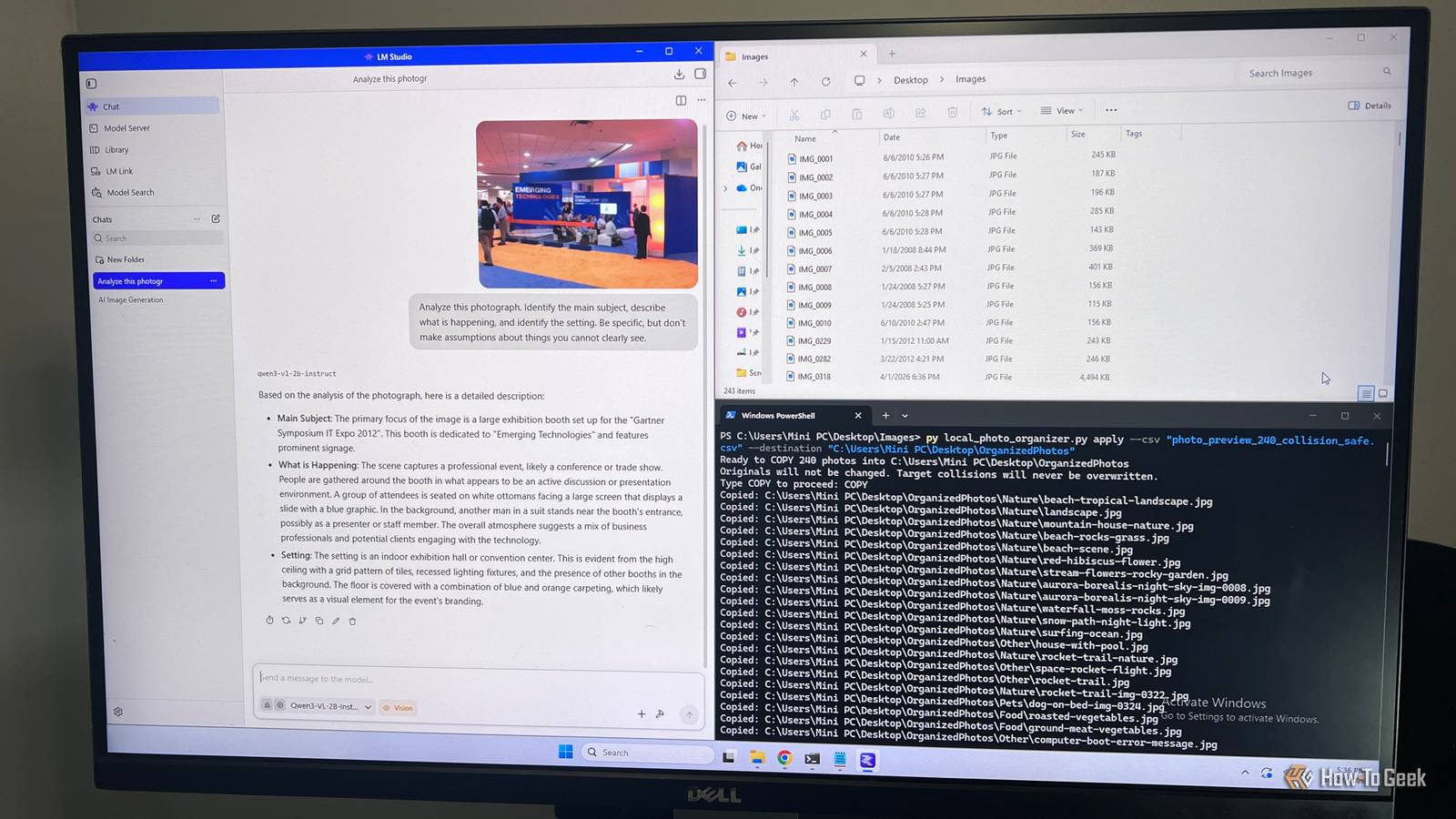
I prompted the model to identify its main subjects, describe what was happening, and identify the setting.Thully, this new model did as it was asked.It took less than 20 seconds to analyze the image and give me the result, which seemed reasonable given that it’s running locally on my mini-PC.
Related Google's Gemma AI runs locally on my $300 mini PC, and it replaced ChatGPT for more than I expected I ran Google's Gemma AI locally on a cheap mini PC, and it handled more of my everyday ChatGPT tasks than I expected.Posts 7 By Rich Hein The model could identify more than I expected The first image I fed the model was from a conference I went to 14 years ago.It was the Gartner Symposium/ITxpo in Orlando.
Rather than simply describing people standing around in an arena or hall, it read the text in the image and correctly identified the conference and year.It also described the setting well, describing several people sitting on white ottomans looking at a monitor with a blue PowerPoint presentation on the screen.Next, I tried photos of my dogs, the beach, people, and more.
The model did a pretty good job recognizing the subjects and settings.That said, some descriptions were more useful than others.Of course, I wasn’t looking to upload and analyze all my photos one at a time.
I wanted to automate this process.A simple Python script handled the renaming and organization Reviewing the results before making any changes Close I used a Python script that fed my photographs from a folder into the AI model one at a time.The script generated a description, suggested a filename, and assigned a category such as Nature, Pets, or Other.
It also resized the photographs before they were analyzed to make sure my mini-PC could handle the load.Once the script finished running, it generated a CSV file with the original filenames, replacement names, descriptions, and categories.Up to this point, none of my images had been modified.
Now I had to look through the CSV file and make sure the replacement filenames made sense and the descriptions and categories looked right.Some of the file names were too generic, and in one case, two different images of the Aurora Borealis were named and described identically.I corrected those mistakes in the CSV file, and once I was done, I ran the script’s apply command to create categorized folders containing copies of the images with their new names.
The original photos were still in my Images folder, and the renamed photos were in a folder called Organized Photos.Now, I could inspect them against the organized photos and delete them when I was sure everything was set up correctly.I organized and renamed more than 240 photos in less than 40 minutes, but the results weren’t perfect It started with one image, then I tried 20 images, eventually unleashing the script on one of my folders that had more than 240 images in it.
In less than 40 minutes, I was reviewing the CSV file and making edits to some of the more generic names in categories.The photographs included landscapes, animals, people, and action shots.While there were some speed bumps along the way, overall, the model did a good job handling this larger folder of images.
This would have taken me hours if I’d tried to do this manually.This way, I was able to run my script, walk away, and let the AI model do its thing.
Read More