I've been using Google Messages since it launched in 2014 and replaced the old Android messaging app.Despite having it on my phone for so long, it took me a while to discover everything it could do.I missed these features for a long time, and if you're only using the app for basic messaging, you might have too.
Schedule messages to send later You'll never forget to send a birthday message again Sometimes, you know that you need to send someone a message, but you don't want to send it right now.The obvious choice is to just wait and hope that you remember to do it later.But in Google Messages, you have the option to write it now and schedule it to be sent sometime in the future.
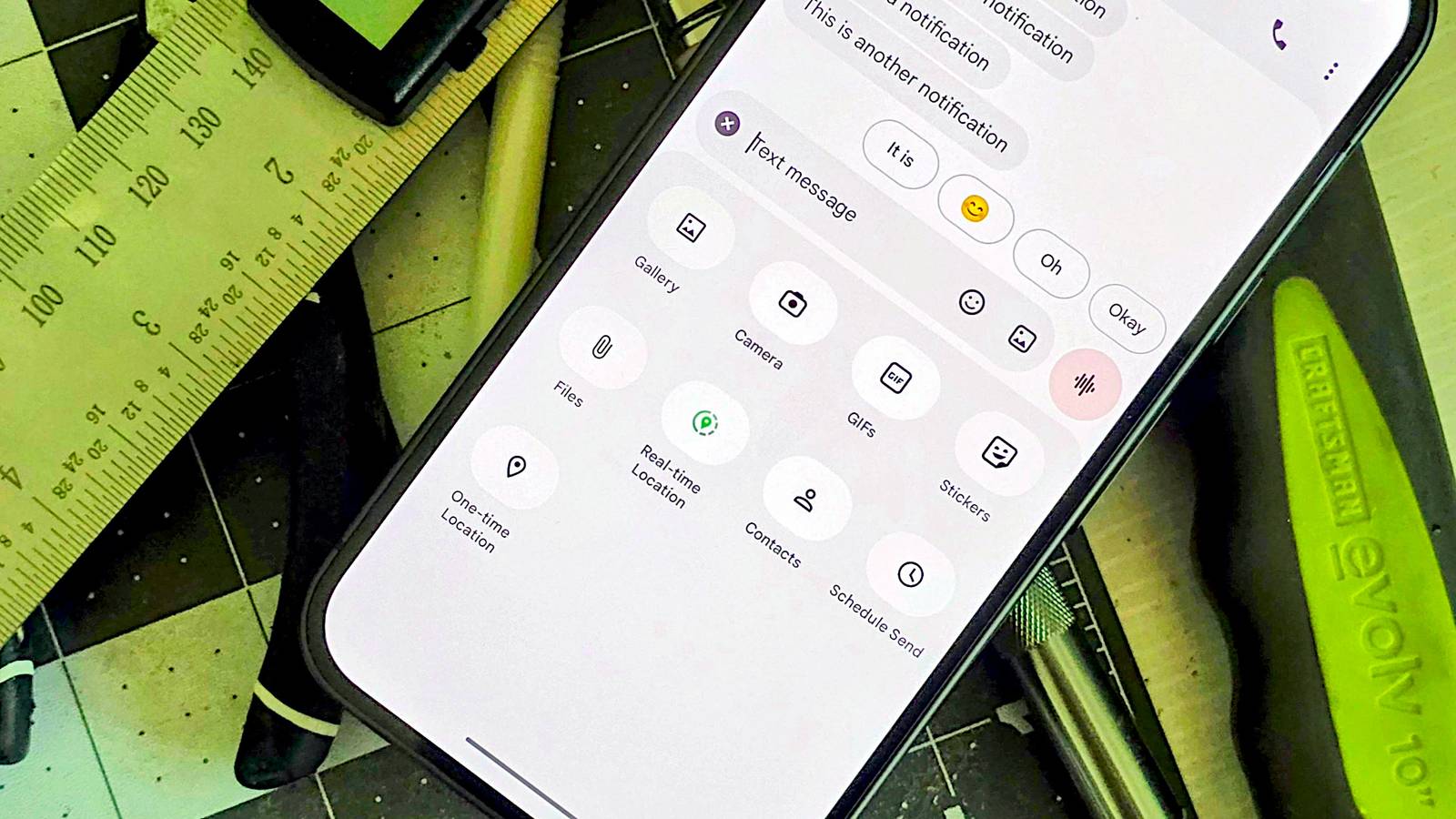
To do it, simply type out your message as normal.Then, instead of tapping Send, long-press on it to bring up the Schedule Send screen.You can choose to send it "Later today," "Later tonight," or tomorrow morning, or select your own date and time.
Press the Send button again to confirm.You can jump in and edit the message before it goes, too.Snooze messages to read later Cut out those annoying conversations As well as delaying sending messages, you can delay reading them.
If you're getting too many messages from one person, or a group chat is distracting you from other things, you can snooze them to deal with later.Go into the main screen in Messages, and find the sender or group.Long-press on it and select the Snooze icon on the toolbar.
Your choices are an hour, 8 hours, a day, or forever.On top of that, Android has the option to snooze individual messages that you don't want to deal with immediately.When the notification comes through, tap the Snooze icon, and the alert will reappear at the set time.
Pin important conversations to the top Don't lose your key chats Although I do plenty of texting, I don't really spend that much time in the Messages app.I usually reply straight from the notification, or manually search for a contact when I'm starting a new conversation.The easy way to keep track of important chats is to pin them to the top of the Messages screen so that they're always within reach.
Just tap and hold on one and hit the Pin icon on the toolbar.You can pin up to 20 conversations, although that's more than you can fit on one screen.I find it better to stick with just a few.
Star your favorite messages Remember those treasured texts You can pin important messages, or you can favorite them instead.To do this, open a conversation and find the specific message.Now long-press on it and tap the star icon on the toolbar.
To see all your favorited messages, tap the Search button on the main screen and select Starred.It's a flexible tool.You can use it for your favorite personal messages, or as a kind of bookmark tool to help you find things when you need them.
Search conversations It's more powerful than you knew For a long time, I only ever used the Search tool in Messages to find contacts.But it's actually a far more powerful option than that.Tap the Search button, and you can search through the content of all your messages, as well as use filters to surface messages with certain characteristics.
You can show only unread messages, those from known or unknown contacts, or messages containing images, videos, links, or locations.Swipe actions Manage messages with gestures I've always used swipe actions in the Gmail app, as well as many third-party apps.But for ages, I didn't realize they were in Messages too.
Both of my swipe settings were set to Archive, which is another feature that I never really use, but you can customize both the left and right swipes to something more useful.Go to Messages settings > Swipe actions and choose what happens with your right and left swipes.You can choose between Archive, delete, mark as read or unread, or turn it off.
Sensitive content warnings Be careful about what you send A well-hidden feature that can be useful when you're setting up a phone for one of your kids is the sensitive content protection.You can find it at Messages settings > Protection and safety > Manage sensitive content warnings.Subscribe to the newsletter for top Google Messages tips Unlock more hidden Google Messages tricks by subscribing to the newsletter.
Get practical, step-by-step tips and clear walkthroughs for scheduling, snooze, pinning, starred messages, search, and location features across Android messaging apps.Get Updates By subscribing, you agree to receive newsletter and marketing emails, and accept our Terms of Use and Privacy Policy.You can unsubscribe anytime.
Toggle it on, and any incoming photos or videos that the app deems to contain nudity (no system is foolproof and can make mistakes in either direction) will be blurred, and you'll get warnings before sending similar images of your own.The detection happens on your device rather than Google's servers to help protect your privacy.Real-time location sharing Let people know where you are Finally, a useful feature for when you're meeting up with friends and they don't know exactly where you are, or even for emergencies, is location sharing.
Google Messages supports two versions of this.The first is a one-time location that sends coordinates to where you are right now.The other is the real-time location feature that sends a location that can be viewed in the Messages app via Google Maps, and which is updated for an hour by default.
You can also set it to run for a day or for any period you choose.Do note that whoever you send your real-time location to can copy the link and give it to someone.They will then be able to track you, too.
To set up either of these, tap the + icon to the left of the text input box and select Real-time location or One-time location.Messages has more features than you know about Google Messages has a lot more features than are immediately obvious.Because it doesn't have the same cachet as things like iMessage or WhatsApp, it's tempting to see it as a tool for little more than basic SMS.
But digging into the settings reveals that it can do a lot more than you might have realized.
Read More