We all know that familiar feeling of panic and distrust when we unlock our phone and accidentally swipe away a notification we didn’t read.It’s easy to mistake it as the sixth Instagram Reel in a row from the friends group chat.But what if it isn’t? What if you missed an important work update, an email from your boss, or someone reaching out to you on LinkedIn? Just like that, the doubt creeps in and starts eating away at you.
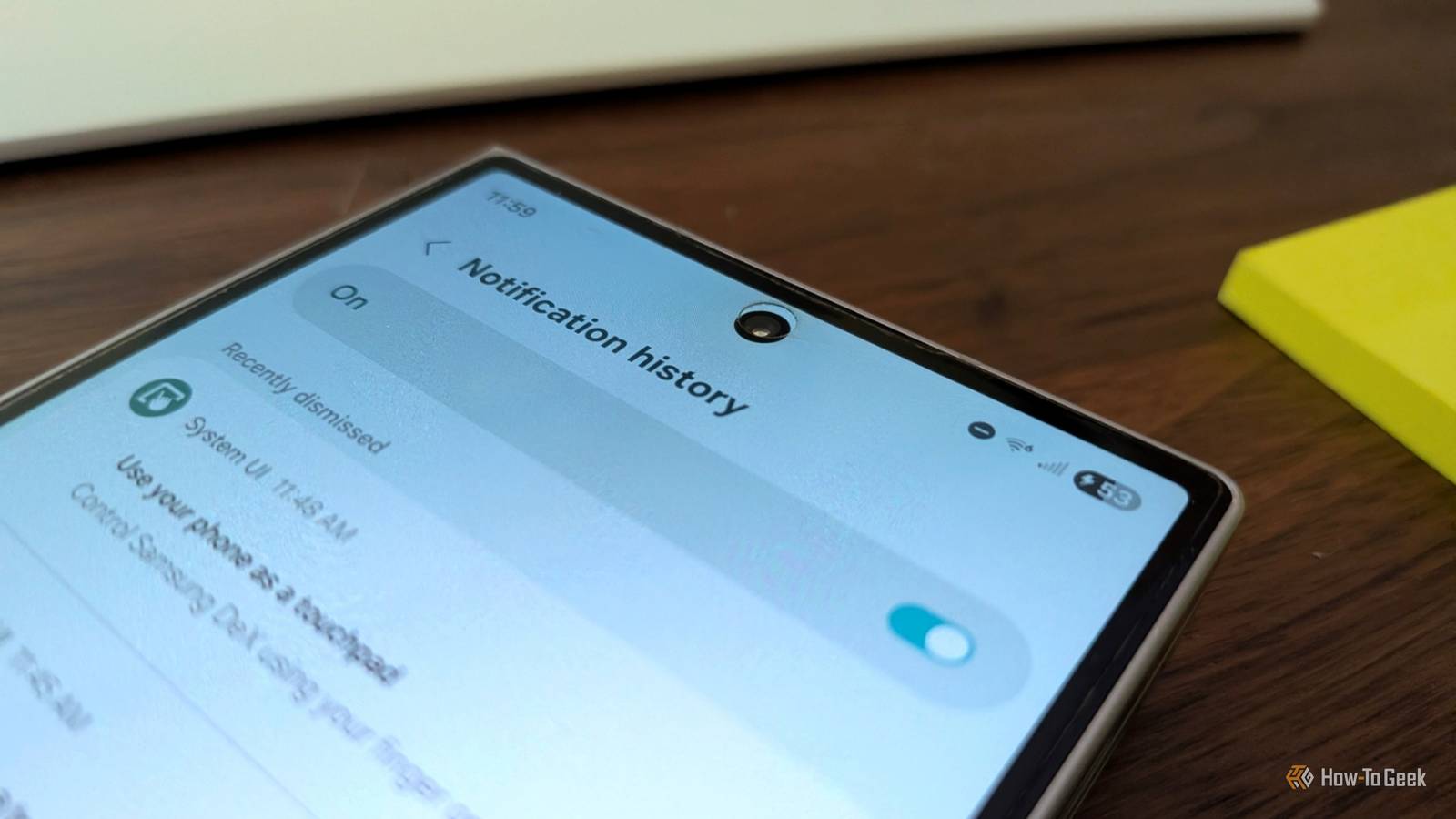
I’ve run into this situation more times than I can count, and after countless scavenger hunts across different apps to find what I missed, I’m happy to report that I’ve finally discovered a little-known Android feature that lets me finally say goodbye to that anxiety.Notification history keeps a record of every notification you swipe away Nothing on your phone is gone forever Notification history is a relatively obscure feature buried deep in your settings, but what it does is straightforward.It’s exactly what it sounds like—the feature lets you access your recent notifications.
It includes both the ones you’ve just swiped away (which is probably what you’re looking for) and those from the last 24 hours.If you had no idea that your phone keeps a record of your notifications, I don’t blame you, because it’s incredibly easy to miss.I only stumbled upon it recently, after several months of owning my OnePlus 15, and it was because I was looking for something else entirely.
Notification history isn’t featured prominently anywhere, despite being such a vitally useful feature to have.Most of us can relate to accidentally swiping away notifications or tapping the clear button without going through everything when the notification shade is crowded with clutter from less important apps.By giving you access to all notifications from the last 24 hours, notification history acts as the perfect backup in these exact scenarios.
Whether you want to see what you swiped away a second ago or check something you missed earlier in the morning, notification history has your back.OnePlus 15 SoC Qualcomm Snapdragon 8 Elite Gen 5 Display 6.78-inch 2772*1272 (FHD+) The OnePlus 15 features the latest Snapdragon 8 Elite Gen 5 SoC that enables gaming features never before seen on a smartphone.The 165Hz display is perfect for mobile gaming, and when not gaming, it runs at 120Hz, making it ideal for everyday usage.
The triple camera array is pretty great, and the 7,300mAh battery lasts multiple days on a single charge.RAM 12GB/16GB Storage 256GB/512GB Battery 7,300 mAh Operating System OxygenOS 16 Front camera 32MP Rear camera Triple 50MP sensors Colors Infinite Black, Ultra Violet, and Sand Storm Charge speed Up to 80W SUPERVOOC IP Rating IP66, IP68, IP69, IP69K Price $899/$999 Release date November 13, 2025 $1000 at OnePlus Expand Collapse How to access notification history on your Android phone An important feature that's surprisingly hard to find You might be surprised to learn that notification history isn’t a new feature—it was introduced all the way back in 2020 with Android 11.The problem is that it’s always been buried deep in settings on most phones, including Samsung Galaxy devices.
Fortunately, once you know that it indeed exists, it becomes incredibly easy to find.Simply go into your phone’s Settings and search for “notification history,” and it should appear.Alternatively, you can try finding it in the notifications settings menu.
On Samsung Galaxy phones, it’s under Advanced settings > Notification history.On my OnePlus 15, it’s buried under More settings > Notification history.You’ll find that the option might be disabled or enabled by default—it all depends on your specific phone brand and how it handles notification history.
Once you enable notification history, your phone will start collecting your notifications, and within 24 hours, you’ll have a rolling log of all your notifications for the day.Unfortunately, Android doesn't make it easy to access your notification history even after enabling it.Google Pixel phones have a hidden shortcut to access notification history by tapping the No notifications text in the notification shade.
On most other phones, you'll have to dig for it in the settings.It’s also worth noting that notification history is an optional feature that some brands could theoretically skip.So, if you don’t see it, dig a little deeper to see if your phone brand even has it (most mainstream brands do, though).
This feature has saved me from countless missed messages, reminders, and alerts It's my safety net It’s hard to overstate just how many times notification history has saved me from missing something important—and I’ve only been using the feature for about a month.I have a habit of swiping notifications away when I’m in a rush and need to use my phone, like when using Maps to navigate an unknown city while my friends keep spamming me with Reels.Even though I don’t actually read those notifications, I can still remember swiping them away.
Before I knew about notification history, I’d get overwhelmed by anxiety that I had missed an important work-related notification and end up checking every work app just to make sure I hadn’t.But now that my phone collects my notification history, I can simply check it to see exactly what I swiped away, as a quick sanity check.I no longer panic when I accidentally dismiss a notification Thanks to notification history, I can quickly retrace anything I’ve swiped away, whether it’s a Slack message I didn’t open or a full morning notification clear while I’m half asleep trying to snooze my alarm.
It turns what used to be a small moment of anxiety into a quick check and move on.I just wish more phone brands made it easier to access—like the quick entry you get on Pixel devices through the notification shade.Related Think You’re an Android Pro? These 9 Hidden Features Will Prove You Wrong Don’t be the last to discover these android features.
Posts 11 By Aman Kumar
Read More