Being a tech aficionado was never the cheapest hobby out there, but these days, it's even worse than usual.That's why I tend to advocate looking for cheap upgrades instead of spending lots of money, with tips on how to avoid needing to buy a new router, for instance.Similarly, did you know that the router you already own, the very same one I've previously told you not to replace, can probably double up as a NAS? Yup.
Here's how it works.Your router may already have a tiny NAS built in That USB port can do more than you think Close If your router has a USB port, it's probably sitting there unused.Ethernet ports are useful, sure, but I know that USB ports on routers tend to collect dust, even though there are plenty of ways to use one.
My favorite has to be potentially turning your router into something akin to an actual network-attached storage (NAS) system.Many routers support USB storage sharing, which means you can plug in an external drive into your router and have the files be accessible across the entire home network.In practice, it becomes a very basic NAS, with file sharing over multiple devices, where the files are aggregated all in one place.
The router steps into the role, handling the connection between the USB drive and the rest of your network.Conversely, if you plugged said drive directly into one PC, the files would be accessible to that PC.Plugging it into the router exposes it as a network share.
Depending on the router, the exact name for this feature will vary.I've personally seen USB storage sharing, Samba, SMB sharing, ReadySHARE, AiDisk, and Network Place, off the top of my head.To make this happen, all you really need is a router that both has a USB port and supports USB file sharing.
The two are not one and the same, and having a port on your router doesn't mean it'll be able to do this.Then, you just need some kind of compatible USB storage.Related 6 networking upgrades that are a giant waste of money for most homes I’m a tech enthusiast, and I’ll never buy these 6 expensive networking devices again Posts 15 By Monica J.
White Pick the right USB drive before you plug anything in The filesystem matters more than you'd expect The best part of it all, other than saving a few hundred (or thousand) dollars on having to buy a NAS, is the fact that you might be able to do this entirely for free.Most people have some kind of portable SSD or USB drive lying around, and most of them will do just fine.The main thing to check is the filesystem.
PCs are super flexible when it comes to reading disks, but routers aren't.Support varies by model, which is why you should check your router's specs before you proceed, but generally, NTFS, FAT32, exFAT, and sometimes HFS+ should work here.If you're using mostly Windows devices and your router supports it, NTFS is usually a sensible option.
FAT32 works with most things, but its 4GB maximum individual file size makes it less optimal if you know you'll be sharing media files or backups.Worth noting: You should only really worry about compatibility with the router and the drive.The computers accessing the share don't necessarily need native support for the drive's filesystem, because the router is the device that actually interacts with that part of it; your PCs only communicate with the router, which they do anyway regardless of this.
Turning on file sharing is usually the easy part SMB makes the drive feel like normal network storage Once you connect the drive, sorting this out should be easy enough.(Not that connecting a USB drive is hard, even though the ports themselves can be confusing...) As is always the case with routers, the exact path varies by model.Generally, you'll log into your router's web interface or app, then dig for the USB storage section.
Next, find SMB or Samba sharing.Some more advanced routers may also let you create user accounts or decide which folders are shared, as well as assign permissions (read-only or read/write access).Close-knit home networks are generally safe, but I'd still avoid anonymous write access if the router gives you the option.
You never know.After that, the storage should behave as you'd expect from a network share.On Windows, you can open it via File Explorer and map it as a network drive, and on macOS, Finder can connect it via SMB.
You can now drag files to and from the router-attached storage.Enjoy.Don't expect your router to replace an actual NAS It's a side job for this hardware I absolutely consider this to be a neat little trick.
More than that, it's something that genuinely can replace a basic network-wide storage sharing solution.But is it a NAS? No way.Performance is going to be one of the most marked differences here.
Even if the router has a USB 3.0 port, transfers will still go through the router's hardware and software, meaning the CPU, file-sharing service, and network interface, before they ever reach your PC.It's not going to be lightning-fast, let's say that.It can absolutely bottleneck a high-end portable SSD.
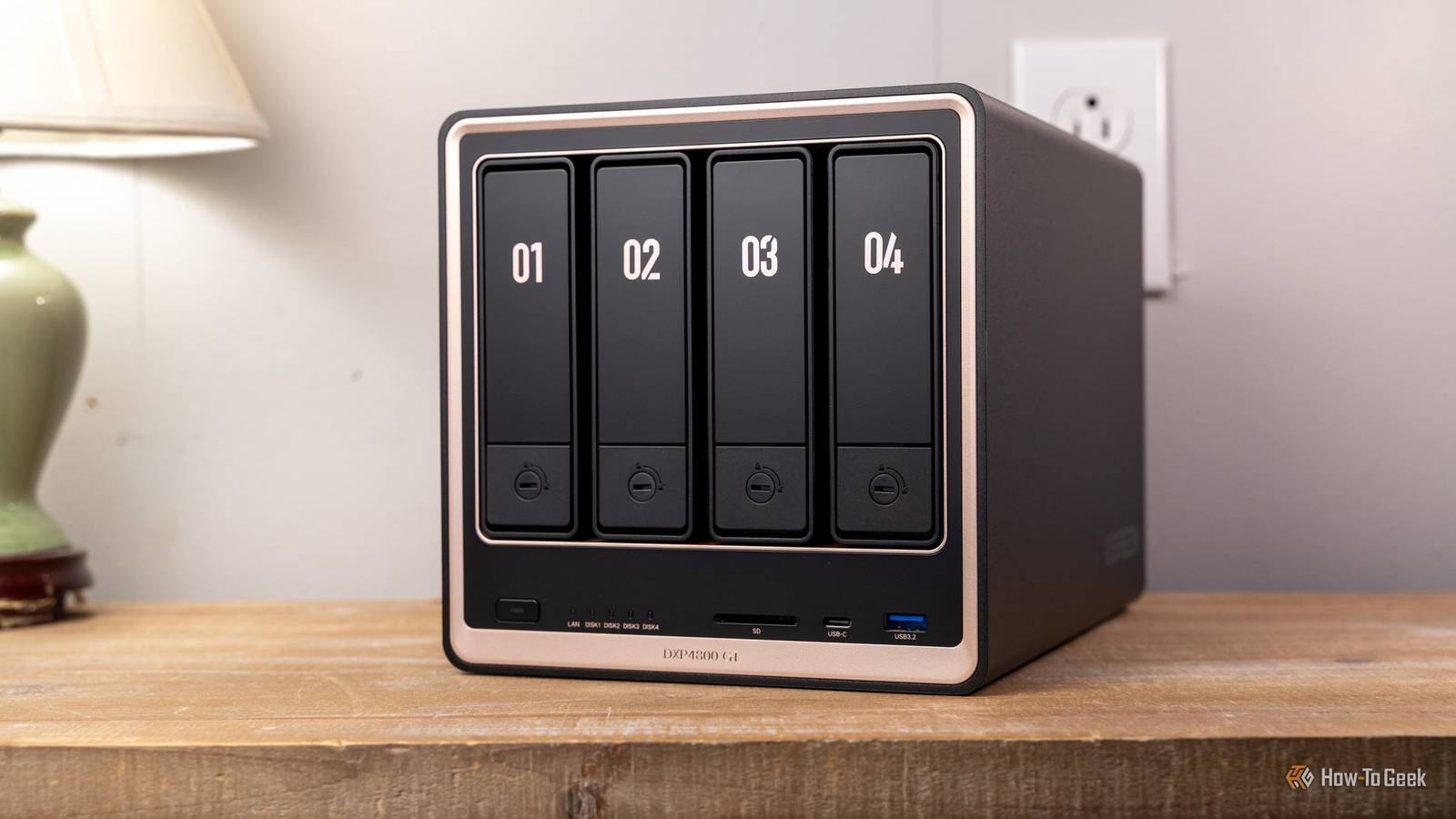
You also miss out on the vast majority of features that make NAS systems enticing.Lots of drive bays, RAID, snapshots, proper backups ...you can't expect that stuff from a router.
But hey, for free, it'll do the job just fine.Your first NAS might cost you exactly $0 If you don't currently have a NAS, but you do see the merit in being able to share your files across the entire network, check and see whether your router can do it.Some can, and if you already own one, there's no harm in trying.
It's not the best, but it's far better than nothing! Lexar D40E Dual USB Flash Drive A small USB flash drive like this may be the only expense you'll have to make to get this to work.See at Amazon Expand Collapse
Read More