I consider myself a Windows power user these days, but I wasn't always.I can remember when the command line seemed like something programmers used, and I stayed out of it unless I absolutely had to.Even now, opening Windows Terminal and seeing a blinking cursor can make what you're about to do feel more complicated than it really is.
You don't need to know PowerShell or understand a bunch of command-line syntax to get something useful out of it.There are a few simple commands that handle things I regularly do in Windows faster than clicking through menus and settings.You type or paste them into Windows Terminal, press Enter, and Windows handles the rest.
Update almost all of your installed apps with WinGet One command saves me from chasing down updates Close Keeping apps updated on Windows used to mean opening them one at a time, looking for an update option, or heading to the developer's website to download a new installer.WinGet makes that process much faster.It checks the apps it recognizes on your PC, finds available updates, and lets you install them from one place at the same time.
I also prefer this to searching the web for installers.WinGet pulls package information from configured sources, so I'm not clicking through search results and hoping I've found the right download page.You should still pay attention to what you're installing, but it removes a lot of unnecessary searching.
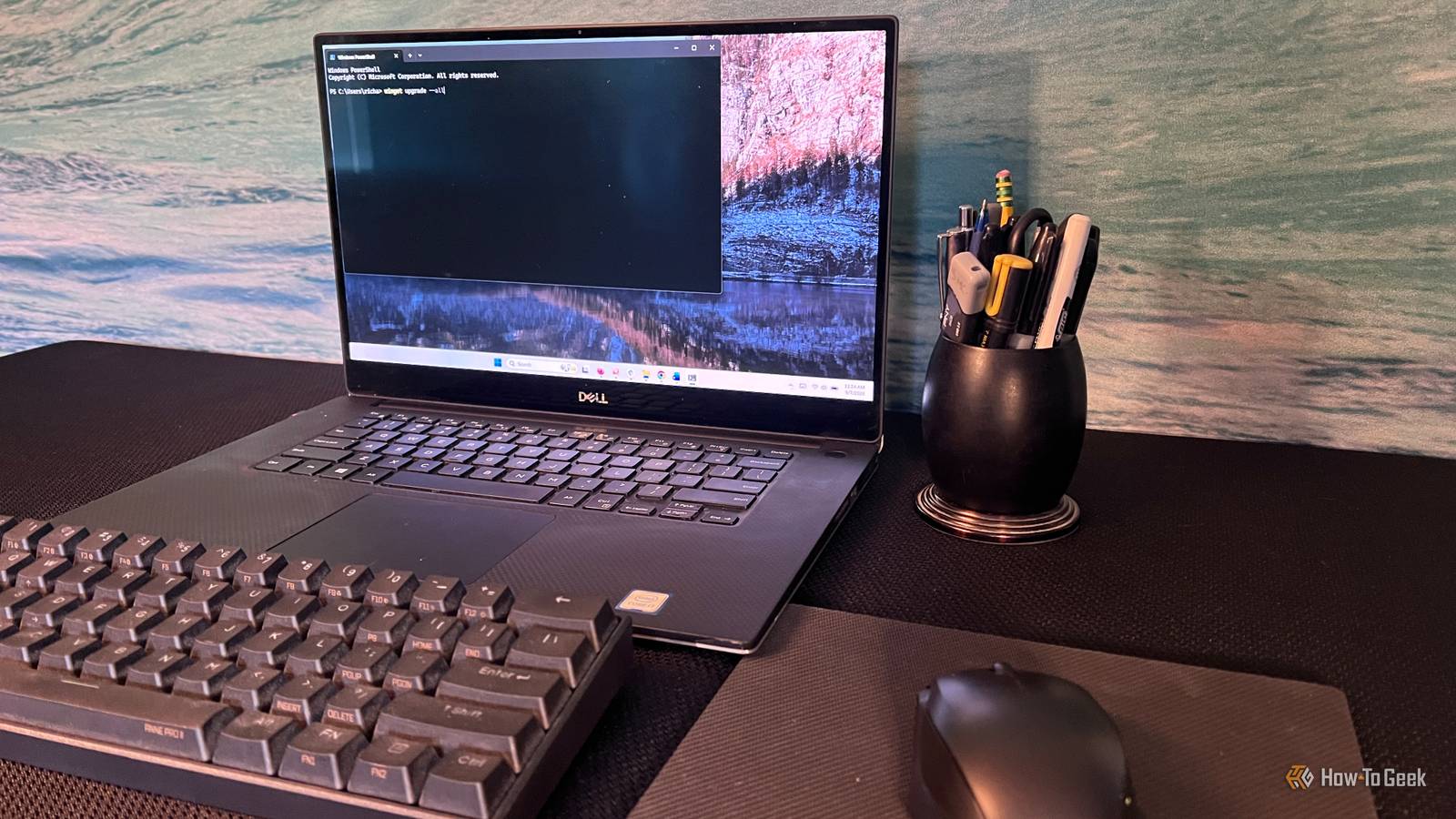
To see which apps have updates available, open Windows Terminal or PowerShell and run: winget upgrade WinGet will scan your installed apps and show the ones it knows how to update.I like doing this first because I can see exactly what it found before making any changes.If everything looks good, run: winget upgrade --all WinGet will work through the available updates for you.
Some installers still open their own prompts, so the process isn't always completely automatic.If WinGet tells you that one or more package versions can't be determined, you can include those packages with: winget upgrade --all --include-unknown I wouldn't use that option automatically.I prefer to run the normal upgrade command first and only add --include-unknown when WinGet tells me it's leaving something out.
Related 6 PowerShell commands that fix the most common Windows 11 problems in seconds No click, only type.Posts 14 By Goran Damnjanovic Remove the Windows apps I don't want PowerShell lets me remove things that are hidden from Settings I first used PowerShell to remove the Xbox Game Bar from my work PC by removing Microsoft.XboxGamingOverlay.I don't game on this machine, so keeping Xbox-related components around didn't make much sense.
That was useful, but the better example was the Windows Web Experience package, which powers the Widgets/Discover flyout.I've always thought this was a distracting component in Windows 11, and I've never used it on purpose.I have, however, opened it by mistake many times.
Windows lets me hide the Widgets button from the taskbar, but that doesn't actually remove the board.I decided to remove the package instead.First, I checked that the package was installed using this command: Get-AppxPackage *WebExperience* That returned the Windows Web Experience package information.
Once I confirmed I had the right package, I removed it with this command: Get-AppxPackage *WebExperience* | Remove-AppxPackage This is where PowerShell has an advantage over the normal uninstall process.I can search for the exact packaged app I want and remove only that one, even when Windows doesn't expose it like a regular program in Settings.I wouldn't remove a package just because its name looks unfamiliar.
I check what it does first and only remove it when I'm sure I don't need it.Check and repair corrupted system files SFC is one of the first things I try when Windows starts acting strange I don't run System File Checker as part of regular maintenance, but it's useful when Windows starts doing something it shouldn't.Maybe a built-in feature stops working, Windows throws unexplained errors, or something just doesn't seem right after an update.
Before I start changing settings or installing a third-party repair utility, I can have Windows check its own protected system files.That's what makes sfc /scannow so useful.There's no extra software to download and no troubleshooting wizard to work through.
Windows scans its protected system files, looks for damaged or incorrect versions, and attempts to replace them with the correct copies.Open Windows Terminal or PowerShell as an administrator and run this command: sfc /scannow The scan takes a little while, and you'll see its progress in the terminal.When it finishes, Windows will tell you whether it found any integrity problems and whether it was able to repair them.
I just ran it, and it found and fixed some corrupted system files.I wouldn't treat SFC as a tool that speeds up your PC.If Windows is running normally, there's no reason to run it just for the sake of it.
I keep it in mind for those times when something isn't working correctly and I want a quick way to rule out damaged Windows files before digging any deeper.A few commands are worth keeping around I still use Settings for plenty of things, but these are three cases where opening Terminal is quicker.They're simple enough that I've stopped thinking of them as command-line tricks and started treating them like any other Windows shortcut.
Read More