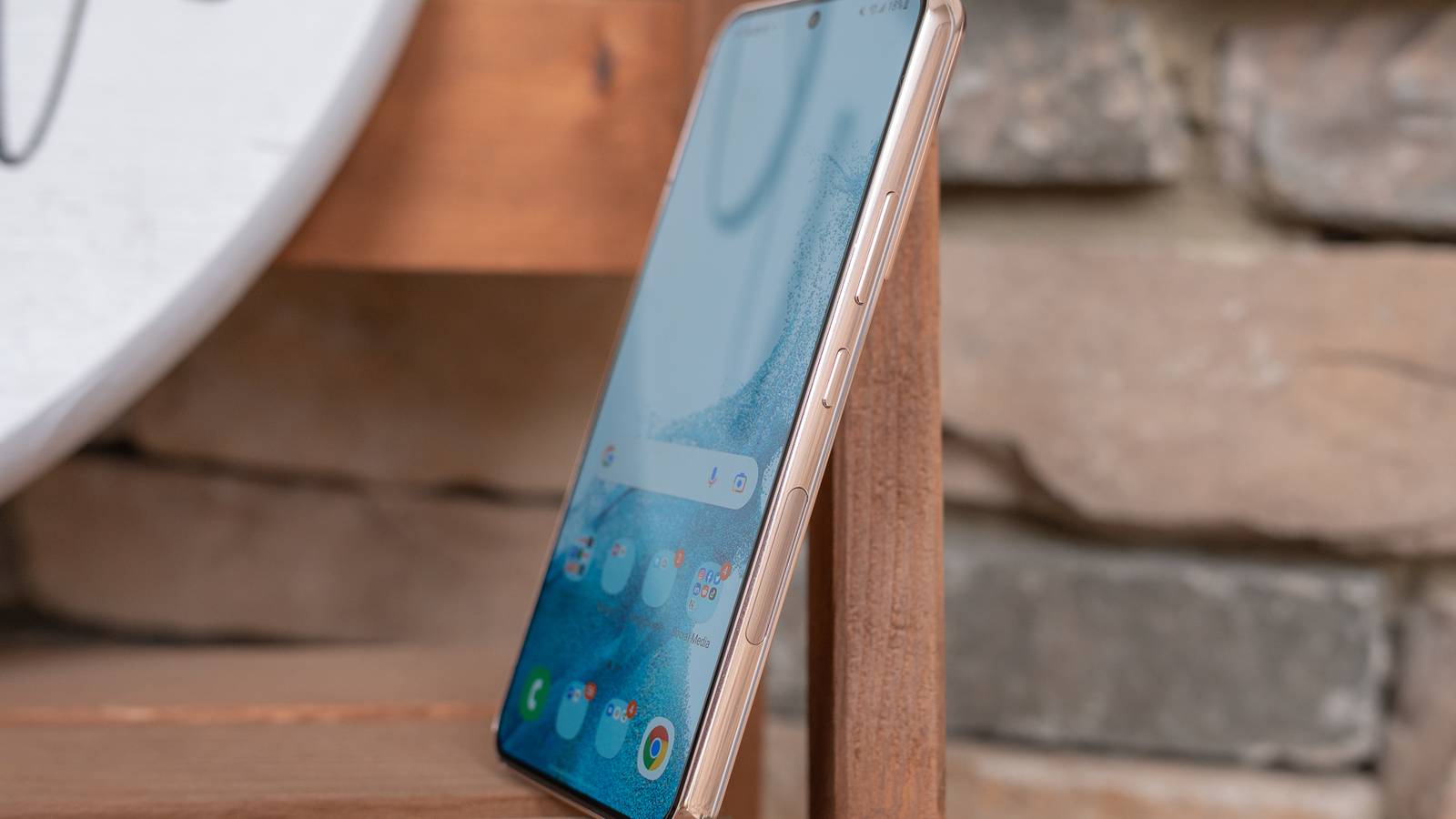
Going on a vacation means switching off from the outside world, and in more ways than one.Your devices can be the biggest distractions when you are traveling and taking time off, especially if you are someone who drowns in a sea of notifications and alerts from your work or personal life.But if you're looking to unplug from the noise, you can set up your Samsung Galaxy phone to be fully vacation-ready in just a tap (or even automate it) using some simple built-in tools.
Here's all you need to know.Preparing your phone for vacation How to get your device ready for the road Before you embark on your vacation, there are a couple of things you may want to set up on your device, beyond creating a distraction-free phone.My checklist includes downloading my favorite movies and TV shows for offline viewing, creating travel playlists and downloading travel apps, saving offline maps for the places I'll be visiting, and keeping my boarding passes and hotel reservations easily accessible.
You can also prepare your phone for the weather and temperature of your destination, whether it's hot or cold, so it stays protected from any harm.Beyond this, you can set your phone up to be vacation-ready with one easy solution: Modes.Creating your custom vacation mode The easiest way to switch over The Modes feature on Galaxy devices is the foundation of my vacation setup.
If you've never used it before, Modes are different personalities for your phone that you can customize according to your needs.You can create custom profiles that expand beyond the normal Do Not Disturb settings.With Modes, you can automate device behavior based on your time, location, or activity.
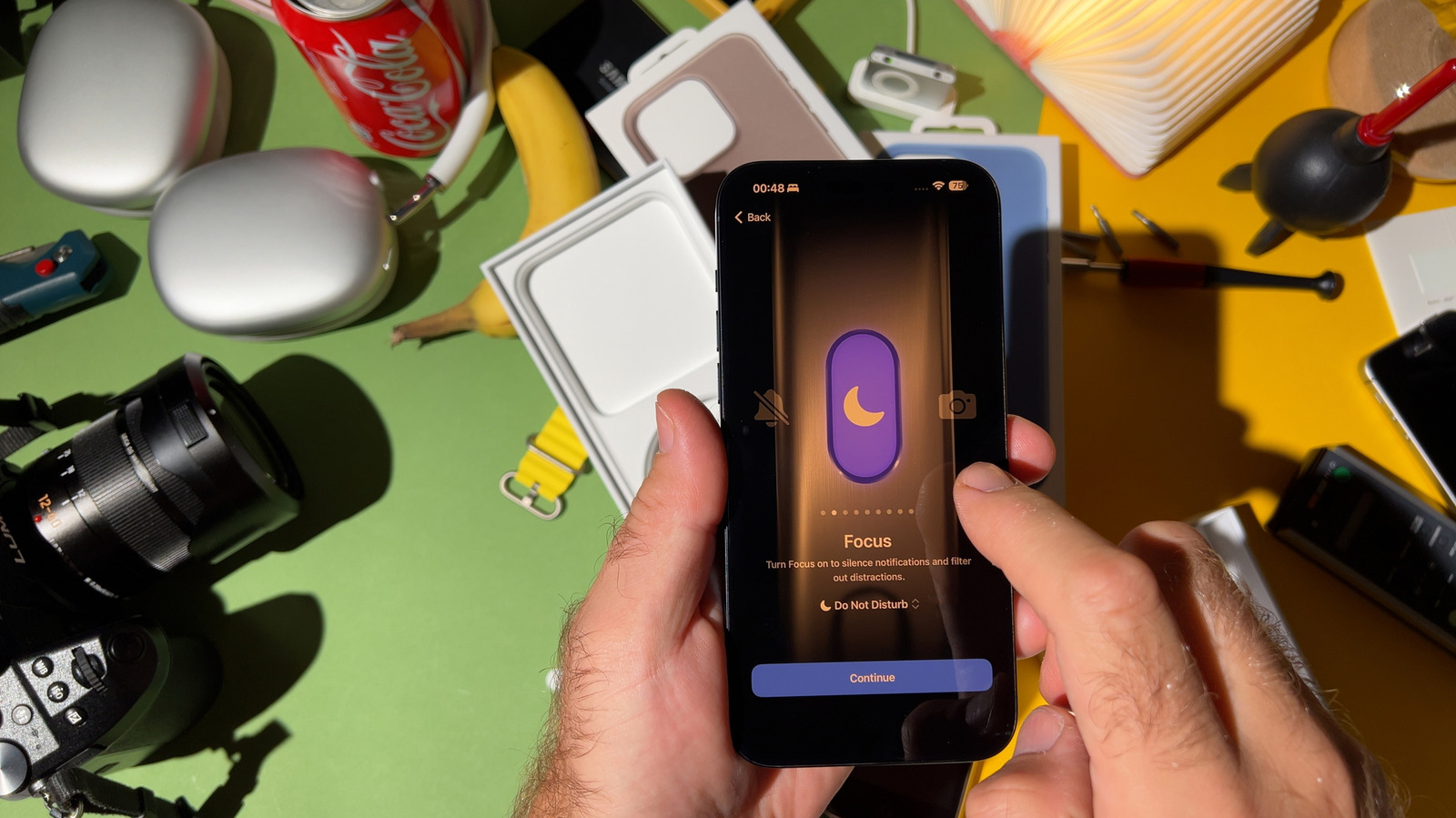
You can add and adjust app restrictions, control notifications from specific contacts, switch display settings, and more under any mode.You can create your own modes from scratch or use pre-existing ones, depending on your device and model.So, when you're going on vacation, it is a good idea to create your custom "Vacation Mode," whatever that might look like for you, so you don't have to adjust these settings manually before you travel.
To use Modes on your Galaxy device, go to Settings > Modes ("Modes and Routines" for Samsung Galaxy), then tap "Add Mode." From here, you can begin to create a custom vacation mode (with a vacation icon, if you really want to drive it home).Close For my vacation mode, I like to set up a few things: Restricting app usage on work-related and distracting social media apps Allowing only certain contacts to call or message me Changing the appearance of my home and lock screen Creating a custom do-not-disturb setting With Modes' customization, the possibilities can be endless in how you can set up different modes for different purposes.Close The short route to set up actions Make it a routine Another way to set your phone up for an instant vacation switch is to use your device's shortcut capabilities.
This will allow you to automate actions that trigger automatically, based on a couple of factors.If you own a Samsung Galaxy device, you can use the lineup's exclusive Routines (under Modes and Routines) to set up custom shortcuts.This is a built-in automation tool that, like Apple's Shortcuts, works on an "If [Condition] → Then [Action]" logic.
While Modes are the profiles you set up and need to enable with an action (like tapping a button), Routines are triggered automatically.Routines are integrated into the "Modes and Routines" settings, so when you set triggers up, you can find them when setting up a Mode (Under "Turn on automatically", where you can add a condition to trigger the Mode.Close Further, depending on your device, you may have the option to custom-set a mode for a certain duration (or until you turn it off) when customizing it.
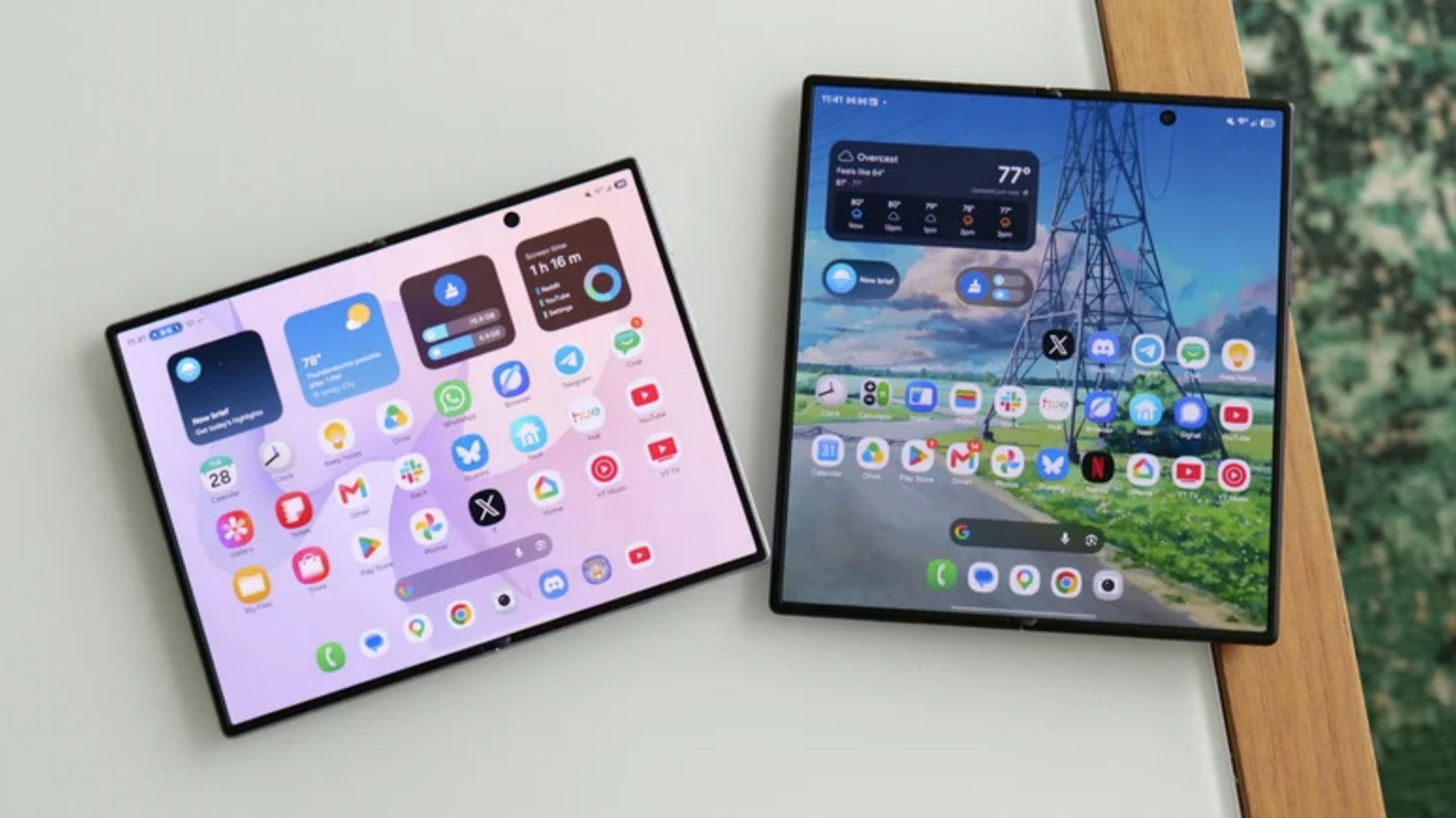
Close Alternatively, you can use a third-party app (my recommendation is IFTTT, which you can also connect with hundreds of external apps and services) if your device does not support a built-in shortcut mechanism.Make it easy to access Vacation is just a tap away Once you set up a mode on your Galaxy device, the easiest way to use it (with a tap or trigger, depending on your device) is to keep it within reach.You can add custom modes to your phone's home screen (widget), notification shade, or panel.
To add a Modes or Routines shortcut to your home screen, touch and hold a space on your home screen, tap Widgets, select Modes and Routines (or "Modes"), and drag the mode widget onto your screen.To add Modes to your notification panel for faster access, swipe down from the top of the screen to open the panel, tap the pencil (Edit) icon, choose Edit, then drag the Modes and Routines (or "Modes") tile into your active panel.Close Once it's in either of these parts of your screen, you can essentially turn your Vacation Mode on or off with a single tap.
An easy way to slip into calm The best part about setting up a Vacation Mode (and any Mode, depending on your interests and needs) is that you only have to build it once.After that, you can set your device up to be distraction-free in a simple step.
Read More