We've come a long way from that simple volume slider in Windows 3.1 and later Windows 95.Back then, there was no guarantee every PC would even have a soundcard in it, so sophisticated sound mixing and volume control were limited to the purview of professional audio workstations.Today, Windows actually has a robust and sophisticated sound management system.
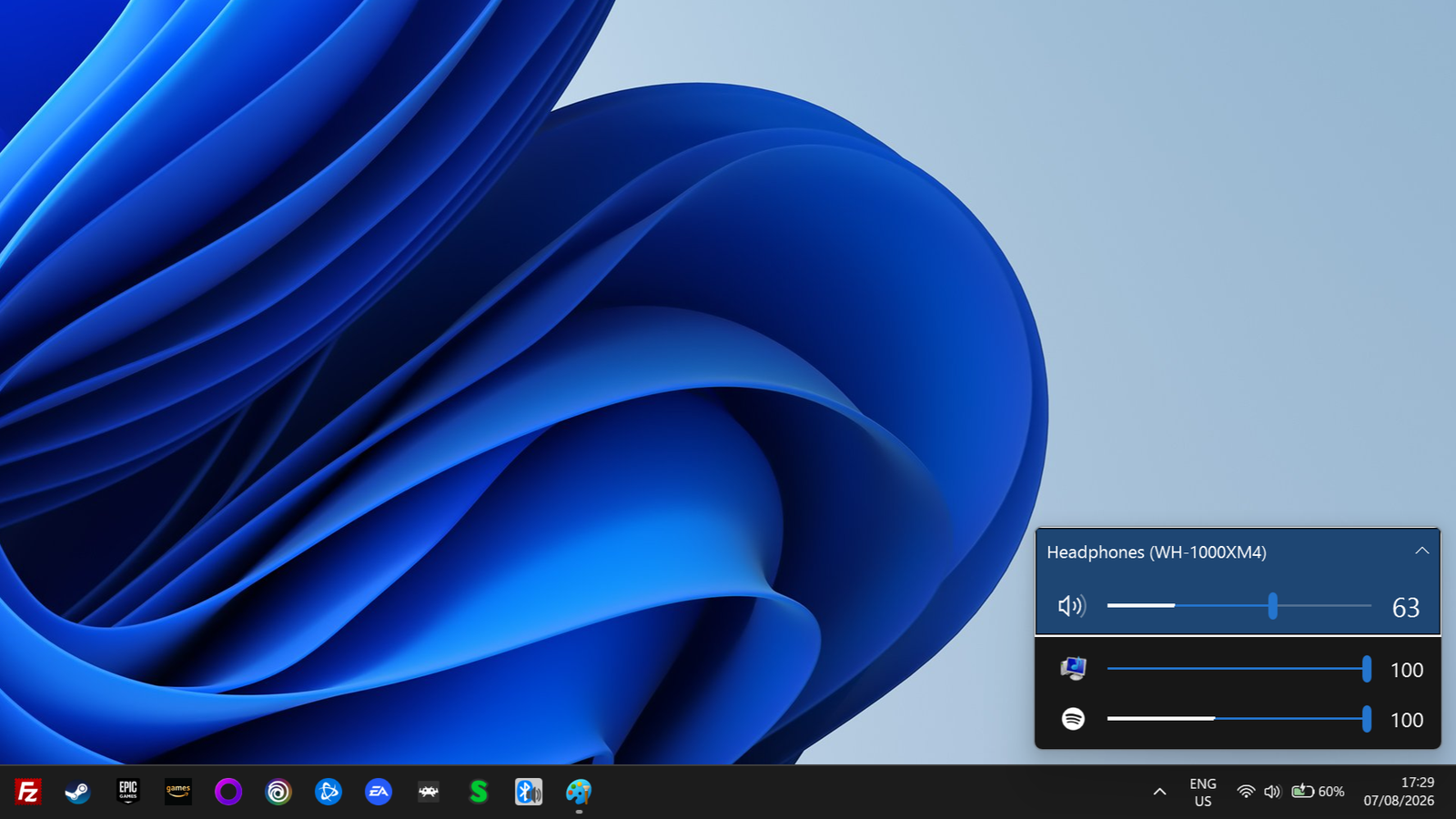
The problem is that in an effort to keep the more "complex" stuff out of sight, Microsoft has made anything beyond tweaking the master volume slider hidden behind multiple clicks and menus.EarTrumpet fixes all of that elegantly, and for free! Windows' audio controls still make simple tasks harder than they should We're diving deep for no reason If you click once on the speaker icon (or use Win + Ctrl + V), it pops up a flyout that lets you adjust the master volume of the system.If you want to change the current master audio output for your computer, you have to click the little icon to the right of the volume slider, which then gives you access to all the output devices on your system.
Where you'd switch between your headphones and speakers, for example.If you want to adjust the volume of individual apps, you need to scroll down on this same window (it's not even obvious that you can do this) and you'll see individual sliders for your active apps.Close This is a very basic volume mixer though, and to access features like switching which outputs individual apps use, you need to open the full system settings window for audio, though at least this happens through a setting cog button that's right there in the mini mixer.
I need to emphasize that this is not the worst experience in the world, and most people probably just want to adjust the main volume, so it makes sense in a lowest-common-denominator sort of way.However, for those who want it to be easier and more streamlined, EarTrumpet neatly solves all of these mild pain points.Every app gets its own volume slider right in the flyout What will you do with so much power? EarTrumpet trims one step from the process, because as soon as you activate the flyout, the mixer showing all active apps with audio is right there.
Since it doesn't have all the other toggles (like Wi-Fi and Bluetooth) that have nothing to do with volume or audio output, it takes up no more space than the usual pop-up that Windows shows you when you click on the speaker icon.Of course, by default, the EarTrumpet icon is in the overflow section of the notification area.That puts an extra click back in the process, if you don't use a keyboard shortcut or hotkey to activate the app.
However, if you right-click on the Taskbar and choose Taskbar settings > Other system icons, you can activate the toggle next to EarTrumpet and its icon will appear to the left of the notification area.Switching audio devices became a one-click job Any speaker, any time EarTrumpet also makes changing audio devices much faster.All you have to do is right-click on the taskbar icon, and choose the output device you want.
Even better, from this same menu, you can quickly access all the classic Windows audio dialogs from the classic control panel that Microsoft has desperately tried to hide behind much less useful (but simple!) modern settings pages.If you want to switch which output device a specific app uses, left-click on the EarTrumpet icon and then click on its title bar to expand it.Then right-click on the app icon, and then left-click the icon to the left of the "x".
That should open a list of outputs, and if you choose one, the app's music output will move there.Close This is way faster than going through the usual process to get to WIndows' audio-routing settings.It surfaces useful controls Windows already has—but hides Why make it so hard? The funny thing about EarTrumpet is that it doesn't let you do anything that Windows doesn't already make possible.
It's literally just an alternative take on the design of the interface for those controls.EarTrumpet brings those settings up by several levels of abstraction under the assumption that even if you don't need to do audio routing or per-app volume adjustments every day, you'll need this functionality often enough that it should be close at hand.It feels like the volume mixer Windows should have had all along The "modern" changes to Windows have been controversial for several reasons, not least of which the limbo Microsoft has left the OS in with some parts of legacy Windows hanging around, like the classic Control Panel.
Many of the UI changes have been baffling.Personally, I think it started with Windows 8 trying to be a normal and touch-based OS at the same time.Now Windows seems to be accommodating smartphone users, stripping things down to the bare minimum, but taking it too far in this case.
EarTrumpet shows that you can have all the sound controls you need without clutter, and without the need to dig through menus and apps.It's what Windows should've had by default.
Read More