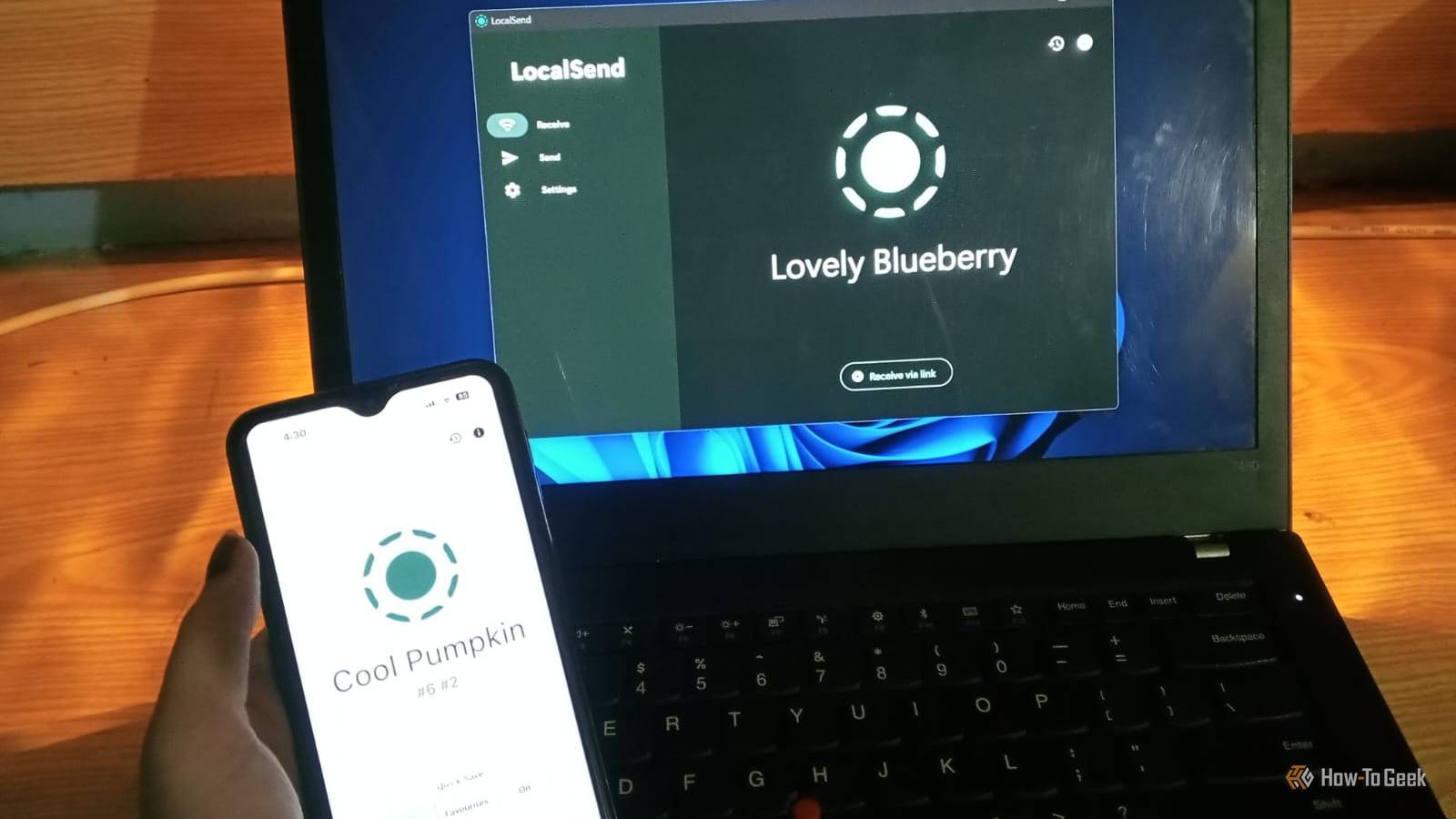
Have you ever emailed yourself an attachment, uploaded a file to cloud storage, or connected your phone with a cable just to move something between devices? If so, you know how unnecessarily complicated and frustrating file sharing can be.Things become even more awkward when your devices run different operating systems.LocalSend takes a different approach to solving this problem.
It’s a free, open-source app that lets you transfer files and text between Windows, Linux, macOS, Android, and iOS over your local network.It doesn't require cloud storage, cables, or an account.The idea might sound familiar if you've used AirDrop.
The difference is that LocalSend isn't locked to one brand's ecosystem.What makes LocalSend different from other file-sharing apps? Share files, folders, text, and clipboard content across platforms LocalSend is a free, open-source file-sharing app available for Windows, macOS, Linux, Android, and iOS, making it useful if your devices don't all belong to the same ecosystem.You can send a document from your Windows PC to a Linux laptop, move photos from your phone to your Mac, or share text between two computers.
It also has a web app that lets you open LocalSend in a browser on both devices and share files.LocalSend doesn't rely on a remote server to transfer your files.Instead, it discovers nearby devices on your local network and transfers data directly between them.
Related The 8 Easiest Ways to Share Files Between Linux and Windows From SFTP to Samba to HTTP servers, you have plenty of options.Posts 8 By Richard Dezso LocalSend doesn't offer anything particularly unique or mind-boggling, but it covers the essentials, including: No account or login required File, folder, text, and clipboard sharing Support for all file types Encrypted transfers using HTTPS Generates TLS/SSL certificates for each device Web app compatibility with Chrome, Firefox, Edge, and Opera Support for Windows, macOS, Linux, Android, and iOS Automatic discovery of devices on the same network Optional PIN protection for extra security Customizable save location, with Downloads as the default If you're sharing large files or folders containing lots of images, LocalSend is a good option for two reasons.Your files won't be uploaded to a third-party cloud service, and transfers can be faster because they happen over your local network without the usual upload-and-download cycle.
How to send files using LocalSend Install the app on both devices, choose a recipient, and accept the transfer Close The process of sharing files is quite simple.You just need LocalSend installed on both devices.For this demonstration, I'm using Windows and Ubuntu, but you can follow the same general process with other supported platforms.
First, download and install LocalSend from its official website on both devices.I used the Windows installer on Windows and the APT package on Ubuntu.Once you've installed the app on both devices, connect them to the same Wi-Fi or local network and leave LocalSend running on each.
They should automatically discover each other.Each device has an alias, which is a randomly generated name by default.You can change it in the app's settings.
On Windows, open the Send tab.Select Files to choose individual files, Folders to share a directory, or use the text and clipboard options to send other content.Once you've selected what you want to share, LocalSend displays the available nearby devices.
Find your Ubuntu system in the list and select it as the recipient.LocalSend then sends a transfer request to Ubuntu.Switch to your Linux system and look for the incoming request.
Check the sender and file details, then accept the transfer.LocalSend transfers the file over your local network.Once the transfer finishes, you can open the received file or find it in your configured destination folder.
By default, received files are saved to the Downloads folder, but you can change the destination in the app's settings.You can reverse the process whenever you need to send something from Ubuntu to Windows.Simply select the file on Linux and choose your Windows PC as the destination.
Limitations worth knowing about Firewalls and network settings can prevent devices from finding each other LocalSend is pretty straightforward when everything works, but there are a few things to keep in mind.First, it isn't a general-purpose remote file-sharing service.Your devices need to be able to communicate over a local network, so you can't use it to send a file to someone across the internet in another location.
Second, device discovery can fail even when both computers are connected to Wi-Fi.Your firewall may block LocalSend's network traffic, so allowing incoming TCP and UDP traffic on port 53317 and outgoing TCP and UDP traffic on any port may help.Your router may also prevent connected devices from communicating with each other.
This is common on guest networks and public Wi-Fi.If your router has AP or client isolation enabled, check whether disabling it resolves the issue.Devices connected to different Wi-Fi bands may also be unable to communicate if your router isolates them.
If LocalSend still can't discover your other device, you can also manually enter the receiving device's IP address in LocalSend.Also, check LocalSend's troubleshooting guide for detailed solutions.Finally, remember that encrypted transfers don't automatically make every incoming file trustworthy.
Check the sender and accept files only from devices or people you trust.Who should use LocalSend? If you regularly share files between devices that don't belong to the same ecosystem, LocalSend is worth trying.It's especially useful for mixed-device households and workplaces where people use a combination of Windows PCs, Linux machines, Macs, and phones.
The more varied your devices, the more LocalSend earns its place.It's free, open-source, quick to set up, and refreshingly free of accounts and ads.Its main limitations, requiring a shared local network and occasionally needing firewall adjustments, are small trade-offs for the convenience and privacy it offers.
Read More