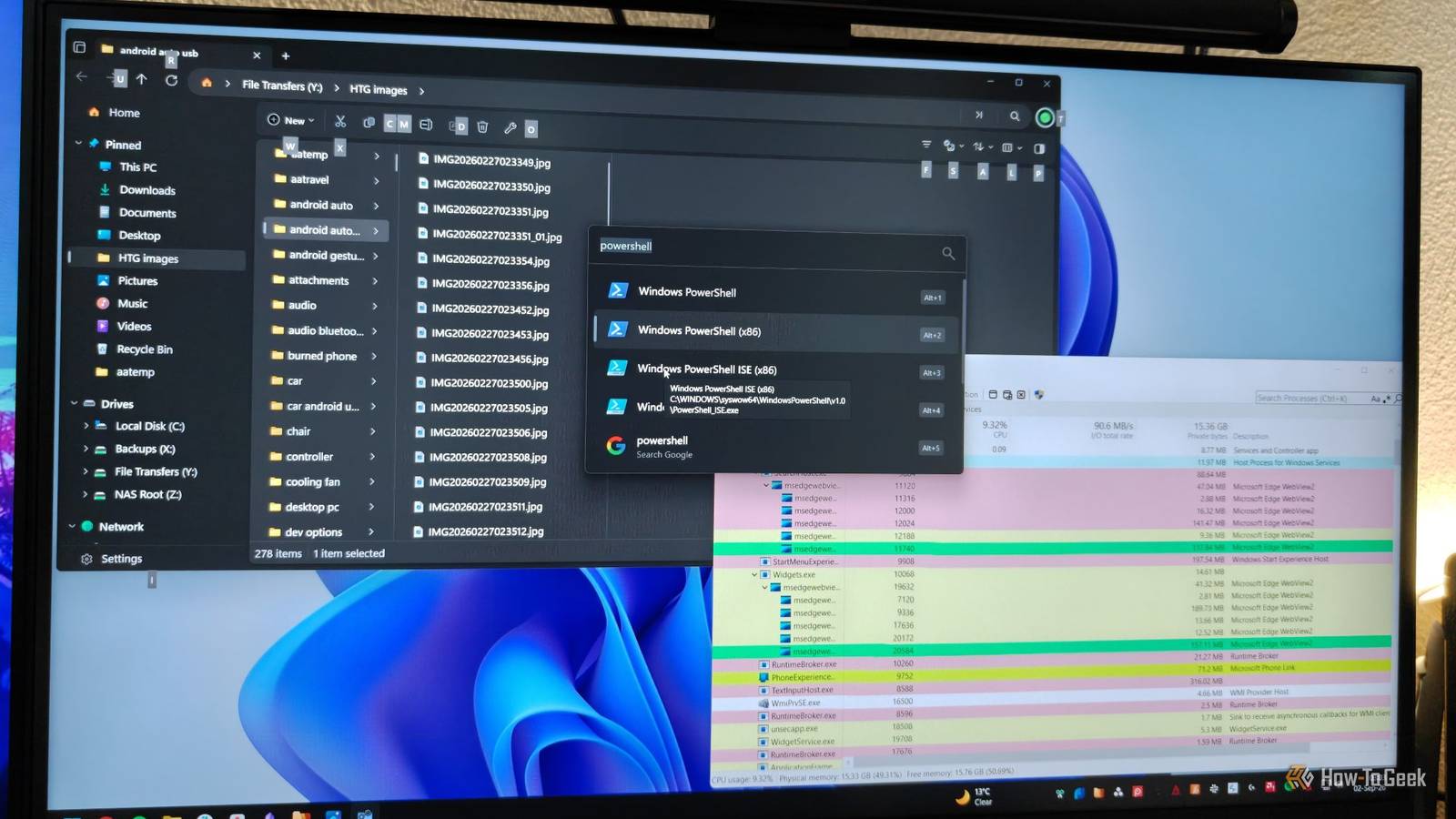
Microsoft has kept Windows on a steady path for years.Most updates focus on refining and upgrading existing features instead of drastically changing core OS functionality.While Windows’ defaults are perfectly fine for the most part, I decided to revamp a few core parts with open-source tools while keeping the overall Windows 11 look and feel I’ve grown familiar with.
Files is the File Explorer replacement Windows should have built More than a worthy replacement Close For years, File Explorer was a mish-mash of modern UI being added on top of old code that dates back to Windows XP and possibly even older versions.Microsoft has taken many steps in the last few years to modernize File Explorer, and it's a lot better than it used to be.For instance, the Windows 22H2 update introduced browser-style tabs, allowing you to open multiple locations while staying within one window.
Well, guess what: Microsoft is still years behind on that feature, as the open-source Files app has featured browser-style tabs for years before Microsoft thought of doing it.And that's actually a good example of the overall theme of the Files app—it's a power-user version of File Explorer that's been built by hundreds of contributors.While some long-standing features that have been available in Files have found their equivalent in File Explorer over the years, there are still a few things that Files does better.
One of the coolest features is Dual-Pane View, which allows you to open a folder in a separate horizontal or vertical pane.This makes moving files drastically quicker and more convenient in just a couple of clicks than opening two separate windows or tabs.Another feature people install Files for is the Mac-style column view, which allows you to open folders in a structured horizontal layout that makes large groups of folders easier to navigate.
There's also a color-coded tagging system, which allows you to add tags to individual files and folders for easier organization.For instance, if your Documents folder contains a mix of everything, you can use the system to tag your work files, home files, photos, and important files.Additionally, Files lets you create RAR files, eliminating the need to keep a separate third-party app installed.
There are a few other minor details I haven't mentioned, but still, perhaps the best thing about Files is that it looks and feels just like File Explorer, completely eliminating any potential learning curve that'd make you stay away from it.Related My setup for a better file browsing experience on Windows Never wait for a search to complete again.Posts 5 By Will Verduzco System Informer is Task Manager for real power users See what's actually running Windows' built-in Task Manager is an okay tool, and no one can deny that it's gotten more refined over time.
However, if you want to do more than just monitor and end background tasks or check memory, CPU, and GPU usage, consider switching to System Informer.It's an open-source system monitoring tool that covers all the same basics as Task Manager, but in far more detail.For starters, all processes are color-coded: green are newly started processes, red are terminated, pink are immersive/UWP processes, blue are core system processes, cyan are Windows background services, and so on.
This allows you to easily tell what category a process belongs to without even having to check the username that started it.System Informer also seems to be a lot more capable when you need to terminate a process.While Windows' built-in Task Manager can sometimes hang when you try to terminate a frozen process, System Informer offers more powerful process termination options.
It's saved me several times from having to reboot my system because Task Manager refused to shut down a frozen game.But it's really when you start investigating your processes that System Informer makes all the difference.When you open the properties of a process, you get extensive, highly detailed information about it.
There are all the usual things like the Process ID (PID), parent process, file path, and the option to open the file location.But System Informer goes into much more depth than Task Manager, as you can see the exact command line used to launch the process, the resources the process consumed over time, environment variables, network details, and a lot more than that.Another neat feature is the ability to identify files used by a process.
Whenever Windows doesn't let me delete a file because a process is using it, I can just hop into System Informer, go to Find Handles or DLLs, type in the file name, and immediately identify the process preventing me from deleting it.If you ever need to troubleshoot your system and pinpoint a sketchy background process that's causing trouble, System Informer will get you where Windows Task Manager stops.Windows Search feels painfully limited next to Flow Launcher A search bar for power users Windows' built-in Search has always been kind of lackluster.
While it's super easy to access by just hitting the Start key and starting to type, it can't wait to jump at the opportunity to present you with a Bing search.Also, Windows Search is shockingly slow and resource-heavy when running on lower-end machines.Thankfully, Flow Launcher exists.
It's a powerful, lightweight alternative to Search that you can bring up with the default Alt+Spacebar hotkey or some other combination of your choosing.It's essentially a floating search bar that looks a little like macOS Spotlight Search.The biggest benefit of Flow Launcher is just how fast it is.
Flow Launcher relies on Everything (Voidtools) to search your entire drive instantly, which is a massive improvement over Windows' ultra-slow native indexing system.Some other things Flow Launcher lets you do include running shell commands directly from the search bar by typing > and a space before the command, dragging and dropping photos and documents from search to copy and paste them to a different location, and doing a Google search directly in your preferred browser instead of being forced to use Bing and Microsoft Edge.If you end up enjoying Flow Launcher, you'll be pleased to hear that it offers a surprising level of customization that you can access through the system tray on your taskbar or by searching for "Settings" in the app and selecting the Flow Launcher Settings option.
Windows doesn’t have to dictate how you use your PC Look, you don't have to pick between these tools and Windows' built-in features.All of them can work perfectly well alongside Microsoft's default tools, but it's still worth pointing out that some of them let you take things to the next level if you so desire.Files and System Informer can replace File Explorer and Task Manager directly through the registry, while Flow Launcher is powerful enough that you'll quickly forget to even open the Start menu.
So go ahead and trick out your Windows installation to make it feel more like your own, without making any major sacrifices.Related You Probably Don't Know About These Hidden Features in Windows 11 File Explorer Even though PC users use Windows File Explorer all the time, these are some features that often go unused and unrecognized.Posts 3 By Timothy Jacob Hudson
Read More