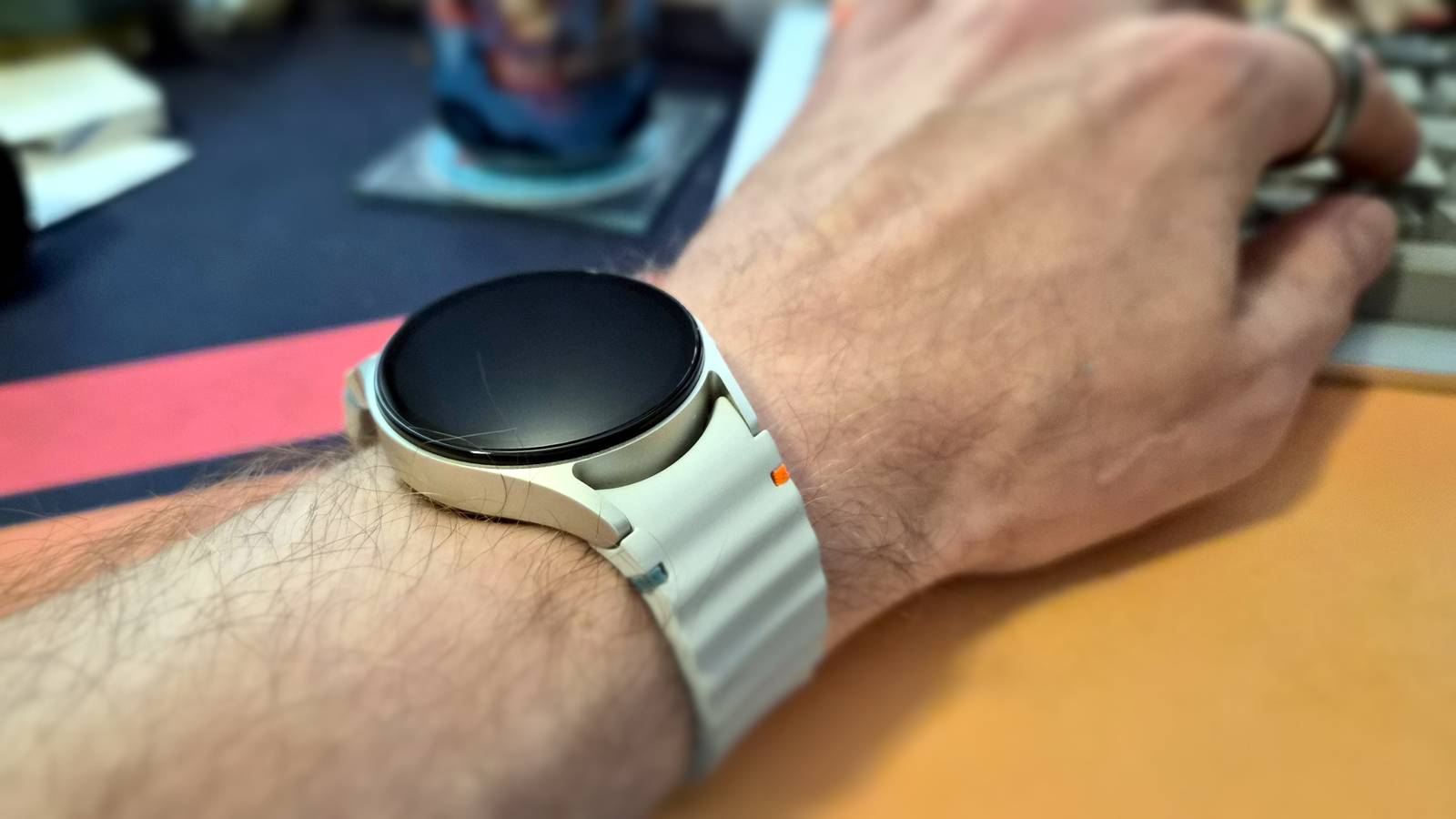
If you're using your Samsung Galaxy Watch for notifications, health tracking, and calling it a day, you're missing out on a lot of what it can do.That said, I don't necessarily blame you—many of these features are buried deep in accessibility menus, hidden behind obscure toggles, or tucked away in your phone's settings, making them genuinely hard to find.That's why I've rounded up five underrated Galaxy Watch features that deserve far more attention.
Dynamic watch faces Change watch faces based on your location or time of day Close This one is genuinely obscure, and the reason so few people know about it is that it isn't on your watch at all.It's not even in the Galaxy Wearable app.Instead, it's tucked away in your phone's Modes and Routines settings.
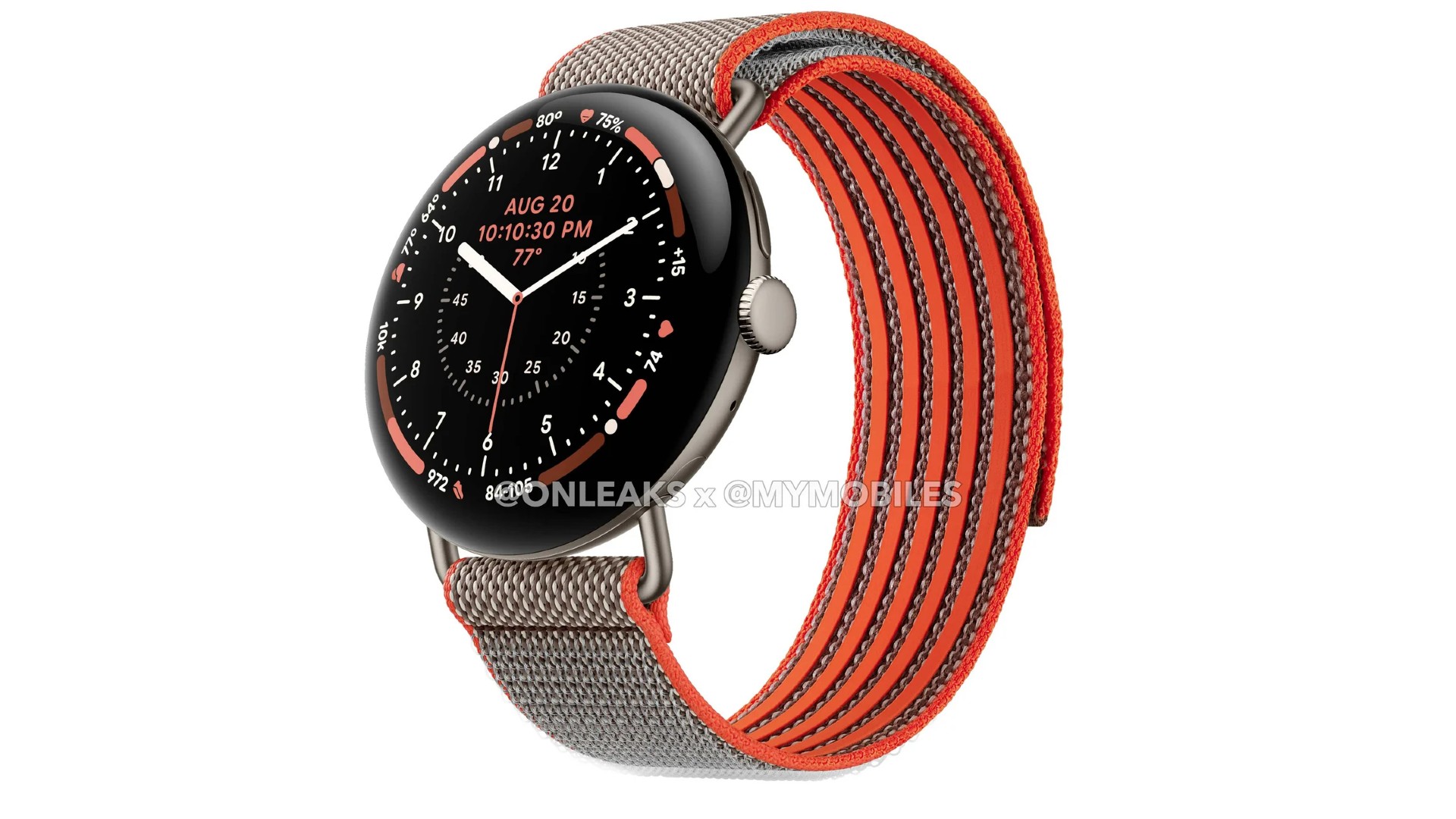
When you open Modes and Routines, you'll see Samsung's usual modes—Sleep, Exercise, Driving, and more.What most people don't realize is that once you pair a Galaxy Watch with your Galaxy phone, you unlock additional settings that let you control how your watch behaves when a particular mode is activated.For example, I prefer using a minimal watch face throughout the day, but when I'm working out, I want quick access to as much information as possible.
So I've configured Exercise mode—which automatically turns on when I start a workout—to switch to a more information-dense watch face.You're not limited to Samsung's built-in modes, either.You can create your own modes that trigger at a specific time or location.
For example, your Galaxy Watch can automatically switch to a more professional-looking watch face when you're at work and then change to a more casual one—perhaps with a family photo—when you visit your parents' house.Related I finally found the perfect watch face for my smartwatch Celebrate the small wins.Posts 7 By Joe Fedewa Hands-free watch control This might make you look like a madman Close You probably already know about the Galaxy Watch's built-in gestures, such as double-pinching to answer calls or dismiss alarms, shaking your wrist to reject calls, and the knock-knock gesture for launching apps or shortcuts.
However, what you might not know is that you can actually navigate your watch entirely with hand gestures—without touching the screen at all.The feature is called Universal Gestures.Once enabled, you can still keep using your watch normally and only activate “gesture mode” by quickly clenching your fist twice.
You'll know it's active when a yellow outline appears around the screen.From there, a single pinch moves the focus to the next on-screen item, a double pinch moves it back, and making a fist selects whatever is highlighted.Clenching your fist twice opens a context-aware toolbox with actions such as scrolling, opening the app drawer, going back, or pulling down the Quick Panel, depending on what you're doing.
To exit gesture mode, simply lower your hand and let the watch end the session automatically.This is technically an accessibility feature, and you can enable it under Settings > Accessibility > Interaction and dexterity > Universal Gestures.I leave it enabled all the time because it's surprisingly useful whenever my right hand is dirty or occupied, and I can't use it to interact with my watch.
Samsung Galaxy Watch 8 $290 $350 Save $60 Brand Samsung Now thinner and more comfortable, the Galaxy Watch 8 adds new health-tracking features like sleep apnea detection and antioxidant readings.$290 at Amazon Expand Collapse Developer options Unlock a library of useful hidden features Close You probably know your phone has a hidden Developer Options menu.Well, your Galaxy Watch has one too, and you can unlock it in a similar manner.
Just head to Settings > About watch > Software information, then tap Software version repeatedly until you see a message confirming that Developer Options has been enabled.There are plenty of settings to explore, but the one I find most useful is "Stay awake while charging." Once enabled, the display stays on whenever your watch is charging, effectively turning it into a docked display.For instance, if you don't wear your smartwatch to bed and leave it charging on your bedside table, this setting allows you to turn it into a bedside clock.
I personally keep mine on my work desk.I find wearing a smartwatch slightly uncomfortable while typing, so I take it off during work.Keeping it on my desk as an always-on clock still gives me quick access to the time, weather, notifications, and other information at a glance.
Related Your Galaxy Watch’s hidden developer mode unlocks these 4 features nobody talks about Stop sleeping on Galaxy Watch developer options.Posts 2 By Joe Fedewa Three down, dozens more to go There you have it—three underrated Galaxy Watch features that very few people know about but have become must-haves for me.That said, this is just the tip of the iceberg.
There are still plenty of hidden features that can help you get even more out of your smartwatch.I'll cover more of them in a future article, but if you know of any that I didn't mention, let me know in the comments.I'd love to hear about them.
Read More