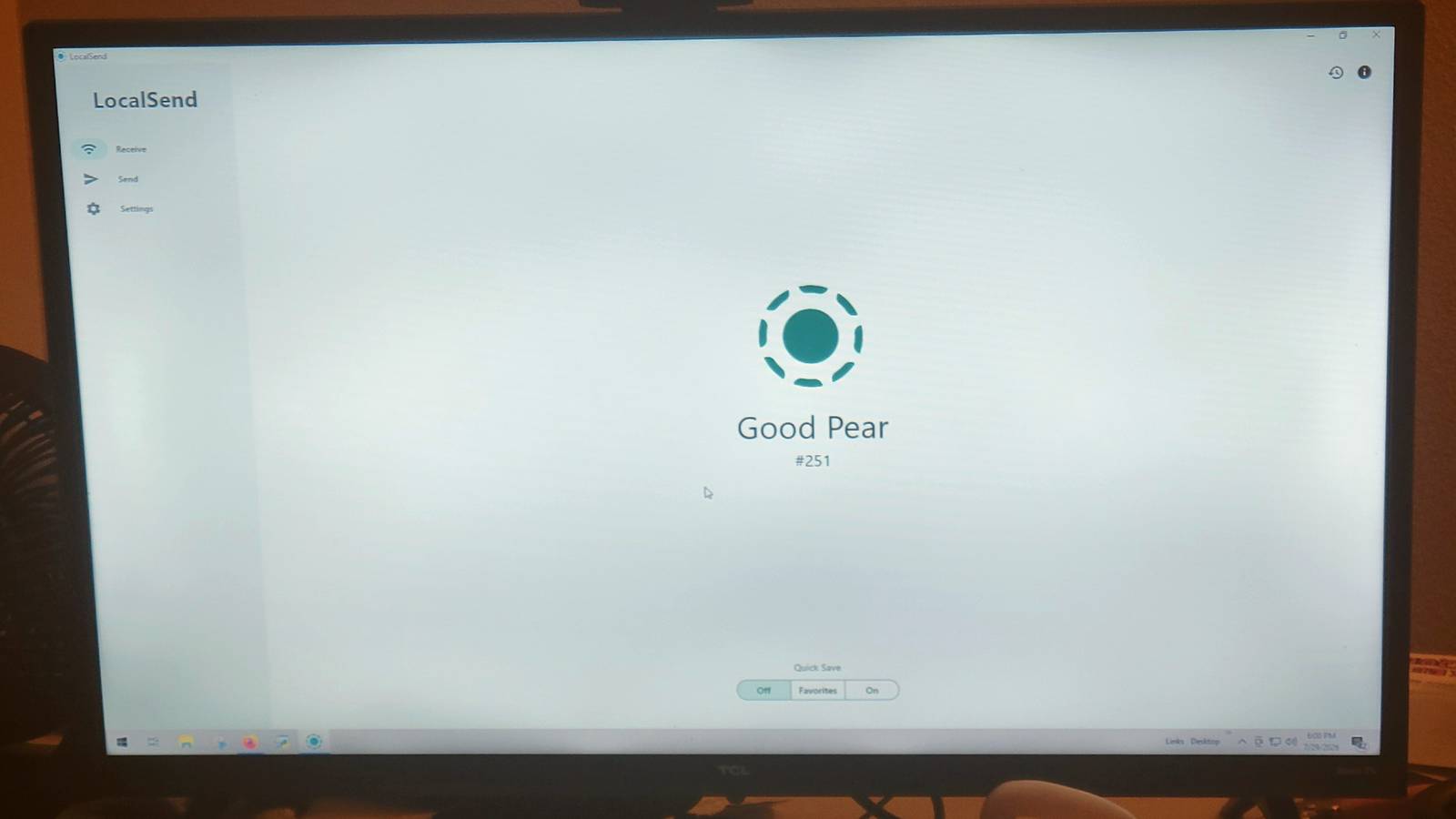
Cloud storage has made file sharing convenient, but that convenience comes with a cost most people don't think about.Every file you send through Dropbox or Google Drive leaves the network at your house, travels to a remote server, and then gets routed back down to the device a few feet away from you.Stop paying for cloud storage when LocalSend cuts all of that out and keeps your files in your own hands.
Cloud storage makes your files travel too far Local file sharing keeps your data in your house Close The reason you should stop using Dropbox and Google Drive is that your files have to leave your local network entirely, traveling out to servers over the internet before coming back down to the device you're sending them to.That round trip eats up bandwidth, adds latency, and opens your data up to interception or analysis by others along the way.LocalSend is an open-source tool that lets devices talk to each other directly, with no internet connection and no outside servers.
Everything stays on your local network, which means no external bandwidth gets used, and there's no cloud provider in the middle with access to your files.LocalSend runs on its own protocol, which is a lightweight, serverless REST framework built on HTTP and HTTPS.To handle encryption without choking slower devices, it uses a Rust-based HTTP client called rhttp, which offloads the heavy cryptographic work to Rust's async runtime.
This makes a difference when you're moving large files between different operating systems.Instead of loading entire files into memory at once, transfers are streamed in chunks, which keeps RAM usage low even with multi-gigabyte files.The whole thing is built with Flutter, so it runs on Windows, macOS, Linux, Android, and iOS.
When you decide to stop using the cloud to move files and get LocalSend set up, it shoots out a small JSON packet to a specific multicast address.When another device picks up that signal, it logs the sender and gets ready to connect.On networks where multicast gets blocked, LocalSend falls back to scanning the local subnet directly.
Keeping everything local is already a big advantage for your security, but LocalSend adds encryption on top of that.Each device generates its own self-signed TLS certificate, so all transfers are encrypted end to end without needing a certificate authority.Since the entire codebase is open source, anyone can audit it, so there's no room to hide trackers, data collection, or anything else that shouldn't be there.
You can get the app working in a few minutes You don't need an account to send things Getting LocalSend set up across different devices is pretty easy.There are native apps for Windows, macOS, Linux, Android, and iOS, and you can grab them from the usual places.So you just need to check Google Play, the App Store, or check the website for computer-related downloads.
Once it's installed, there's nothing you have to do that you'd do with other services.You don't need to worry about making an account, logging into a server, or getting cloud sync.You just need both devices on the same Wi-Fi network.
When you open the app, it uses multicast DNS to find other devices running LocalSend nearby and lists them automatically.From there, you pick your files, folders, or even clipboard text, tap the device you want to send to, and the person on the other end gets a prompt to accept.Since the transfer runs directly over your local network, it moves at whatever speed your router can handle.
So you can even get a 4K video going from an Android phone to a Mac quickly.There are a few permission quirks to keep in mind depending on your device.On Windows, your network profile needs to be set to private.
If it's set to public, Windows Defender will block the app from finding other devices.On macOS and iOS, you'll get a Local Network permission prompt the first time you open the app, and if you deny it, LocalSend won't be able to see anything.Android users who want to transfer large files should also go into battery settings and exclude LocalSend from battery limits; otherwise, the OS may kill the background process mid-transfer since it will take so long.
If you want to use LocalSend between devices that aren't on the same network, you can pull it off with a VPN or something like Tailscale or WireGuard.That will come with some issues though.It's just better to keep everyone on the same Wi-Fi instead.
Firewalls will probably get in your way Public networks make it easy for people to intercept your files LocalSend tends to come with some issues.Even on a normal home or office network, firewalls cause a lot of headaches.LocalSend uses port 53317 for a lot of things.
So it is finding other devices and actually sending files over that port.If anything is blocking that port, the app will stop working.Using LocalSend on public Wi-Fi is never a good idea.
This is especially true if you are at a coffee shop or hotel.Since the way it finds other devices relies on unverified network broadcasts, someone else on the same network could intercept that process and trick your device into sending files to them instead of who you intended.On top of that, LocalSend uses self-signed security certificates that aren't verified by any outside authority, which means you're trusting the connection without any third party backing it up.
To stay safe on a public network, you should turn on PIN verification, so transfers need approval, or manually compare the security fingerprint shown on both devices before accepting anything.LocalSend is great for you LocalSend works best when both devices are on the same Wi-Fi network, and that's also where it's most secure.Stretching it across separate networks with a VPN is possible, but you'll be fighting the tool instead of working with it.
However, it's one of the cleaner ways to move large files without handing them to a cloud provider first for your house and office use.
Read More