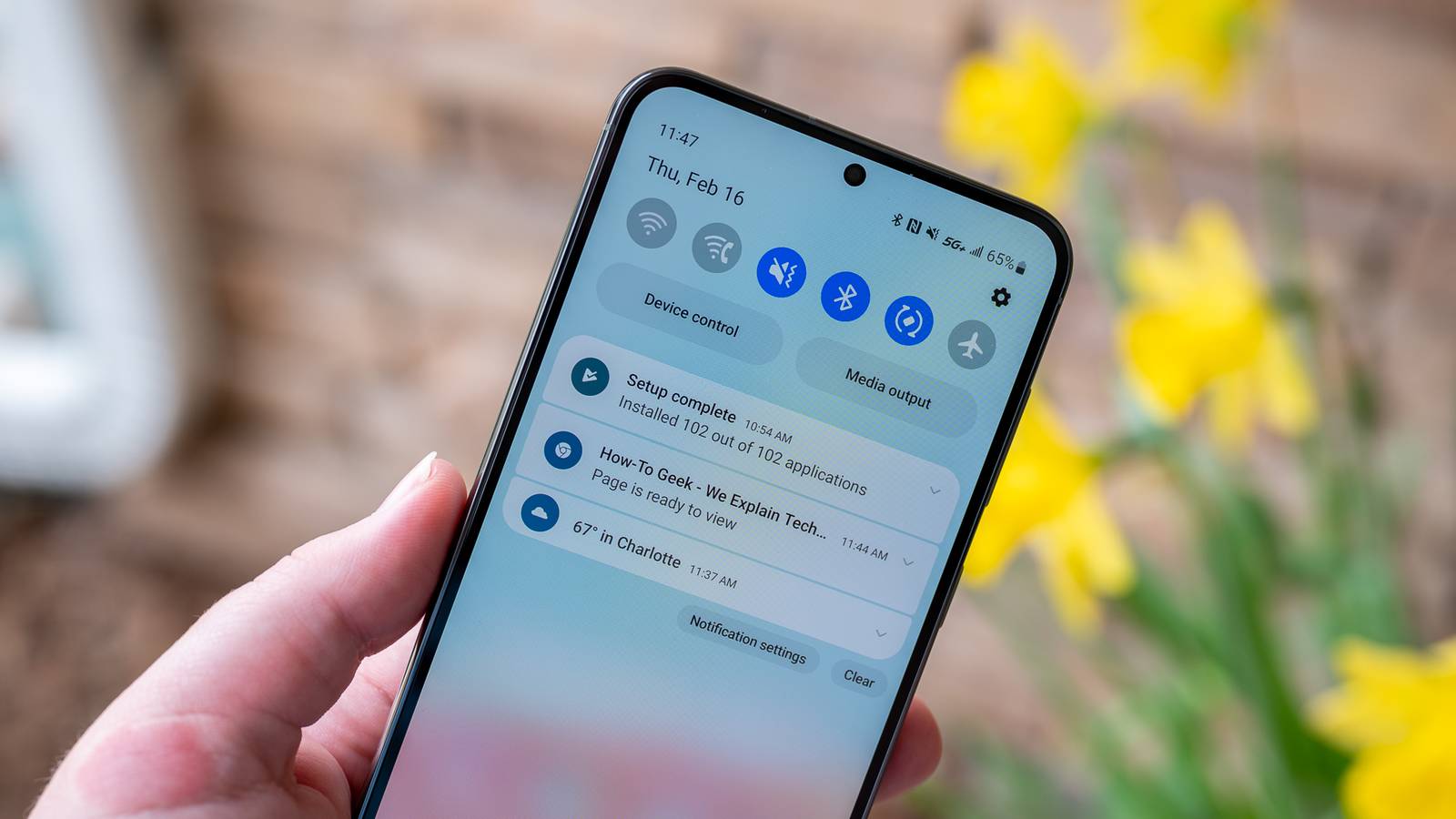
Android's notification system is one of its best features.However, we've all experienced those moments of notification overload, where you end up swiping everything away or start scrolling for what's important.And while there are tons of ways to supercharge or improve Android notifications, I've been using one Galaxy feature that calms the chaos and does all the work for me.
The notification system on our phones is so good that it's often an area completely overlooked or left unchanged after you get a new device.However, there are tons of extremely helpful settings, toggles, and controls to manage notifications.I'm talking about sorting features and the notification history mode, which lets you see all notifications even after swiping them away.
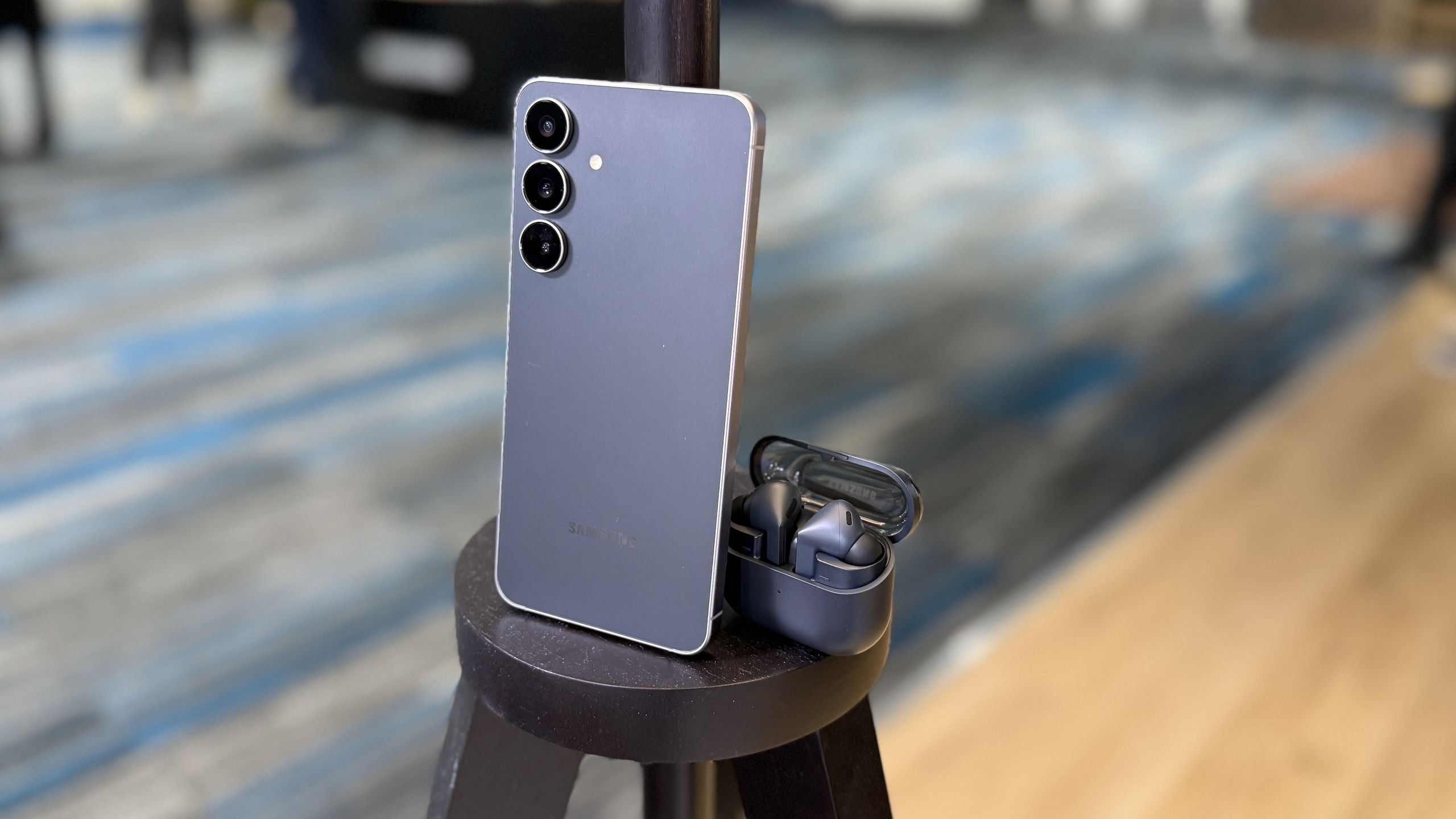
You can do all that on your Samsung Galaxy phone, but the feature I've been enjoying the most is Samsung's Notification highlights.Notification highlights show you what really matters It's one of the few AI features I genuinely enjoy For those unaware, if you head into Settings > Notifications, you'll find a slew of controls to hide content on the lock screen, sort and filter important or unnecessary notifications, or limit how many are displayed in the status bar.Our Galaxy phones are wildly customizable.
I've been using the same notification controls for years on my Samsung Galaxy phones, but with the One UI 8.5 update earlier this year on my Galaxy S25+, I started using Notification highlights.If you haven't gone into settings and enabled AI-based priority notifications or summaries, you're missing out.Fans all over Reddit agree.
I know, I know, we're all exhausted by the never-ending flow of "Galaxy AI" stuff.I get it, and I feel the same way.Related These 5 Android Notification Features Will Make Your Day Easier Notifications made simple and effective.
Posts 2 By Kabir Jain However, this one from Samsung is genuinely useful, as it ensures I see what's actually important, summarizes longer notifications, and has transformed how I use my Galaxy phone.To get started, head to Settings and select Notifications.As long as you're on One UI 8.5 or later, you should see several notification controls in this menu.
Halfway down the page is the newer "Notification highlights" section.Tap on that, then turn on the two main features.When you first enter this new feature, it'll lay out exactly how it works and what owners can expect.
It says the system "prioritizes important notifications and summarizes notifications from long conversations, helping you get the information you need quickly." This all happens on your device for privacy, and it may pull notification information from the last 24 hours to ensure all the important bits reach your eyeballs.When I first saw this during the One UI 8.5 beta, I didn't think twice and ignored it completely.However, once it became available on my phone and I turned on both prioritize notifications and summary modes, I realized it's a hidden feature people will love.
See, your Galaxy phone can recognize what's important and display that first or at the top of your list.That way, you won't miss a message from a friend or an important email in a flood of notifications from all the other apps on your phone.Furthermore, you can choose which parts of an app's notifications are prioritized right in the app settings, which is pretty powerful.
Then, that same level of convenience extends to conversations and other continuous notifications, and you'll get a summary to stay up to date.That way, you're not drowning in notification overload.Samsung Galaxy S26 Ultra Brand Samsung SoC Snapdragon 8 Elite Gen 5 Get the new Galaxy S26 Ultra with AI smarts and an all-new privacy display.
It's big, powerful, packed with AI, and you'll love the S-Pen stylus. $1300 at Samsung $1050 at Amazon Expand Collapse Take things a step further Change notification settings for each app If getting all your most important notifications first, along with the summaries from Samsung's notification highlights, isn't enough, you have other options.If you truly want to tame all those notifications, prevent overload, and slow down the number of alerts your phone sends all day long, here's how.Open settings, then head back to the Notifications section.
The very top option labeled "App notifications" is what you want.This gives you access to a list of all apps on your phone, where you can individually disable notifications for each app.Or, head into notification categories to control which types of notifications you receive from each specific app.
I have a bunch of apps like ESPN, Yahoo Sports, and Yahoo Fantasy on my phone, and I use this setting to severely limit the number of notifications I receive.If there are any apps that are overloading you with notifications, go in here and shut them down entirely, or manage how and what they send, and you'll be all set.Sometimes, less is more These days, our phones do just about anything.
We get alerts for emails, social media, sports, news, YouTube, streaming services, Amazon, food delivery, reminders, alarms, and so much more.Often, it can become stressful, especially when you wake up to 20+ notifications on your phone each morning.Use the highlights AI feature to see what's really important, ignore the rest, or customize the settings to stop the onslaught of alerts.
You'll be glad you did.
Read More