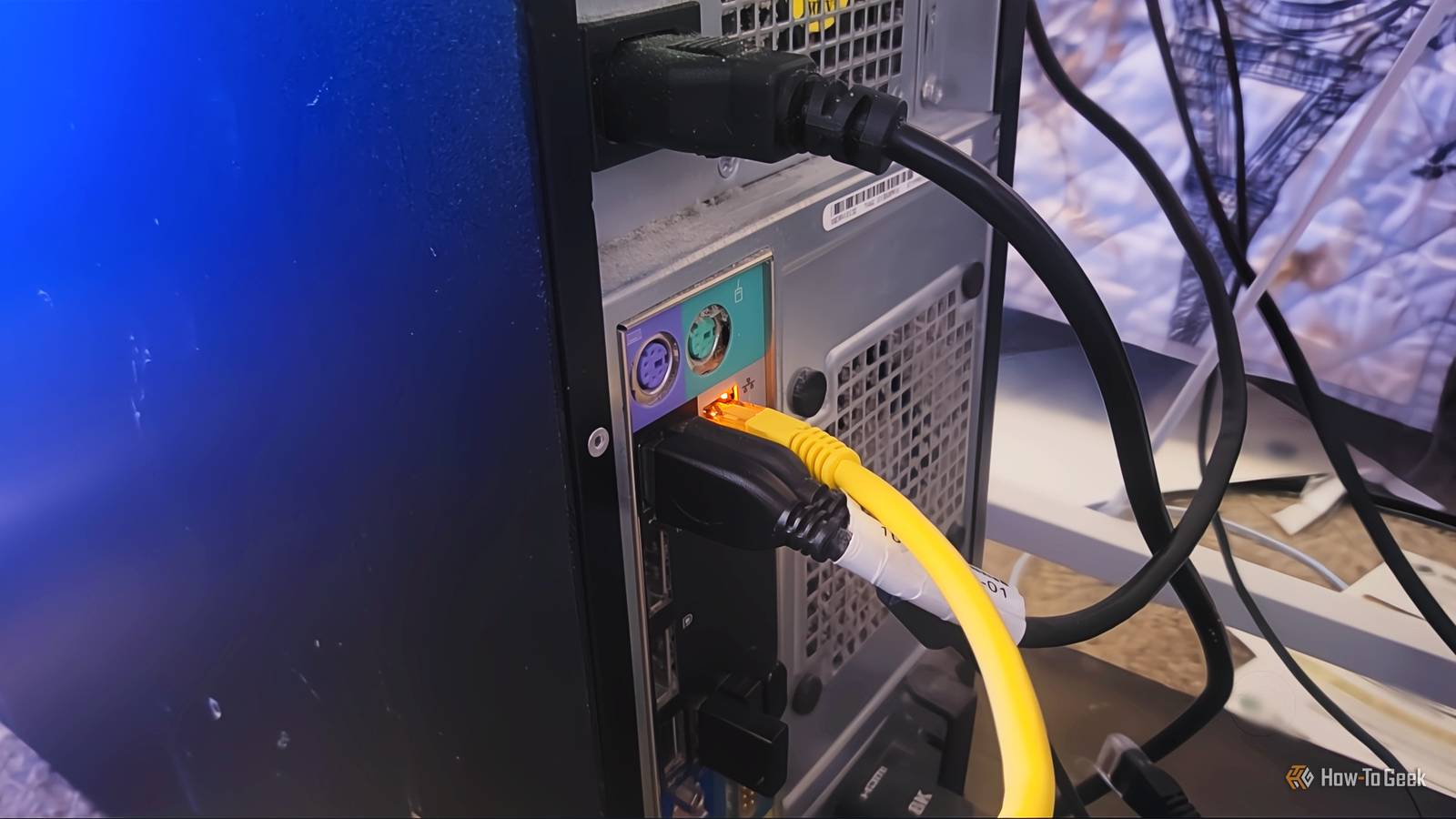
I figured plugging my NAS straight into my PC would be the fastest way to move files.I did not think I really needed a router in the middle to act as an extra hop.I had thought just one cable meant full speed.
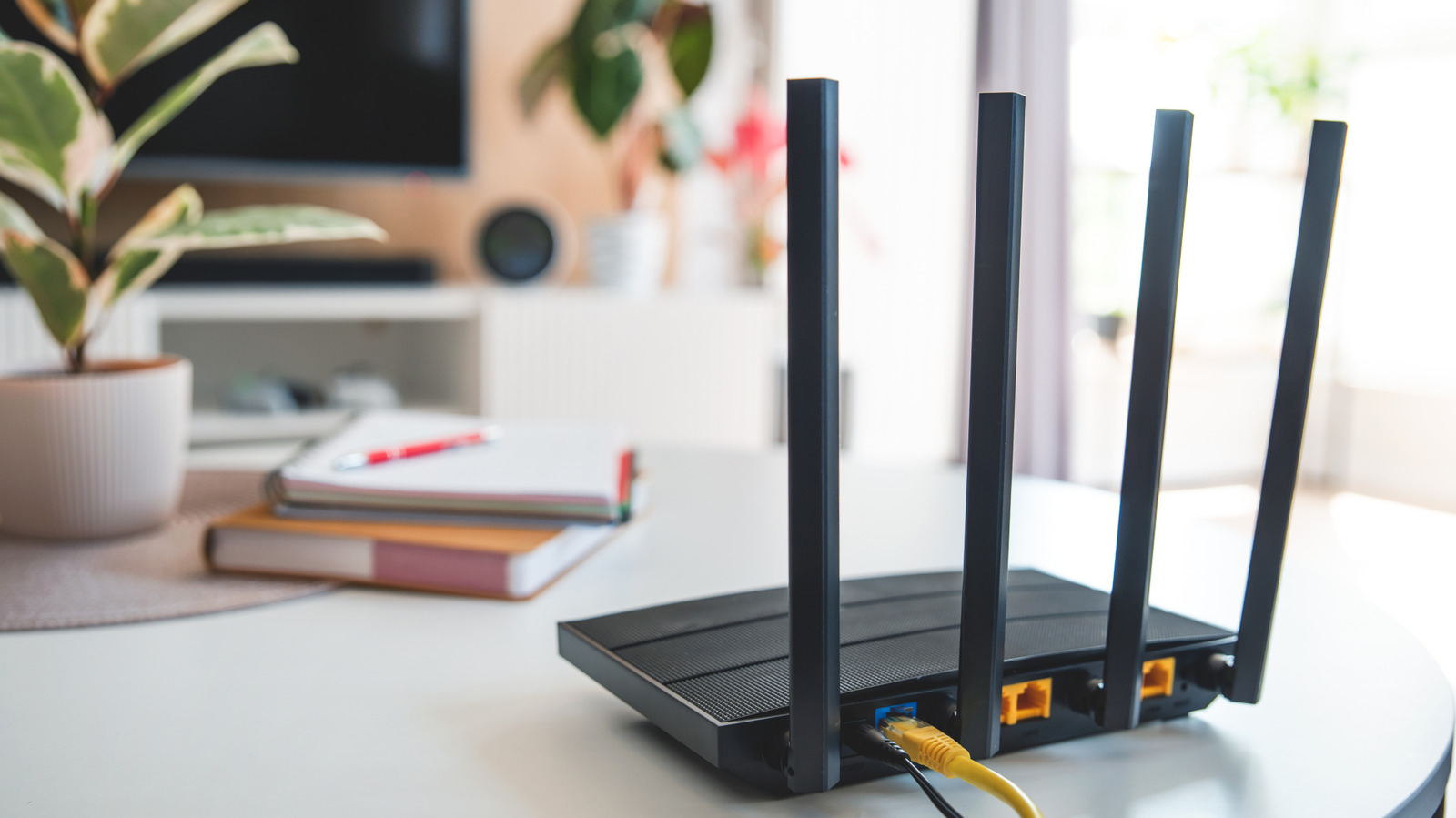
The idea is common enough that plenty of people try it.I didn't expect the router to be doing so much in the background.Add How-To Geek on Google Add as Preferred Source Follow on Google Discover Your router does more than you think Your devices fall back to random addresses without it In a regular home setup, the router handles a bunch of stuff most people never notice.
The main job is handing out IP addresses automatically through Dynamic Host Configuration Protocol (DHCP).When your PC or NAS starts up and hops on the network, it asks the router for an address, and the router sends back everything it needs.That includes an IP address, a subnet mask, a gateway for reaching the internet, and DNS servers for looking up sites.
The router also lets devices find each other by name instead of by raw numbers.You don't even notice it, but if you pull the router out, that whole system stops working.When you run a cable straight from a PC to a NAS, neither device can find a DHCP server, so both time out waiting and fall back to Automatic Private IP Addressing (APIPA).
With APIPA, each device grabs a random address in the 169.254.x.x range and checks that nobody else is using it before locking it in.The catch is that these addresses aren't stable.They can shift after a reboot, after the computer wakes from sleep, or after you unplug and replug the cable.
When that happens, any mapped network drives break, backup scripts fail, and your computer can sit there an extra minute or two at startup just waiting for the DHCP timeout to finish.For hardware, you just need an Ethernet port on both the PC and the NAS, and a standard Ethernet cable.Cat5e, Cat6, or Cat6A all work fine.
Years ago, you needed a crossover cable for a direct connection because the transmit and receive wires had to be manually swapped between devices.Modern network adapters handle that automatically now.Every current Gigabit, 2.5G, 5G, and 10G adapter supports it, so a regular straight-through patch cable is all you need.
You can set up a direct link yourself Static addresses are what make it work Close If you want to connect your PC directly to your NAS, which I did because I thought it'd be faster, it's pretty easy.You just run an Ethernet cable from an open port on your PC to a port on the NAS.Since there's no DHCP server on this link, you have to set static IP addresses on both ends, and they need to be on the same subnet.
That subnet also has to be completely separate from whatever your main home network uses; otherwise, you'll get routing conflicts.If your home network is on 192.168.1.x, pick something like 10.0.0.x for the direct link.One thing you absolutely must not do is fill in a Default Gateway on either adapter for this link.
This can break your internet connection and cause random packet loss.On Windows, go to Network Connections in the Control Panel, open the properties for the Ethernet adapter connected to the NAS, click on IPv4, and switch it to manual.Set the IP address to something like 10.0.0.1, the subnet mask to 255.255.255.0, and leave the gateway and DNS fields empty.
On the NAS side, log into its web interface, find the network settings for the port connected to your PC, switch it from DHCP to static, and assign it 10.0.0.2 with the same subnet mask and no gateway.Once both are saved, open Command Prompt on the PC and run ping 10.0.0.2.If you get replies back quickly, the connection is working.
From there, you can open the NAS management page by typing its IP address into a browser, or you can map a shared folder as a drive in Windows File Explorer.To do that, go to Map Network Drive, pick a drive letter, and enter the path as \ \10.0.0.2\ShareName.Enter the NAS login credentials when asked and check the box to save them.
Going router-free has real limits Your NAS ends up cut off from everything else I don't think this is a good path to follow.Your NAS ends up on its own little island.With no path to the internet, it can't download firmware updates, sync to the cloud, check the time from an NTP server, or be reached by any other device in your house.
The whole point of a NAS is that your phone, tablet, TV, and other computers can see and use it.If you still want your PC to have internet access while using this direct link, it needs a second network connection running at the same time, either through Wi-Fi or a second Ethernet port plugged into your router.I thought this would make it much faster to move files around, but you can just plug a flash drive into your PC, copy the files over, then plug it into your NAS and upload them that way.
I don't see why you'd want to limit what your own devices can do, and moving files from your NAS to your PC through a router is pretty fast anyway.This is just a more complicated connection A direct link does work, and it's a fun way to learn how your network really works.It can also give you a private path between two devices if you set it up carefully.
But you give up a lot for it, and I don't think it's worth it.Your NAS loses the internet, your other devices lose access to it, and your PC needs a second connection just to stay online.For most homes, the router already moves files fast enough.
If you're curious, try it once on a quiet afternoon and see what you'd be giving up.
Read More