Android phones have a lot in common with computers.They have a file system, support for keyboards and mice, advanced multitasking, and even a full-fledged desktop mode.One thing Android have, however, is a native clipboard.
Thankfully, Gboard can fix that.It’s honestly a bit strange that there isn’t a native, system-level clipboard on Android.There are some nifty third-party apps that attempt to fill that hole, but that’s probably overkill for most people’s needs.
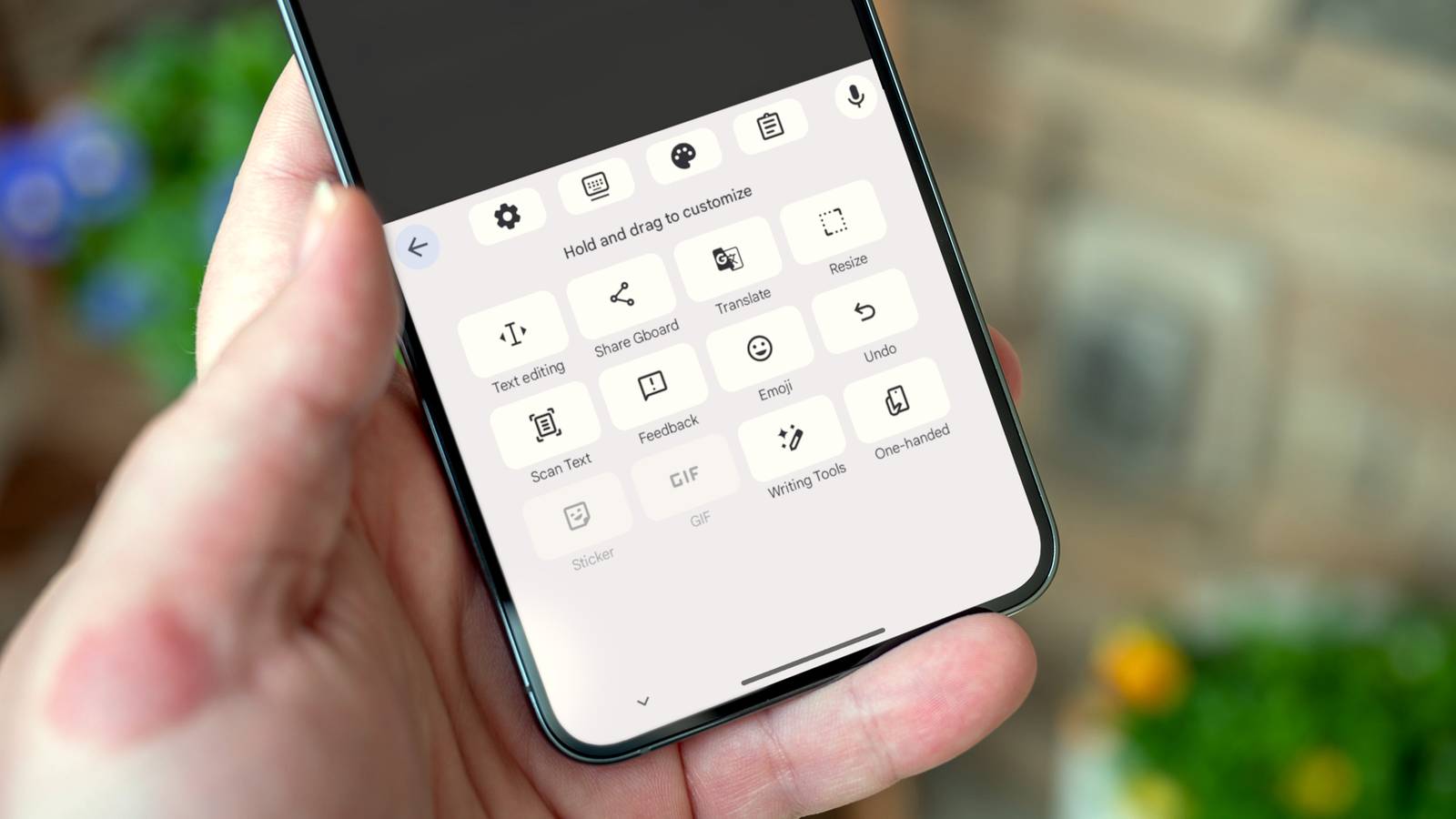
A much simpler solution is to use the keyboard app you already have installed.How to find the Gboard clipboard One of many icons you should know Gboard on Android has a bunch of icons in the “suggestion strip” (a.k.a.toolbar) above the keyboard.
When you start typing, this is where suggested words and emoji appear, but the icons show up first.Here’s every toolbar icon and what it does: Grid: Tapping this opens the overflow menu for tools that don’t fit on the toolbar.You can drag and drop icons to customize it.
Gear: Gboard settings.Keyboard with line underneath: Puts the keyboard in a floating, movable mode.Paint palette: Gboard themes.
Clipboard: You guessed it—the Gboard clipboard.Uppercase “I”: Gives you big directional arrows and select/copy/paste buttons.Share: Link to Gboard from the Play Store to share with others.
Google Translate: Translates your typing in real-time to a chosen language.Dashed-line square: Resize the keyboard height and position on screen.Viewfinder: Opens the camera to scan text in the real world.
Speech bubble: Send feedback to Google about Gboard.Smiley face: Emoji.Back arrow: Undo.
Smiley post-it: Stickers.GIF: Gifs.Pencil: AI-powered proofreading and writing tools.
Hand holding phone: Condenses keyboard to one side of the screen for one-handed mode.Microphone: Activates voice typing.Obviously, the clipboard icon is the one we’re interested in.
It’s most likely one of the icons that appear in the top-level of the toolbar by default.If you don't see this toolbar with icons, go to Gboard Settings > Preferences and turn on "Suggestion strip." Related The default Android tool you never thought to replace You’ve probably customized your Android phone with a new launcher, swapped out the keyboard, and maybe even installed an icon pack.But you might be missing out on a tiny, powerful secret that could fundamentally change how you use your phone.
Posts 9 By Joe Fedewa How to use the clipboard on Android with Gboard More powerful copy and pasting The clipboard is enabled by default in Gboard, so there’s no need to go turn it on.Anything you copy—text, URLs, even photos—will appear in the clipboard history.Some devices also put recent screenshots in the clipboard.
All you have to do is tap an item to insert it into the highlighted text box or any other supported area.Importantly, nothing stays in the clipboard forever.It holds 5-6 items at a time, and things are automatically removed after a few hours.
However, you can permanently save items in the clipboard for frequent re-use by pinning them.To do this, simply open the clipboard and press and hold an item.Select “Pin” from the menu.
Gboard doesn’t seem to have a limit on pinned items.This is also how you can delete an item from the clipboard.While doing this, you may have noticed an “Edit” option.
Text-based clipboard items can be edited, which is also handy if it’s something you want to use again and again.The last little clipboard tip to know is bulk pinning and deleting.With the clipboard open, tap the pencil icon in the top right corner.
Now you can select multiple items and tap the trash can or pin icon.How to turn off clipboard history in Gboard Stop Google from saving multiple items You don’t have to let Gboard keep a running history of your copied items if you don’t want to.Turning it off won’t disable the ability to copy and paste, but it will be limited to only the most recently copied item.
Simply open the clipboard and tap the toggle icon in the top right.An overlooked feature worth finding If you find yourself copying and pasting the same things often, the clipboard can be a big time saver.Of course, clipboards are a useful feature on many platforms other than Android (Windows, Mac, Chromebook, iPhone).
Almost every platform has one, but just like Android, you have to know where to look.Related Android's Gboard Has Tons of Hidden Tricks You Probably Aren’t Using Google’s default keyboard app can do a lot more than basic touch typing or swipe typing.You won’t find them unless you go looking or stumble upon them, but the Gboard app comes with a bunch of features that make texting and writing better.
Posts 8 By Faisal Rasool
Read More