Most of us rarely think about routers until they stop working, and that isn't necessarily a bad thing.Routers are designed to quietly handle your internet traffic 24/7 for months without a single break.However, just because they can do that, it doesn't mean that they should.
Like many other devices, they can benefit from a simple restart, and fortunately, it's easy to set up an automatic schedule that can do just that.Every router can benefit from regular reboots—here’s why Even basic hardware can clear up small issues with a simple restart Let's be honest: almost everyone experiences some kind of random internet connection problems.It doesn't matter if you've got a cheap ISP-provided router or a $500 mesh system; there are inherent quirks with how Wi-Fi routers work that can result in random connection drops and hangs.
This becomes especially apparent as your network expands and your home becomes increasingly congested with wireless devices and different access points.Although routers look like simple devices, they're actually fairly complex mini PCs that have to handle a wide range of tasks extremely quickly, and if the execution isn't perfect, your devices suffer because of it.One of the biggest issues with routers has to do with memory.
Routers have a tiny amount of available RAM, and every time a device connects, downloads, or streams something, the router's processor uses this fast memory to track important data.Since there's so little memory available, problems can start happening when a router runs out of space.Unfortunately, this is a common problem because budget routers frequently suffer "memory leaks," which means the router can't properly release occupied memory back into the pool when it's finished using it.
Over months of running non-stop, these small chunks of unavailable memory can build up and eventually start causing major performance and stability issues.Luckily, a quick reboot can clear all of that out and give the router a fresh start.Quiz 8 Questions · Test Your KnowledgeWeird WiFi and networking quirksTrivia challengeFrom bizarre range tricks to hidden protocol secrets — how well do you really know your network?WiFiProtocolsHardwareHistoryFun FactsBegin 01 / 8Fun FactsIn 2012, a small village in Wales was mysteriously losing its broadband every morning at the same time.
What was the cause?AA faulty undersea cable that expanded in morning tidesBAn old TV emitting electrical interference when switched onCA neighbor's microwave running on a scheduled timerDMorning dew condensing on exposed copper telephone linesCorrect! An elderly villager's old television set was emitting a powerful electrical signal every morning when he turned it on, wiping out broadband for the entire village.Engineers used a spectrum analyzer to track down the source after years of complaints.It's a perfect example of how everyday electronics can wreak havoc on networking signals.Not quite! The culprit was an old television set that an elderly resident switched on every morning, sending out a burst of electrical interference that killed broadband for the whole village.
Engineers used specialist equipment to track it down after years of frustrating outages.Continue 02 / 8WiFiWhy does placing your WiFi router near a fish tank often degrade wireless signal quality?AThe metal frame of the tank acts as a Faraday cageBWater absorbs and attenuates 2.4GHz radio waves very effectivelyCFish produce bioelectric fields that interfere with radio signalsDThe tank's fluorescent lighting creates electromagnetic noiseCorrect! Water is a surprisingly effective absorber of 2.4GHz radio waves, which is the same frequency used by most WiFi routers.This is actually the same principle microwave ovens use to heat food — the frequency is tuned to excite water molecules.A large fish tank can create a significant dead zone behind it for WiFi signals.Not quite! The answer is water absorption.
Water molecules absorb 2.4GHz radio waves very efficiently — it's the same reason microwave ovens cook food at that frequency.A large fish tank can significantly dampen your WiFi signal, creating dead zones on the other side of it.Continue 03 / 8HistoryThe term 'WiFi' is often believed to stand for 'Wireless Fidelity', but what is the actual origin of the name?AIt was an acronym coined by the IEEE standards committee in 1997BIt was invented by a marketing firm as a catchy brand name with no true meaningCIt derives from the Japanese term 'Wi-Fai', meaning wireless connectionDIt was named after Wi-Fi pioneer Victor Fidelity HayesCorrect! 'WiFi' was coined by a branding consultancy called Interbrand in 1999, hired by the Wireless Ethernet Compatibility Alliance.It was designed purely as a marketable, memorable name — not an acronym.
The 'Wireless Fidelity' backronym was actually invented afterward to give the name a plausible meaning, and even the Wi-Fi Alliance has admitted the term has no real meaning.Not quite! WiFi was invented by a branding company called Interbrand as a catchy, memorable marketing term with no underlying meaning.The popular explanation that it stands for 'Wireless Fidelity' was actually created after the fact as a retronym, and even the Wi-Fi Alliance has acknowledged the name doesn't technically stand for anything.Continue 04 / 8ProtocolsWhat is the maximum theoretical speed of the original 802.11 WiFi standard released in 1997?A11 MbpsB54 MbpsC2 MbpsD10 MbpsCorrect! The original 802.11 standard from 1997 topped out at just 2 Mbps — barely enough to stream a low-quality video today.It feels almost laughably slow compared to modern WiFi 6E speeds that can exceed 9 Gbps in ideal conditions.
The jump in wireless speeds over just 25 years is one of the most dramatic improvements in consumer technology history.Not quite! The original 802.11 standard could only manage 2 Mbps — painfully slow by today's standards.The 11 Mbps speed came with 802.11b in 1999, which was a big deal at the time.Modern WiFi standards have improved speeds by over 4,000 times compared to that humble beginning.Continue 05 / 8HardwareWhich common household appliance is most notorious for interfering with 2.4GHz WiFi networks?AA refrigerator compressor motorBA microwave ovenCA plasma televisionDAn electric kettleCorrect! Microwave ovens operate at approximately 2.45GHz, sitting almost exactly on top of the 2.4GHz WiFi band.
When running, a microwave leaks enough radio frequency energy to noticeably disrupt nearby WiFi connections.This is one of the main reasons the 5GHz WiFi band became popular — it completely avoids this kitchen interference problem.Not quite! Microwave ovens are the biggest culprit.They operate at around 2.45GHz, almost identical to the 2.4GHz WiFi frequency band.
Even a well-shielded microwave leaks enough signal to cause noticeable interference.Switching to the 5GHz band on your router completely sidesteps this issue.Continue 06 / 8Fun FactsWhat unusual material was found to dramatically boost WiFi signal strength in experiments by researchers at Dartmouth College?AAluminum-coated wallpaperB3D-printed plastic reflectorsCGraphene-coated glass panelsDCopper mesh window screensCorrect! Researchers at Dartmouth College discovered that custom-shaped 3D-printed plastic reflectors, coated in a thin layer of metal, could dramatically focus and redirect WiFi signals throughout a space.The reflectors could boost signal strength in desired areas by up to 55% while simultaneously reducing signal in areas where security or privacy was needed.
It's a remarkably cheap solution using off-the-shelf printing technology.Not quite! Dartmouth College researchers found that 3D-printed plastic reflectors with a metallic coating could focus WiFi signals like a lens, improving signal strength by up to 55% in targeted areas.The approach also has a useful privacy angle — you can intentionally block signal from going outside your walls without expensive equipment.Continue 07 / 8ProtocolsWhat does the 'ping' command measure, and where does the name actually come from?APacket integrity — named after the sound of a sonar pulseBRound-trip signal time — named after the sound a submarine sonar makesCPort availability — it's an acronym for Packet InterNet GroperDNetwork bandwidth — named after the creator Mike Ping at MITCorrect! Ping measures the round-trip time for a data packet to travel to a host and back, measured in milliseconds.The name is inspired by sonar technology used in submarines — when sonar emits a pulse and 'hears' it bounce back, operators call that a ping.
The networking tool was written by Mike Muuss in 1983, and he explicitly confirmed the sonar analogy was intentional.Not quite! Ping measures round-trip latency — how long it takes for a packet to go to a destination and come back.The name comes from submarine sonar, where a sound pulse sent out and detected returning is called a 'ping.' Creator Mike Muuss confirmed this analogy in 1983 when he wrote the tool, though the 'Packet InterNet Groper' backronym was invented later.Continue 08 / 8WiFiWhat phenomenon causes WiFi speeds to mysteriously slow down when many neighbors are using their networks simultaneously, even if you're not sharing bandwidth with them?AIP address collisions caused by overlapping DHCP poolsBChannel congestion from competing radio signals on the same frequencyCDNS server overload from too many simultaneous lookup requestsDMAC address flooding causing router memory overflowCorrect! WiFi operates on shared radio frequency channels, and nearby routers broadcasting on the same channel compete for airtime even between separate networks.This is called co-channel interference, and it causes routers to 'take turns' transmitting more often, reducing effective throughput.
Using a WiFi analyzer app to find the least congested channel — or switching to the less crowded 5GHz or 6GHz bands — can significantly improve speeds in dense neighborhoods.Not quite! The culprit is channel congestion.WiFi channels are shared radio spectrum, and when many nearby networks use the same channel, they all have to take turns broadcasting — slowing everyone down even though no one is stealing your bandwidth.A WiFi analyzer can help you find a quieter channel, and moving to 5GHz or 6GHz usually helps escape the congestion.See My Score Challenge CompleteYour Score/ 8Thanks for playing!Try Again Another problem is related to the NAT (Network Address Translation) table, which allows your home network to use a single shared IP address across all of your connected devices.
The router uses this mapping table to internally track which device requested what internet connection.Since NAT lives inside the router's memory, sessions that do not close properly and free up resources can gradually cause performance issues.In some cases, there is simply too much traffic on the network, causing the router to run out of available NAT slots and resulting in slower performance until old entries are cleared out.
Like memory leaks, one of the easiest ways to clear a busy NAT table is with a simple reboot.The third common problem is strictly Wi-Fi related—of course, I'm referring to channel congestion.When you first boot up your router, it scans the surrounding wireless environment and picks the emptiest frequencies (channels).
However, the wireless environment is constantly changing, which becomes especially problematic if you live in a crowded building with lots of nearby networks.Although many modern routers include a feature called Automatic Channel Selection (ACS), which continuously monitors and switches channels, the system is not perfect, and sometimes the easiest way to resolve congestion issues is simply rebooting the router.Another common problem with modern multi-band routers has to do with band steering.
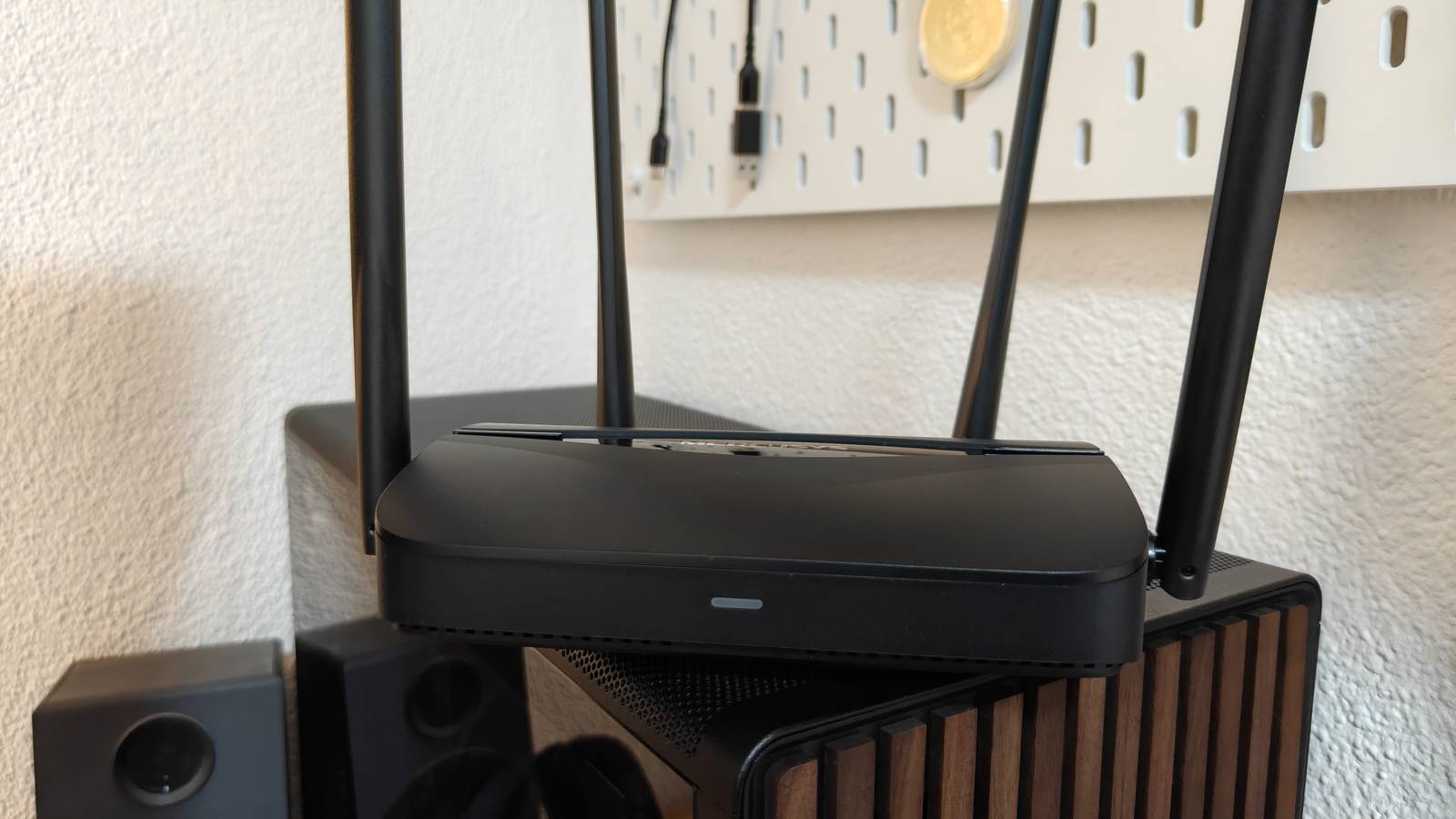
The feature is supposed to "nudge" your wireless devices toward the fastest band available, such as 5GHz instead of 2.4GHz, when you use a unified SSID (the same network name for multiple bands).However, it does not always work perfectly, and sometimes it can result in a "hanging" connection or devices stubbornly sticking to the wrong band.This is actually the problem I've experienced most frequently with my cheap Wi-Fi 7 router.
My OnePlus 15 kept hanging onto the 2.4GHz connection for dear life, but fortunately, I was able to improve the issue by setting up a reboot schedule for the router.UniFi Dream Router 7 Brand Unifi Range 1,750 square feet Want to upgrade your network with a capable high-end router? The Unifi Dream Router 7 is a phenomenal choice for starting your mesh network.Wi-Fi Bands 2.4/5/6GHz Ethernet Ports 4 2.5G USB Ports None MU-MIMO 2x2 MU-MIMO Mesh Network Compatible Yes Supported standards 802.11a/b/g/n/ac/ax/be Speeds 5.7 Gbps Security Fully managed Chipset/memory Quad-core ARM Cortex-A53 at 1.5 GHz, 3GB Dimensions 110 x 184.1 mm Price 279.99 $279 at Unifi Expand Collapse Schedule automatic reboots directly in your router settings The simplest way to automate restarts if your router supports it If you bought your router within the last decade or so, there’s a good chance it has a built-in reboot scheduling feature.
This is arguably the easiest and most convenient way to automate router restarts.You can check whether your router supports scheduled reboots through its companion app or by logging into the router through your web browser.To do this, type your router’s default gateway address (usually 192.168.1.1 or 192.168.0.1) into the address bar.
The login credentials vary between brands and models, but common defaults include using "admin" as the username or password, or leaving one or both fields blank.The exact user interface varies between routers, but you should be able to find the option for scheduled reboots fairly easily.Use the search bar if available to look for keywords like "reboot schedule," "automatic reboot," or simply "reboot." On both my old TP-Link and newer Mercusys router, the option was located under Advanced > Reboot > Reboot Schedule.
Once you find the relevant menu, you can set up an automatic reboot schedule.Most TP-Link routers let you choose between daily, weekly, or monthly restarts.I personally find once a week to be the perfect sweet spot.
Pick a time when you’re most likely asleep or away from home so the brief disconnection does not interrupt anything important.Related Don't trash your old router: Turn it into a wired workhorse instead Wi-Fi standards moved on, but your old router can still do something useful Posts By Monica J.White Use a smart plug to automate router reboots A flexible option for routers without built-in scheduling If your router doesn't have the option to schedule reboots, don't worry—a smart plug offers pretty much the same functionality.
In fact, it might offer even more granular control, since many routers only give you a daily or weekly schedule.With a smart plug, you can reboot it whenever and as often as you want by creating a workflow to turn the plug off and then back on a minute later.The only caveat is that if you're using a Wi-Fi-controlled smart plug, it must support local schedules that allow it to turn back on automatically once your Wi-Fi goes down.
Non-Wi-Fi standards like Zigbee or Thread are way better and come with a few additional benefits, like allowing you to control the plug even when your Wi-Fi is down.There's even a special smart plug by Keep that's specifically designed to reboot automatically when the internet goes down, along with supporting your own scheduled reboots.Keep Connect Automatic Router Rebooter Brand Keep Schedules Yes This is not your typical smart plug.
The Keep Connect Automatic Router Rebooter triggers a power cycle when it detects a connection loss to automatically reboot your devices without you having to lift a finger. $50 at Amazon Expand Collapse A simple outlet timer can also get the job done A low-tech alternative that still works reliably If your router can't schedule reboots, and your smart plugs are all Wi-Fi controlled and don't support local scheduling, maybe there's a third option you've already got at home: a mechanical or digital outlet timer.The biggest benefit of this solution is its simplicity.These devices are surprisingly reliable and easy to configure, which makes them perfect for rebooting your router on a schedule.
One downside with mechanical timers, specifically, is that they usually only let you control power in 1-hour increments and are limited to a daily schedule.This means your router could remain off for an entire hour every night, which honestly is not a huge deal if you know you will not be home or awake during that time.Of course, you could also leave the timer unplugged and only use it for a weekly reboot whenever you remember to set it up, but at that point, you lose most of the convenience compared to manually unplugging the router yourself.
The bottom line is that if you want to use an outlet timer for this, a digital model with minute-level control is the better option.Rebooting won’t fix poor coverage, but it can save you a lot of headaches It improves stability, but it won’t solve weak signal or bad placement Although rebooting your router on a regular schedule is a smart move that can help keep everything running smoothly, it's important to keep your expectations realistic.It's not a magic fix for an old, outdated router, and it can't compensate for poor coverage—that's something only an extender or mesh system can solve.
The good news is that you can still set up a reboot schedule on your main router and all your extenders or mesh nodes and reap the benefits across your entire network.Related Your smart home needs a mesh network, here’s what that means What a mesh.Posts 2 By Tim Brookes
Read More