Want to extend the time between charges on your Pixel, or just get through a day out without worrying about having to top up? You don't have to disable features on your phone to do it.Pixel devices have some easily ignorable settings you can tweak that will help to save your battery.Restrict your most battery-hungry apps Find and control the worst offenders Close Given the chance, apps will burn through your battery life, especially those that have free rein to run in the background.
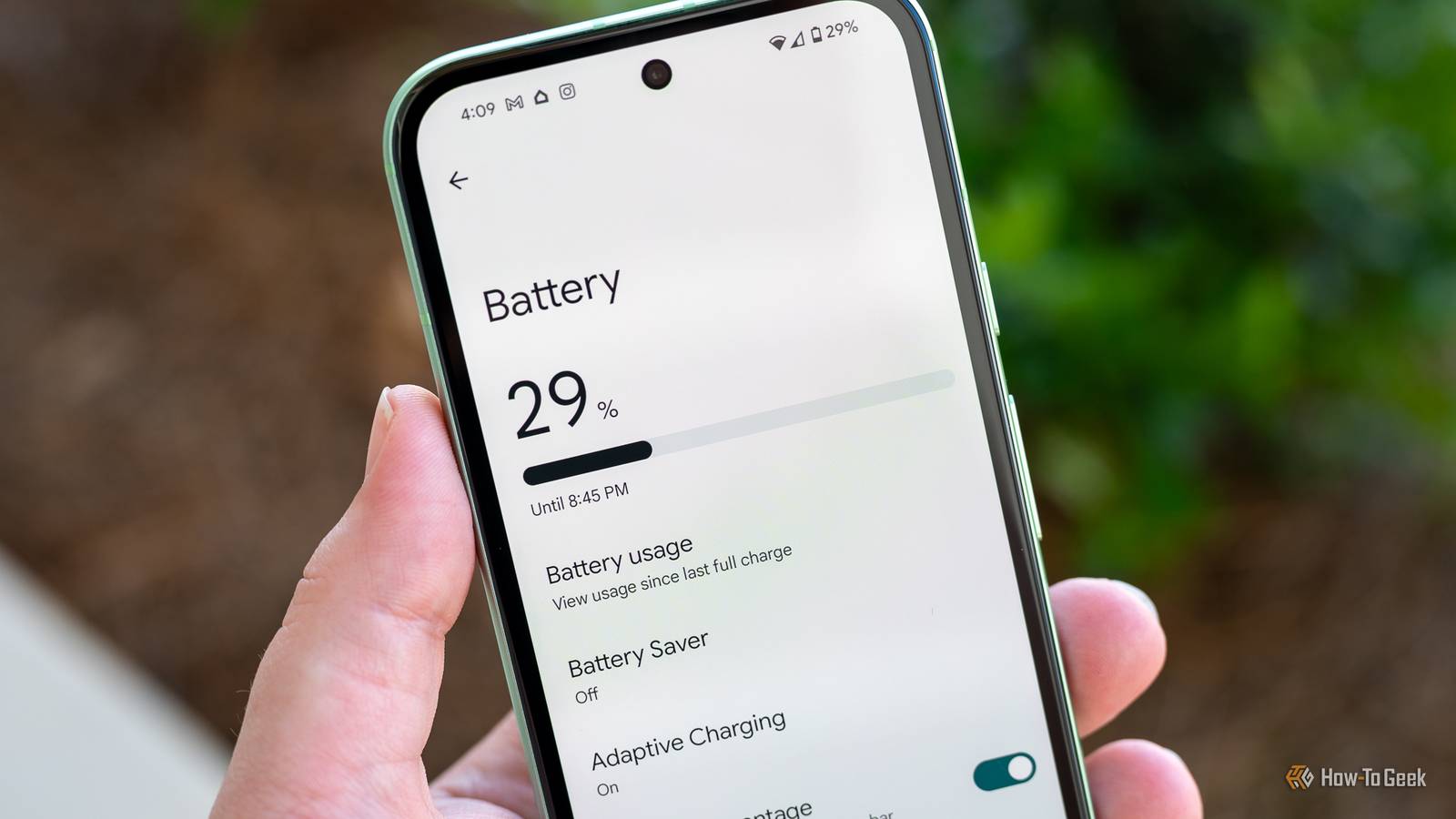
You can restrict them quite easily.Go to Settings > Battery > Battery Usage to see the list of apps that are using the most power.Tap the ones at the top, and disable Allow Background Usage to stop them running in the background.
You don't want to do this with every app.Things like media players, messaging apps, or widgets need to be able to run in the background.But not everything else does.
If there are any apps draining your battery that you don't think should be, games especially, it's time to rein them in.Google Pixel 10 $599 $799 Save $200 Brand Google Looking to upgrade to a Pixel but not sure if you need all the bells and whistles of the more expensive models? You won't be disappointed with the standard Pixel 10 model.Coming in striking colors, Gemini features, and seven years of updates, you can't go wrong with this purchase.
$599 at Amazon Expand Collapse Be proactive with the battery savers It's never too early to save battery life Close The battery saver modes on a Pixel are designed to ensure your phone pretty much never runs out of juice.When your battery drops to a certain level, they make a few changes to eke out the remaining power for as long as possible.The standard Battery Saver switches you to dark mode, cuts back on visual effects, and limits background apps.
Extreme Battery Saver does all of that and pauses non-essential apps and their notifications.You get to decide which apps you regard as essential.It's mostly the built-in things by default, such as the camera, clock, and Messages.
But you can easily add things like WhatsApp or Google Maps if you use those a lot.Whether you choose the standard or extreme battery savers, they normally kick in when your battery drops to a certain level, often 20%, and then turn off again when you charge your phone back up to 80%.But what if you were more proactive about using them? If you're going somewhere where you'll be away from a charger for a while, manually switching into battery saver mode can get you through the day more easily and take away the worry of not having your phone when you need it the most.
If your phone is a little bit older and the battery isn't quite as good as it used to be, you can set the battery saver modes to kick in at 40 or 50% instead.There are even benefits to using Battery Saver all the time.It cuts down on a lot of the distractions you'll get throughout the day.
Enable Charging Optimization to preserve battery health A long-term fix to make your battery last longer Close A fairly recent update to the battery options on a Pixel helps to extend the lifespan of your battery.Go to Settings > Battery > Battery Health, and select Charging Optimization.Here, you've got two options.
You can either use Adaptive Charging, which attempts to learn your charging routine and will get you up to 100% before you normally unplug your phone.Or you can set your phone to only ever charge to 80%.It'll leave you with shorter battery life throughout the day, but it puts less strain on the battery and should extend its life.
I've always had mixed results with the Adaptive Charging option, and since I'm rarely away from a charger for too long, I choose the 80% option instead.Switch to Dark Mode The screen is the biggest battery drain Close A lot of people think of dark mode on their phones as being a purely aesthetic choice.In fact, given that Pixel phones have OLED displays, it's one of the simplest ways to extend your battery life.
On an OLED display, every pixel is illuminated individually rather than via a backlight.When a pixel needs to be black, it is simply switched off.If you use your phone in dark mode, the whole background of an app will be black, so those pixels need no power.
Tests show that the actual power saving depends on how bright you have your screen set in the first place.At around 50% brightness, it'll cut power consumption by up to 9%.At 100% brightness, it can reduce power consumption by a massive 47%.
There are some downsides to dark mode and not everybody likes it.But for a simple, quantifiable improvement in battery life, it's an easy change to make.Turn off the Always-on Display If you don't need it, of course Close I don't like battery-saving tips that recommend turning features off.
You shouldn't have to compromise on how you use your phone just to get a serviceable battery life.You should use it how it was designed to be used.That said, some features are more useful than others.
The Always-on Display is a nice feature to have and makes it easy to see what's happening on your phone without needing to pick it up.But unless you keep your phone sat on your desk in front of you all day, you might not actually use it as much as you think.It does need power to keep those pixels lit up all the time.
If you don't use it constantly, it's worth rethinking whether you actually need it.Other small changes can also add up Pixel phones have other tiny battery-related options—Wi-Fi scanning, display tweaks, and so on—that have little impact on your battery individually, but could add up to something over time.But focus on the big settings first.
They'll make the biggest difference without forcing you to give up the features that make your Pixel enjoyable to use.
Read More