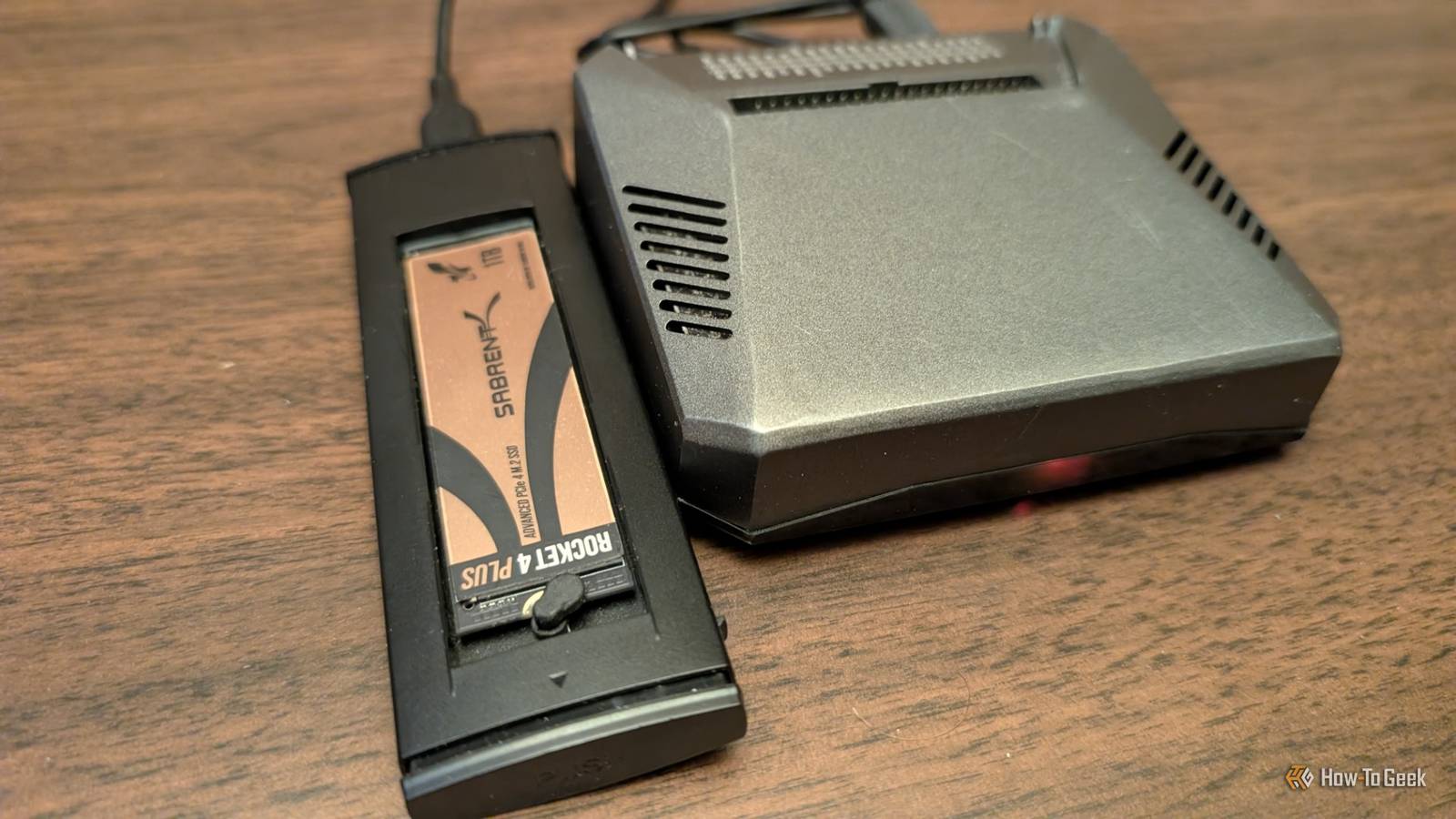
Whether we like it or not, external drives are frequent backup targets.For the most part, there's nothing wrong with that, and most of them are perfectly fine to use under many circumstances.But a new external drive can't be trusted implicitly.
It can look great, but still be a total liability for backups.Fortunately, a simple write then read verification routine can help make sure that you're dealing with a solid drive, and it'll show you things that even a SMART health check won't catch.Why even benchmarks don't prove that your drive is safe It'd be nice if they did, but some things are harder to catch Many people don't bother with benchmarking their drive, be it an internal SSD or one that lives inside an enclosure.
But even if you do, most of the information you get has to do with the drive's performance instead of its health.Being able to run a steady benchmark is a good sign, of course, but it doesn't necessarily mean that the files you just transferred arrived intact or will still be that way a week or two later.Most benchmarks write and read relatively small chunks of data.
They often end up hitting the same part of the drive over and over.Occasionally, that means they never make it out of the fast cache portion of the drive.More importantly, you can't really use a typical storage benchmark to check whether you can safely read and write across the entire capacity of your drive.
And just because one fraction of it is fine doesn't guarantee that the whole thing is in top shape.A drive with fake or misreported storage (and yes, fake drives do exist, although they're much more common among USB thumb drives and SD cards) can benchmark just fine, but that doesn't make it any more usable.When it comes to a backup drive, benchmarks are really secondary.
What matters more is whether you can trust that device to hold on to your files.The weak links that put your drive at risk It could be the drive itself, or it could be something else When it comes to corrupted or missing data, you could be dealing with a number of issues, and the test I'll talk about below might shed some light on the matter.For starters, the drive itself could be the issue.
Even reputable drives ship the occasional lemon, and Backblaze's regular reporting on HDD lifespans shows that early-life failures can happen, so just because you just bought it, it doesn't mean there can't be something wrong with it.With external drives, you may run into other problems, too.The weak link could be anywhere: in the cable that connects the drive to your device, in the connector, or in the internal headers.
The drive itself might be perfectly innocent.Since benchmarks don't run for long, those tiny issues may not be picked up before you accidentally discover data loss, often weeks later.The one test that actually helps is painfully simple It's tedious, but straightforward So, what is this magical test I'm talking about? It's simple: a proper verification test.
This type of test does two things.First, it writes a massive amount of known data to the drive.The goal is to fill up as much of the available space as possible before it slows down to a crawl.
Then, it reads all that data back, verifying it along the way, byte for byte.The goal is to confirm that whatever came back is identical to what you wrote on the drive in the first place.And if the drive misbehaves in some way, such as by lying about the capacity, corrupting data, or dropping the connection, then you've got yourself one big red flag to deal with.
Obviously, doing this by hand would be impossible, but tools exist that make it easy.On Windows, the simplest option is H2testw.You point it at the external drive and order it to use all the available space.
It'll start spam-creating test drives until your external drive is filled to the brim, then verify them.The reason why you should do this before writing any data to the drive is simple.For one, you don't want to entrust your data to a faulty drive.
Two, you need the drive to be fully empty for this to succeed.macOS and Linux users can try out F3 tools.The workflow is similar: run f3write to fill the drive with test files, then f3read to verify them.
It’s a little more hands-on than H2testw, but it's doing the same job: forcing the drive and its connection to handle sustained writes and sustained reads across real capacity.When you're doing the test, pay attention to how the drive behaves throughout.If it disconnects and reconnects, you might be dealing with something along the data transfer path, or even just a faulty drive.
Swap out the different points of failure (cable, port, enclosure) and test again.If the issues keep cropping up, I'd steer clear.What the results are really telling you Is good enough truly good enough? If the test completes with zero errors and no disconnects, you're basically in the clear.
Give it a quick look with a SMART health tool for good measure (even though drives can die even at 100% health) and start using it as a backup.What happens if things aren't quite as peachy and you run into verification errors? To me, that's a hard "no" when it comes to using that drive for backups.Even a single corrupted block can be enough to cause some serious mayhem, so it's better to be safe than sorry.
A capacity mismatch is also bad news.If the drive essentially only reports a small portion of the capacity you expected it to have, it means that the data might be getting overwritten once you get past a certain point.It's essentially writing it into a void, which, again ...
not ideal.One drive is a start, not a backup Even if the tests all come back fine, you shouldn't trust one drive to handle all of your data alone.Follow the 3-2-1 rule to make sure that if something randomly dies (and external drives are not immune to that), you'll be fine one way or another.
SanDisk Extreme Portable External SSD $225 $253 Save $28 SanDisk's Extreme portable SSD is a solid choice if you want a drive you can trust, and it's quick for an external drive, too.$225 at Amazon $190 at Amazon Expand Collapse
Read More