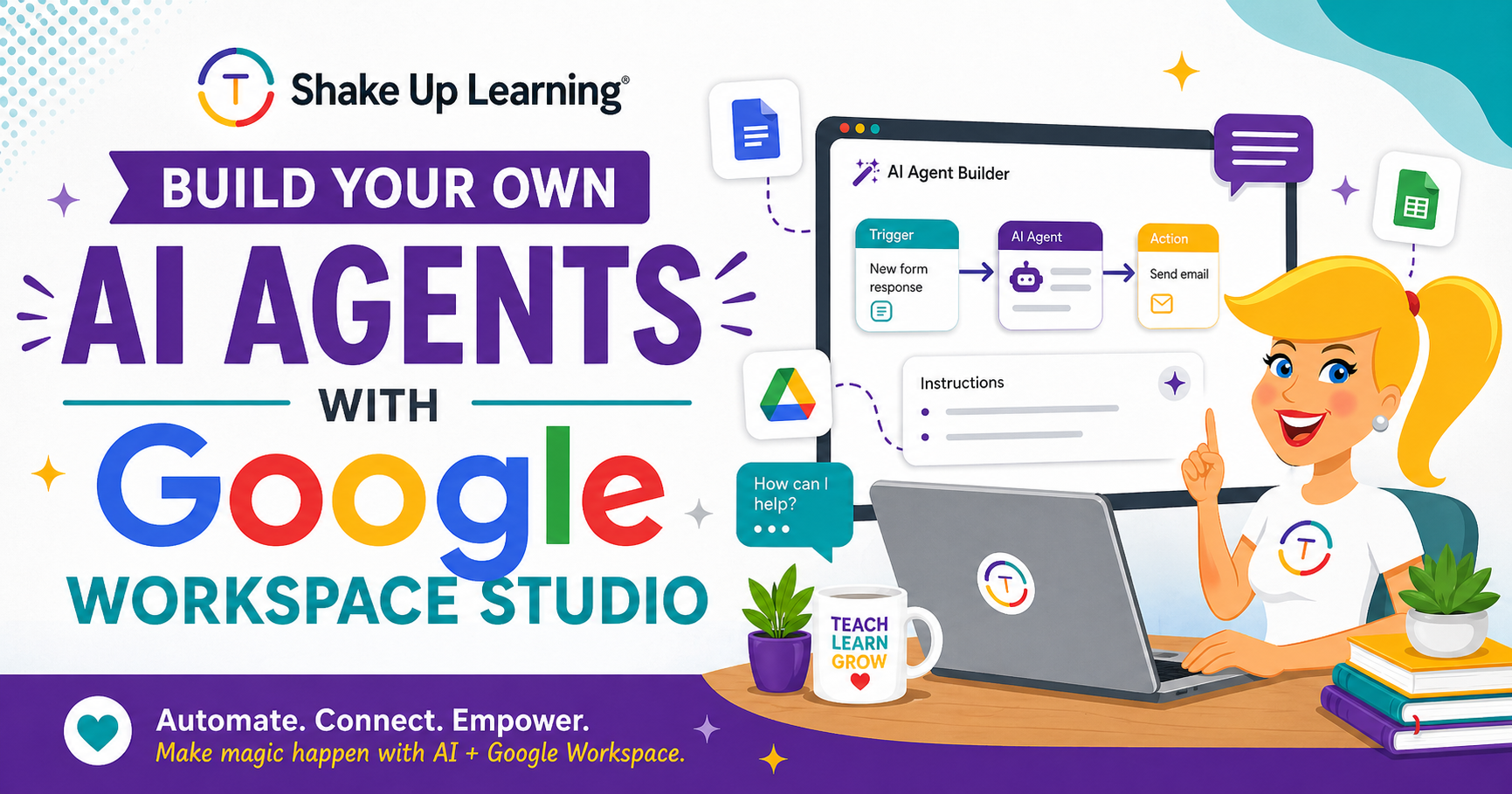
Did you know you can build your AI Agent with Google Workspace Studio that can perform everyday tasks for you? If you’re a teacher using Google Workspace for Education, there is a free AI automation tool sitting right inside your Google account that almost nobody is talking about — and it has the power to take the most repetitive, time-consuming parts of your job completely off your plate.It’s called Google Workspace Studio, and it’s Google’s no-code AI agent builder powered by Gemini.Think of it as a way to build custom AI workflows — called flows — that run automatically inside your Google apps: Gmail, Drive, Docs, Sheets, Calendar, Forms, and more.
No coding.No complicated setup.Just describe what you want, and Gemini builds it.
Listen to this podcast episode: Build Your Own AI Agents with Google Workspace Studio Whether you’re drowning in end-of-year emails, struggling to track parent communication, or scrambling to pull meeting prep together at the last minute, Google Workspace Studio for teachers is the tool that can actually help.And the best part? If your school is on Google Workspace for Education (even the free Fundamentals tier), you likely already have access — your Google admin just needs to turn it on.In this post (and the companion episode of the Shake Up Learning Show embedded above), I’m breaking down exactly what Google Workspace Studio is, who can use it, and six real teacher workflows you can build right now to save time before summer.
These aren’t hypothetical business use cases — these are practical, educator-centered Google AI automation ideas (yes, AI Agents with Google Workspace Studio) built for the reality of your classroom and your school year.Let’s dig in.What Is Google Workspace Studio? Google Workspace Studio (formerly Workspace Flows—it was rebranded in December) is Google’s no-code AI automation platform powered by Gemini.
Think of it as a way to build little AI assistants that run in the background of your Google apps.Here’s the basic idea: you describe what you want to happen, Gemini builds it, and then it runs automatically whenever the right conditions are met.Each automation is called a flow, and every flow has three parts: 1.
A Starter (your trigger) — Something that kicks off the flow.An email arrives.A file gets added to a folder.
A scheduled time hits.A form gets submitted.2.
Steps — Up to 20 sequential actions that Gemini can take.And here’s the part that makes this different from old-school automation tools: Gemini isn’t just doing mechanical “if this then that” logic.It can read an email, understand what it’s about, and make a judgment call — like deciding whether that email actually needs a reply.
That’s AI reasoning, not just rules.3.An Output — Something lands in your hands at the end.
A labeled email, a row added to a spreadsheet, a draft document, a message in Google Chat.It connects to Gmail, Drive, Docs, Sheets, Calendar, Chat, Forms, and Tasks — everything you use every single day.*Related: FREE Gemini AI in Google Classroom Cheat Sheet for Teachers Who Can Access Google Workspace Studio? Before you go hunting for it and getting frustrated, let me save you some time.
Here are the three things you need to check: #1 — Use your school Google account.Workspace Studio currently works in managed Google Workspace accounts only — meaning the account your school or district gave you, with your school’s domain in the email address.I haven’t found it available in a free personal Google account yet.
#2 — Your school needs Google Workspace for Education Fundamentals or higher.And y’all, Fundamentals is the lowest tier.That means pretty much every Google for Education account is eligible — if your school has it turned on.
#3 — Your Google admin has to enable it.This doesn’t activate automatically.So if you go to workspace.google.com/studio with your school account and nothing shows up, don’t panic.
Your school is probably eligible — it just hasn’t been switched on yet.One more thing: this tool is for teachers and staff only.It’s for adults 18 and older, not students.
And honestly? That feels right.This one belongs to you.*Related: 5 Google Classroom AI Secrets That Save Teachers HOURS Every Week! (FREE Workshop) How to Get Started Once you’re in, head to workspace.google.com/studio.
You’ll see three ways to build a flow: Use a template (great for beginners — there are already templates for the most common use cases) Describe it in a prompt to Gemini (just tell it what you want in plain English) Build manually with a drag-and-drop builder You can also test any flow before activating it, which I highly recommend.Pro tip: You might also notice a new little icon floating near the Gemini star at the top of your Google Drive.Hover over it — it should say “Studio.” That’s your quick-access shortcut to anything you have running.
5 Flows Teachers Can Build Right Now (+ 1 Bonus) Okay, this is the good stuff.Most of what you’ll find when you Google Workspace Studio right now is geared toward business use cases.I wanted to give you the teacher version — practical, real-world flows for what’s actually happening in your world right now.
Flow 1: The Email Triage Flow Build this one first.Your inbox at the end of the school year is probably a disaster — I know mine is, and I say that with all the love in the world.Here’s what this flow does: every time a new email lands in your inbox, Gemini reads it and decides — does this actually need a reply? If yes, it labels the email and can even draft a response for you to review before you touch a thing.
If no, it leaves it alone.You are still in full control.Nothing sends without your approval.
But instead of staring at a blank reply box, you’re editing a draft that’s already 80% done.For the volume of emails teachers deal with, this is genuinely a game-changer.Try this prompt: “When I receive a new email, check if it requires a reply from me.
If it does, label it ‘Needs Reply’ and draft a professional response.Do not send anything — just save the draft for my review.” There are already templates for this in Workspace Studio, so you may not even need to write the prompt from scratch.Start there, but always customize and train the AI! If you don’t, it will create more of a headache than solving one! *Related: AI Prompt Cheat Sheet for End of the School Year Tasks! Flow 2: The Permission Slip (or Any Document) Tracker You know the drill.
You’re waiting on permission slips, media release forms, field trip confirmations — and you’re trying to remember whether you got one from each family and whether you filed it somewhere.This flow watches your incoming emails for attachments.When one arrives, Gemini automatically saves that attachment to a designated folder in your Google Drive and logs the sender’s name, email subject, and date into a Google Sheet tracker — all without you touching a thing.
Your tracker populates itself.No more manual filing.No more hunting through your inbox.
Try this prompt: “When I receive an email with an attachment, save the attachment to my [folder name] folder in Google Drive, and log the sender’s name, subject line, and date received into my [tracker name] Google Sheet.” Flow 3: The Meeting Prep Brief This one is for the teachers who spend their entire planning period scrambling to remember what a meeting is even about.PLCs, IEP meetings, admin check-ins, department meetings — they all blur together by spring.Set up a flow tied to your calendar: two hours before a scheduled meeting, Gemini pulls together all the relevant emails, documents, and outstanding items related to that meeting topic and summarizes them into a prep brief.
It shows up in your inbox or saves to a Google Doc before you even have to think about it.You glance at it on your way to the meeting, walk in informed, and look like you have your whole life together.Nobody has to know it took you zero minutes to prepare.
Try this prompt: “Two hours before each [specify which] meeting on my calendar, search my email and Drive for documents related to the meeting topic.Summarize the key points and any open action items, and save a prep brief to my Meeting Prep folder in Drive.” *Related: How to Create AI-Generated Audio Lessons in Google Classroom Flow 4: The End-of-Year Newsletter Draft If you send any kind of classroom update, grade-level newsletter, or end-of-year recap, this flow does the legwork for you.Set it on a weekly schedule.
Every Friday afternoon, Gemini scans your emails from the past week, looks for things worth sharing (events, student accomplishments, announcements), and assembles a draft document.Then you edit it, add your voice and personality, and publish.The gathering and organizing is done before you even sit down to write.
Try this prompt: “Every Friday at [specific time], scan my emails from the past week for classroom news, highlights, and announcements worth sharing in a newsletter.Compile a draft document organized by section and save it to my Newsletter Drafts folder.” Flow 5: The Parent Communication Log Every teacher knows the feeling: a parent says, “I never heard from you,” and you’re digging through your sent mail trying to prove that you absolutely did reach out.This flow ends there.
Every Friday, this flow scans your sent emails from the week, identifies any messages you sent to parents or guardians, and automatically logs them into a Google Sheet — the date sent, the recipient, and the subject line.A running record of your parent communication, built without you lifting a finger.Try this prompt: “Every Friday afternoon, scan my sent emails from the past week.
Identify any emails sent to parents or guardians, and log the date sent, recipient name, and subject line into my Parent Communication Log Google Sheet.” Bonus Flow: The Professional Learning Tracker I said five flows, but I have to give you one more because the end of the school year is exactly when you realize you’ve done a year’s worth of professional development and have no idea where your certificates are.Here’s the fix: create a folder in Drive called “PD Certificates.” Every time you complete a course, webinar, or conference session, drop the certificate or confirmation email into that folder.The flow takes over from there — Gemini reads the document, extracts the PD title, date, and hours, and automatically logs them into a running Google Sheet.
By the time recertification rolls around, your entire professional learning record for the year is already organized and waiting for you.Try this prompt: “When a new file is added to my PD Certificates Drive folder, read the document, extract the professional development title, date completed, and number of hours, and add a new row to my Professional Learning Log Google Sheet.” And yes — if you’re joining the Summer Learning Series, that counts as PD.Drop your completion certificate in the folder and let the flow do the rest.
One More Thing About Access I want to be really clear about something: you can actually let Google Workspace Studio create the folders and files you need as part of setting up your flows.You don’t have to build the whole infrastructure first.Just start simple, get a feel for how it works, and layer in more complexity from there.
My advice? Pick one flow and build it this week.Start with the email triage — it’s the most immediately useful for where you are in the school year.Go to workspace.google.com/studio, find the template, and set it up.
That’s it.Create one flow, see if you like it, and once you’re hooked, you can do more.We are officially in the AI agent era — where AI doesn’t just give you a text response but actually does things for you.
Google Workspace Studio is one of the most accessible on-ramps to that for educators, because it’s already built into the tools you use every day, and it requires zero coding.Want More This Summer? The Shake Up Learning Summer Learning Series starts June 2nd! New sessions drop every Tuesday and Thursday all summer long, and it’s completely free to join.If you upgrade to ALL ACCESS, you get even more perks — including session credit and access to our growing library of resources.
Shake Up Learning 2025.Unauthorized use and/or duplication of this material without express and written permission from this blog’s author and/or owner is strictly prohibited.Excerpts and links may be used, provided that full and clear credit is given to Kasey Bell and Shake Up Learning with appropriate and specific direction to the original content on ShakeUpLearning.com.
See: Copyright Policy.
Read More