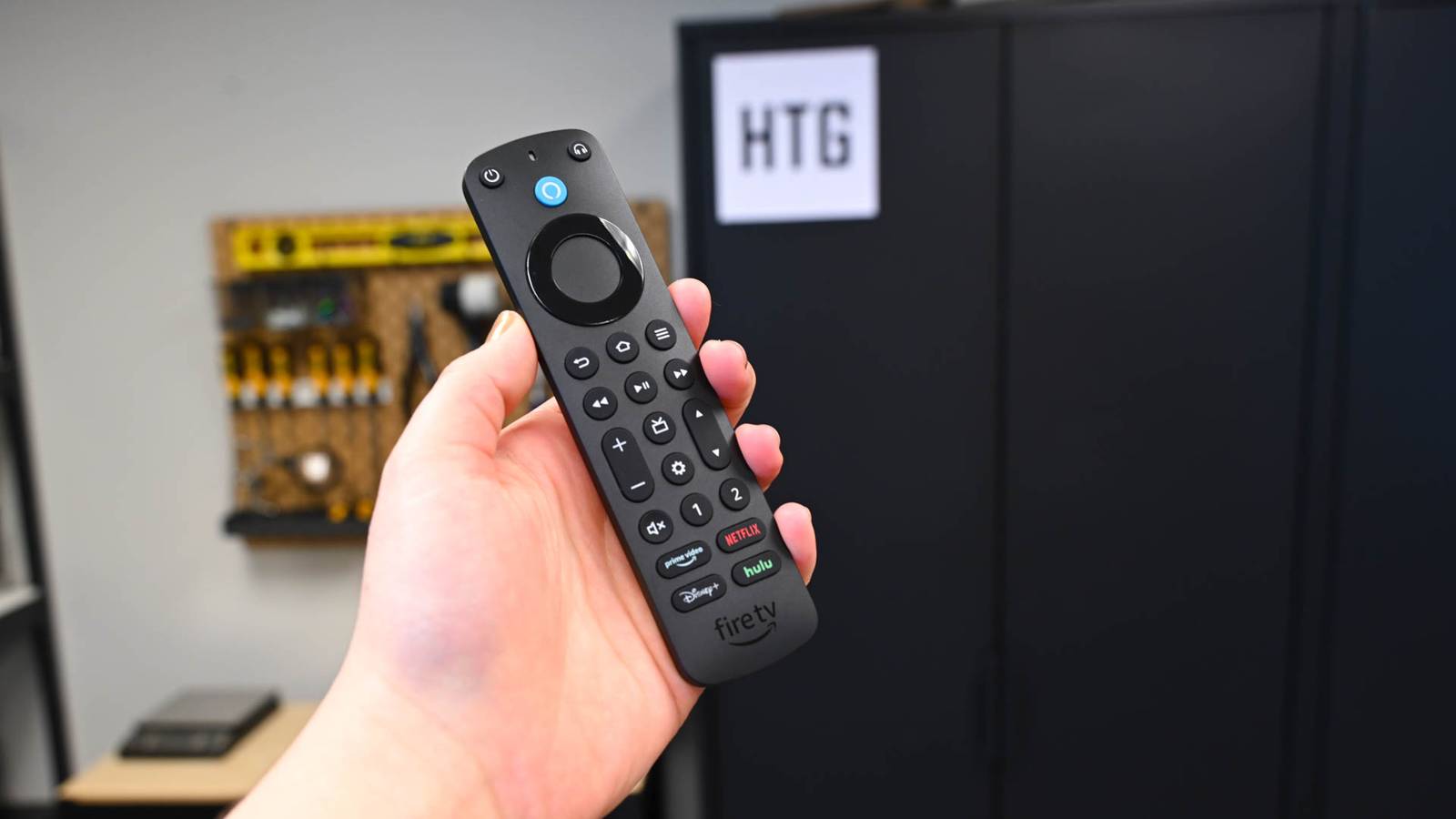
Most people toss old remotes into a junk drawer the moment they upgrade their streaming device, and there they sit.However, the Amazon Fire TV remote is worth pulling back out because it pairs over Bluetooth instead of infrared, which means your phone, tablet, and PC can all recognize it as a standard input device.That one detail opens up more uses than you'd expect from something that used to just control your television.
You can use it as a PC media remote Browsing from the remote control is much easier than using a mouse The line between TVs and computers has gotten pretty blurry lately, and that works in your favor.An old Amazon Fire TV remote can access a lot thanks to how it pairs, so Windows picks it up automatically as a standard input device the moment they're paired.So that remote sitting in a drawer collecting dust can actually become a pretty capable PC media remote with almost no effort.
Pairing it is straightforward.Hold down the Home button for about ten seconds until the LED starts blinking, then head to Bluetooth settings on your PC, click "Add device," and select the remote from the list.That's pretty much it for most people.
Once it's paired, it works right away for basic navigation.The directional ring acts as arrow keys, and the center button works like Enter, so you can browse Netflix, YouTube, Hulu, or whatever else you use directly in your browser from across the room.It's a lot more comfortable than balancing a keyboard on your knees or hunting for a flat surface to use a mouse.
It works as a wireless camera shutter for your phone The extra range lets you take group photos from far away Whether you're trying to get a group shot without awkwardly stretching your arm out, or you just want to avoid the slight blur that comes from tapping your screen, this workaround gets the job done.You might need to adjust a setting or two for your phone to recognize the press as a shutter trigger.You just pair the remote to your phone the same way you connect wireless headphones.
Open your Bluetooth settings, make sure it's scanning, put the remote into discovery mode, and tap it when it shows up on screen.You're going to need to do some remapping if it doesn't immediately work, because the Amazon Fire TV remote's center button works like a standard Bluetooth keyboard with a Select or Enter command instead of a volume command that camera apps need to trigger the shutter.What makes it genuinely useful is the range.
Bluetooth gives you roughly thirty feet to work with, which is more than enough to set your phone up on a tripod, step into the frame, and trigger the shot from your pocket without anyone noticing.You can turn it into a retro gaming controller Old Game Boy games only need a couple of buttons anyway Quiz8 Questions · Test Your KnowledgeAmazon Fire TV StickTrivia challengeThink you know your streaming stick inside and out? Put your Fire TV knowledge to the test.SetupFeaturesHardwareAppsHistoryBegin01 / 8HistoryIn what year did Amazon first release the original Fire TV Stick?A2012B2013C2014D2015Correct! Amazon launched the first Fire TV Stick in November 2014, offering a more affordable alternative to the full-sized Fire TV box.It plugged directly into an HDMI port and quickly became one of Amazon's best-selling devices.Not quite.
The original Fire TV Stick was released in November 2014.It came out about seven months after the original Fire TV box and was positioned as a budget-friendly streaming option for cord-cutters.Continue02 / 8HardwareHow does the Amazon Fire TV Stick connect to your television?AUSB-A portBDisplayPortCComposite AV portDHDMI portCorrect! The Fire TV Stick plugs directly into an HDMI port on your TV.This is what gives it its distinctive stick shape, and it draws power via a separate Micro-USB or USB-C cable depending on the model.Not quite.
The Fire TV Stick connects via HDMI, which is why it has that signature dongle shape.It also requires a power cable — either Micro-USB or USB-C — to function, as HDMI alone doesn't supply enough power.Continue03 / 8FeaturesWhich voice assistant is built into the Amazon Fire TV Stick remote?AGoogle AssistantBSiriCAlexaDCortanaCorrect! Amazon's own voice assistant, Alexa, is integrated into the Fire TV Stick remote.You can use it to search for content, control playback, check the weather, and even control smart home devices.Not quite.
The Fire TV Stick uses Alexa, Amazon's proprietary voice assistant.Pressing and holding the microphone button on the remote lets you speak commands, making it easy to find shows or control compatible smart home gadgets.Continue04 / 8SetupWhat type of network connection does the standard Fire TV Stick use to stream content?AEthernet (wired)BBluetooth onlyCWi-FiDCellular LTECorrect! The standard Fire TV Stick relies on Wi-Fi to stream content.Unlike some competitors and the Fire TV Cube, the basic stick does not include a built-in Ethernet port, though adapters are available.Not quite.
The standard Fire TV Stick uses Wi-Fi for its internet connection.If you need a wired Ethernet connection for a more stable signal, you would need a separate Ethernet adapter or consider upgrading to the Fire TV Cube.Continue05 / 8HardwareWhat is the maximum streaming resolution supported by the Fire TV Stick 4K Max?A1080p Full HDB2K (1440p)C4K Ultra HDD8K Ultra HDCorrect! The Fire TV Stick 4K Max supports streaming up to 4K Ultra HD resolution.It also supports HDR formats including Dolby Vision, HDR10+, and HLG, delivering excellent picture quality on compatible TVs.Not quite.
The Fire TV Stick 4K Max tops out at 4K Ultra HD resolution.It also supports advanced HDR formats like Dolby Vision and HDR10+, making it one of the most capable streaming sticks in Amazon's lineup.Continue06 / 8AppsWhich app store is used to download streaming apps on a Fire TV Stick?AGoogle Play StoreBApple App StoreCAmazon AppstoreDSamsung Galaxy StoreCorrect! Fire TV Stick uses the Amazon Appstore to download apps and games.Because it runs a forked version of Android, the Google Play Store is not available, though many popular streaming apps like Netflix and Disney+ are still offered.Not quite.
The Fire TV Stick uses the Amazon Appstore, not the Google Play Store.While the device runs a modified version of Android, Amazon's ecosystem replaces Google's, so you browse and install apps through Amazon's own storefront.Continue07 / 8FeaturesWhich of the following audio formats is supported by the Fire TV Stick 4K for enhanced surround sound?ADolby AtmosBDTS:X ProCTHX Spatial AudioDSony 360 Reality AudioCorrect! The Fire TV Stick 4K supports Dolby Atmos, which delivers immersive three-dimensional surround sound.You'll need a compatible soundbar or AV receiver to experience the full effect, but it's a significant audio upgrade over standard surround sound.Not quite.
The Fire TV Stick 4K supports Dolby Atmos for immersive audio.While the other options are real audio technologies, Dolby Atmos is the surround sound format officially supported and promoted by Amazon on its 4K Fire TV devices.Continue08 / 8FeaturesWhat feature introduced in the Fire TV Stick 4K Max (2nd generation) allows for faster app switching and smoother performance?ATurbo ModeBWi-Fi 6E supportCDual-core processingDCloud Boost technologyCorrect! The second-generation Fire TV Stick 4K Max introduced Wi-Fi 6E support, which provides faster wireless speeds and reduced interference compared to older Wi-Fi standards.This results in smoother streaming and quicker load times when your router also supports Wi-Fi 6E.Not quite.
The headline new feature of the second-generation Fire TV Stick 4K Max was Wi-Fi 6E support.This next-generation wireless standard operates on the 6 GHz band, reducing congestion and enabling faster, more reliable streaming performance than previous models.See My ScoreChallenge CompleteYour Score/ 8Thanks for playing!Try Again If you pair your Fire TV remote like you would any other Bluetooth accessory, then you'll have a pretty cool old-school-style controller.Put the remote into pairing mode, open your Bluetooth settings on your phone or computer, and tap its name when it shows up.
Once it's connected, you'll need to tell your emulator what each button actually does.Open something like RetroArch, go into the controller settings, and map everything by hand.The remote was built for scrolling Netflix, not playing games, so it won't just work on its own.
You'll want the emulator to read the D-pad as arrow keys and the center button, but you can also map other buttons to it; those five are the bare minimum.You should generally use the D-pad for movement and the center button for your action input.Take a few minutes to get the mapping right, and everything will feel fast.
You're not going to be playing anything that needs analog sticks or shoulder buttons, but for NES and Game Boy stuff, the layout is actually perfect.Those games only used two buttons anyway, so you can map the other few buttons if needed.It makes a great page turner for your tablet You won't have to reach up and tap the screen anymore Close An old Fire TV remote lying around can make things easier for you when turning pages on a tablet.
It's great if you're walking on a treadmill or elliptical and have sweaty hands.It's especially handy if you're using a floor stand that holds the thing up for you while you kick back.Once it's connected, open up whatever reading app you use, like Kindle or Libby.
There's a good chance the directional pad on the remote will just work on its own.Most reading apps are built to respond to left and right arrow key inputs, so the D-pad on the remote maps directly to that.Right to go forward, left to go back.
No tapping the screen, no lifting your arm.If it doesn't work out of the box, dig into the app's settings and look for an option to turn pages using the volume keys.This tells the app to treat those button presses as page turns, and that usually works.
This whole setup works specifically because you're on a regular tablet.Dedicated Kindle e-readers are locked down and won't accept Bluetooth input for navigation at all, which is why people end up buying those weird clip-on gadgets that literally tap the screen for you.Take that old remote back out None of these setups need more than what you already own, which is the whole point.
The remote isn't going to replace a dedicated controller or a proper camera trigger, and for anything that needs analog sticks or precision input, it'll fall short.However, for casual use, it holds up better than you'd think for a device that costs nothing extra to use this way.If you've got one sitting around doing nothing, pairing it takes a few seconds, and you'll know within a minute whether it fits what you need.
Fire TV Stick 4K $24.99 $50 Save $25.01 Operating System FireOS A step up from the Fire Stick TV Lite is the Fire Stick TV 4K.It offers a Dolby Vision upgrade and TV controls on the Alexa remote.Resolution 4K RAM/storage 8GB Connectivity Wi-Fi 6, Bluetooth 5.2 Dimensions 108 mm x 30 mm x 14 mm Integrations Amazon Alexa $24.99 at Amazon Expand Collapse
Read More