When your day is packed, getting from one place to another can become a task in itself.Whether I'm heading out for a day of leisure or working my way through a long to-do list, Google Maps often ends up doing more than just giving me directions.The navigation app helps me plan my day, keep track of places I need to visit, and figure things out before I'm already on the move.
Here are the best features I use to plan and spend less time sorting things out on the go.Build out your day's journey Create a daily itinerary easily When I'm running errands or planning a long day of small tasks that take me to a string of different locations, there is one Google Maps feature that always comes in handy: adding multiple stops to my navigation.Search for your first destination in Google Maps and tap Directions.
Before starting navigation, tap the "Add stop" button at the bottom of the navigation bar.Search for another location, and keep adding stops to your route.Close Once you've added all the stops along your way, touch and hold the two-line icon next to a stop to drag it into a different position.
This lets you rearrange your journey based on where you want to go first.You can add up to nine stops along with your final destination, allowing you to plan for ten stops on your journey.This feature works for driving, walking, and even cycling, but unfortunately not for public transit, since transit schedules can be unpredictable.
Create a daily list to hit all the locations Map out your day with ease For days when I know I'll have a long list of places to visit but haven't decided exactly when I'll get to them, Google Maps' Lists feature is more useful than plotting a route with multiple stops.You can save restaurants, stores, attractions, or practically any location to a custom list.I sometimes create one for a particular area if I know I'll be spending the afternoon there, adding every place I may want to visit.
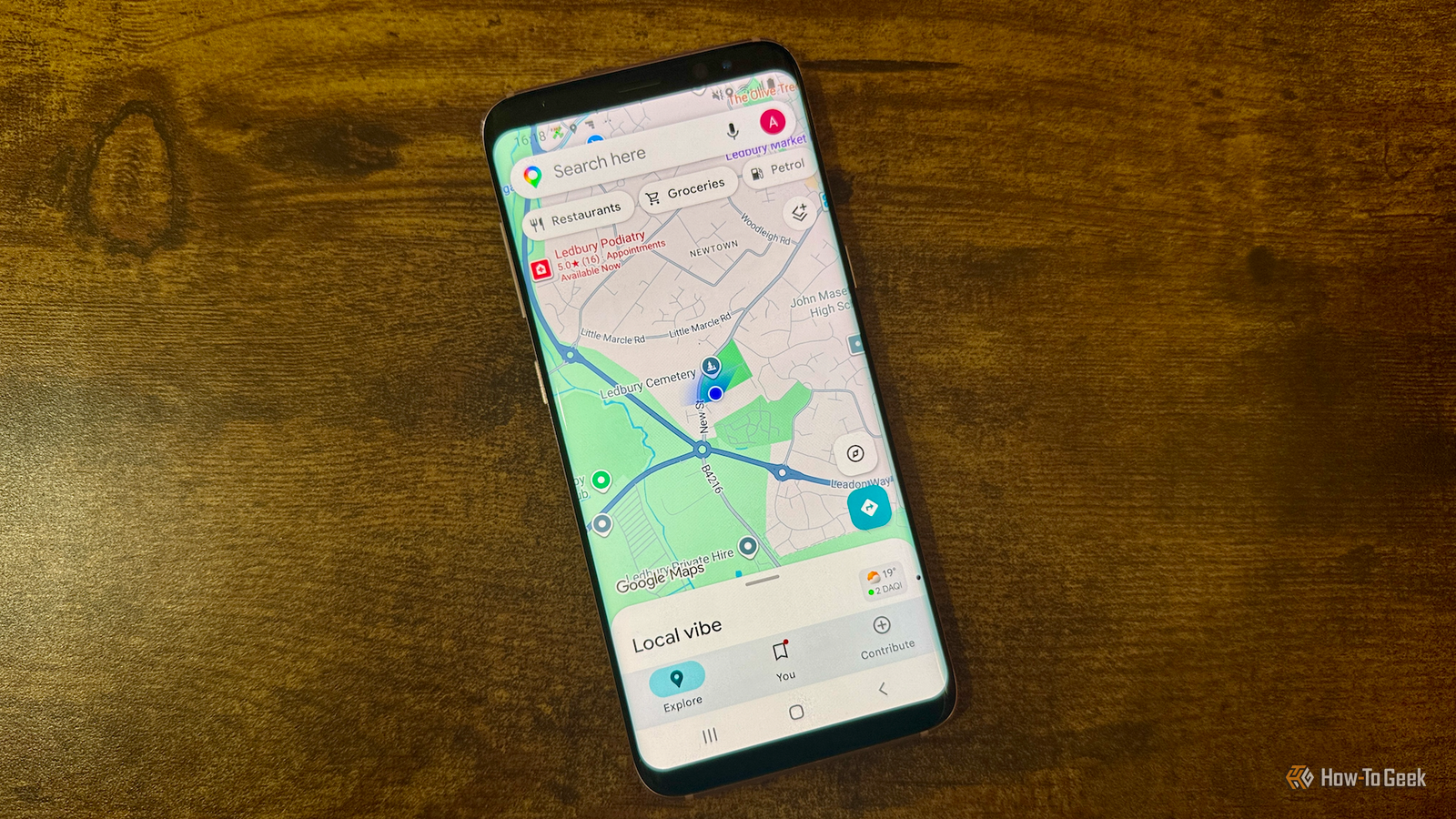
To create a new list on Google Maps on the mobile app, tap the bookmark icon ("You") in the middle of the toolbar, then tap on "New List." Name and describe the list, select between private or shared, then tap "Save." Now, tap on "Add Places," search for and tap on a specific location, then tap "Save" under the place's name/address to build your list.You can always go back to the "You" tab to edit existing lists (by clicking the three dots near their names) or create new ones.Close Get your parking sorted before you leave Keep your vehicle safe If you're out and about in your vehicle on a busy day, a Google Maps feature that can save you time is the ability to save your parking location.
With this feature, you can easily get back to your parked vehicle, especially when you're traveling to new areas, cities, or simply want to keep track of where you parked your vehicle.Tap your profile, then go to Settings > Navigation > Parking options, then toggle on "Automatically save parking" if it's not already enabled.Close To save a parking spot, open the spot's location on Google Maps by clicking the blue dot, then tap "Save your parking." You can find your saved parking spot by typing in the search bar.
Close I've also found this feature to come in handy when parking in crowded lots, like malls and plazas.Use Street View for visiting unfamiliar places Know where you are going Arguably, my favorite Google Maps feature for efficient navigation (especially when I'm walking) is Street View.This is a feature that allows you to see a panoramic view of (eligible) places, with the 360 imagery helping you know where to go and what to expect when traveling anywhere.
To use this feature, tap the layer icon on the upper right side (under your profile picture and nearby attractions options).From here, you can enable Street View.This will highlight roads and areas with 360-degree panoramic coverage in blue.
You can then tap a blue line or highlighted road on the map to open the full-screen Street View image.Close To turn off this layer, simply tap "Back"/"Close." I usually check Street View when I'm visiting a new office, restaurant, or apartment.It gives me a better idea of what the building looks like, where the entrance is located, and sometimes even where I might be able to park.
Share trip progress for larger plans with close ones Keep people in the loop Whether it's your family group chat or your friend group's DMs, keeping track of each other's location on a day out can be a little chaotic.Google Maps' Share trip progress feature is an easy way to keep track of others' locations, and can come in clutch on busy days.Once you start navigating, you can share your trip with someone so they can see your progress and estimated arrival time.
Once you've started navigating to your destination in Google Maps, tap the arrow or the bottom panel that shows your trip information.From there, look for Share trip progress, then choose the person you want to share it with.Close This is particularly useful for airport pickups, road trips, or larger plans where several people are trying to coordinate.
Instead of repeatedly updating everyone about traffic or delays, you can share your progress once and let your Google Maps handle the updates.Google Maps hosts many underrated and often hidden features that can help you navigate and manage your travel better, no matter what your mode of transport.You can also customize your navigation to make your daily commute feel hassle-free.
Read More