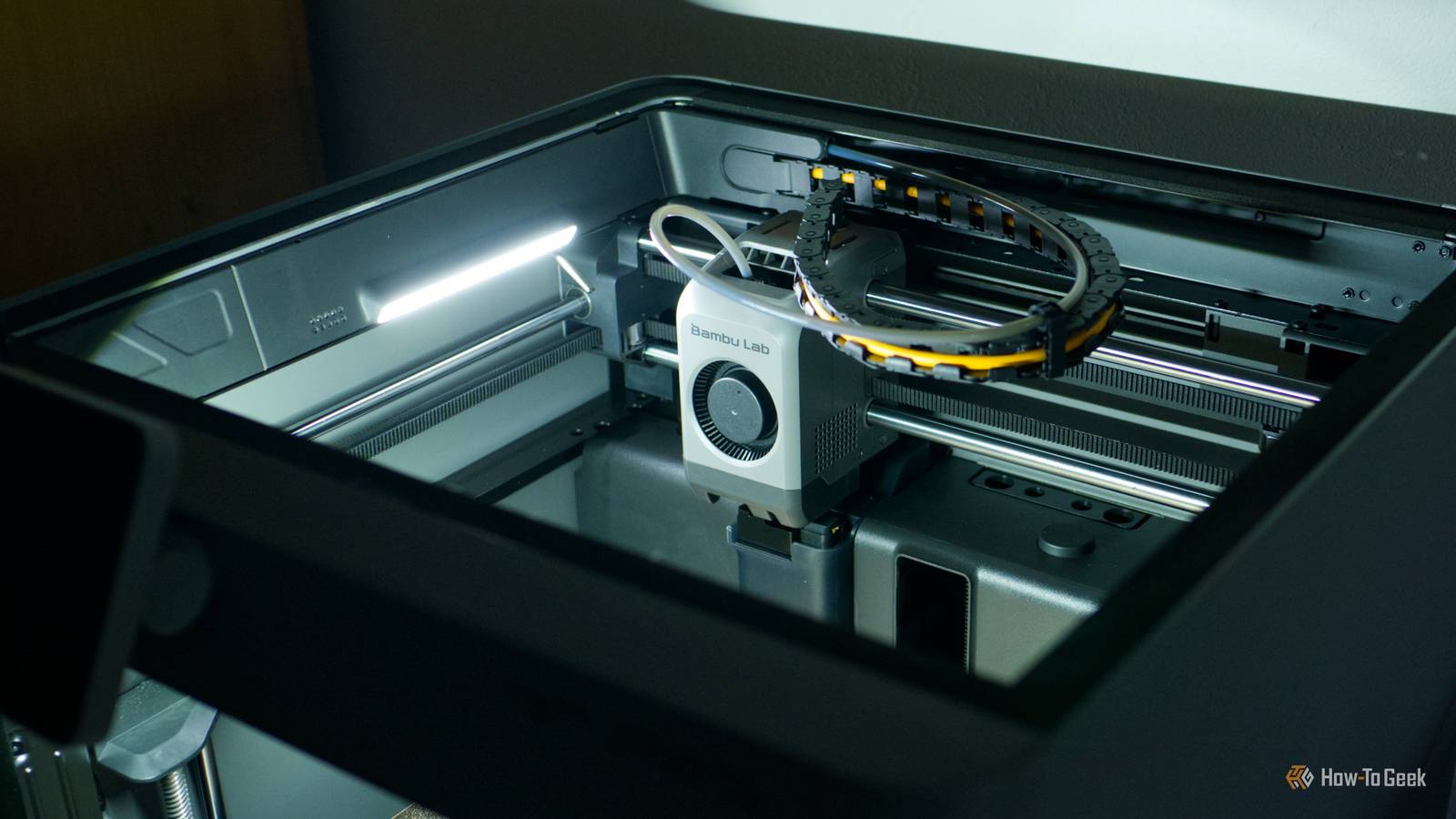
I added my Bambu Lab 3D printer to Home Assistant as soon as I realized I could, but it wasn’t until after doing so that I realized what I’d been missing out on.How you go about this depends largely on which printer you own, but there’s an integration out there for most printers.More robust print status notifications Probably the best reason to do this My Bambu Lab printer sends me mobile notifications whenever a print job finishes or fails, but these can be easy to miss.
If you want to ensure you don’t miss a notification, build some Home Assistant notifications and use your various smart home devices to do the heavy lifting.For example, you can add a Critical Alert flag to your Home Assistant notifications that will cause an iPhone to override “do not disturb” settings.You can also turn regular notifications into actionable notifications, if you want to jump right to a webcam feed of your 3D printer after receiving a ping.
This makes sense if you like to get notifications at different stages of print completion, like 25%, 50%, and 75%.Beyond this, you can use any device in your home to “announce” current print status.You could have your smart speakers speak your print status aloud, or trigger a “now printing” light.
You could even use a signal light for this, where different colors indicate different states.Many printers now send mobile notifications when a print finishes, but what about notifications when the build plate has actually cooled down? Since none of us should be prying our models off the print bed before they’ve had a chance to properly set up, this makes a lot of sense.With access to the print bed as a sensor, you can do this relatively easily.
Measure and log air quality Get a clearer picture I once stuck an air quality monitor next to my running printer to satisfy my curiosity.This was an unscientific test using a bog-standard IKEA smart home sensor and the relatively “safe” PLA filament.There were some noticeable upticks in volatile organic compound (VOC) levels, which was interesting.
You could do the same with your 3D printer, and since Home Assistant logs everything, build a picture of how your hobby is affecting air quality over an extended period of time.You can then use this information to understand whether or not your ventilation is adequate, or if it’s worth investing in an air purifier.Consider something like Project Aura or another professional-level air quality monitor for this.
Trigger ventilation and air purifiers based on print status Never think about turning on a fan again Once you know just how high those VOC levels can get, you might want to think about ventilating your space.The easiest way to do this is to move air from your printer directly outside using some sort of inline fan, triggered by your printer’s status (with something as simple as a smart plug to toggle the power).You could do the same with an air purifier or a simple box fan in a window if you haven’t got such an elaborate setup.
Even a ceiling fan and an open window are better than nothing! For an added bonus, add a delay at the end of the print so that your purifier or fan keeps on ventilating your space even once printing has been completed.Watch your printer’s camera on your smart home dashboard Or cast it to a spare display The Bambu Lab integration for Home Assistant imports your camera automatically, as is the case with many printer brands.This is neat since it allows you to display your printer’s camera on your main dashboard, or build a 3D printer dashboard and stick it there instead.
You can even send the camera from Home Assistant to another display, using a protocol like Google Cast.You could do this at set print times, like when a print fails or as the print nears its final few layers.Kill phantom power draw with a smart plug Energy monitoring plugs are even better Close An energy monitoring plug can tell you how much power your printer uses, both when it’s on and when it’s in a standby condition.
The energy that your devices use when you’re not actively using them is known as phantom power drain and can add up over time.The easiest way to cut this expenditure is to cut power to them when they’re not in use.You’re going to lose out on always-on functionality, like the ability to send a job to your printer from a mobile app, but with a smart plug you don’t need to physically touch your printer to restore this.
Flick a switch in an app or bark an order at your voice assistant, and functionality is restored.Add spaghetti detection to any printer Send a snapshot every few minutes to an AI tool of your choosing Spaghetti detection is a feature on many newer printers that monitors the camera feed to spot bed adhesion problems.You don’t need a new printer to do this; all you really need is a camera pointed at your print bed and an AI assistant.
How you go about this depends on your hardware and whether or not you pay for something like Gemini.Use your printer’s “running” condition to enable an automation that grabs a snapshot from a camera of your choosing and sends it to an assistant using an open-source solution like 3D-Print-Sentinel or a remote (and potentially pricey) tool like Google Gemini.Get advanced warning of humidity in AMS devices Know when it’s time to dry I keep half an eye on my AMS 2 Pro, Bambu Lab’s multiple filament management system.
I know that when the humidity climbs to around the 40% mark, I should probably run a dry cycle.40% or above means that I’m likely to encounter stringing and some other undesirable effects from “wet” filament.Use this as an alarm to dry your filament, recycle or replace your silica gel, and avoid print errors.
You can’t necessarily automate this process since the AMS requires that you initiate a dry cycle from the printer itself and physically unload the filament first.Home Assistant is just one of many local self-hosted 3D printing tools you should know about.
Read More