Animations have been part of the desktop experience for decades, starting with early graphical interface innovations and evolving into a staple of modern operating systems.But they’ve had a checkered history, falling in and out of fashion as tastes evolve and priorities vary.Linux gives you plenty of choice when it comes to animations, just as it does with all aspects of your environment.
But should you max out your visual bells and whistles or exercise a little caution? I’m here to argue the latter.Animations on the desktop can serve a purpose They’ve always attracted debate, but that’s part of the appeal To begin, we cannot overlook the marketability of certain visual effects.Probably the most iconic example dates back to the year 2000, when Steve Jobs first demonstrated Apple’s new Aqua interface.
In a preview of the forthcoming OSX, eager viewers first saw windows animating as they minimized and maximized.Then, the crowning glory: a Dock containing icons that smoothly scaled in size as you swept the mouse pointer across it.This magnification effect served little practical purpose; it wasn’t as if those icons were hard to recognize at their default size.
In fact, some would argue it hurts usability, since icon size and placement are no longer predictable.But as a demonstration of pretty visuals that make an OS feel that little bit more special, it could hardly have been better.Soon after that, Linux was getting in on the game with the introduction of Compiz, a window manager stuffed full of animated effects including windows that caught on fire, wobbled as you moved them, or minimized as if they were a genie returning to a lamp.
If these effects sound more like magical whimsy than productivity-wrecking distractions, you can try them out today with a GNOME extension.Many of these animations arose for good reason.For example, animating a window to move smoothly into a dock or taskbar helps to reinforce the metaphor, showing users where they can find it later.
A workspace that slides into view immediately tells us its position relative to the current one.And an app bouncing while it launches helps explain that something is going on in the background, even if nothing else is obviously happening.These animations aren’t all good, though Do you want an experience that feels entertaining or productive? Animations are pretty harmless, right? Well, aside from any usability or accessibility concerns—which you definitely shouldn’t underestimate—there’s also the overhead of providing rich visual effects in the first place.
Although high-end graphics cards are commonplace, not every PC needs one.I recently picked up a cheap Beelink SER3 Mini PC.It’s a wonderful little piece of kit that takes up almost no space and does everything I need it to, but it’s hardly a powerhouse.
With an integrated 8GB AMD Radeon GPU, it’s far from a gaming beast, and anything that’s graphically taxing is sure to cause the fan to start spinning away.KDE Plasma has a plethora of animation settings Try experimenting to see which is the most expendable for you For many, animations are a personal preference: if you’re used to a certain effect, it may be disconcerting to turn it off, and you may have more than enough PC horsepower to not notice it anyway.But if you’re running a lower-powered computer, like I am, you might want to squeeze out every last drop of processor and GPU that you can.
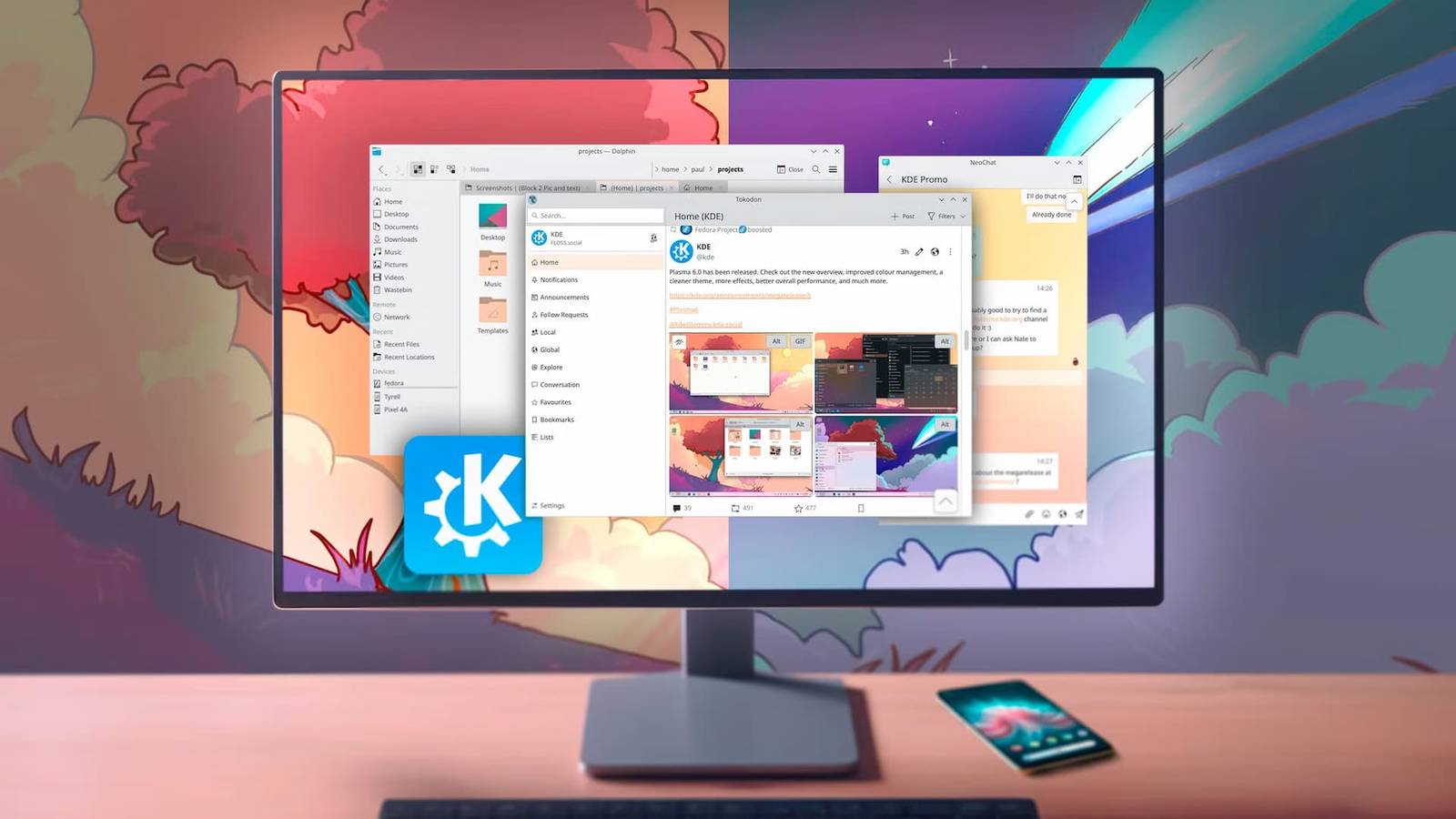
So start by exploring the options that are available, and find out what’s turned on by default.As soon as you open System Settings, you should notice the Animation speed setting, a range input that lets you set anything from Slow to Instant.This is a global setting that applies to most (but, crucially, not all) animation.
Setting it to Instant effectively disables all animation.Conversely, if you set it to the slowest speed, you’ll wonder how anyone could ever put up with windows that feel like they’re moving across a sea of treacle.The Animations section, under Appearance & Style, includes more options that apply to basic window actions such as closing or making full screen.
There’s also a series of fade effects here which I like to turn off since they can be particularly distracting, especially if several are in effect at once.Finally, there’s the Desktop Effects section under Window Management.Here, you’ll find lots of fun goodies, similar to the Compiz effects of old.
Translucency, blurred backgrounds, windows that explode: they’re all here.One thing to be aware of is that the global speed setting affects some of these, but not all.One of the settings that isn’t affected is the one that I would recommend most strongly you turn off: Wobbly Windows.
Because you can’t disable it just by setting the animation speed, it’s best to turn it off altogether.Maybe play with it once, though, just to get the novelty out of your system.It’s not that I hate Wobbly Windows, but it really doesn’t add that much.
How often are you moving windows around the screen anyway, and how likely are you to want this effect when you do? Wobbly Windows uses a lot of resources because it adds physics calculations to every window movement, entirely unnecessarily.The effect isn’t really that impressive anyway, and nowadays, it reeks of the over designed, effects-heavy interfaces of the early 2000s.Close It’s all personal preference, so find what works for you Wobbly Windows is my personal bugbear, that I’d probably turn off even if my machine were super powerful.
But an animation-free experience can be a great relief if your mind doesn’t get on well with distractions, even if your PC can manage them just fine.
Read More