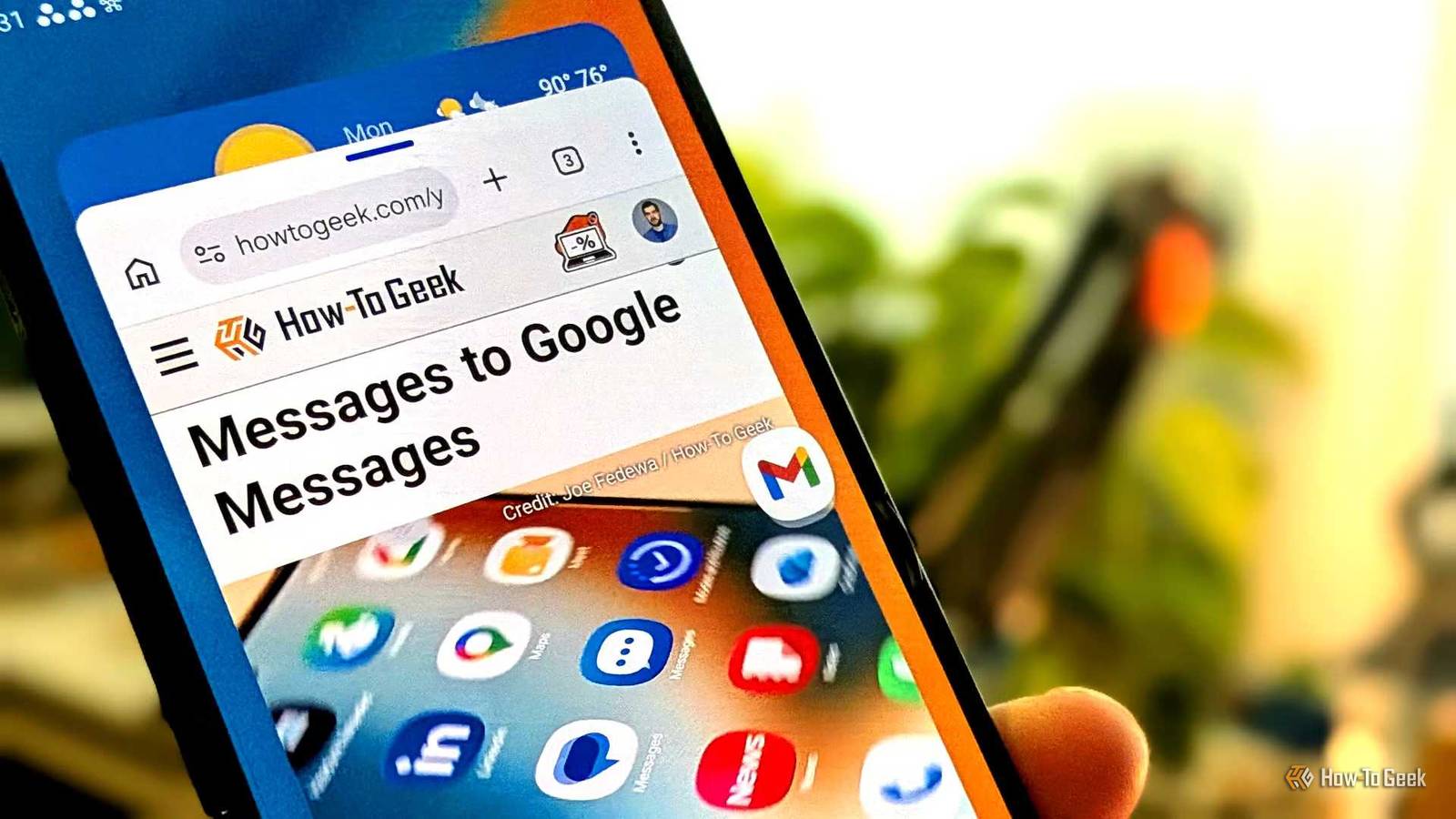
Our phones can do so much, but how much you’re willing to do depends a great deal on how much you can see on-screen and how quickly you can switch between apps.Galaxy phones come with more multitasking options than other brands, but one of the most useful ways to juggle more than one app is disabled by default.Fortunately, it’s not too hard to turn on.
Add How-To Geek on Google Add as Preferred Source Follow on Google Discover It's time you tried out Samsung's pop-up view You can turn any app into a floating window All Android phones come with multitasking baked in.The most basic version is split-screen view, which on traditional smartphones means one app occupies the top half of your screen and another the bottom.This is only marginally useful, considering many apps are barely considered functional when reduced to this size.
The 90:10 split helps, but only so much.This is why it’s worth trying out a floating pop-up window instead.Naturally, the pop-up will cover most of the app in the background, but it’s much easier to move around as needed.
I find this feature most useful when I need to open a calculator and crunch some numbers.It also works well with basic note-taking apps.While many Android phones now have this feature, Samsung’s is more flexible than most.
On a Galaxy device, there are few limitations on how you resize your app — nearly all Android apps will resize to the size and shape that you wish.Yet as nice as pop-up view may be, the feature is only useful if it’s easy to access.The question now is, what’s the fastest way to turn it on? The answer, it turns out, is a single swipe of your finger.
How to enable Samsung's “swipe for pop-up view” Turn any app into a pop-up window by swiping from the corner of your screen Close It is quite common for guides like this on Galaxy phones to require installing Samsung's secret app for customizing every aspect of your phone, but enabling pop-up view doesn’t actually require Good Lock.You merely have to open the Settings app and navigate to Advanced Features -> Multi Window.Then tap the toggle next to "Swipe for pop-up view." From there, swipe diagonally from either top corner of your screen.
Your current app will shrink into a floating window much like that of a laptop or desktop computer.At the top of the window, a horizontal bar lets you tap for window controls.Here you can minimize the app into a floating app icon, activate split screen mode, return the app to a full screen view, or close the app.
If you want, you can set these controls to be always visible.Here’s the best way to juggle multiple apps at once You can slide pop-up windows to the side of your screen Close Since pop-up windows block the apps behind them, it isn’t ideal to have more than one open at a time.This situation is only marginally improved even on a book-style foldable phone like the Galaxy Z Fold 8.
What makes these windows useful is the ability to quickly switch between multiple windows.You can do this by tucking them away at the side of your screen.No additional settings are required.
Simply place your finger at the top of a nap window and drag it over.Afterward, you will see just a thin, miniaturized sliver of the app visible.Tapping on this edge of the app restores the pop-up window to its original size.
This functionality is exclusive to Samsung.Google and Motorola allow you to shrink your floating windows down into floating app icons, like Samsung’s minimize button.Yet I'm fond of the way Samsung apps nestle off to the side.
I find this much less disruptive.Make the most of your phone by learning how to multitask Most people treat their phones as single-tasking devices, returning to the home screen or activating the recent apps view whenever they want to switch between apps, but there are now many ways to switch between multiple apps at once.Once you become familiar with multitasking on your phone (enough that it becomes muscle memory), it fundamentally changes your relationship with the device—especially if your phone has a screen big enough to make the most of it.
You can only do so much at once on a Galaxy S26 Ultra, despite its size, but the Galaxy Z Fold 8 and Z Fold 8 Ultra are another story entirely.These kinds of phones have replaced my computer and fundamentally changed my concept of what a PC even is.
Read More