Earlier this year, Google Drive lost the ability to back up folders on your PC directly to Google Photos.This was a long-time feature that many people had come to love, and it vanished with only three days' notice.Thankfully, you don't have to look as far as you might think for a replacement.
The feature was moved to Google Photos You just have to know where to look To Google's credit, when it made the announcement in August, there was a new method in place for backing up folders on a computer to Google Photos.However, this got lost in the shuffle as people were immediately upset about the removal of the Google Drive feature.You may have missed it.
Before the shutdown in August, there was an official app simply called "Google Drive for Desktop" that automatically uploaded folders from Windows or macOS to both Drive and Google Photos.Support for that app is what ended, but the functionality is now present in the Google Photos web app.Here's how to use it.
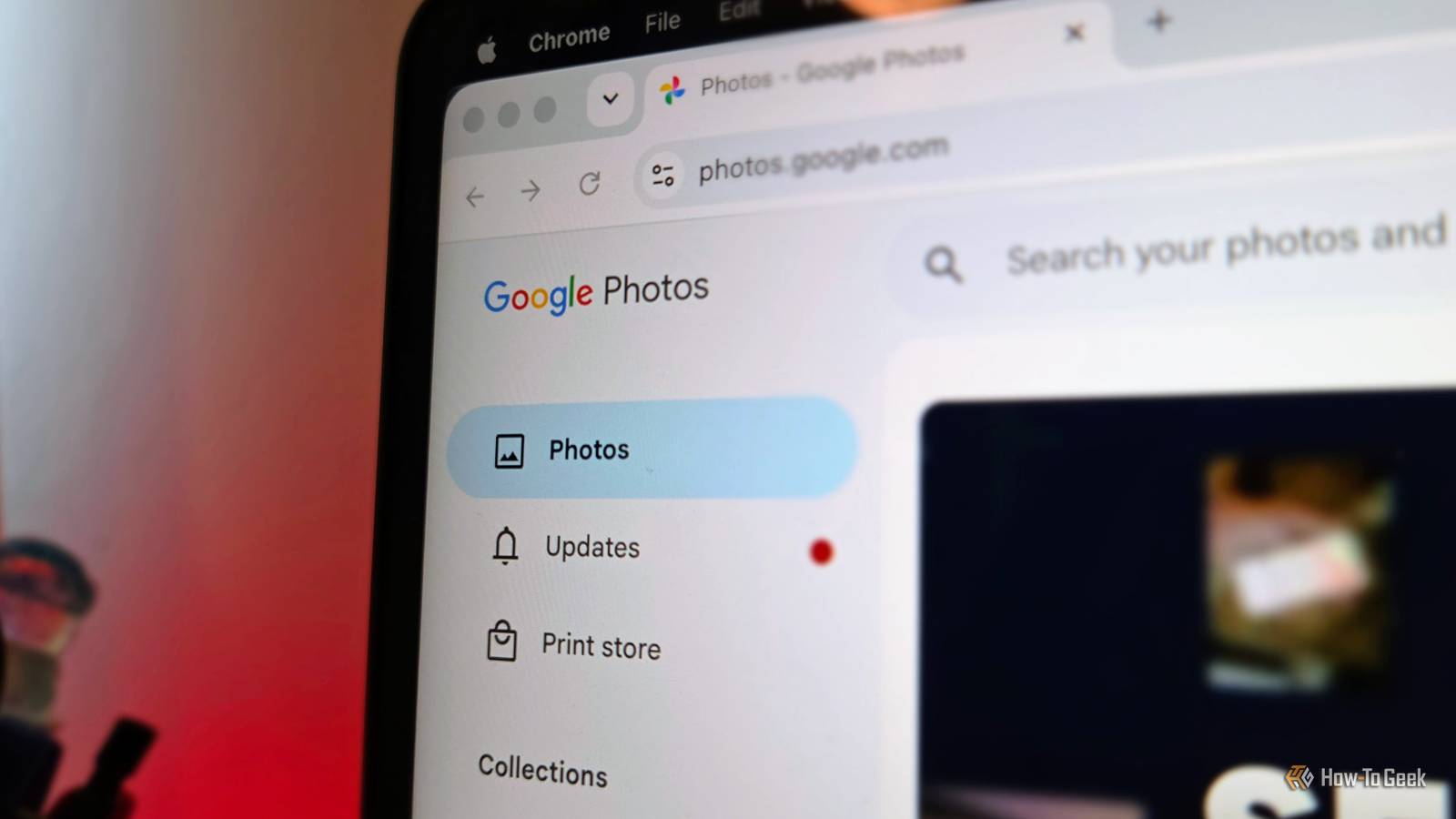
First, head over to photos.google.com in the Google Chrome browser.Unfortunately, I was not able to find the feature when using Firefox or Safari.Next, click the "+" plus icon in the right corner of the top toolbar.
Select "Back up folders" from the menu.Now you can select a folder on your PC.I created a new folder called "For Google Photos," but any folder will do.
After you select a folder, you'll need to grant the Google Photos website permission to view and copy files — click "Allow." Close You'll see a pop-up menu with the name of the folder you selected, the number of items in it, and how much storage space it uses.From here, you can click "Add folder" to add a second backup folder.Repeat these steps until you've added all the folders that you want.
To remove a folder that's being backed up, click the "+" plus icon in the right corner of the top toolbar and select "Back up folders" again.This time, click the three-dot menu icon next to the folder, and choose "Remove." A message will explain that this stops backing up, but existing photos and videos that were already backed up will remain in Google Photos.Click "Remove folder" to confirm.
Related How to Back Up Your Google Photos Library to a Hard Drive Google Photos has been my primary method for backing up photos and videos for nearly a decade.I recently had the realization that it would be Very Bad if something ever happened to it, so I finally took the time to back up all my photos to an external hard drive, too.Posts 46 By Joe Fedewa Not quite as useful, but close enough It's better than switching services This new method has one main drawback compared to the old Google Drive desktop app.
In order for it to back up photos and videos in the background, the Google Photos website must remain open in the browser.Otherwise, it will only perform a backup every time you visit the website.Now, there is a small workaround for this.
You can "install" Google Photos as an app on your computer.This way, it won't be crowding your primary browser window all the time, but it can stay alive in the background.To do this, simply click the little icon in the address bar that looks like a monitor with a down arrow.
Follow the instructions to get it installed on your specific PC, and you're good to go.One more thing you can do to ensure it works in the background is to ensure the "Background sync" permission is granted.To do this, tap the settings icon to the left of "photos.google.com" in the address bar and click "Site settings" from the menu.
Look for "Background sync" in the list of permissions and make sure it's set to "Allow." Close That's all there is to it.I will say that my experience with this new system has been mixed.Sometimes, the photos appear in Google Photos almost instantly, but other times, even with the web app installed and background sync enabled, it needs a manual refresh.
That being said, if you're already invested in the Google ecosystem, switching to a different cloud service that still offered a desktop backup app was probably a tough sell.At least this method still allows for doing the same basic thing as before — even if it is slightly more cumbersome.Related Google Photos just killed automatic PC backups—here are 4 alternatives Google Drive used to make it easy to send photos and videos from folders on your PC straight to Google Photos.
That changed when Google removed the feature from Drive for desktop.You can still back up PC folders to Google Photos, but you now have to select and manage that destination directly within the Drive for desktop app settings rather than having Drive and Photos sync automatically.Posts 2 By Rich Hein
Read More