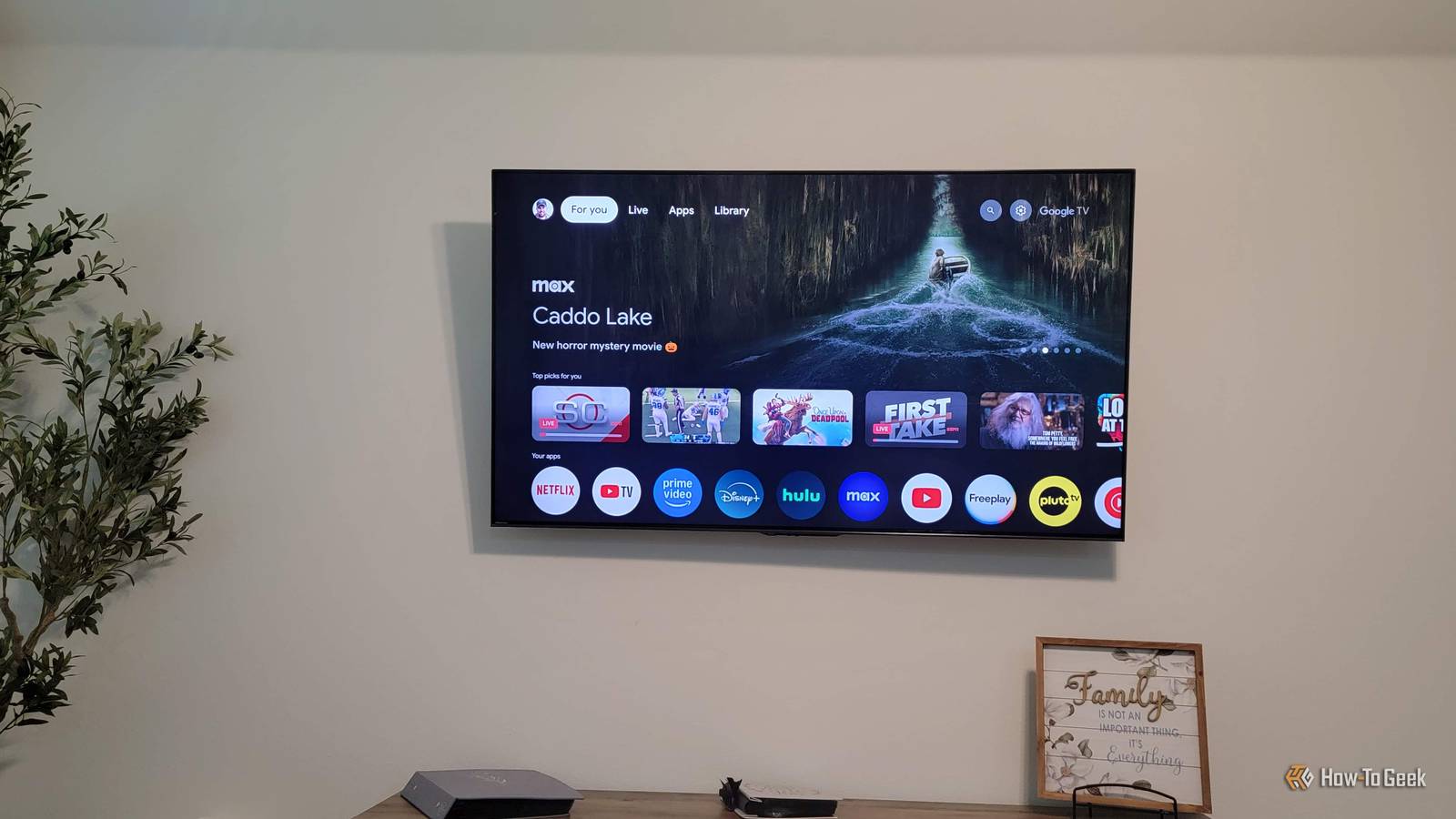
Google TVs come packed with some pretty smart tools.Part of the appeal is that they obviously come loaded with built-in connectivity features, access to many apps, and integration with your Google account.Unfortunately, this all comes with a major drawback, with your Google TV tracking your behavior and collecting tons of information about you.
Considering I mostly rely on external devices rather than the Google architecture built in to my TV, it didn't really make sense for me to be giving up my information for no reason.All I really needed my TV to be was a display.Thus, I decided to remove Google from the equation and limit how sneaky my TV was behind the scenes.
Your Google TV is tracking everything that you do Basic Mode prevents any kind of tracking Unfortunately, most modern smart TVs, including Google TVs, collect quite a lot of your data by default.It has become standard practice for smart TV manufacturers to collect a ton of information about you and your viewing habits.They use this data to suggest specific types of content for you, but more uncomfortable is the fact that they often use data to hit you with targeted advertisements.
Every action that you take on your Google TV is tracked and makes up a part of your digital fingerprint.Some people don't really have a problem with it.I can, at the very least, understand the perspective that people don't really mind having their data collected if it means that the ads that you get are more relevant.
I, however, don't subscribe to this point of view.There have been plenty of sources that have warned about the security of smart TVs, including the FBI, who claim that they can act as a gateway for hackers and TV manufacturers to directly spy on you.Beyond this, I also don't think that we should become commodities, with our information being collected and sold for a profit.
With all of it in mind, I have chosen to turn my Google TV into a "dumb TV," stopping any collection of my information and removing the risk of malicious interference.You can enable a fairly stripped-down setup for your Google TV Turn your smart TV into an offline display When setting up your Google TV, there is an option for something called 'Basic Mode'.It is exactly what it says on the box, with it being much simpler than the standard setup.
Most importantly, it means that you can use your Google TV without connecting it to a Google account or the internet.This essentially means that there is no way whatsoever for your TV to track and collect your information, making it a safer and more private environment.If, like me, you already set up your Google TV the normal way, then you're going to want to start by factory resetting your TV.
You've already given up some of your information, but you can stop all of that tracking going forward.Once you've performed a factory reset, your TV will boot into the setup menus.Depending on the manufacturer, you might encounter a couple of different menus, but the important thing is that when you see your TV giving you a choice between Set up Google TV and Set up Basic TV, you obviously opt for the latter.
You're also going to want to skip the step where it asks you to connect to an internet connection.If you still want access to things associated with the Google TV setup, we have a great guide on how to limit the data that your TV tracks as much as possible.Disable useless built-in apps and stick to your external devices You only want it to act as a display Close When setting up basic mode, your TV will tell you that you will only have access to live TV as well as any external devices.
It says that streaming apps will be disabled, you won't have access to Google Assistant, and there will be no personalization of any kind.After you've gone through the setup, you'll see that there are still some applications on your home screen, though.If you haven't connected your TV to the internet, the apps obviously won't work.
As I only wanted my TV to act as a display, I wanted the home screen to be a little cleaner.The top of the home screen will show Live TV, Inputs, and Dashboard, but below that you will still see a couple of streaming apps.By going into your settings and scrolling down to the Applications tab, you can manually disable any of the apps you want removed from your home screen.
When finished, you've essentially converted your Google TV into a "dumb TV" instead of a smart one.Instead of trusting your TV to handle your privacy and security, you can instead use an external streaming box with some more secure protocols, such as an Apple TV.You can also join the growing group of enthusiasts that are switching back to physical media instead of using streaming platforms.
Google TVs come with some serious security and privacy risks While Google TVs come with some useful added convenience, it comes with the trade-off that your privacy is compromised.Even if this isn't your main concern, there are reasons to use the basic mode.If you plan on primarily using the TV with external devices anyway, such as gaming consoles, streaming sticks, or cable boxes, then you also get rid of a pretty heavy software layer, meaning that you should get a much smoother experience.
As someone who relies mostly on external streaming devices, it didn't make any sense to compromise my security and privacy for features that I'm barely, if ever, going to use.
Read More